manuals.online logo
Brands
  1. Home
  2. •
  3. Brands
  4. •
  5. ArduCAM
  6. •
  7. 3D Camera
  8. •
  9. ArduCAM B0176 User manual

ArduCAM B0176 User manual

This manual suits for next models

1

Popular 3D Camera manuals by other brands

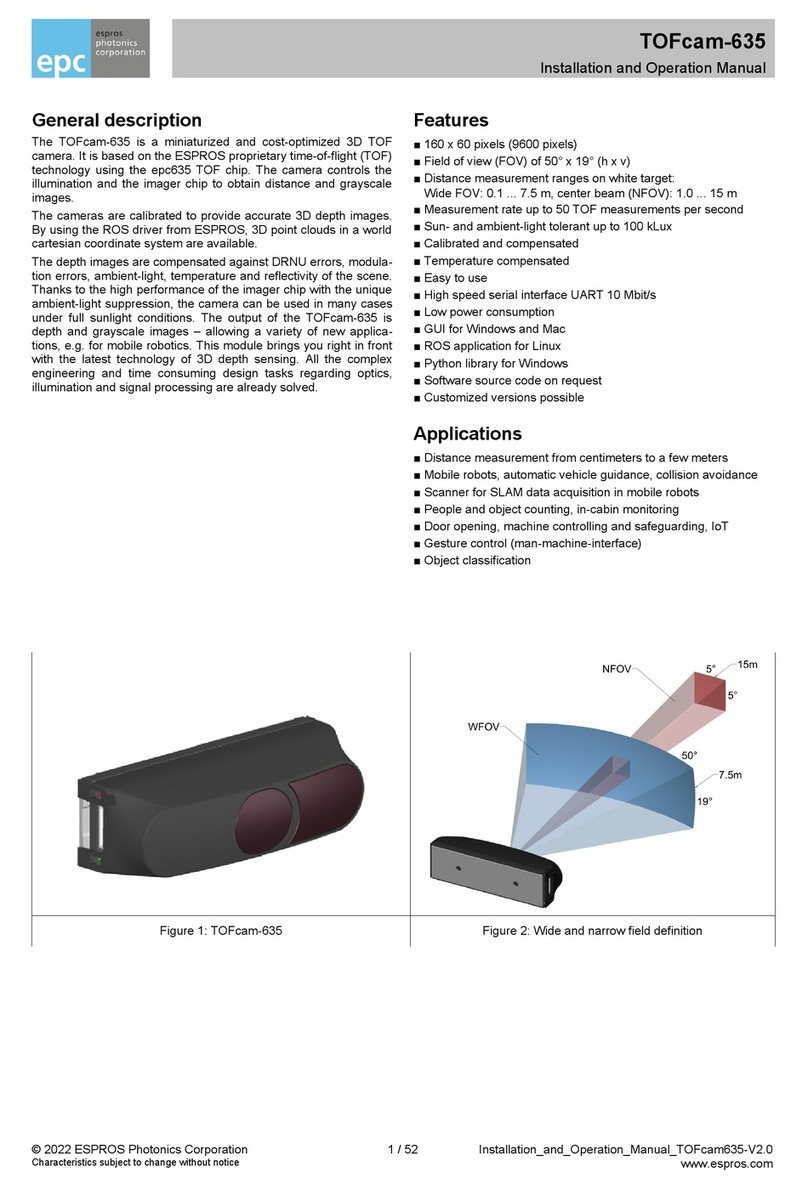
ESPROS TOFcam-635 Installation and operation manual

ESPROS

ESPROS TOFcam-635 Installation and operation manual

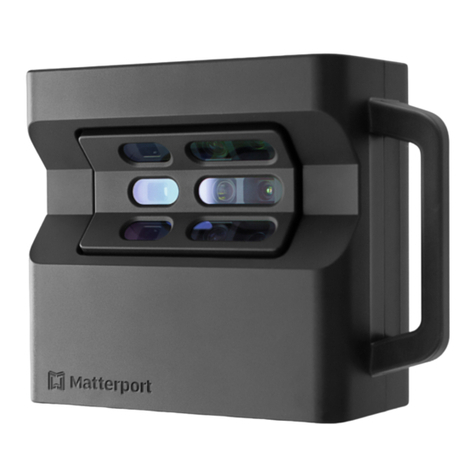
Matterport Matterport Pro2 Lite quick start guide

Matterport

Matterport Matterport Pro2 Lite quick start guide

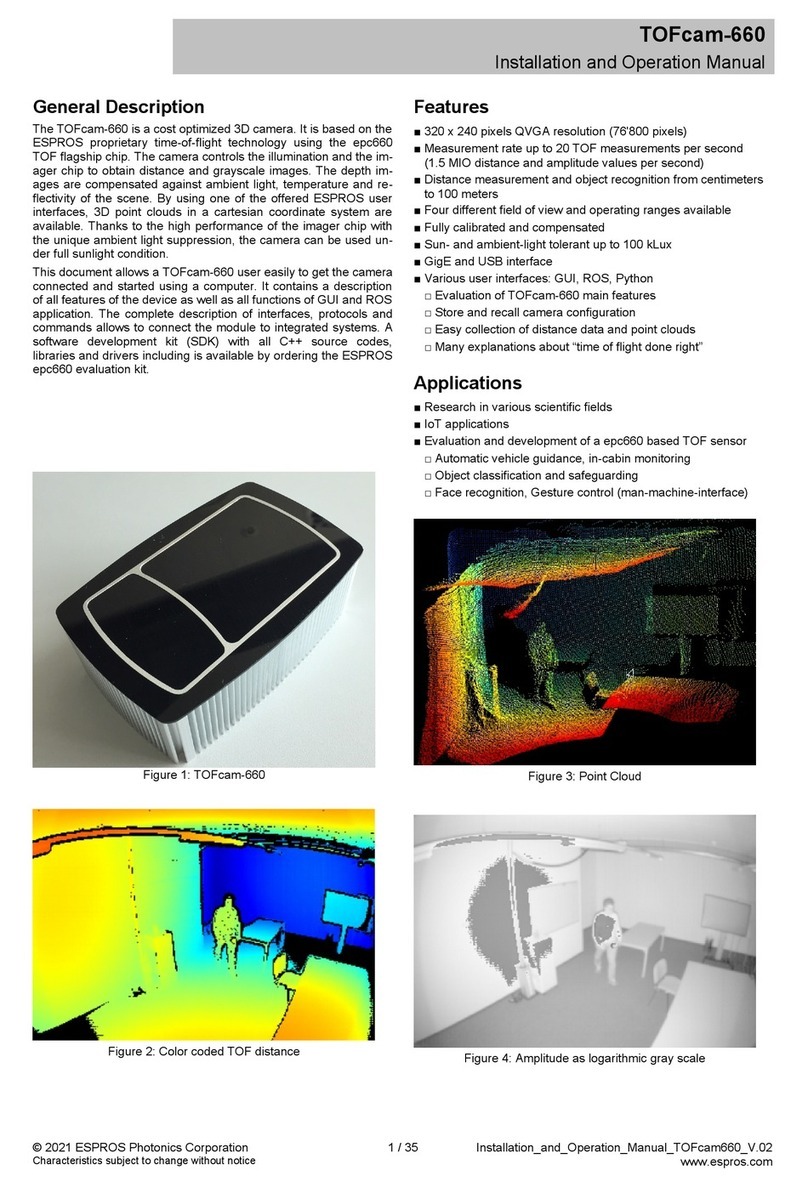
EPC TOFcam-660 Installation and operation manual

EPC

EPC TOFcam-660 Installation and operation manual

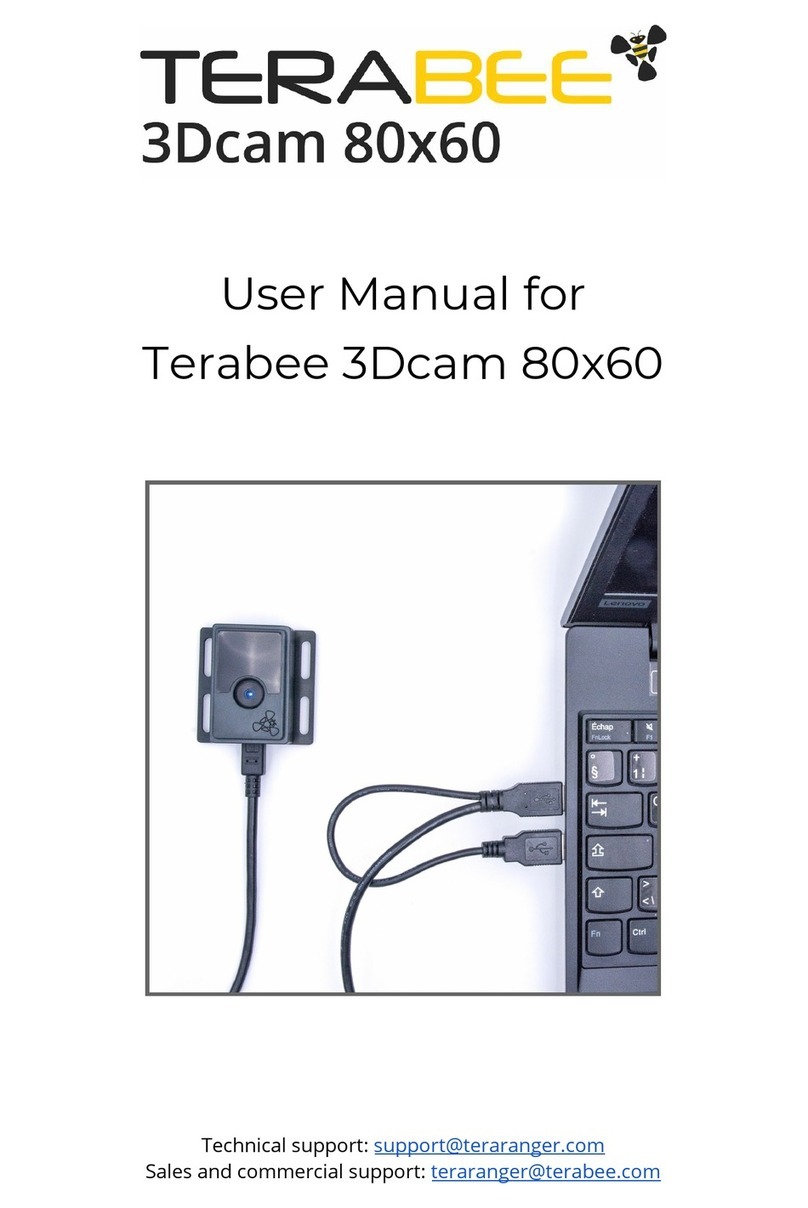
TeraBee 3Dcam 80x60 user manual

TeraBee

TeraBee 3Dcam 80x60 user manual

Weeview SID WV3000 user guide

Weeview

Weeview SID WV3000 user guide

Vecow DVC-1000 user manual

Vecow

Vecow DVC-1000 user manual

SICK Ranger3 Operation instructions

SICK

SICK Ranger3 Operation instructions

GeoCue True View 410 Hardware user's guide

GeoCue

GeoCue True View 410 Hardware user's guide

KANDA Obsidian GO user guide

KANDA

KANDA Obsidian GO user guide

GeoSlam ZEB Vision Hardware user's guide

GeoSlam

GeoSlam ZEB Vision Hardware user's guide

IFM O3X1 Series operating instructions

IFM

IFM O3X1 Series operating instructions

PMD flexx2 wide Getting started guide

PMD

PMD flexx2 wide Getting started guide

iRAYPLE 5000 Series user manual

iRAYPLE

iRAYPLE 5000 Series user manual

ORBBEC Astra 2 datasheet

ORBBEC

ORBBEC Astra 2 datasheet

meerecompany Cube Eye RS5 Series user manual

meerecompany

meerecompany Cube Eye RS5 Series user manual

Lucid Helios Flex Technical manual

Lucid

Lucid Helios Flex Technical manual

SICK Ranger E Reference manual

SICK

SICK Ranger E Reference manual

ESPROS TOFcam-660 Installation and operation manual

ESPROS

ESPROS TOFcam-660 Installation and operation manual

manuals.online logo
manuals.online logoBrands
  • About & Mission
  • Contact us
  • Privacy Policy
  • Terms and Conditions

Copyright 2025 Manuals.Online. All Rights Reserved.

QUICK START GUIDE
Motorized Focus Camera
on OctoPi
(5MP SKU: B0176) (8MP SKU: B0182)
INTRODUCTION
Most 3D models take more than a few hours to print, so you
may wish to leave the 3D printer at some point in the printing
process. Using an Arducam camera to monitor 3D printing can
make you pay close attention to your creation. Since most
cameras are not made specifically for the use of 3D printing
software, it is impossible to obtain proper support from the
manufacturer.
Fortunately, Arducam can help you solve all installation and
setup problems. In this manual, we will introduce the method
to use Arducam motorized focus camera modules to monitor
3D printers, which can see much closer than the fixed focus
lens.
Getting started here!
SOFTWARE SETUP
To facilitate copying, please refer to doc page:
https://www.arducam.com/docs/cameras-for-raspberry-pi/
native-raspberry-pi-cameras/how-to-use-arducam-motorized
-focus-camera-with-octopi-to-monitor-3d-printers/
We will keep online up-to-date continuously.
1. Download and install OctoPi
If you have been accomplished OctoPi installation and WiFi
setup, please go to the chapter on How to use the motorized
focus camera.
1.1. Download link: https://octoprint.org/download/
SOFTWARE SETUP
The page also includes basic installation directions as well as
a video describing the installation process.
1.2. Configure WiFi
After you have successfully downloaded the OctoPi image
and “burned” it onto your SD card, you can start to set up
WiFi. More about WiFi setup and troubleshooting refer to this
link: https://community.octoprint.org/t/wifi-setup-and-
troubleshooting/184
2. How to use the motorized focus cam-
era
2.1. Connect to the camera and reboot it
2.2. Detect the camera
2.3. Download and Install Arducam camera focus control
plugin
• Arducam camera focus control plugin
This plugin is to control an Arducam motorized focus camera
using the OctoPrint Control tab.
sudo reboot
vcgencmd get_camera
SOFTWARE SETUP
It utilizes these custom commands from your slicer to adjust
focus while printing: @ARDUCAMFOCUSSET <ABS-FOCUS>
to specify an absolute focus. This command is handy to reset
the focus when starting a new print after a power failure.
Example: @ARDUCAMFOCUSSET 100 will move the focus to
100.
The entire range is 0~1023. Setting 0 corresponds to infinity,
and setting 1023 corresponds to a close focal length of about
5CM.
• Enable I2C Interface
The plugin uses I2C to communicate with the camera. Howev-
er, I2C is not enabled by default. The Arducam Focus plugin
will not function until you enable I2C.

SOFTWARE SETUP
Please ssh to your Octopi and enter these commands (This
only needs to be done once):
Step 1. Enable I2C Interface
Add the following command at the end of the config.txt
Then save and exit.
Reboot the system
Step 2. Install the Smbus
Step 3. Download the Plugin
After you reboot, the camera should become opera-
tional in OctoPrint.
sudo nano /boot/config.txt
dtparam=i2c_vc=on
dtparam=i2c_arm=on
Sudo reboot
sudo apt-get install -y python3-smbus
/home/pi/oprint/bin/pip install
https://github.com/arducam/ArducamCameraControl/archive/master.zip
SOFTWARE SETUP
Open up the Octopi login page: http://[IP]/
#control, please note that the [IP] should be re-
placed with address shown in the figure below.
Now you can view the Arducam Focus Control
interface and use the tab to adjust focus.
wlan0: ags-4163<UP, BROADCAST,RUNNING,MULTICAST> MTU 1500
Inet 192.168.0.52 netmask 255.255.255.0 broadcast 192.168.0.255
TROUBLESHOOTING
1. Failed to run camera with raspstill
The raspistill requires full access to the camera device when it
runs, which is being locked by the webcamd service. You
would have to stop the webcamd service in order to use the
raspistill. Otherwise, you will not be able to open the camera.