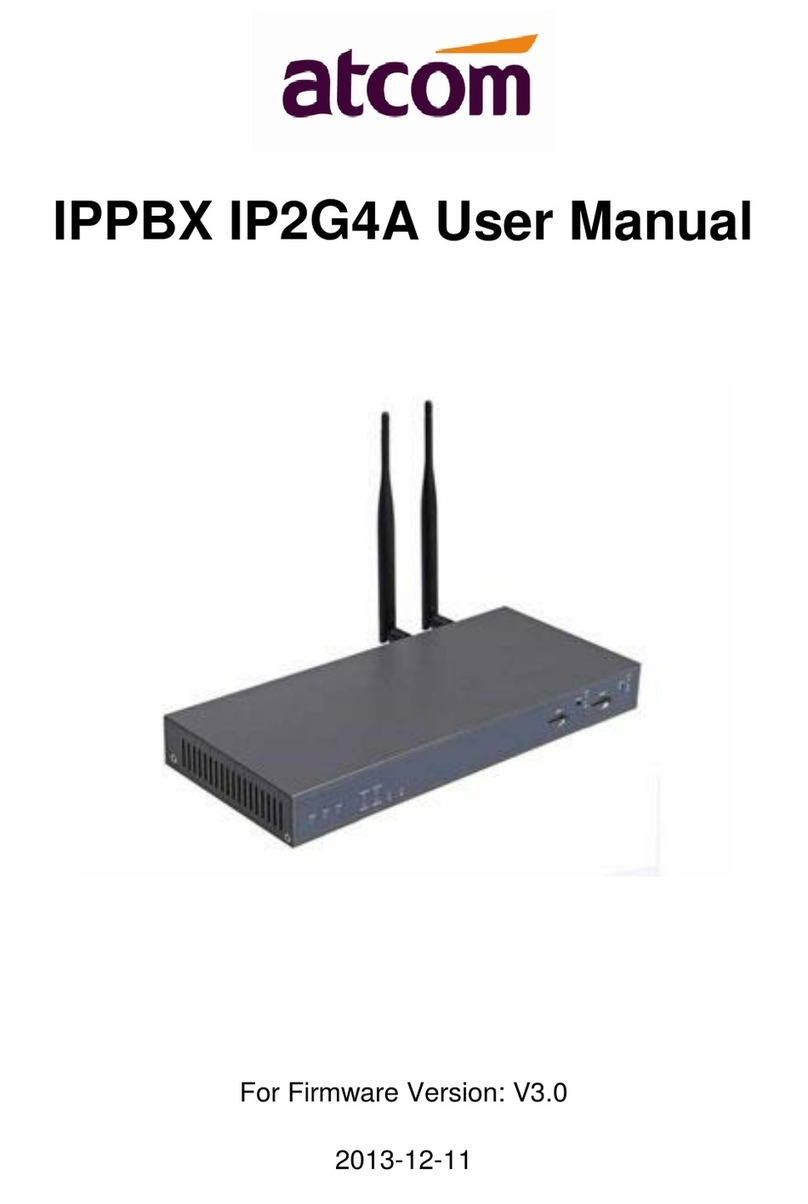
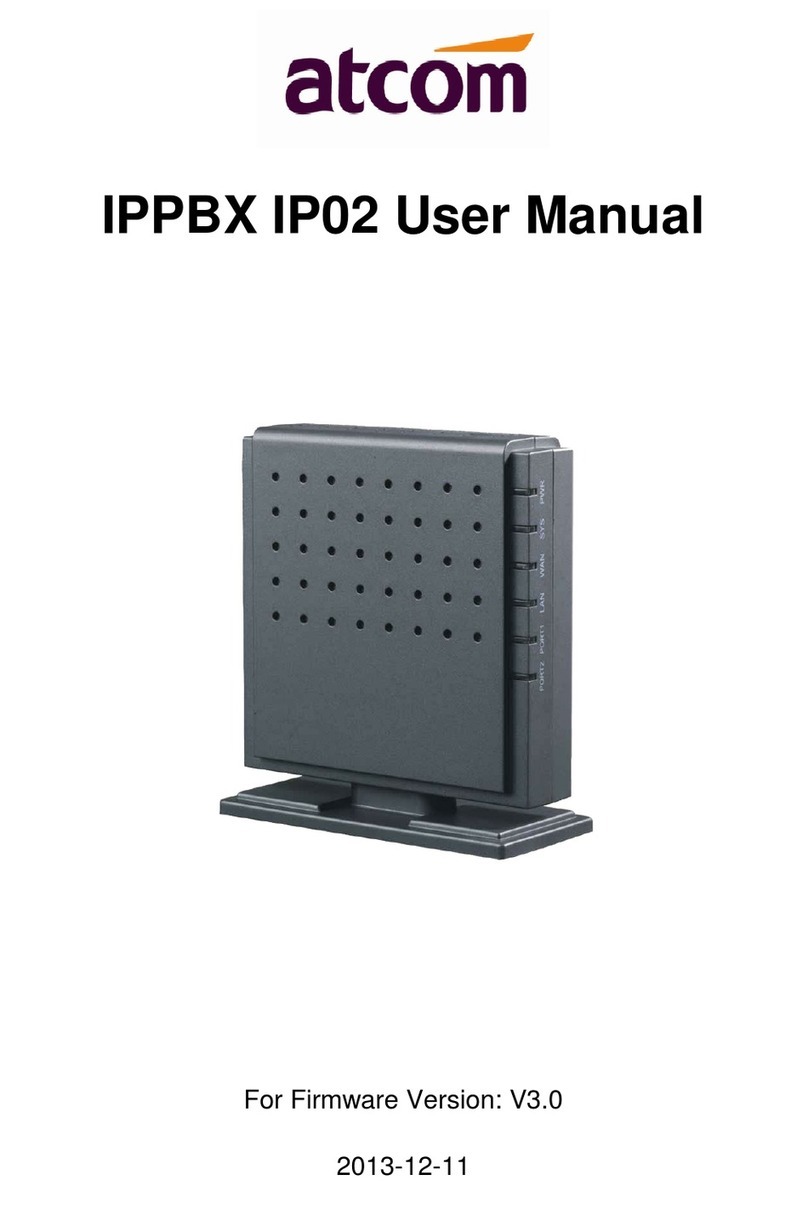
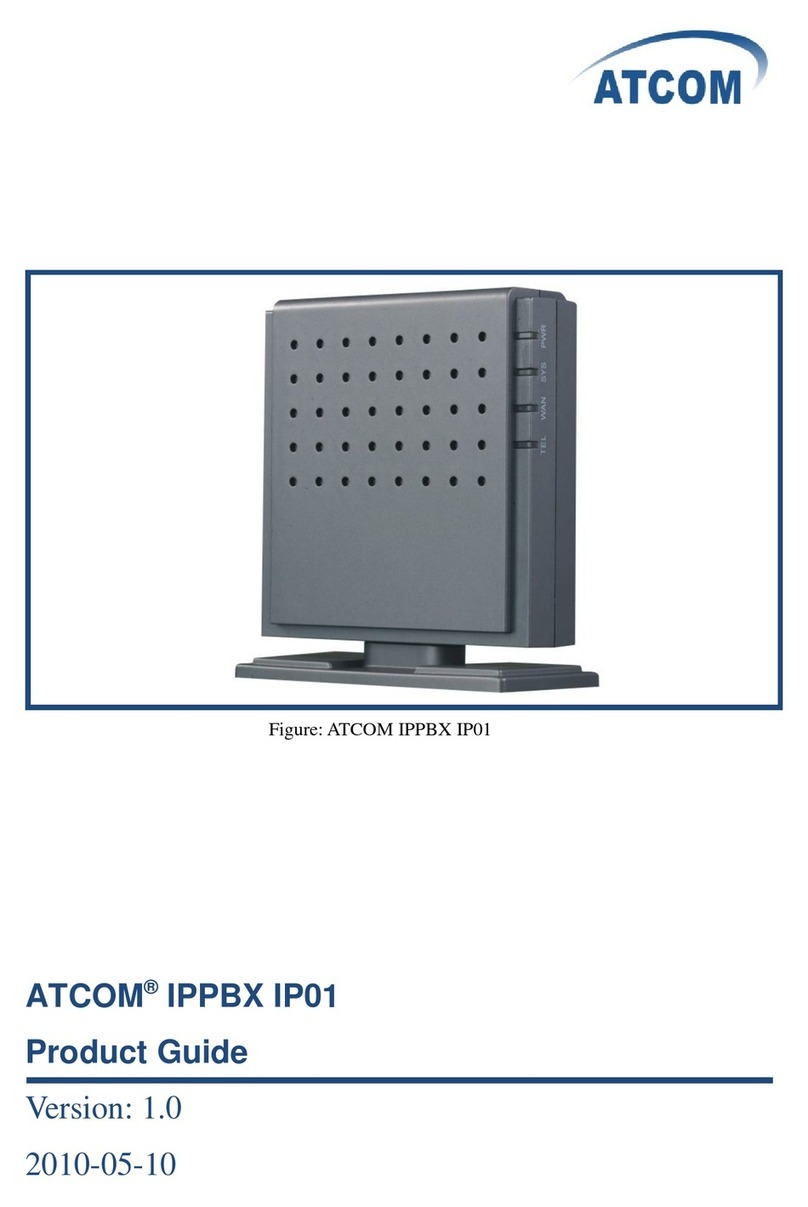
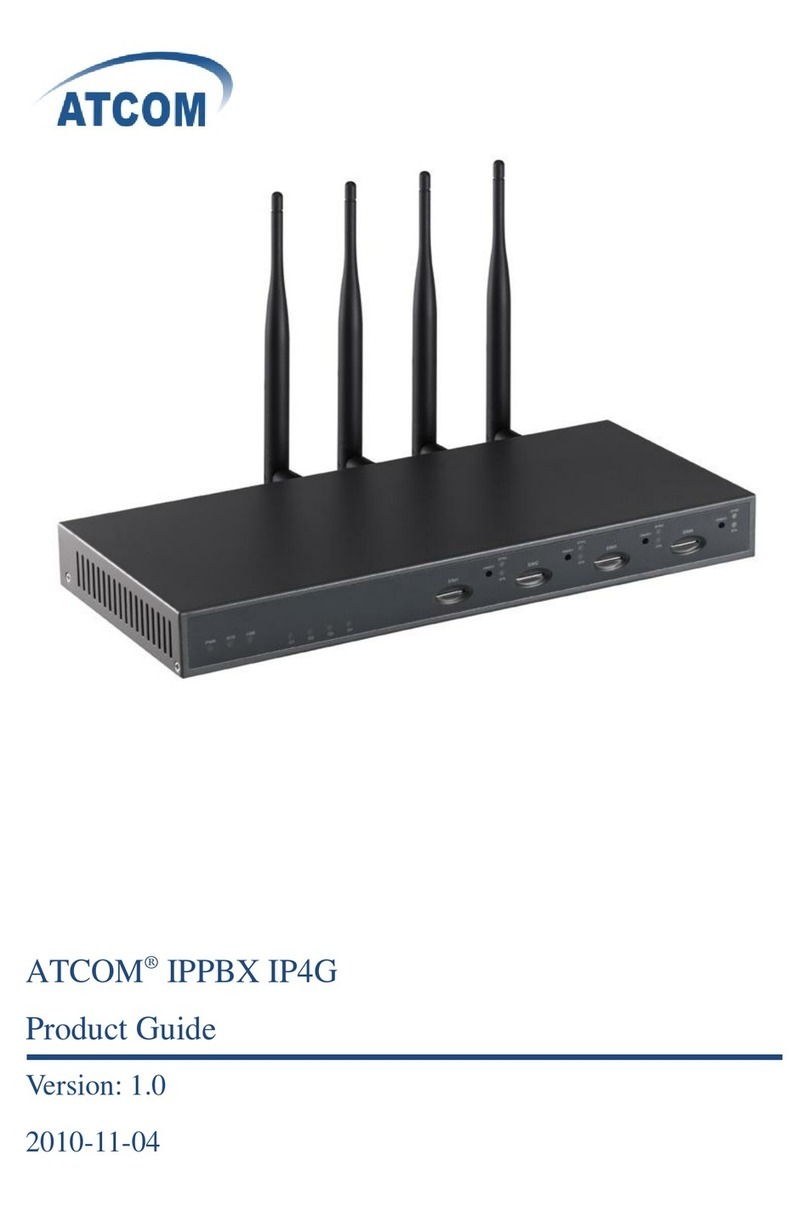
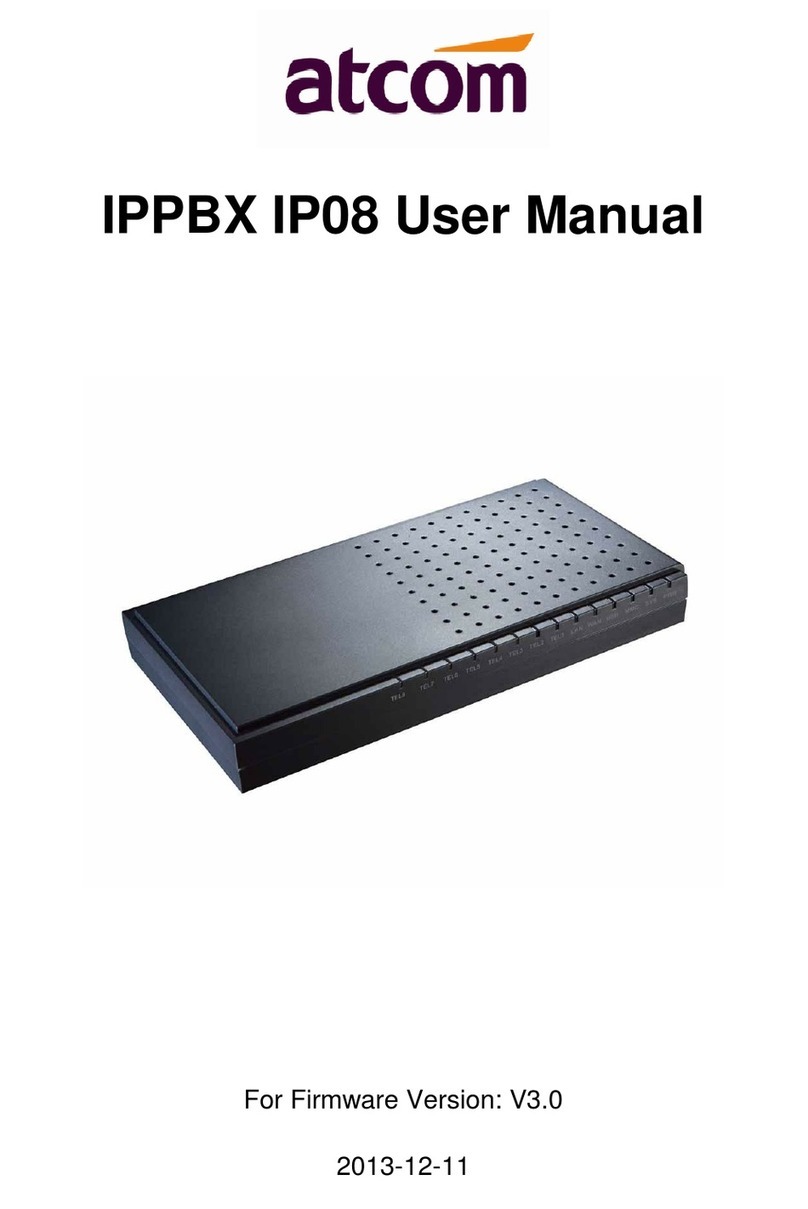
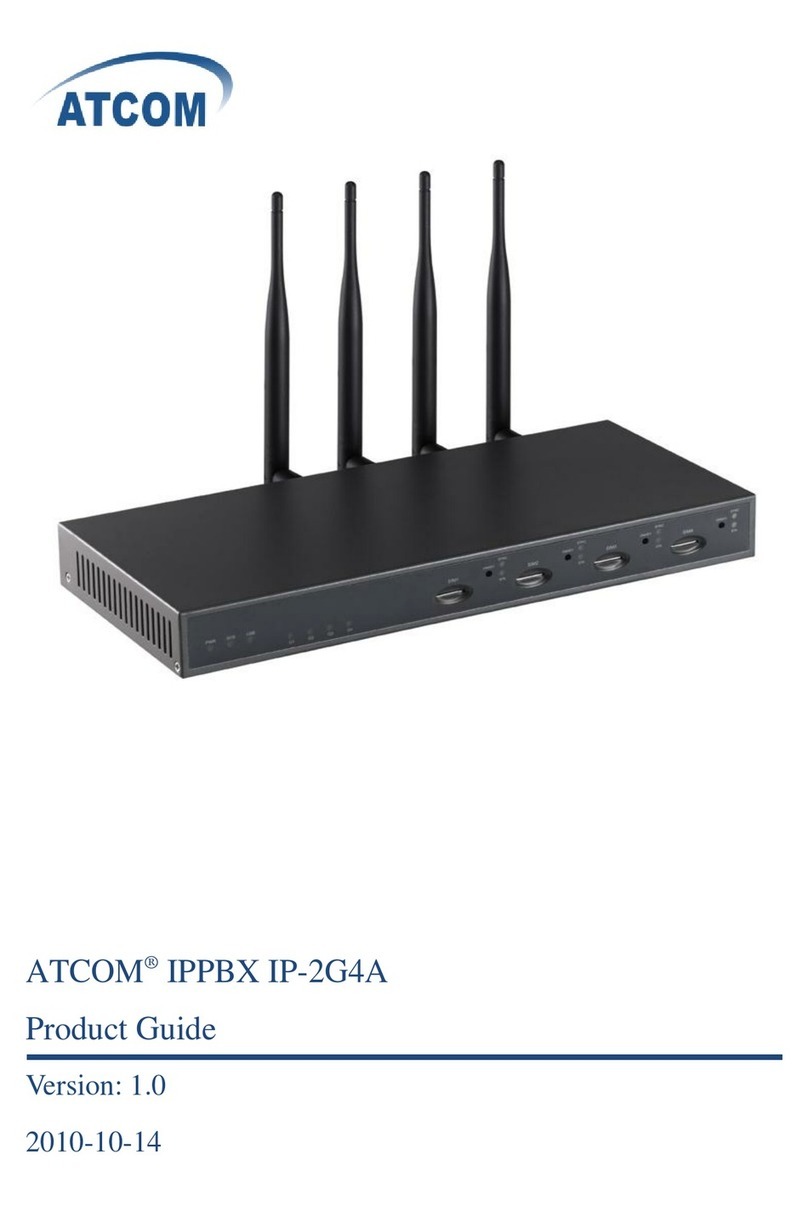
ATCOM IPPBX IP08 User manual

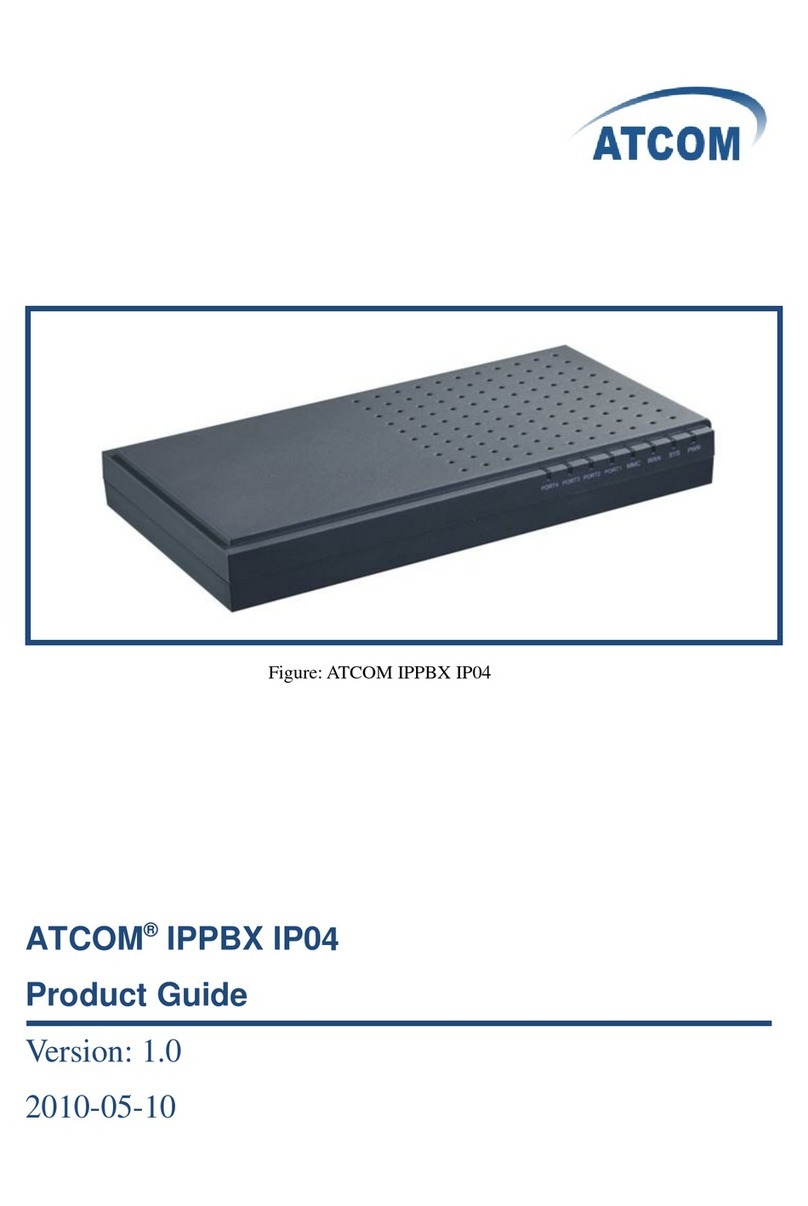
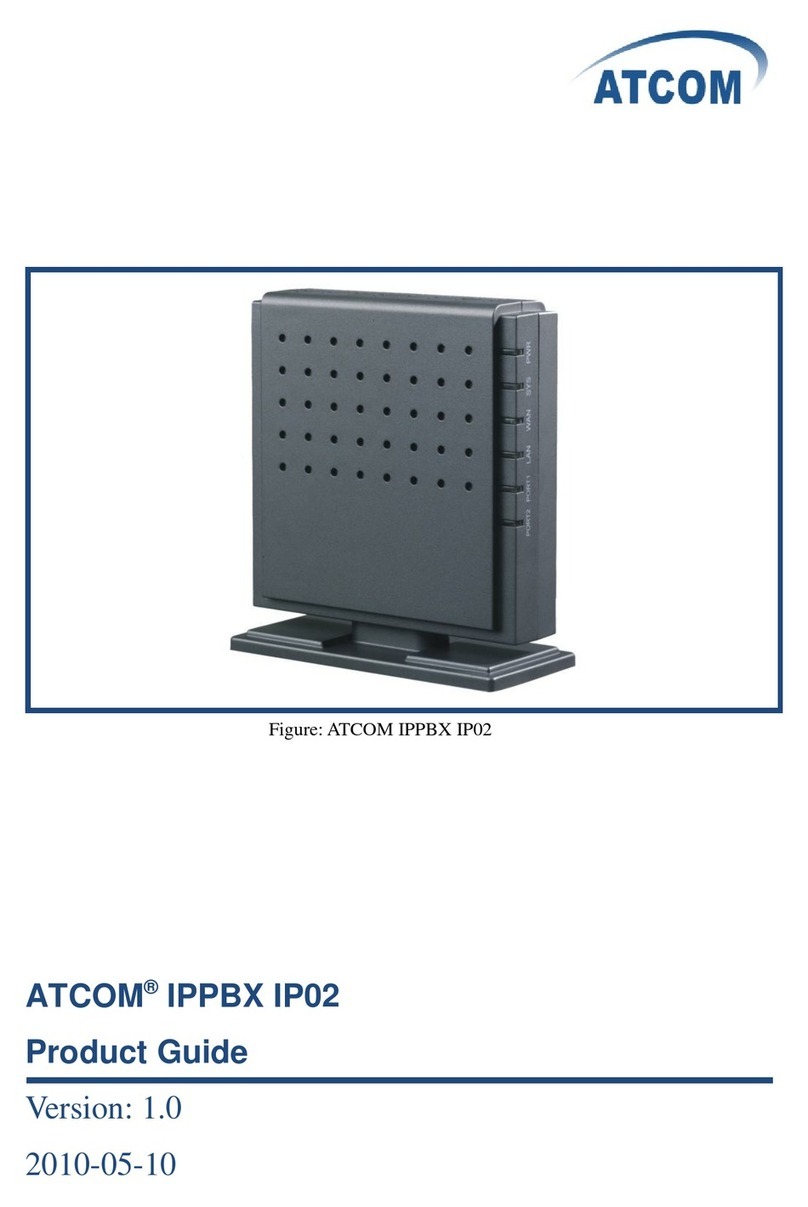
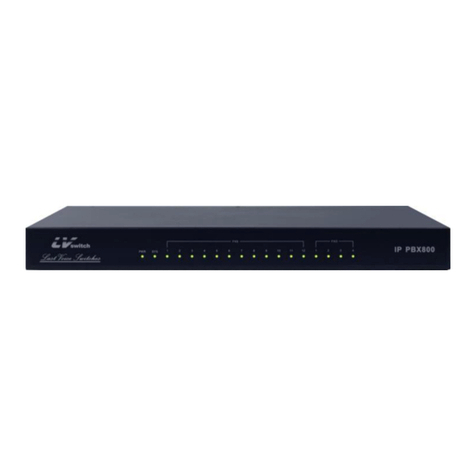
Figure: ATCOM IPPBX IP08
ATCOM®IPPBX IP08
Product Guide
Version: 1.0
2010-05-10

www.atcom.cn 1
Content
CONTACT ATCOM ...............................................................................................................................3
CHAPTER 1 THE INTRODUCTION OF IP08............................................................................................4
CHAPTER 2 ACCESS TO THE IP08.........................................................................................................7
2.1 WEB PAGE ACCESS BY BROWSER ............................................................................................................7
2.2 SSH ACCESS BY PUTTY..........................................................................................................................8
2.3 ACCESS BY BROWSER WITH FALLBACK IP ADDRESS ...................................................................................10
2.4 CONSOLE PORT ACCESS TO IP08 ..........................................................................................................10
CHAPTER 3 CONFIGURE IP08 BY WEB GUI ........................................................................................ 12
3.1 SYSTEM STATUS .................................................................................................................................12
3.2 CONFIGURE HARDWARE......................................................................................................................12
3.3 TRUNKS ...........................................................................................................................................12
3.3.1 Create Analog Trunks ............................................................................................................13
3.3.2 VoIP Trunks ............................................................................................................................14
3.4 OUTGOING CALLING RULES .................................................................................................................14
3.5 DIAL PLANS ......................................................................................................................................16
3.6 USERS .............................................................................................................................................16
3.6.1 Create SIP/IAX User ...............................................................................................................17
3.6.2 Create Analog User................................................................................................................18
3.7 RING GROUPS...................................................................................................................................19
3.8 CALL QUEUES ...................................................................................................................................21
3.9 VOICE MENUS ..................................................................................................................................22
3.10 TIME INTERVALS ..............................................................................................................................23
3.11 INCOMING CALLING RULES ................................................................................................................24
3.12 VOICEMAIL.....................................................................................................................................25
3.13 CONFERENCING...............................................................................................................................26
3.14 FOLLOW ME................................................................................................................................... 27
3.15 VOICEMAIL GROUPS ........................................................................................................................29
3.16 VOICE MENU PROMPTS....................................................................................................................30
3.17 SYSTEM INFO ..................................................................................................................................31
3.18 BACKUP .........................................................................................................................................33
3.19 ACTIVE CHANNELS ...........................................................................................................................34
3.20 OPTIONS........................................................................................................................................35
3.21 ASTERISK LOGS................................................................................................................................37
3.22 BULK ADD......................................................................................................................................38
3.23 FILE EDITOR....................................................................................................................................39
3.24 ASTERISK CLI..................................................................................................................................40
3.25 NETWORK SETTINGS ........................................................................................................................40
3.26 FIRMWARE UPDATE..........................................................................................................................41
3.26.1 Download the Latest Firmware File and Set up TFTP Server. ..............................................41

www.atcom.cn 2
3.26.2 Update for IP08 from Web Page..........................................................................................42
3.27 CALL DETAIL RECORDS ......................................................................................................................43
CHAPTER 4 AN APPLICATION CASE OF IP08 ......................................................................................44
4.1 HOW TO MAKE INTERNAL CALLS THROUGH IP08.....................................................................................45
4.1.1 Access to the Web Page of IP08 by Browser..........................................................................45
4.1.2 Add up Users from Web Page of IP08....................................................................................45
4.1.3 Register a SIP user 6001 in AT610 .........................................................................................47
4.2 HOW TO MAKE A CALL TO 0UTSIDE THROUGH PSTN................................................................................48
4.2.1 Create an Analog Trunk .........................................................................................................48
4.2.2 Create an Outgoing Calling Rule ...........................................................................................49
4.2.3 Create a Dial Plan ..................................................................................................................49
4.2.4 Create a User.........................................................................................................................50
4.3 HOW TO GET AN INCOMING CALL FROM OUTSIDE ....................................................................................50
4.3.1 Create an Analog Trunk .........................................................................................................50
4.3.2 Create an Incoming Calling Rule............................................................................................50
4.3.3 Create a Voice Menu .............................................................................................................51
4.4 HOW TO CALL EACH OTHER DIRECTLY FROM DIFFERENT NETWORK SEGMENT. ..............................................51
4.5 HOW TO CALL THROUGH VOIP TRUNK...................................................................................................55
4.5.1 Call from IP08 to IP04............................................................................................................55
4.5.2 Call from IP04 to IP08............................................................................................................58
4.6 HOW TO TRANSFER FILES BETWEEN WINDOWS PC AND IP08 ....................................................................61
CHAPTER 5 REFERENCE .................................................................................................................... 63

www.atcom.cn 3
Contact ATCOM
The Introduction of ATCOM
Founded in 1998, ATCOM technology has been always endeavoring in the R&D and
manufacturing of the internet communication terminals. The product line of ATCOM includes IP
Phone, USB Phone, IP PBX, VoIP gateway and Asterisk Card.
Contact Sales:
Address
FL2, Block 3, HuangGuan Technology Park, #21 Tairan 9th Rd, Chegongmiao,
Futian District, Shenzhen China, 518040
Tel
+(86)755-23487618
Fax
+(86)755-23485319
E-mail
sales@atcomemail.com
Contact Technical Support:
Tel
+(86)755-23481119
E-mail
Support@atcomemail.com
Website Address: http://www.atcom.cn/
ATCOM Wiki Website:http://www.openippbx.org/index.php?title=Main_Page
Download Center: http://www.atcom.cn/download.html

www.atcom.cn 4
Chapter 1 the Introduction of IP08
Overview of the IP08
The IP08 is a complete Asterisk Appliance with four Dual ports FXO or FXS modules. It is an
embedded open source Linux system with built-in SIP/IAX2 proxy server and NAT features. It
provides a solid, uniform platform for traditional PSTN communications as well as VoIP
communications.
Targeting for SOHO user and SMB market with an easy to use graphical interface, IP08 provides a
cost-saving solution on their telecommunication/data needs. With IP08, company with branch
offices in different countries can be easily combined together to work like a virtual single office
through internet.
Features
Open Source Asterisk IP PBX
High performance OSLEC (Open Source Line Echo Canceller)
Configurable IVR menu
Voice Mail, Voicemail to Email
Call forward, call waiting, call transfer
Call conference
Call queues, Ring group
SIP trunk, IAX trunk, PSTN analog trunk
Call Detail Record
Access via: SSH/telnet/web
Firmware upgradable via web page
50+ available SIP/IAX2 extensions
20 concurrent calls
Applications
SOHO/SMB telephony system
Hosted service
FAX terminal
IVR system
Interface
2 * RJ45 port
1 * Power port
1 * MMC/SD slot
8 * RJ11 port (FXS/FXO interchangeable)
4 * Dual port FXO/FXS module slot
1 * USB port

www.atcom.cn 5
Hardware
CPU: 400MHz Blackfin 532 Chip
Eight analog (FXO/FXS) module interface.
NAND flash 256 MB
SDRAM 64M
System
Open Source uClinux
Measurement and Weight
Inner box
225 * 120 * 30mm
G.W./unit
0.79KG
Carton MEAS
456 * 442 * 362 mm
Units per Carton
21 units/ CTN
G.W./CTN
18 KG/CTN
Package
Item
Quantity
IP08
1
RS232 module
1
Power Adapter
1
Manual (disk)
1

www.atcom.cn 6
For the usage of IP08 in VoIP field, you can refer to the following network topology.

www.atcom.cn 7
Chapter 2 Access to the IP08
You need a PC to access to the IP08, there are four ways for you to access the IP08:
1. Web page access by browser
2. SSH access by putty
3. Access by browser with Fallback IPAddress
4. Console port access by RS232 console cable
In order to access to IP08 by the first three ways, you have to check that if your network
connection between IP08 and PC is OK. If you do not have network connection between IP08 and
PC, you can try to use the last way to access to IP08 and change the IP address for IP-08.
2.1 Web Page Access by Browser
It is the most convenient and common way to access the IP08, you just need to open your browser
and input the IP address of IP08 WAN port (the default IP address is 192.168.1.100). You would
better use Firefox instead of IE, because there are compatible issues.
Then input the default Username: admin; Password: atcom (the password of old version is
mysecret) in the presented screen like the following:
When you login successfully, you can get the configuration web page as below:

www.atcom.cn 8
2.2 SSH Access by Putty
Logging into IP08 by SSH, you can configure IP08 by Linux command.
1) Please open your putty software, and input the IP08 IP address in the Host Name textbox,
input port number in the Port textbox, click the SSH Connection type, then click open button.
Please refer to the following screen:
2) Please input username: root, and the default password: 12xerXes16 in the following screen,
you can access to IP08 successfully.

www.atcom.cn 9
When you log into IP08 successfully, you can get the following illustration:
Other manuals for IPPBX IP08
2
Table of contents
Other ATCOM PBX manuals

ATCOM
ATCOM IPPBX IP02 User manual

ATCOM
ATCOM IPPBX IP-2G4A User manual

ATCOM
ATCOM IPPBX IP01 User manual

ATCOM
ATCOM IPPBX IP4G User manual

ATCOM
ATCOM IPPBX IP02 User manual

ATCOM
ATCOM IPPBX IP04 User manual

ATCOM
ATCOM IPPBX IP04 User manual

ATCOM
ATCOM IPPBX IP01 User manual

ATCOM
ATCOM IP-01P User manual

ATCOM
ATCOM APBX IP4G User manual
Popular PBX manuals by other brands

Rauland-Borg
Rauland-Borg Telecenter IV Installation

Grandstream Networks
Grandstream Networks UCM6208 Quick installation guide

Panasonic
Panasonic KX-TVS50 - 2 Port Voicemail System installation manual

bintec elmeg
bintec elmeg elmeg hybird 600 installation guide

Panasonic
Panasonic KX-NS300 Getting started

MCK
MCK EXTender PBXgateway Quick installation guide