manuals.online logo
Brands
  1. Home
  2. •
  3. Brands
  4. •
  5. ATTO Technology
  6. •
  7. Network Accessories
  8. •
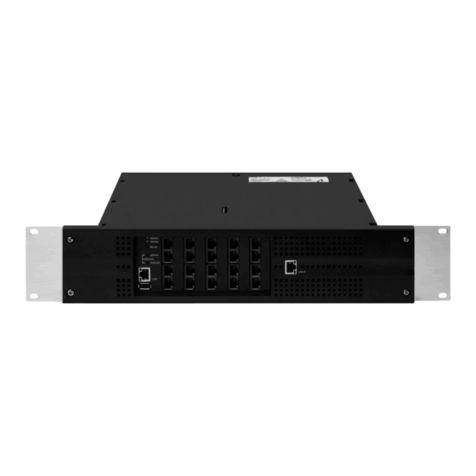
  9. ATTO Technology FastStream SC 7500 User manual

ATTO Technology FastStream SC 7500 User manual

Popular Network Accessories manuals by other brands

Valcom VIP-804 user guide

Valcom

Valcom VIP-804 user guide

SKUTCH BA-1000 Technical reference manual

SKUTCH

SKUTCH BA-1000 Technical reference manual

Asus AAEON FWS-2365 user manual

Asus

Asus AAEON FWS-2365 user manual

AMCI RBE2-8 user manual

AMCI

AMCI RBE2-8 user manual

Cisco ONS 15600 Reference manual

Cisco

Cisco ONS 15600 Reference manual

Optimus UMX-MC6 operating instructions

Optimus

Optimus UMX-MC6 operating instructions

AMG Systems AMG2783R-1-DR-SF instruction manual

AMG Systems

AMG Systems AMG2783R-1-DR-SF instruction manual

SamKnows whitebox version 1 installation instructions

SamKnows

SamKnows whitebox version 1 installation instructions

Infra Cool F-1.3 user manual

Infra Cool

Infra Cool F-1.3 user manual

Devolo dLAN 200 AVsmart+ Technical data

Devolo

Devolo dLAN 200 AVsmart+ Technical data

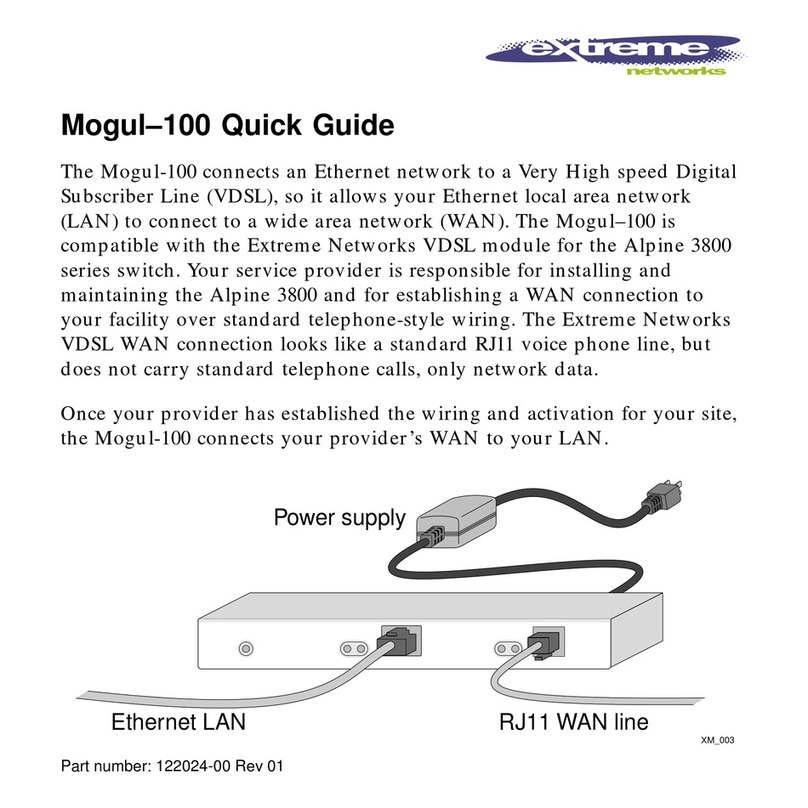
Extreme Networks PoS Installation and user guide

Extreme Networks

Extreme Networks PoS Installation and user guide

Valcom VIP-821 user guide

Valcom

Valcom VIP-821 user guide

Tyco Electronics FIST-GPS2-J installation instructions

Tyco Electronics

Tyco Electronics FIST-GPS2-J installation instructions

AMG Systems AMG5424R instruction manual

AMG Systems

AMG Systems AMG5424R instruction manual

Cisco ONS 15600 Reference manual

Cisco

Cisco ONS 15600 Reference manual

Black Box TS605A Specifications

Black Box

Black Box TS605A Specifications

Black Box ME745A-M-R2 Specifications

Black Box

Black Box ME745A-M-R2 Specifications

NEC Univerge SV9100 installation manual

NEC

NEC Univerge SV9100 installation manual

manuals.online logo
manuals.online logoBrands
  • About & Mission
  • Contact us
  • Privacy Policy
  • Terms and Conditions

Copyright 2025 Manuals.Online. All Rights Reserved.

© 2007 ATTO Technology, Inc. All rights reserved. All brand or product names are trademarks of their respective holders. No part of this guide may be
reproduced in any form or by any means without the express written permission of ATTO Technology, Inc.
6/2007
............
Document Control Number:
PRMA-0394-000
FastStream SC 7500 Quick Start Guide
For details on mounting, physical connections and network configuration, refer to the
Installation and Operation Manual on the CD packed with your FastStream™.
Unpacking the packing box; verifying contents
• The FastStream. Note the serial number of your
FastStream unit: ________________________
• Power cord
• Brackets and screws for mounting into a 19” rack
• Ethernet cable
• RS 232 cable
• CD which includes the Firmware, Installation and
Operation Manual, QuickNAV™ IP discovery program
and system drivers
Install the FastStream
1 Place the FastStream on a stable flat surface or install
it into a standard rack.
If installing into a rack, refer to Exhibit 1:
a. Attach the brackets to both sides of the FastStream
enclosure.
b. Install the FastStream assembly horizontally within
the rack so it does not reduce the air flow within the
rack.
For the following steps, see Exhibit 2.
2 Connect the host computer to Fibre Channel ports
using SFPs and multimode fiber optic cables.
3 Connect and power up SAS/SATA target devices.
4 Connect the Ethernet port to your network.
5 Connect the AC power cord from the FastStream to the
proper AC source outlet.
CAUTIONCAUTION
The power source must be connected to a
protective earth ground and comply with local
electrical codes. Improper grounding may result in
an electrical shock or damage to the unit.
If you installing into a rack:
• Properly ground the FastStream to the rack
equipment. The earth ground connection must be
maintained.
• The power requirements plus the power draw of the
other equipment in the rack must not overload the
supply circuit and/or wiring of the rack.
6 Use the power switch to turn on power to the
FastStream.
7 Wait up to two minutes for the FastStream Ready LED
to light indicating the FastStream has completed its
power-on self test sequence.
8 Windows
®
users continue to Install Windows drivers;
Mac
®
users continue to Discover the IP address.
Install Windows drivers
1 Windows automatically detects the FastStream and
asks for the driver in the Add Hardware wizard. Select
Install from a list or specific location.
2 Click Next.
3 Choose Don’t Search.
4 Click Next.
5 Choose Have disk.
6 Specify the driver as found in the PC folder in the setup
CD. The files are in a folder based on your operating
system: Win2K drivers for Windows 2000 and Windows
XP/2003 drivers for all 2003 Server products.
Note
Use the files directly from the CD or copy them onto a
floppy or to a local directory on your hard drive.
7 Follow the remaining instructions to complete the
installation procedure.
8 After the driver is installed, the FastStream is listed in
the System Devices folder.
Discover the IP address
Note
The FastStream is initially configured with DHCP
enabled. It is best if you have access to a DHCP server.
1 Work from the computer attached to the FastStream
Ethernet port. From the CD supplied with your
FastStream, run the QuickNav Utility QuickNAV-
windows.exe for Windows or QuickNAV-Mac for Mac
OS X.
2 Locate the FastStream with the serial number recorded
earlier.
3 Highlight the serial number.
4 Click Next.

If a DHCP server is available on your network, an
address is assigned automatically by the server. Note
the assigned address:
_____________________________________
If you do not have a DHCP server, get an IP address and
subnet mask from your network administrator, type it
into the area provided, and click on Next.
5 Click on Launch Browser.
Your browser points to the ATTO ExpressNAV splash
screen. If you use Internet Explorer as a browser,
continue on to Set up Internet Explorer below. If not,
continue on to Begin initial configuration.
Set up Internet Explorer
1 Open your browser.
2 Select Internet Options.
3IntheInternet Options screen, select the Security
tab.
4 Click on the Trusted Sites icon.
5 Click on the Sites button.
6 In the text box Add this Web site to the zone, add the
IP address of the appliance. You may use wild cards.
7 Click on Add.
8 Uncheck the Require server verification check box.
9 Click OK.
10 At the bottom of the Internet Options box, click on OK
and close the box.
Begin initial configuration
1 The ExpressNAV interface welcome screen appears.
Click on Enter Here.
2 Type in the user name and password.
Note
The default values are user name
root
and password
Password
. The user name is case insensitive and the
password is case sensitive.It is best practice to change
the default user name and password.
3TheInitial Setup page appears.
4 Initialize drives and set up RAID groups using the
wizards provided in ExpressNAV. Refer to the
Installation and Operation Manual for details.
Exhibit 1 One view of how to connect the FastStream into a rack: brackets may be mounted on either the front or the connector sides
of the FastStream.
Exhibit 2 Detail of the connector side of the FastStream enclosure.
a. Attach brackets to both sides of the FastStream
enclosure using brackets and screws supplied by
ATTO.
b. Attach the enclosure/bracket assem bly to the
rack using the screws needed for your rack.
FastStream
enclosure
FastStream
enclosure