1312
4.4 HandsetNoticationsPanel
When the status bar at the top of the screen displays a status icon, tap and hold the
status bar and slide downward to open the notications panel.
4.5 Using the Touchscreen
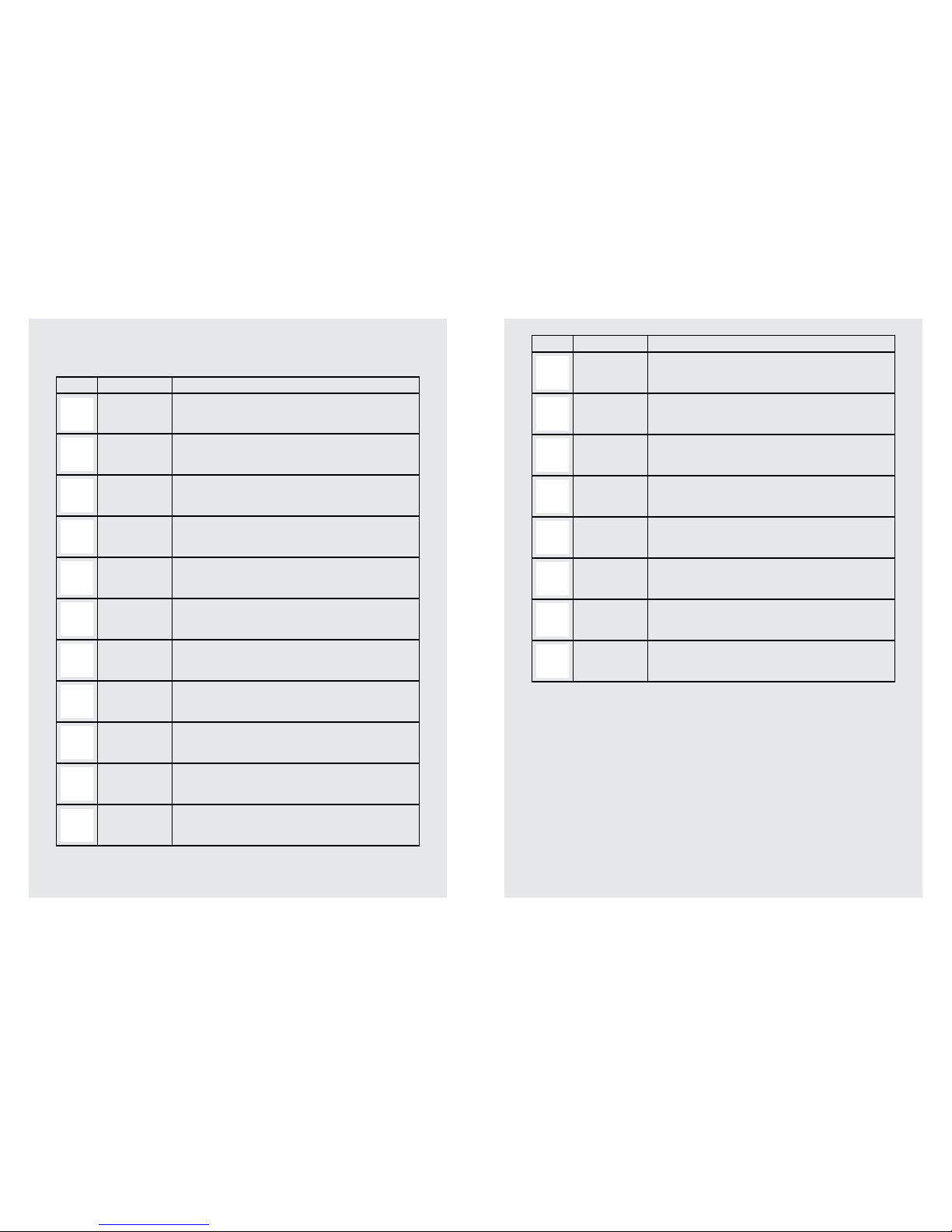
Action Function Operation
Tap Select on-screen items such as
applications and settings icons.
Select on-screen buttons. Type
using the on-screen keyboard.
Gently tap an item on the screen
to select the item that you wish to
activate.
Tap & Hold Open other options for an item,
for example, tap and hold a
contact or a link on a web page.
Think of this as using the right-
click button on a mouse.
Tap an item on the screen then
hold in place for 2 ~ 3 seconds.
Drag Move items on screen or switch
between screens.
Tap an item on the screen then
hold in place for 2 ~ 3 seconds,
then slide it to desired position.
Slide Move vertically or horizontally
across the screen.
Slide nger across screen.
Flick Quickly browse a list of items in
a vertical direction.
Flick is similar to slide, except that
ick involves swiping the screen in
lighter and quicker strokes.
13
4.6 Handset Range
The Smart 64 Android Smart Home Phone achieves optimum reception for telephone
calls when there is clear line of sight between the base and handset. Any obstruc-
tion between the base and handset will reduce the range signicantly. With the base
indoors and handset either indoors or outdoors, the range will normally be up to 50
meters.
4.7 Handset Signal Strength
The on your handset indicates when you are in range of the base.
When out of range of the base the signal strength indicator will show no bars, and if
you are on a call the line will hang up. If this happens, move back within range. The
handset will automatically re-connect to the base.
Note
• If you have difculty reconnecting, see page 30 to reconnect manually.
• Thick stone walls, large metal objects, such as refrigerators, mirrors or ling cabi-
nets, or other electrical equipment may lower your signal strength.
4.8 Handset Home Screen
To return to the Home screen at anytime press . You can also return to the Home
screen by pressing multiple times.
4.9 Handset Extended Home Screens
Extended Home screens let you organise apps (applications) and widgets on your
handset. You can conveniently access them from the Home screen.
1. Slide horizontally across the screen (left or right).
2. A slider bar at the bottom of the screen indicates which screen you are viewing.
3. To add apps or widgets to your Home screen tap > APP / WIDGETS tab.
4. Tap and drag to desired location.
Getting to Know Your Phone Getting to Know Your Phone