manuals.online logo
Brands
  1. Home
  2. •
  3. Brands
  4. •
  5. Brookstone
  6. •
  7. Accessories
  8. •
  9. Brookstone 318459 User manual

Brookstone 318459 User manual

This manual suits for next models

2

Other Brookstone Accessories manuals

Brookstone Brookstone User manual

Brookstone

Brookstone Brookstone User manual

Brookstone BKSSWS User manual

Brookstone

Brookstone BKSSWS User manual

Brookstone BKWIFICAMDR User manual

Brookstone

Brookstone BKWIFICAMDR User manual

Brookstone BKSPB User manual

Brookstone

Brookstone BKSPB User manual

Brookstone 3-in-1 Tablet Stylus User manual

Brookstone

Brookstone 3-in-1 Tablet Stylus User manual

Brookstone Single Watch Winder User manual

Brookstone

Brookstone Single Watch Winder User manual

Brookstone 92-Hour Rechargeable Battery User manual

Brookstone

Brookstone 92-Hour Rechargeable Battery User manual

Brookstone 92-Hour Rechargeable Battery Guide

Brookstone

Brookstone 92-Hour Rechargeable Battery Guide

Brookstone Gotcha! User manual

Brookstone

Brookstone Gotcha! User manual

Brookstone 322121 User manual

Brookstone

Brookstone 322121 User manual

Brookstone DUAL SMART PLUG User manual

Brookstone

Brookstone DUAL SMART PLUG User manual

Brookstone Tablet Pen Set User manual

Brookstone

Brookstone Tablet Pen Set User manual

Brookstone BKSPRGB User manual

Brookstone

Brookstone BKSPRGB User manual

Popular Accessories manuals by other brands

Quincy lab 140AE-1 operating manual

Quincy lab

Quincy lab 140AE-1 operating manual

HomePro ZIR000 user manual

HomePro

HomePro ZIR000 user manual

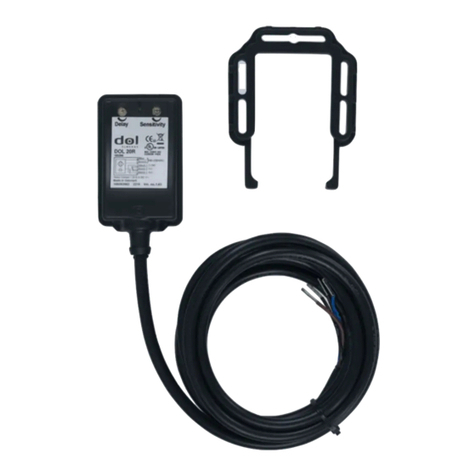
DOL 20SCR Technical user guide

DOL

DOL 20SCR Technical user guide

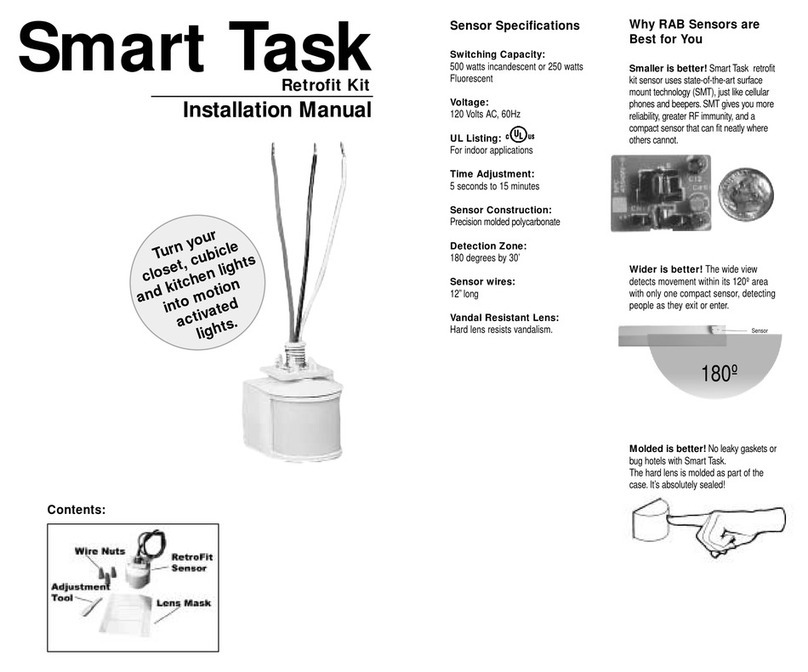
RAB Smart Task installation manual

RAB

RAB Smart Task installation manual

Kemppi KMS 300 quick guide

Kemppi

Kemppi KMS 300 quick guide

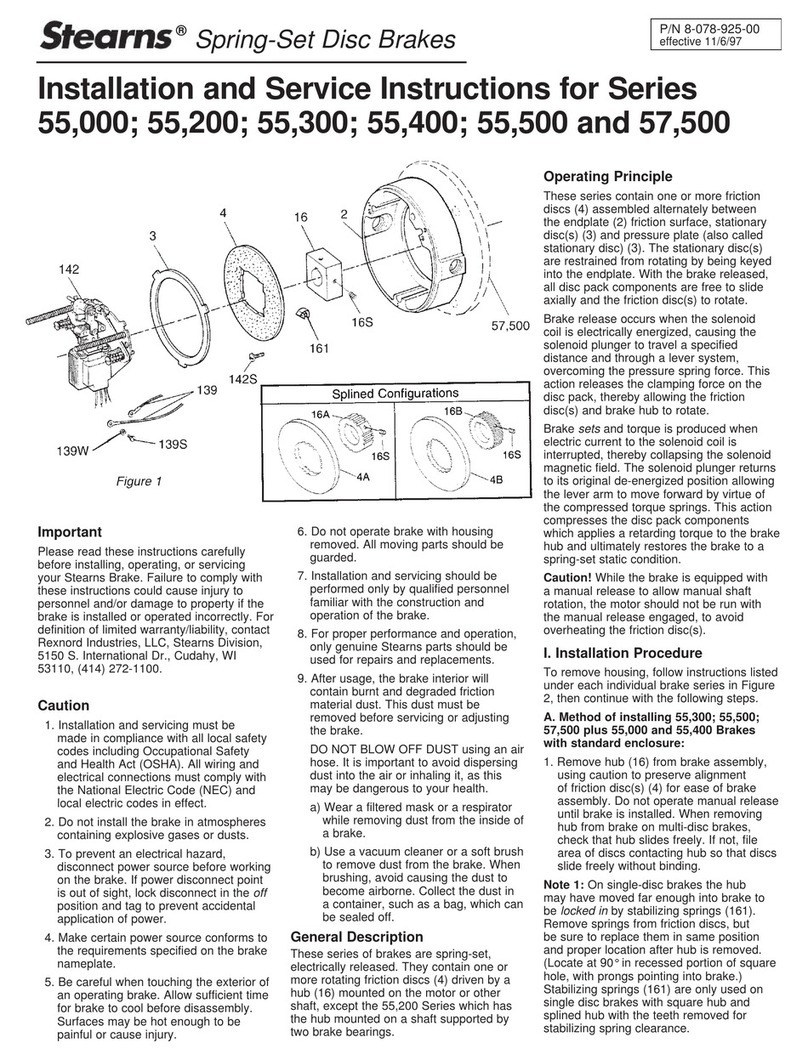
Stearns 57,500 Series Installation and service instructions

Stearns

Stearns 57,500 Series Installation and service instructions

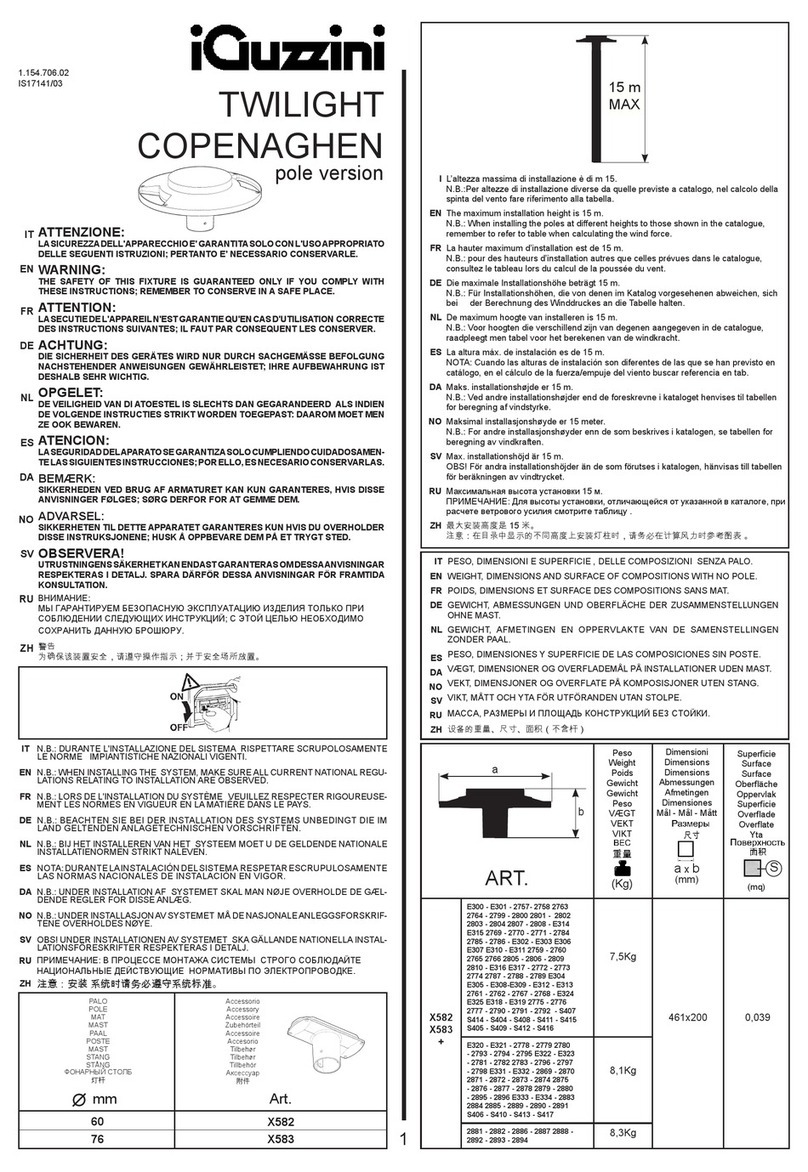
iGuzzini TWILIGHT COPENAGHEN manual

iGuzzini

iGuzzini TWILIGHT COPENAGHEN manual

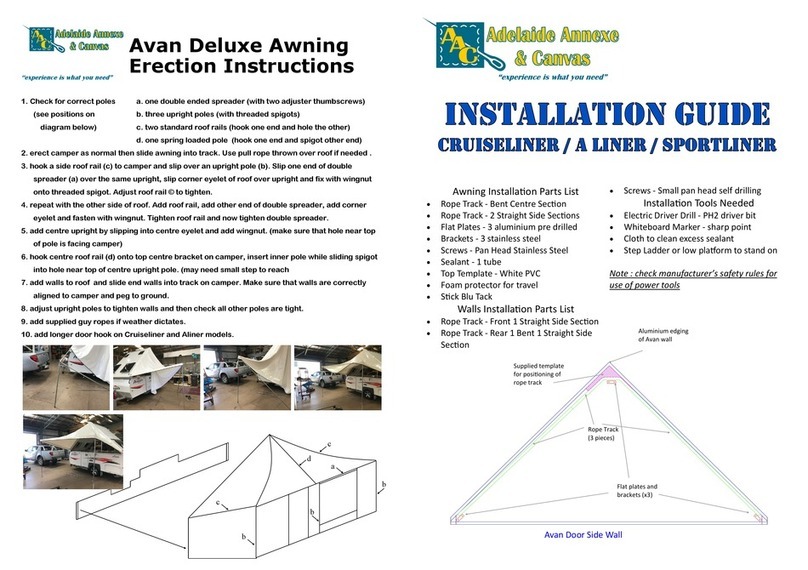
Adelaide Annexe & Canvas Avan Deluxe installation guide

Adelaide Annexe & Canvas

Adelaide Annexe & Canvas Avan Deluxe installation guide

OHAUS 5000 instruction manual

OHAUS

OHAUS 5000 instruction manual

HOME8 WLS1300 quick start guide

HOME8

HOME8 WLS1300 quick start guide

MAXBOTIX MaxSonar quick start guide

MAXBOTIX

MAXBOTIX MaxSonar quick start guide

ioSmart iSmart56 Installation and user guide

ioSmart

ioSmart iSmart56 Installation and user guide

Focusrite Scarlett 18i8 user guide

Focusrite

Focusrite Scarlett 18i8 user guide

Velleman ED38105 user manual

Velleman

Velleman ED38105 user manual

JumpSport SkyBounce user manual

JumpSport

JumpSport SkyBounce user manual

Prima-Temp PRIYA Instructions for use

Prima-Temp

Prima-Temp PRIYA Instructions for use

Tefcold BC85I-BC85I W user manual

Tefcold

Tefcold BC85I-BC85I W user manual

Vaisala WMS302 user guide

Vaisala

Vaisala WMS302 user guide

manuals.online logo
manuals.online logoBrands
  • About & Mission
  • Contact us
  • Privacy Policy
  • Terms and Conditions

Copyright 2025 Manuals.Online. All Rights Reserved.

PRE-CHARGED BATTERY
POWER
CHARGING THE BATTERY
1. Plug the small end of the supplied
Micro USB cable into the Micro USB
input jack on the 12000mAh battery.
2. Connect the other end of the
Micro USB cable to a USB power
source such as USB adapter or
USB port on any computer.
3. When the battery is charging, the
LED Power Indicator on the front
of the battery will blink. LED remains
on when the battery is fully charged
(6-7 hours).
4. When fully charged, disconnect the
USB cable.
* Charging time depends on the output
power of the USB port being used. 318459
WARNINGS
SAVE THESE INSTRUCTIONS!
Works with most:
• Android® smartphones and tablets
• iPhone 6S Plus
• iPhone 6 Plus
• iPhone 6S
• iPhone 6
• iPhone SE
• iPhone 5S
• iPhone 5C
• iPhone 5
• iPad Mini
• New iPad
• iPad Air
• iPad Pro
• Blackberry®
ACCESSORIES
• 1.6-foot Micro USB Cable
1. Do not store this battery in high
temperatures, damp areas or in
direct sunlight.
2. Never disassemble the battery.
3. Never dispose of the battery in fire
or water, which may result in
explosion and/or injury.
4. Keep the battery out of reach of
children.
5. Do not touch battery with damp
hands.
6. The battery must not be discarded
with ordinary household waste.
7. Contact your local recycling center
for proper disposal.
Ensure your device can be charged
safely by this type of power source.
Thank you for purchasing the
Brookstone Slim Rechargeable 12000mAh
Battery. This device is pre-charged and
ready to use. However, over time batteries
slowly lose their charge so the amount of
charge the battery may have could vary.
BUILT-IN CABLES WITH MICRO
USB AND LIGHTNING®
CONNECTORS
Slim Rechargeable
12000mAh Battery
• Other cell phones
• Other small USB powered devices
Merrimack, New Hampshire, USA 03054
800-846-3000 • Brookstone.com
CHARGING A USB DEVICE
1. Connect your smartphone or other USB
device using the built in Micro USB or
Lightning® cable, or the other USB cable
to the USB output jack on the battery.
* This battery should only be used with
compatible electronic equipment.
Please check the specifications of
your device to ensure it is safe to
charge with this battery.
2. Press the POWER button on the battery.
3. Once your smartphone or Lightning®
device is charged, make sure to
disconnect the device.
Note: The maximum charging output for this
battery is 2.4 amp and 2.4 amp, which is
designed for charging Lightning®devices
and most smartphones at the same time.
CHECKING BATTERY STATUS
The LED light will illuminate when the
POWER button is pressed to show the
charge capacity left in the battery.
LED light stays on for 3 minutes: 100%-26%
LED light flashing once every second:
25%-11%
LED light flashing 3 times every 5 seconds:
10%-1%
LED light flashes 2 times every second when
the battery is below 1% capacity.
TROUBLESHOOTING
Q. No LEDs illuminate while
attempting to charge my device.
A. You need to refer to the device
you are charging for battery level
status in that device.
Q. The battery gets warm while
charging or discharging.
A. This is a common result of
charging and discharging of
energy. The heat is not enough
to affect devices adversely.
SPECIFICATIONS
Ensure your device can be safely
charged from this type of power source.
Capacity: 12000mAh
Input: DC5V-2A (max)
Lightning® Port Output: 2.4A
Micro USB Port & USB Port Output: up to 2.4A (max)
LOCATION OF PARTS AND
CONTROLS
1. Micro USB Input Jack
2. LED Power Indicator
3. Power Button
4. USB Output Jack up to 2.4A (max)
5. Lightning® Output Cable 2.4A
6. Micro USB Output Cable up to 2.4A (max)
7. Micro USB Cable
513 4
6
2
7