Brookstone Gotcha! User manual

747003_INS_HD Video Pen_5”Wx4.75”H_Output:100%_Prints:1/1,Blk
HD Video Pen
Gotcha!
Merrimack, New Hampshire USA 03054 • 800-846-3000 • Brookstone.com
MAKES CAPTURING EVERYDAY
MOMENTS EASY AND FUN
Catch every moment

1
Table of conTenTs
Battery Precautions .......................................................2
Location of Parts and Controls .............................................3
Operation.................................................................4
Date and Time Recording Information.......................................8
Resetting the Video Pen ...................................................9
Replacing the Ink Cartridge ................................................9
Specifications............................................................10
Troubleshooting ..........................................................11
Warranty.................................................................13

2
baTTeRY PRecaUTIons
• Dispose of this unit properly. Do not dispose of the old unit in a fire.
• The battery inside the unit may explode if mistreated. Do not attempt
to disassemble the unit's battery.
• Dispose of this unit as you would a battery.
save These InsTRUcTIons
Always check and obey any local or state laws and regulations which
may affect how this product is used.
747003_INS_HD Video Pen_5”Wx4.75”H_Output:100%_Prints:1/1,Blk

3
locaTIon of PaRTs and conTRols
1. Camera Lens
2. Microphone (under Pen Clip)
3. Pen Clip
4. USB Flash Drive
5. Record On/Off Button
6. Working Status LED
7. Reset
8. Twist Barrel
9. Finger Grip
10. Pen Tip
10
9
8
76
5
4
2
3
1Front Back

oPeRaTIon
CHARGING THE INTERNAL BATTERY
IMPORTANT: Charge the internal battery before first use.
1. Turn off Video Pen.
2. Unscrew the pen to reveal the USB.
3. Plug the USB into your computer’s USB 2.0 port.
4. While the battery is charging, the WORKING STATUS LED will blink yellow.
5. When charging is complete (1 hour), the light will remain solid.
6. Remove the USB from your computer promptly.
IMPORTANT: Do not overcharge the battery. Battery should be completely
charged in 1 hour. Do not leave the unit plugged into your computer’s USB
port for more than 4 hours.
4
747003_INS_HD Video Pen_5”Wx4.75”H_Output:100%_Prints:1/1,Blk

5
VIDEO RECORDING
1. Place the Video Pen where it will get a clear view and audio of what
you want to record.
2. Press the RECORD ON/OFF BUTTON on the top of the pen for 3 seconds.
3. The WORKING STATUS LED will illuminate yellow, and after 5 seconds will
blink blue to indicate recording has started.
4. While recording, you may want to save sections of video to the pen’s
internal memory.
5. Press the RECORD ON/OFF BUTTON to save. Please note that the length
of file recorded will affect the time it takes to save. The WORKING STATUS
LED will revert to yellow when saving is complete.
Note: The Video Pen cannot record while saving a file.
6. You may then resume recording by pressing the RECORD ON/OFF BUTTON.
The WORKING STATUS LED will revert to blinking blue again to indicate it has
begun to record again.
Note: If you press the RECORD ON/OFF button for 5 seconds and the WORKING
STATUS LED light blinks 4 times and the unit shuts off, the memory is full.
SOUND RECORDING
1. Press the RECORD ON/OFF BUTTON on the top of the pen 3 times.
The Working Status LED will blink yellow to show the pen is in standby mode.
2. Press the RECORD ON/OFF BUTTON again to begin recording sound.
The WORKING STATUS LED will illuminate solid blue to indicate sound
recording is in progress.
3. Press the RECORD ON/OFF BUTTON to stop recording sound.

6
PLAYING RECORDED FILES
1. Unscrew the pen to reveal the USB.
2. Plug the USB into your computer’s USB port.
3. Locate the pen’s removable disk drive on your computer.
The drive letter will vary by computer.
4. Open the folder to which you downloaded files (DCIM folder).
5. Double click on the video you want to play. The video will open
in Windows® Media Player or similar video viewer.
DELETING SELECTED RECORDED FILES
1. Unscrew the pen to reveal the USB.
2. Plug the USB into your computer’s USB port.
3. Locate the pen’s removable disk drive on your computer.
The drive letter will vary by computer.
4. Right click on the video file you would like to delete.
5. Select “Delete” from the menu.
6. Click “Yes” to delete selected video.
747003_INS_HD Video Pen_5”Wx4.75”H_Output:100%_Prints:1/1,Blk

7
SAVING FILES TO YOUR COMPUTER
1. Unscrew the pen to reveal the USB.
2. Plug the USB into your computer’s USB 2.0 port to download saved files.
3. Locate the pen’s removable disk drive on your computer. The drive letter
will vary by computer.
4. Open the folder to which you would like to download the files (DCIM folder).
5. Copy and paste the files you wish to save into the desired folder
on your computer.
6. Remove the USB from your computer.
REFORMATTING THE VIDEO PEN MEMORY
1. Unscrew the pen to reveal the USB.
2. Plug the USB into your computer’s USB 2.0 port.
3. Go to “My Computer” and find the removable disk for the Pen Drive.
IMPORTANT: Ensure you choose the pen’s drive, as this will totally
reformat it and will erase all data that is currently on the drive chosen.
4. Right click on the Pen Drive.
5. In the drop-down menu that appears, select Format.
6. In the window that appears, click OK. The computer will then reformat
the file system on the unit (this will take a few minutes).
7. When reformatting is complete click OK on each formatting window
and remove the USB from your computer.

8
daTe and TIme RecoRdIng InfoRmaTIon
How to set the recording date and time:
1. Plug the USB into your computer’s USB 2.0 port.
2. Open USB drive.
3. Right click anywhere in the window and select “New” then “Text Document”.
4. Name the new file “TIMECFG.txt”. Some operating systems will automatically
include the file extension in the file name. Depending on your operating
system, you may need to manually add the .txt extension.
5. Open this new file and enter current date and time in the following
format TIME,YYYY/MM/DD/HH:MM:SS;.
6. Save and close this file before removing the pen from the USB port.
7. Remove the Video Pen from the USB port.
747003_INS_HD Video Pen_5”Wx4.75”H_Output:100%_Prints:1/1,Blk

RePlacIng The Ink caRTRIdge
1. Unscrew the pen to reveal the USB.
2. In the other half of the pen body, locate the ink cartridge.
3. Using a Phillips head screwdriver, twist the ink cartridge to the left to
loosen (see example below), and tap gently to get the spent cartridge out.
4. Replace with a full ink cartridge and tighten with the screwdriver
by turning it to the right.
5. DO NOT over tighten.
ReseTTIng The vIdeo Pen
The Video Pen needs time to process its function every time you press
the RECORD ON/OFF BUTTON.
1. If you have waited longer than 10 seconds after pressing the RECORD
ON/OFF BUTTON and nothing happens, your Video Pen either needs
to be recharged or reset.
2. To recharge the Video Pen, see the instructions on page 4.
3. To reset the Video Pen, press the RESET button with a thin, pointed object.
9
Table of contents
Other Brookstone Accessories manuals

Brookstone
Brookstone Single Watch Winder User manual

Brookstone
Brookstone BKSPB User manual
Brookstone
Brookstone BKSSWS User manual

Brookstone
Brookstone Brookstone User manual
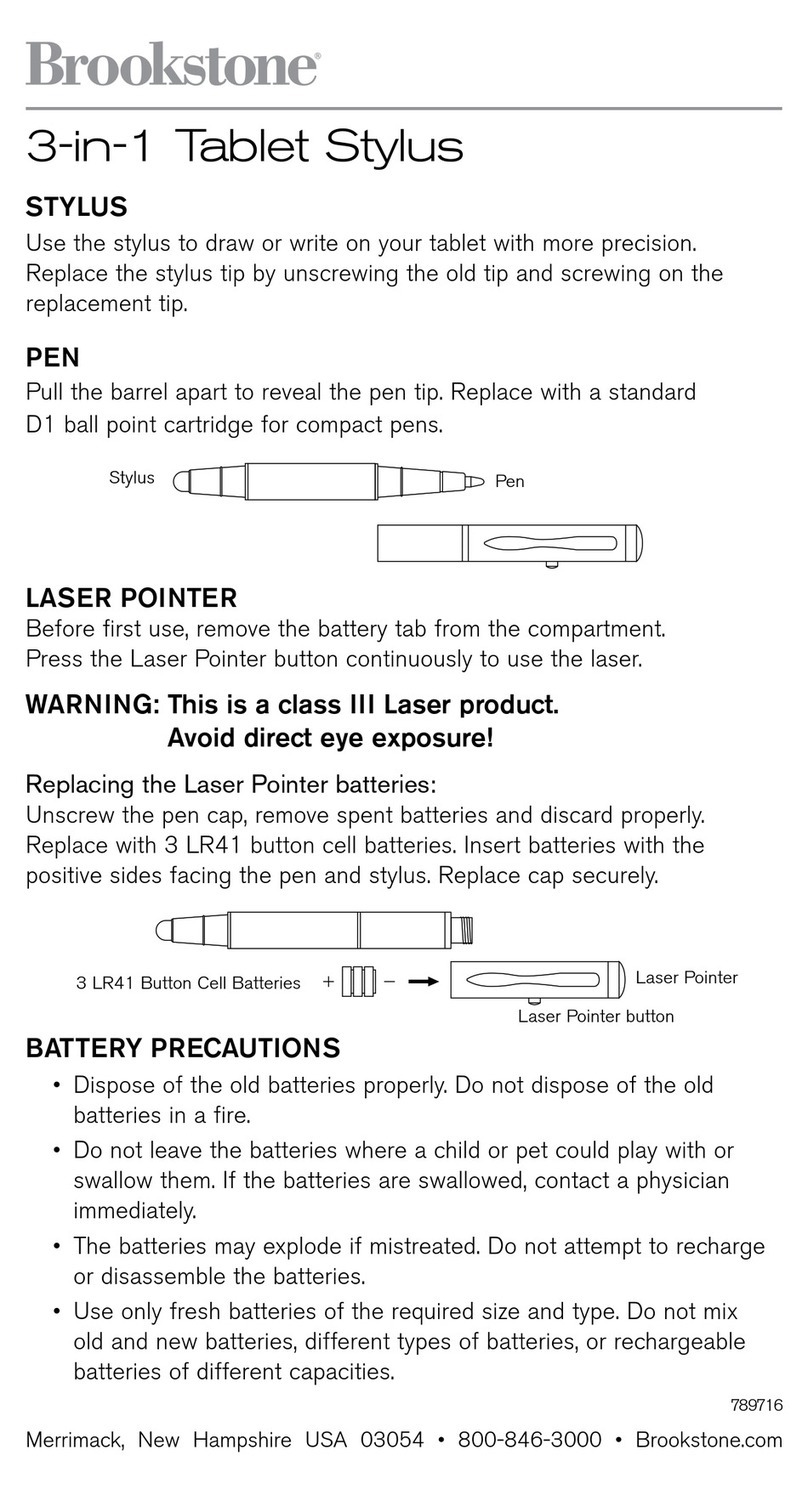
Brookstone
Brookstone 3-in-1 Tablet Stylus User manual
Brookstone
Brookstone 92-Hour Rechargeable Battery User manual
Brookstone
Brookstone 92-Hour Rechargeable Battery Guide

Brookstone
Brookstone 322121 User manual

Brookstone
Brookstone BKWIFICAMDR User manual
Brookstone
Brookstone 318459 User manual