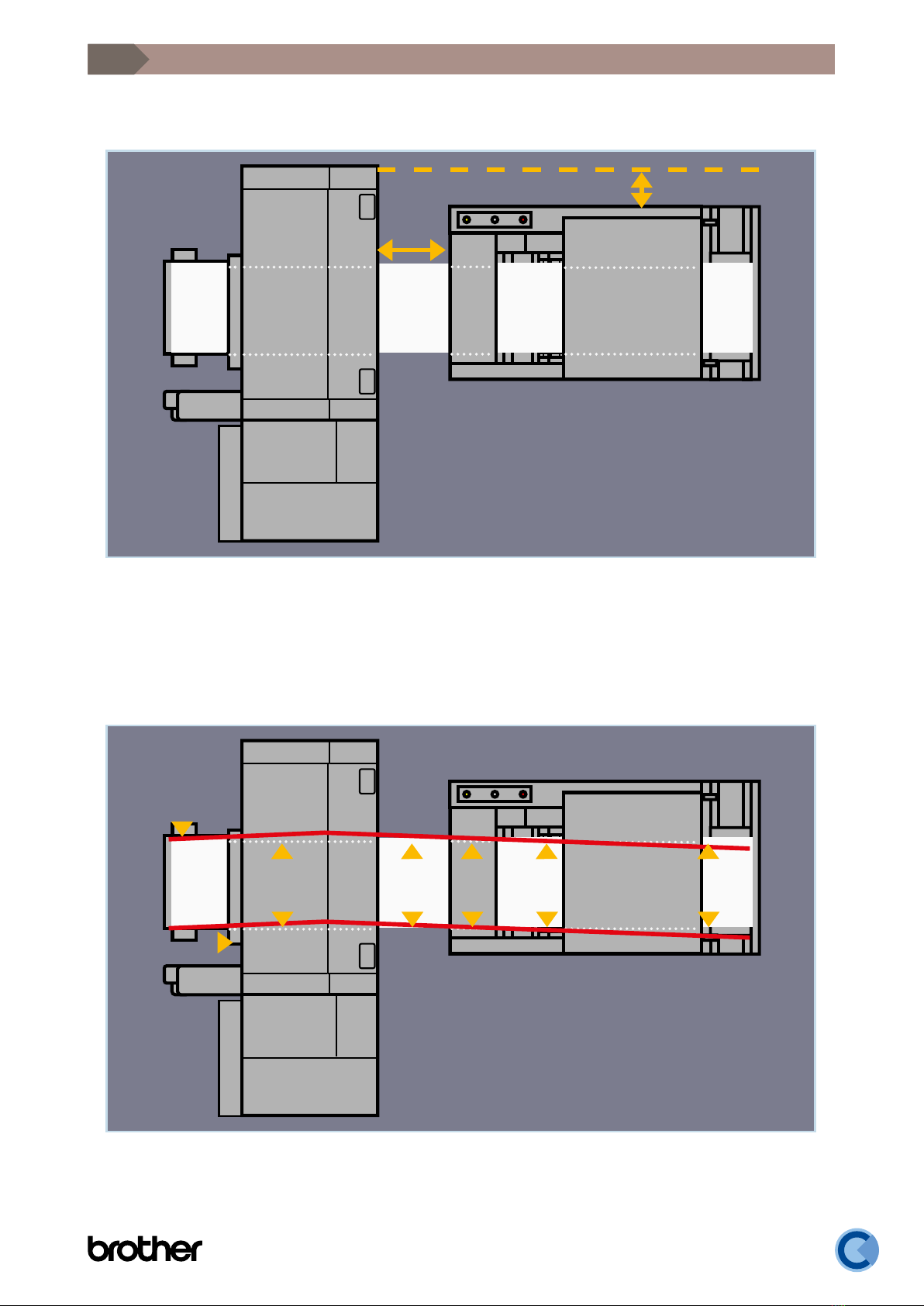
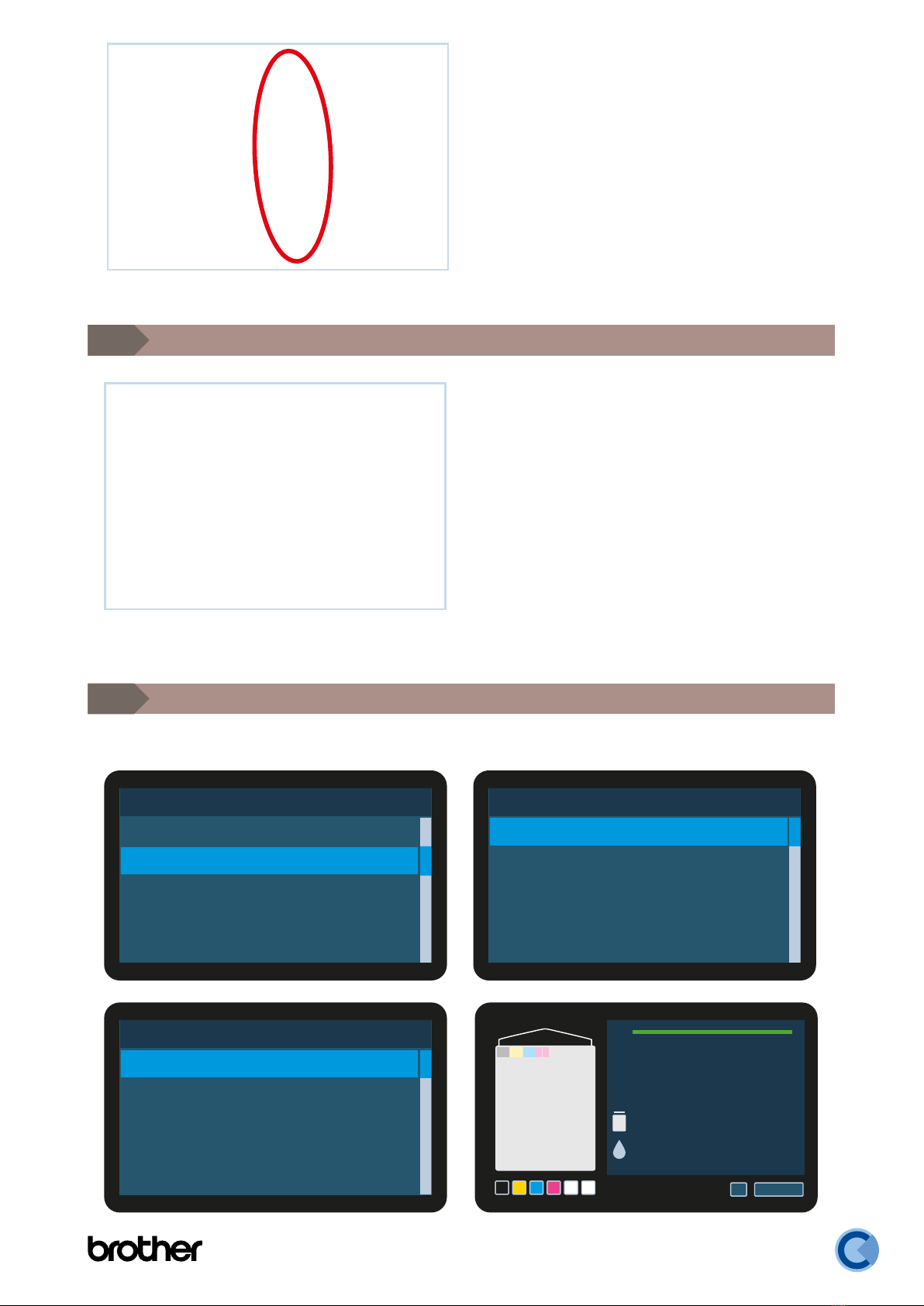
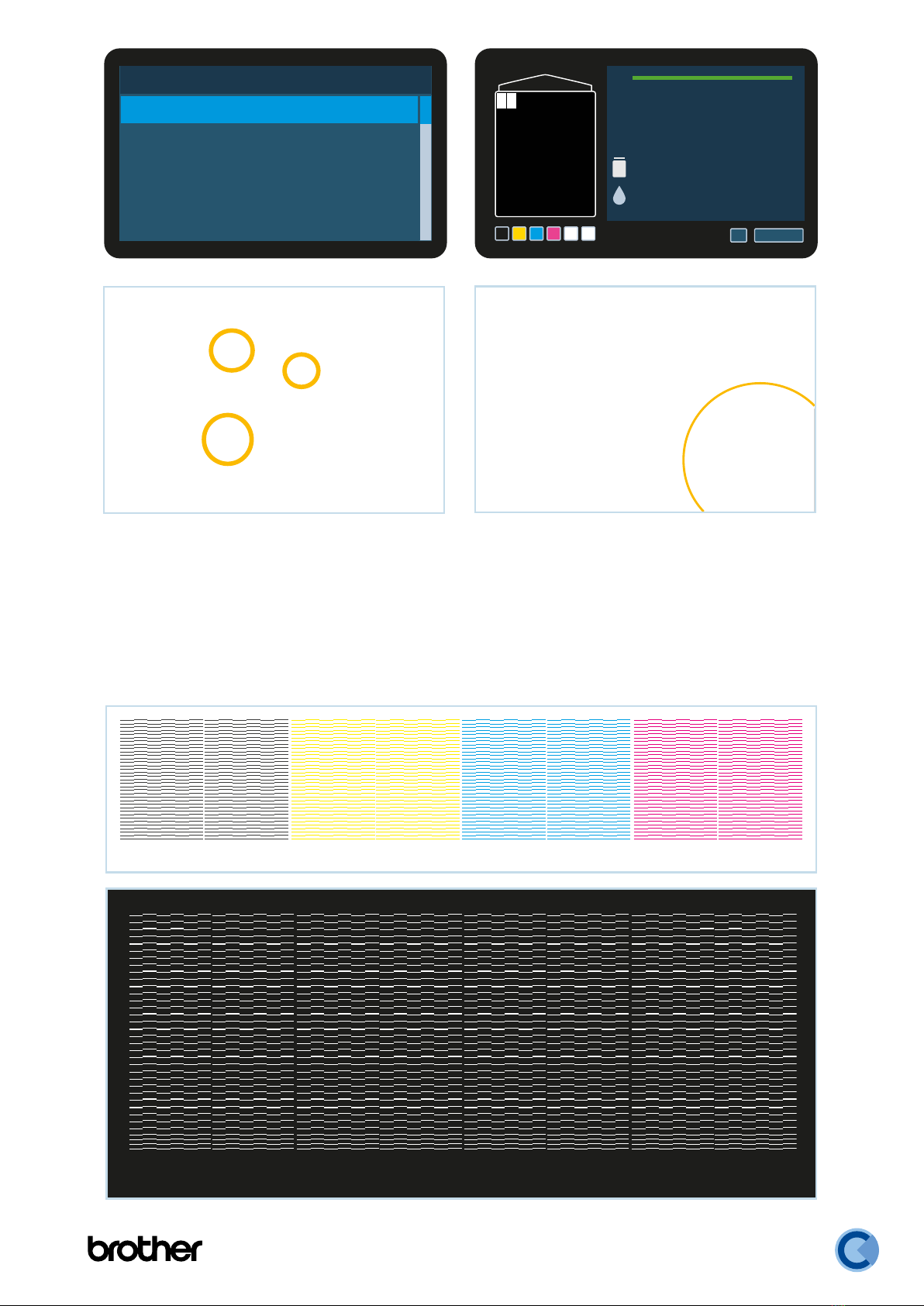
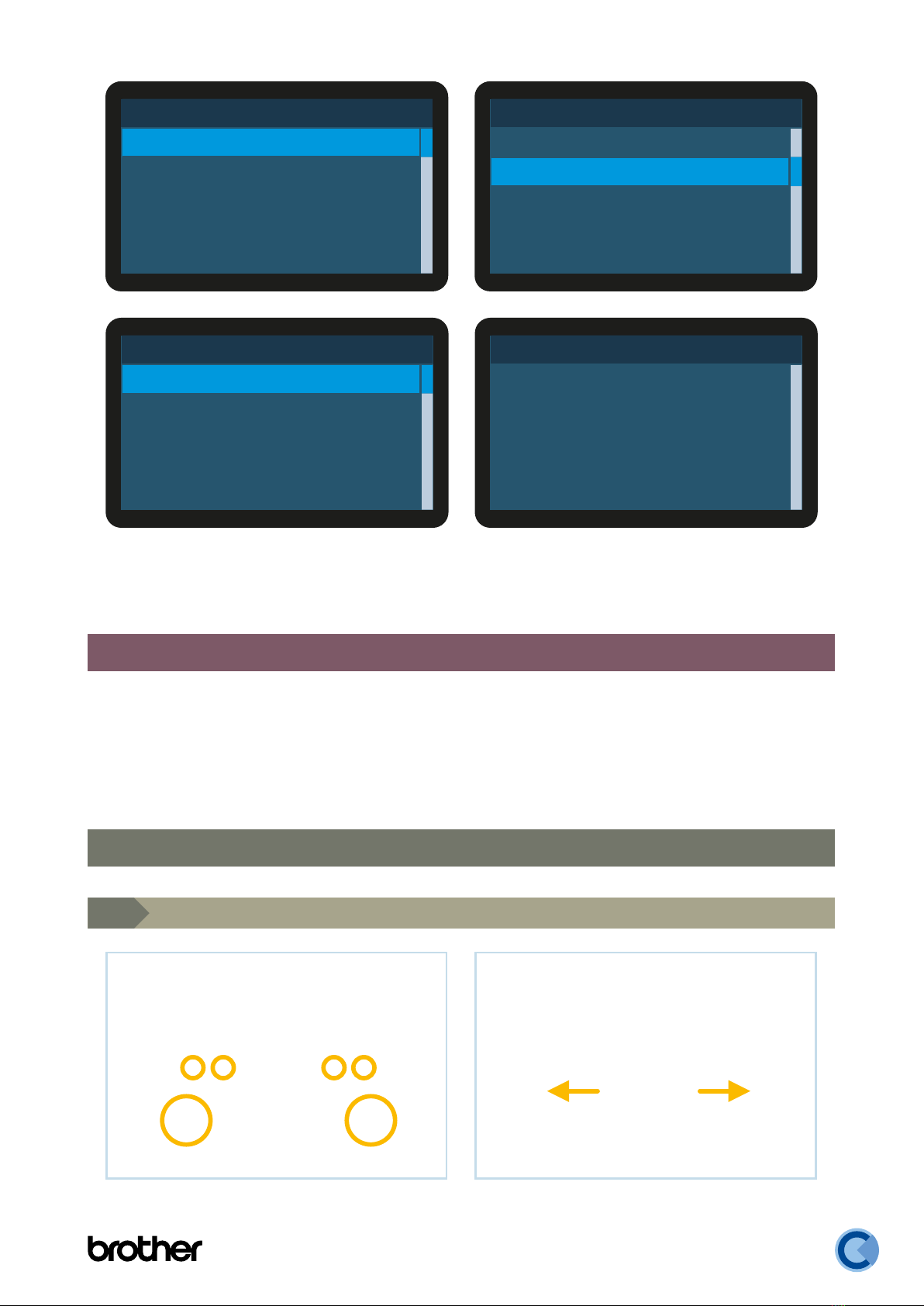
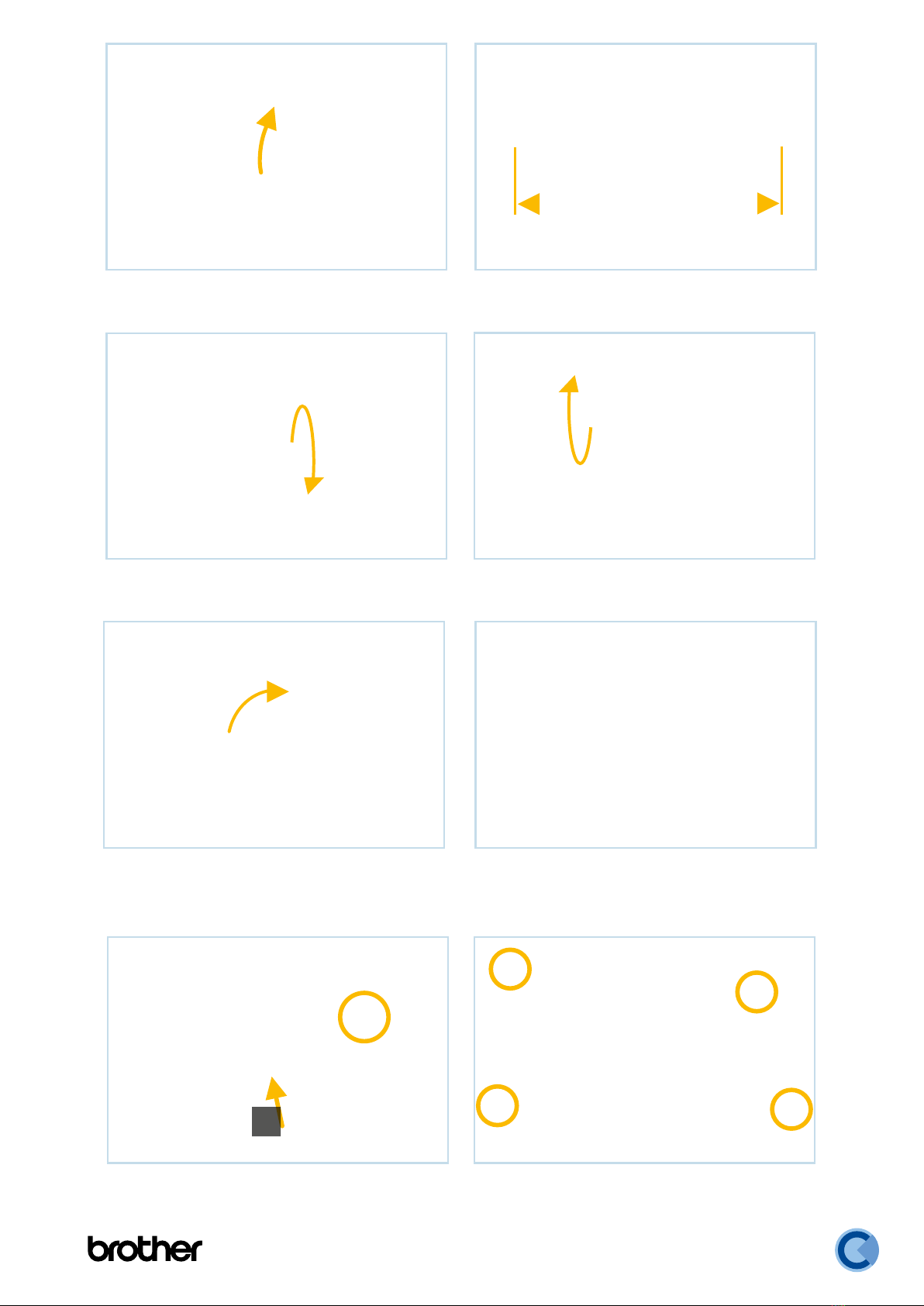
Brother GTXpro BULK DTF R2R User manual
Other Brother Printer manuals

Brother
Brother RJ-4250WB User manual

Brother
Brother HL-2460 Series User manual
Brother
Brother DCP-8110DN Safety guide

Brother
Brother HL-L8250CDN User manual
Brother
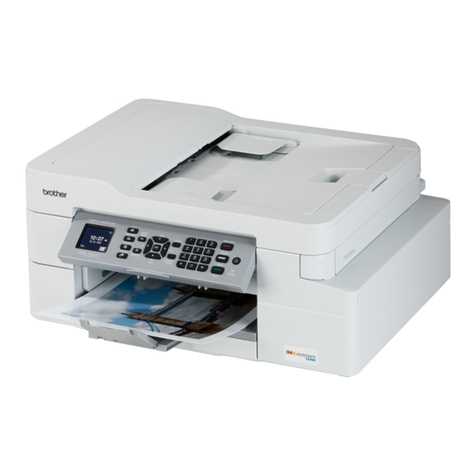
Brother MFC-J805DW User manual
Brother
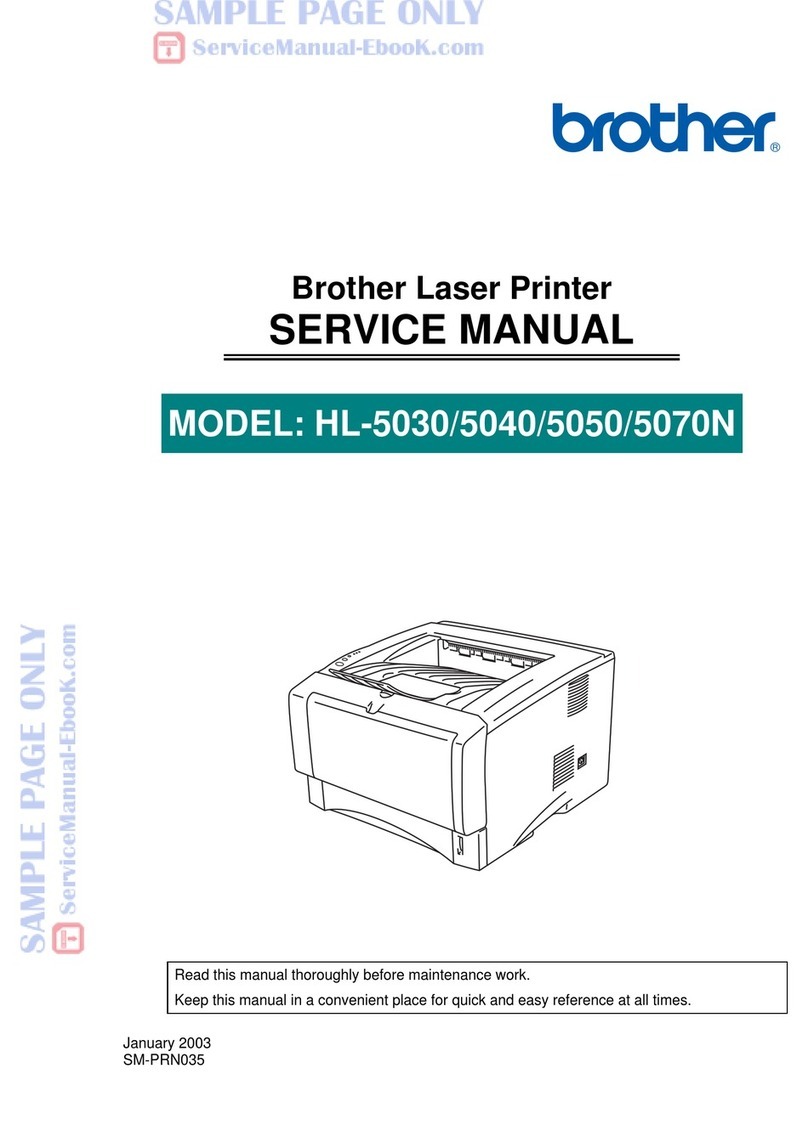
Brother HL-5030 User manual
Brother
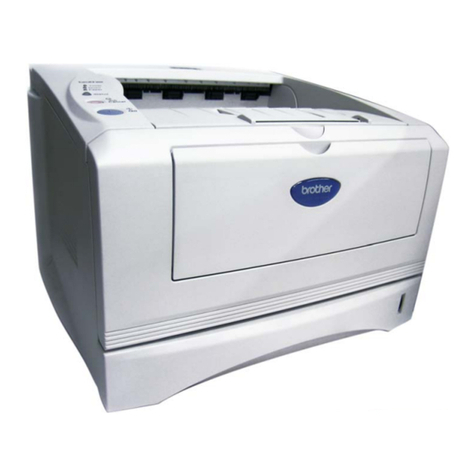
Brother TN 430 User manual
Brother
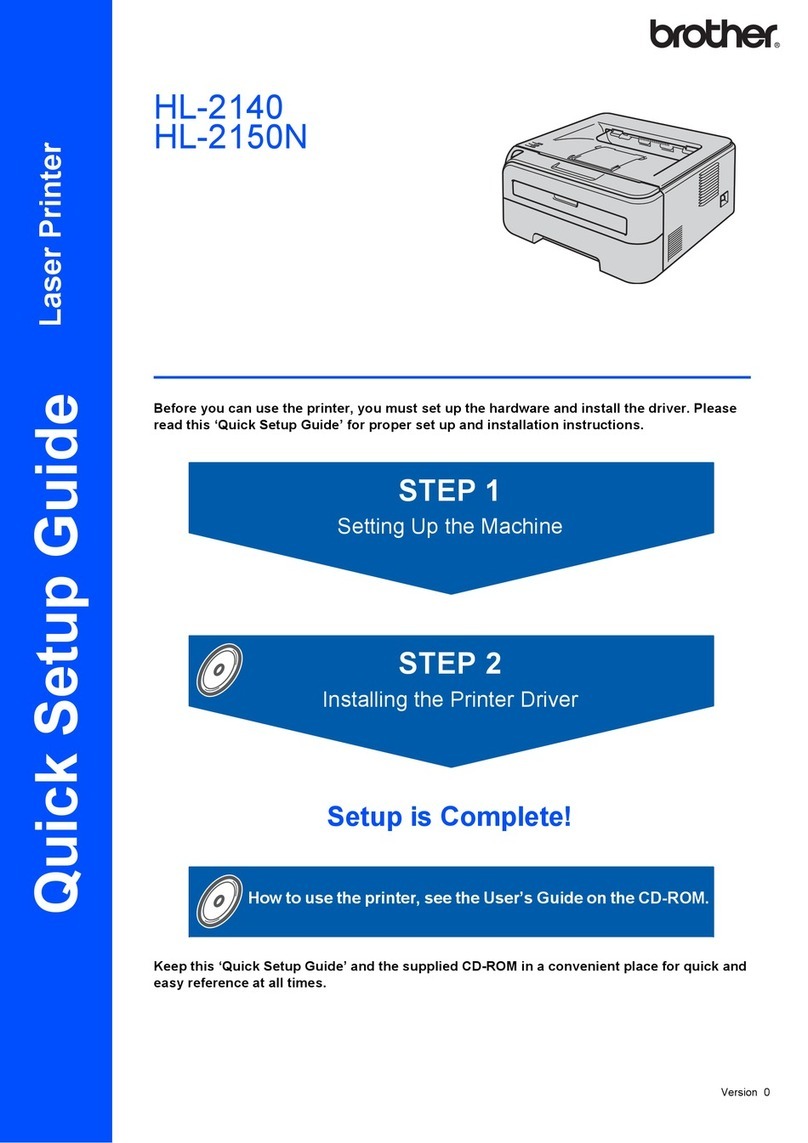
Brother LASER PRINTER HL-2140 User manual

Brother
Brother PocketJet PJ673-K Operating manual
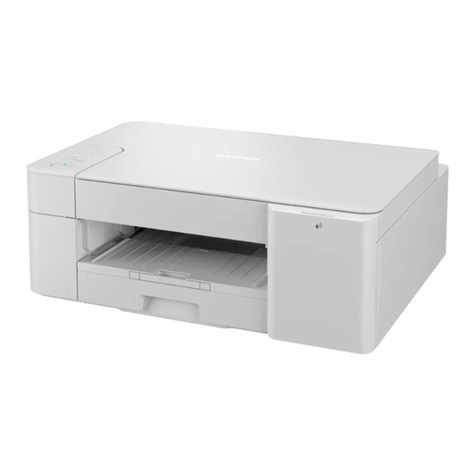
Brother
Brother DCP-J1200W User manual

Brother
Brother HL-5240 User manual

Brother
Brother HL-3040CN User manual
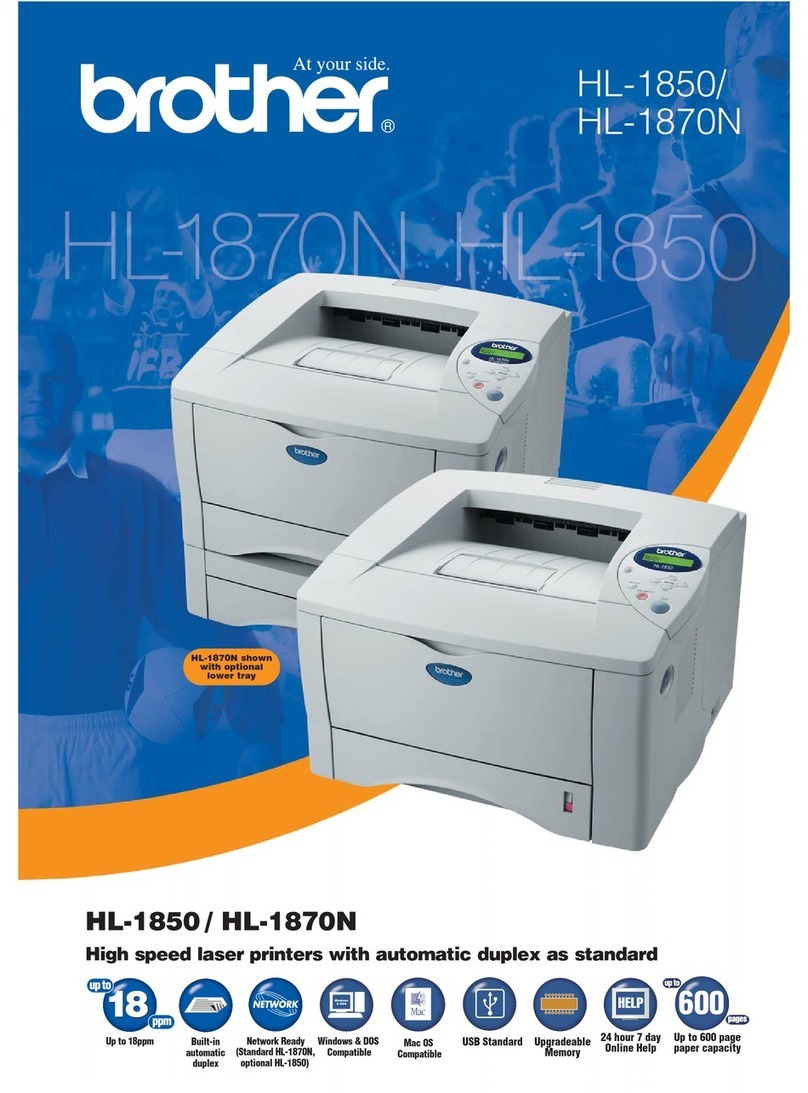
Brother
Brother HL-1850 User manual
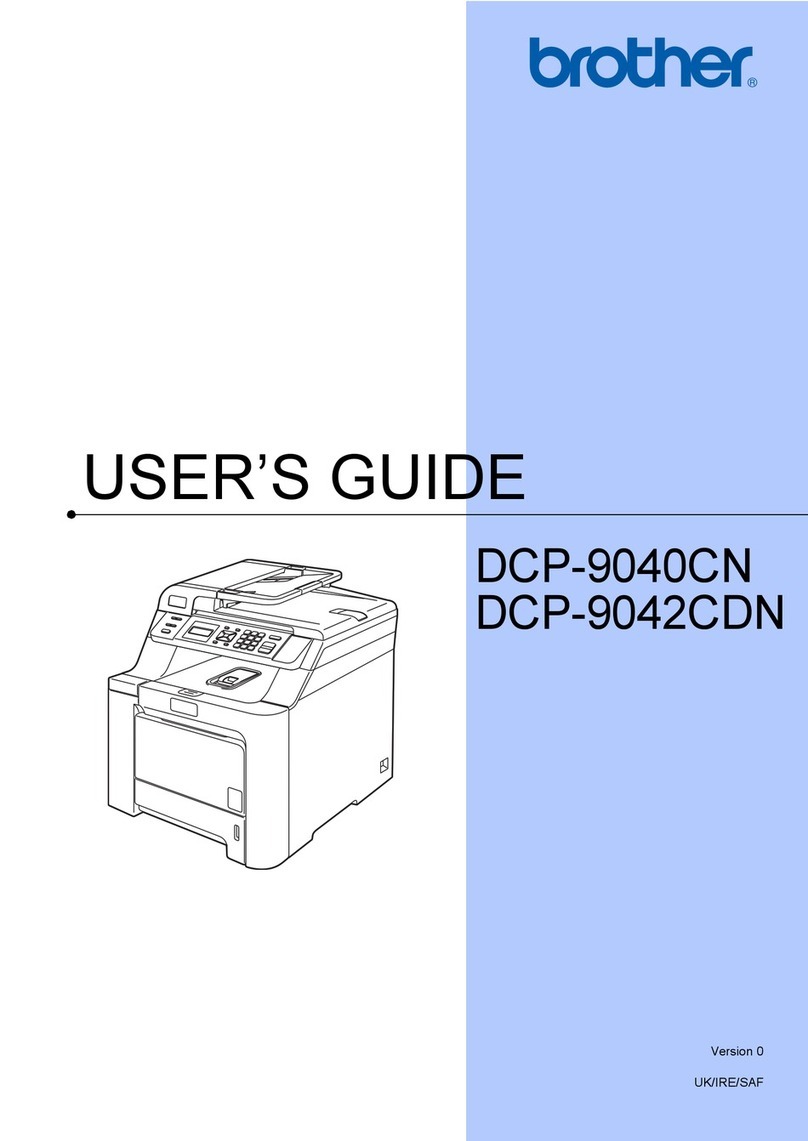
Brother
Brother DCP-9042CDN User manual
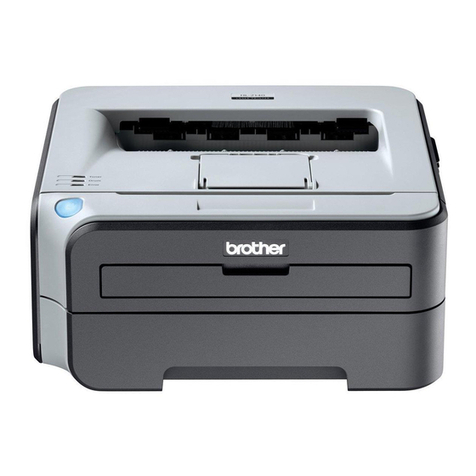
Brother
Brother HL-2150N User manual
Brother
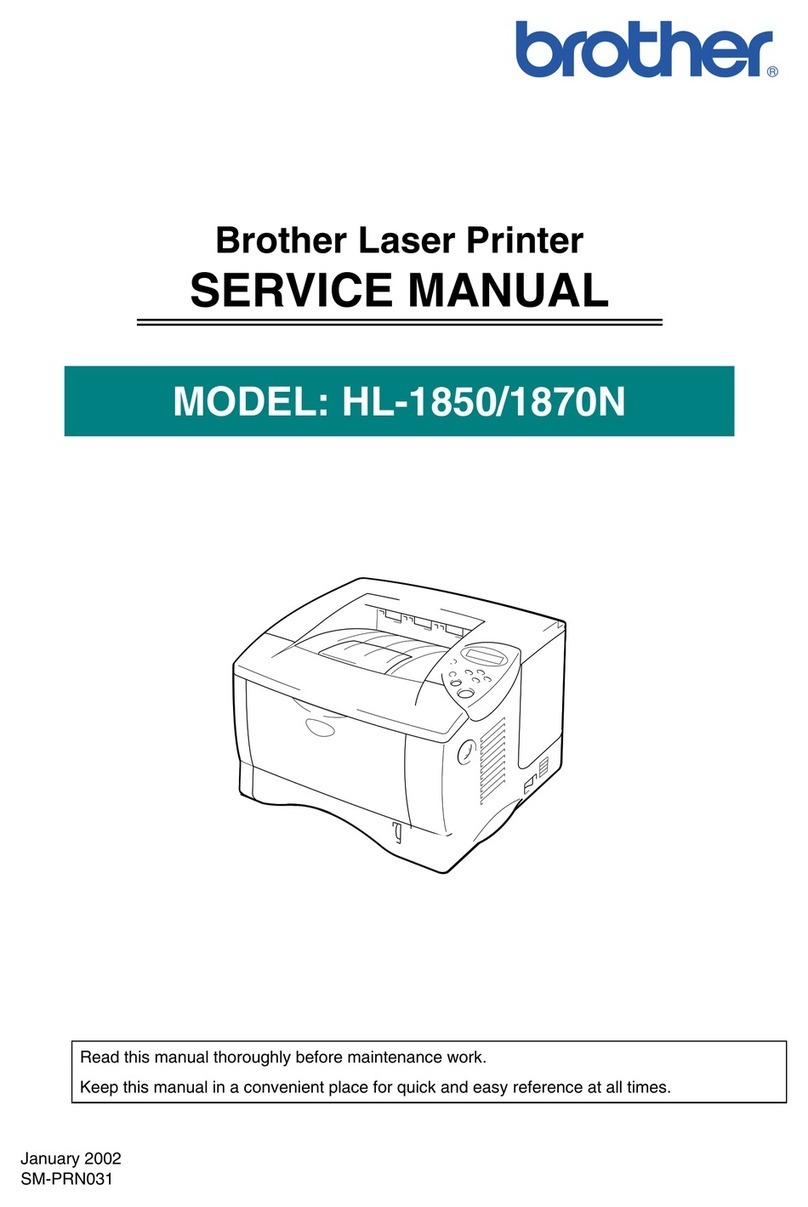
Brother HL-1850 User manual
Brother
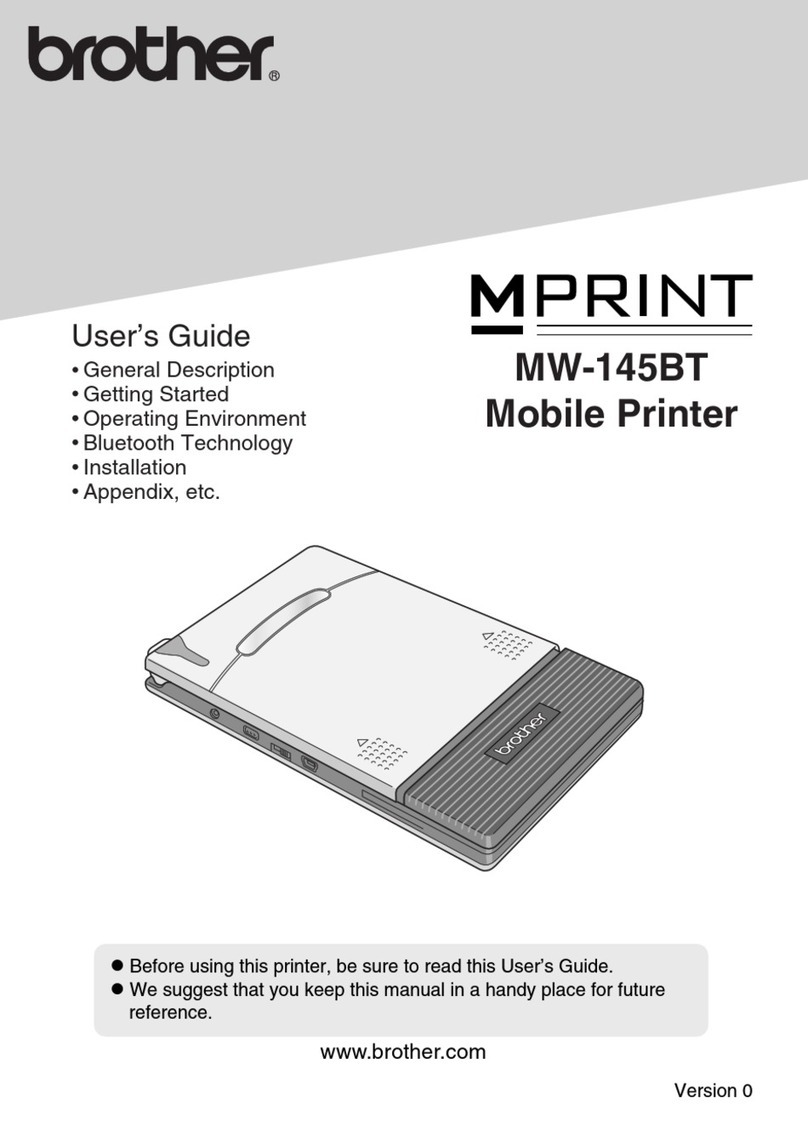
Brother P-touch MW-145BT User manual
Brother
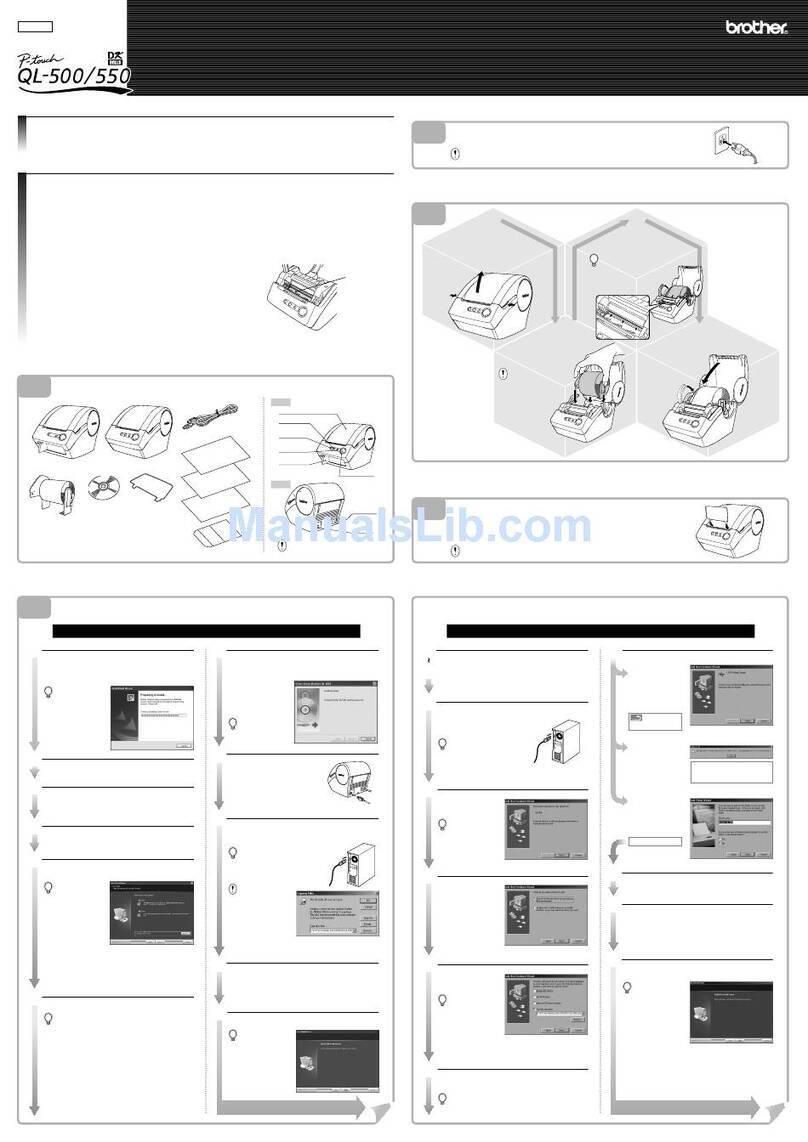
Brother P-Touch QL-500 User manual
Brother
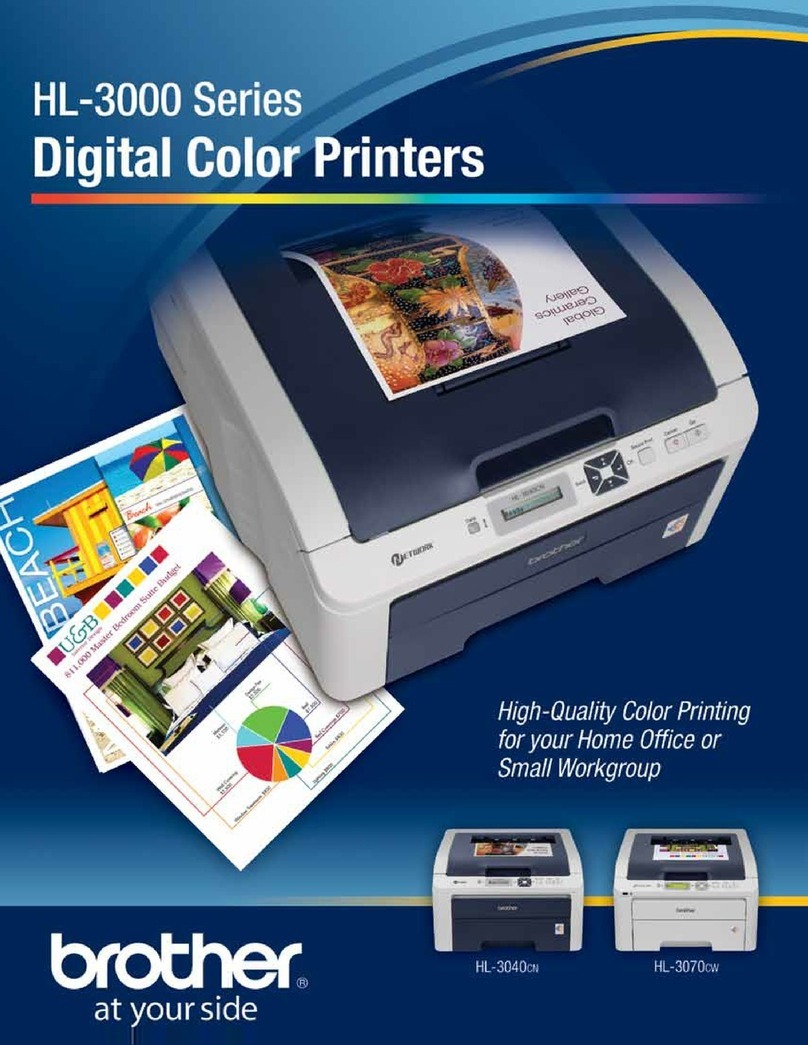
Brother HL-3040CN User manual
Brother
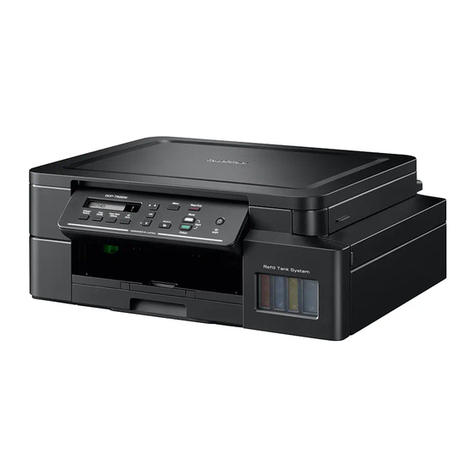
Brother DCP-T520W User manual