manuals.online logo
Brands
  1. Home
  2. •
  3. Brands
  4. •
  5. Brother
  6. •
  7. Printer
  8. •
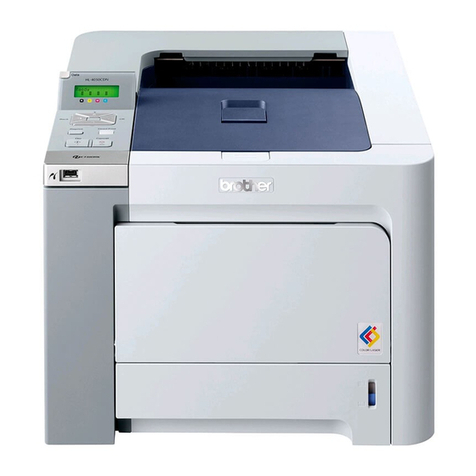
  9. Brother HL-L8260CDN User manual

Brother HL-L8260CDN User manual

Other manuals for HL-L8260CDN

2
This manual suits for next models

1

Other Brother Printer manuals

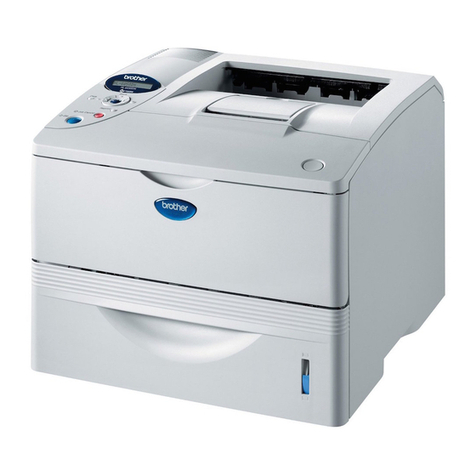
Brother HL-1650 User manual

Brother

Brother HL-1650 User manual

Brother HL-4000CN Assembly instructions

Brother

Brother HL-4000CN Assembly instructions

Brother PJ-722 Technical manual

Brother

Brother PJ-722 Technical manual

Brother HL-2070N User manual

Brother

Brother HL-2070N User manual

Brother PT-E550W Installation instructions

Brother

Brother PT-E550W Installation instructions

Brother GTX Series User manual

Brother

Brother GTX Series User manual

Brother DCP 165C - Color Inkjet - All-in-One Quick start guide

Brother

Brother DCP 165C - Color Inkjet - All-in-One Quick start guide

Brother HL-L8260CDW User manual

Brother

Brother HL-L8260CDW User manual

Brother 1870N - HL B/W Laser Printer Quick start guide

Brother

Brother 1870N - HL B/W Laser Printer Quick start guide

Brother HL-2220 User manual

Brother

Brother HL-2220 User manual

Brother DCP-8110DN User manual

Brother

Brother DCP-8110DN User manual

Brother DCP-J515W User manual

Brother

Brother DCP-J515W User manual

Brother P-Touch 1280 User manual

Brother

Brother P-Touch 1280 User manual

Brother MP-21 User manual

Brother

Brother MP-21 User manual

Brother DCP-1610WE User manual

Brother

Brother DCP-1610WE User manual

Brother HL-L2380DW User manual

Brother

Brother HL-L2380DW User manual

Brother MFC-T800W Operating and maintenance manual

Brother

Brother MFC-T800W Operating and maintenance manual

Brother HL-1435 User manual

Brother

Brother HL-1435 User manual

Brother MFC-L2710DN User manual

Brother

Brother MFC-L2710DN User manual

Brother MFC-8370DN User manual

Brother

Brother MFC-8370DN User manual

Brother HL-3400CN Series User manual

Brother

Brother HL-3400CN Series User manual

Brother HL-1850 User manual

Brother

Brother HL-1850 User manual

Brother HL-L2370DW Technical manual

Brother

Brother HL-L2370DW Technical manual

Brother DCP-T520W User manual

Brother

Brother DCP-T520W User manual

Popular Printer manuals by other brands

Evolis Elypso user guide

Evolis

Evolis Elypso user guide

Lexmark 522n - C Color Laser Printer Service manual

Lexmark

Lexmark 522n - C Color Laser Printer Service manual

Panduit COUGAR LS9Q Operator's manual

Panduit

Panduit COUGAR LS9Q Operator's manual

Olivetti PG L2140 Operation guide

Olivetti

Olivetti PG L2140 Operation guide

Samsung SL-M2820DW user manual

Samsung

Samsung SL-M2820DW user manual

Kyocera FS-9530DN specification

Kyocera

Kyocera FS-9530DN specification

Canon LASER SHOT LBP-1210 Specifications

Canon

Canon LASER SHOT LBP-1210 Specifications

Canon PIXMA PRO-1 Series Getting started

Canon

Canon PIXMA PRO-1 Series Getting started

Canon LBP113w Getting started

Canon

Canon LBP113w Getting started

Lexmark Infoprint 1332 user manual

Lexmark

Lexmark Infoprint 1332 user manual

Epson M1120 user guide

Epson

Epson M1120 user guide

TransAct POSJET 1500 Spare parts

TransAct

TransAct POSJET 1500 Spare parts

Telpar MTP-1500 user manual

Telpar

Telpar MTP-1500 user manual

Star DP8340 SERIES user manual

Star

Star DP8340 SERIES user manual

MGI JETVARNISH 3DS user manual

MGI

MGI JETVARNISH 3DS user manual

Kyocera TASKalfa PA4500ci Operation guide

Kyocera

Kyocera TASKalfa PA4500ci Operation guide

Emaar EP-360 user manual

Emaar

Emaar EP-360 user manual

Fujitsu DL7400 user manual

Fujitsu

Fujitsu DL7400 user manual

manuals.online logo
manuals.online logoBrands
  • About & Mission
  • Contact us
  • Privacy Policy
  • Terms and Conditions

Copyright 2025 Manuals.Online. All Rights Reserved.

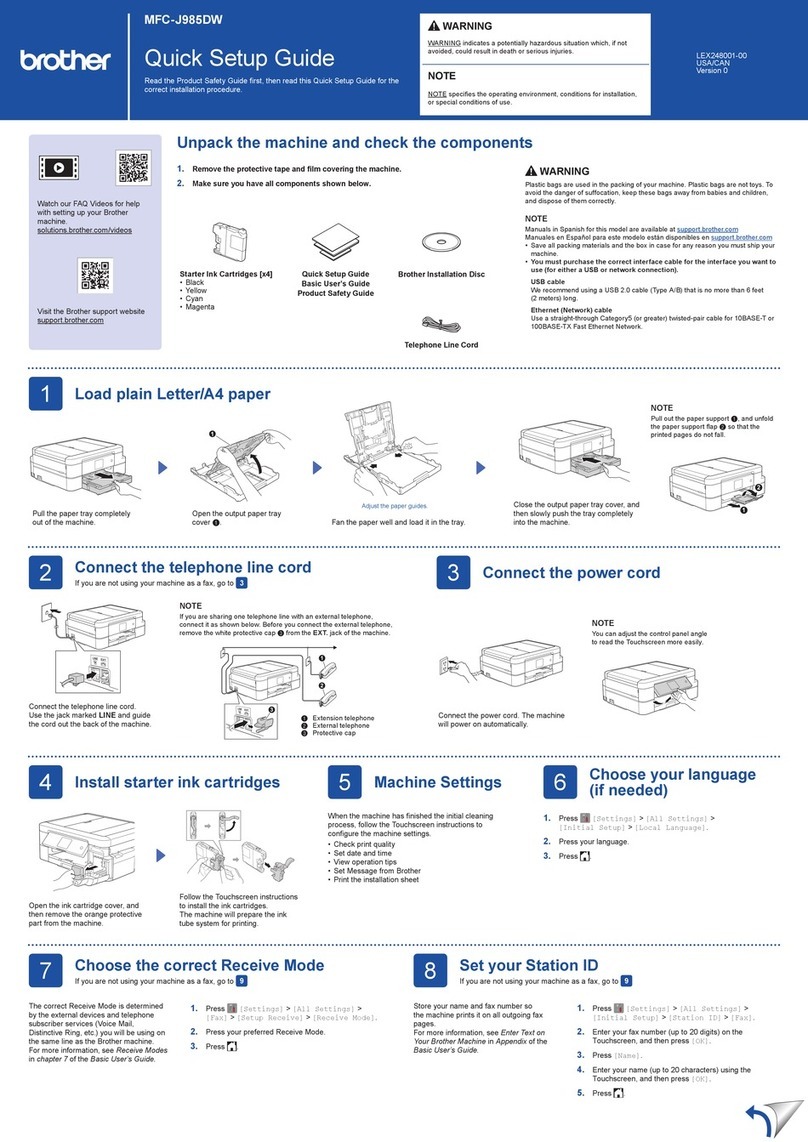
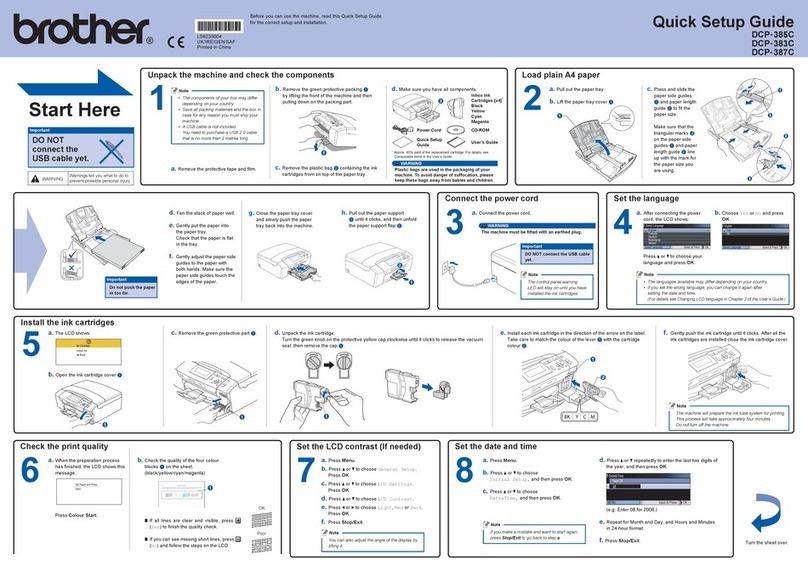
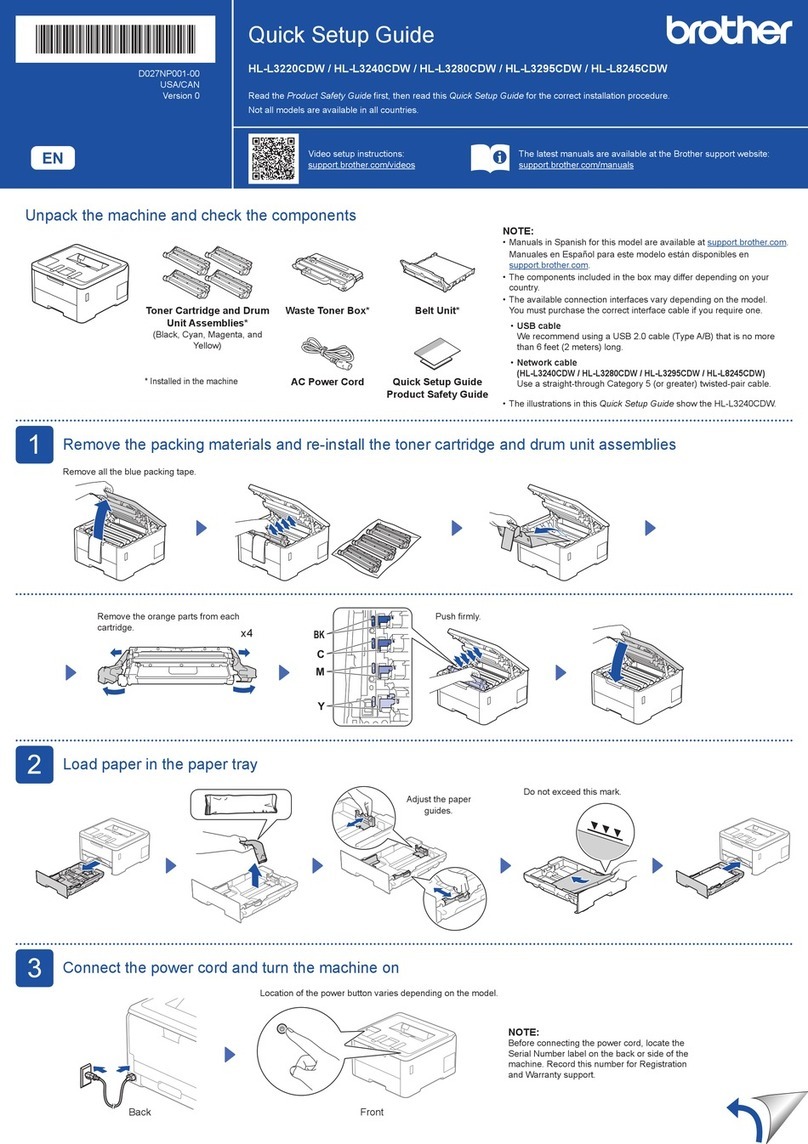
Unpack the machine and check the components
NOTE:
•The available connection interfaces vary depending on the model.
•Interface cables are not included. If you require one, it will need to be
purchased. Use one of the following cables:
USB cable
We recommend using a USB 2.0 cable (Type A/B) that is no
more than 2 metres long.
Network cable
Use a straight-through Category 5e (or greater) twisted-pair
cable.
•The illustrations in this Quick Setup Guide show the HL-L9310CDW.
Remove the packing materials and install the drum unit and toner cartridge assembly
Load paper in the paper tray
Connect the power cord and turn the machine on
Select your language (if needed)
Drum Unit* Waste Toner Box* Belt Unit*
Inbox Toner Cartridges*
(Black, Cyan, Magenta and Yellow)
Brother Installation Disc AC Power Cord
Quick Setup Guide Product Safety Guide USB Interface Cable
3
4
2
1
Adjust the paper
guides.
Back Front
1. Press▼or▲toselect[Initial Setup], and
then press OK.
2. Press OK to select [Local Language].
3. Press▼or▲toselectyourlanguage,andthen
press OK.
4. Press Cancel.
1
2
3
4
Do not exceed this mark.
* Already installed in the machine
Remove the packing tape.
Secure Network Access
Your machine’s default password is on the label on the back of the
machine (preceded by “Pwd”).
We strongly recommend you change it to protect your machine from
unauthorised access.
For LCD models For Touchscreen models
1. On the machine’s Touchscreen, press
[设置](Settings) > [所有设置](All Settings) >
[初始设置](Initial Setup) > [语言](Local
Language).
2. Press your language.
3. Press .
Quick Setup Guide
HL‑L8260CDN / HL‑L9310CDW
Read the Product Safety Guide first, then read this Quick
Setup Guide for the correct installation procedure.
The latest manuals are available at the Brother Solutions
Center: www.95105369.com.
1
CHN-ENG
Version B
Select a device to connect to your machine
Mobile Device
Go to and follow the instructions.
5
Go to and follow the instructions.
Computer
Can’t Connect? Check the following:
Connect your computer
6
Put the installation disc into your CD/DVD drive, or
download the Full Driver & Software Package at:
www.95105369.com
If you are using a recently released operating system on
your computer, visit the above websites for updated driver
and software information.
Download
Follow the on‑screen instructions and prompts.
For Windows®:
If the Brother screen does not appear automatically, go to Computer
(This PC). Double-click the CD/DVD-ROM icon, and then double-click
start.exe.
For Macintosh:
For full driver functionality, we recommend choosing the CUPS driver
when adding a printer.
Finished
Restart your wireless access
point/router (if possible).
Disconnect the cable.
Wireless network
Wired network
USB connection
If still not successful, go to .
If still not successful, visit www.95105369.com
for FAQs & Troubleshooting.
Restart your machine and
computer, and then go to .
Alternative wireless setup (For HL-L9310CDW)
Find your SSID (Network Name) and Network
Key (Password) on your wireless access point/
router and write them in the table provided below.
7
SSID: XXXXXXX
Network key: XXXX
If you cannot find this information, ask your
network administrator or wireless access
point/router manufacturer.
Select the SSID (Network Name)
for your access point/router and
enter the Network Key (Password).
When the wireless setup is
successful, the Touchscreen/LCD
displays [已连接](Connected).
If setup is not successful, restart
your Brother machine and your
wireless access point/router,
and repeat .
For Computer
Go to to install software.
For Mobile Device
Go to to install apps.
Brother regularly updates firmware to add features and apply bug fixes. To
check for the latest firmware, visit solutions.brother.com/up3.
Even if you do not have a wireless access point/router, you can connect your
device and your machine directly.
Print using your mobile device
Download and install our free application Brother iPrint&Scan.
Visit www.95105369.com.
8
SSID (Network Name)
Network Key (Password)
Optional apps
You can print from your mobile device using various apps.
For instructions, see the Online User’s Guide.
Your mobile device must be connected to the same wireless network as your Brother machine.
AirPrint is available for Apple device users. You do not need to
download any software to use AirPrint. For more information,
see the Online User’s Guide.
Press > [设置向导](Setup
Wizard) > [是](Yes).
For FAQs, Troubleshooting, and to download software and manuals, visit www.95105369.com. © 2017 Brother Industries, Ltd. All rights reserved.
2