BT Versatility User manual

BT Versatility
Quick Reference

BT Versatility
Quick reference user guide
Introduction to your Featurephone
Welcome
The BT Versatility system is a very powerful business communication system
that provides a comprehensive solution for both voice and data needs.
This quick reference guide highlights some of the many voice facilities that
are provided by the system. You can use a Standard Telephone or the
highly featured V8 and V16 BT Versatility Featurephones. This guide helps
you to use both types of phone.
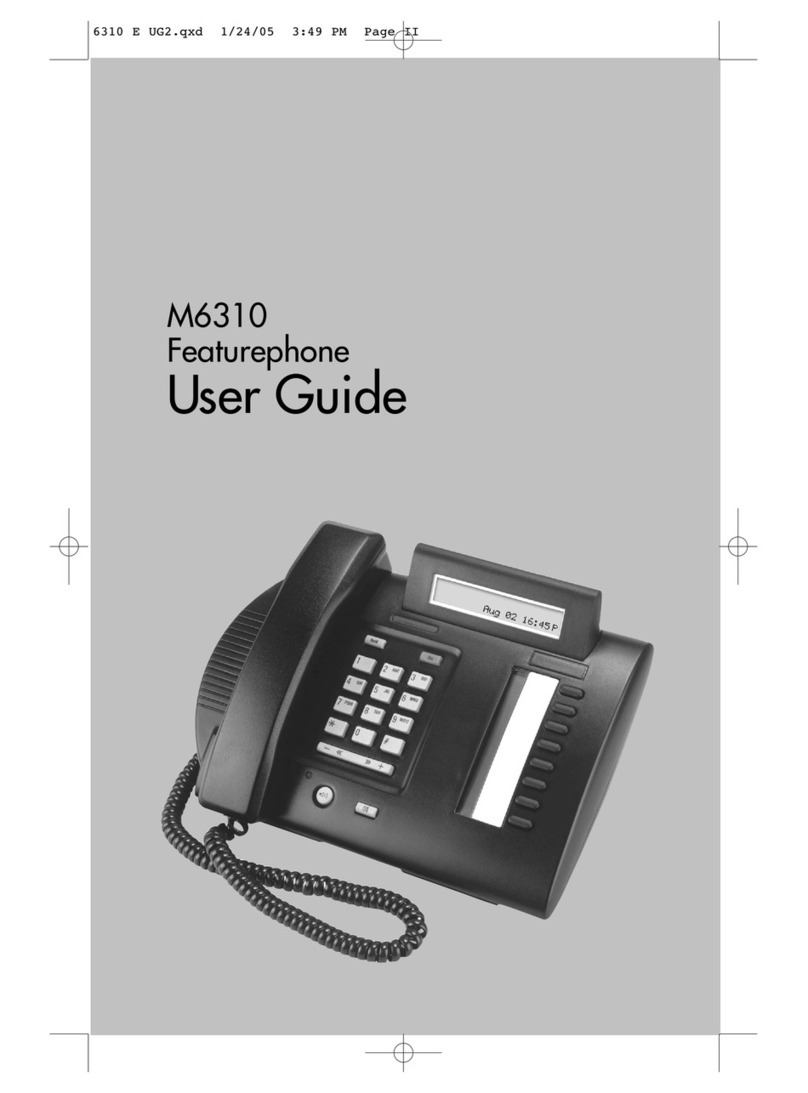
BT Versatility Featurephone
To get the most from your BT Versatility, we recommend that you use the
dedicated BT Versatility Featurephones. To order more featurephones please
contact your Account Manager or call BT Sales FREE on 0800 800 152.
This diagram illustrates the V16 phone which has 16 programmable keys.
Secrecy
Key
Hands-free
and light
Volume
Keys
Voice message-
indicating light
4 Function Keys
Programming
Message Retrieval
Speed Dial Lists
Network and ISDN
Scroll /
Edit keys
Clear
Key
Headset
socket
Data
socket
6 Display
Keys
Programmable
keys.
(16 V16 / 8 V8)

1
BT Versatility
Quick reference user guide
How to use your BT Versatility Feature Phones
Phone Setup
To select a different Ringing Tone or Display Contrast
Select ➧
Press the Scroll Down Key
Select ➧and select a different ringing tone
Select ➧and select a different level of contrast.
Answering and making calls
Answer a call that is ringing on the Featurephone using the handset
Pick up the handset or
Select ➧and/or pick up the handset.
Answer a call that is ringing on the Featurephone using hands-free
Select ➧
Make an external call
Pick up the handset
Press the Line Key or Key 9 and Key the number.
Make an internal call
Select ➧
Select ➧, or
Key the Extension number (20 - 51), and
Pick up handset, or press
Transferring calls
Note: The following instructions assume you are on a call.
Transfer a call to an internal number
Select ➧
Select ➧and when the call is answered
Select ➧
Transfer an external call to an external number
Select ➧
Select an available Line as indicated by ‘’and then
Key the external number and when the call is answered
Select ➧Transfer
External transfer
Transfer
Ext. no.
Internal transfer
Ext. no.
Internal call
Answer the call
Answer the call
Contrast options
Ringing options
Program

BT Versatility
Quick reference user guide
2
Deflecting calls
Note: The following instructions assume that your Extension is ringing.
Deflect a call to another Extension
Select ➧
Select ➧
Deflect a call to your voicemail box
Select ➧
Diverting calls
Divert all calls
Press the Scroll Down Key until ‘Divert’ is displayed.
Select ➧
Select ➧
Key the internal Extension number, or
Key 9 and the target external number, (for incoming
external calls only)
Or press ‘Divert to voicemail’.
Cancel divert all calls
Select ➧
Divert calls when your Extension is busy
Press the Scroll Down Key until ‘Divert’ is displayed.
Select ➧
Select ➧
Key the target Extension number, or
Key 9 and the target external number, (for incoming
external calls only)
Or press ‘Divert to voicemail’.
Cancel divert a call on busy
Press the Scroll Down Key until ‘Divert’ is displayed.
Select ➧
Select ➧and the diversion is cancelled.
Divert when busy
Divert
Divert when busy
Divert
Cancel divert
Divert all calls
Divert
Deflect to voicemail
Ext. no.
Deflect the call

3
BT Versatility
Quick reference user guide
Divert calls when your Extension does not answer (after four rings)
Press the Scroll Down Key until ‘Divert’ is displayed.
Select ➧
Select ➧
Key the target Extension number, or
Key 9 and the target external number, (for incoming external
calls only).
Or press ‘Divert to voicemail’.
Cancel divert a call on no answer
Press the Scroll Down Key until ‘Divert’ is displayed.
Select ➧
Select ➧and the diversion is cancelled.
Voicemail
Note: Voicemail services require the Voicemail Module to be installed.
Enter a personal greeting
Press , and
Select ➧
Enter your Extension number or select Extension from the menu
Then enter your Voice Mailbox Password followed by .
Select ➧
Follow the text and voice prompts to enter and check your greeting.
Turn on your voicemail
Divert on ‘no answer’ to the Voicemail is automatically set when a
voice mailbox is allocated to your extension.
You may also select the other Divert options as required.
Press the Scroll Down Key until ‘Divert’ is displayed.
Select ➧
Select ➧or
Select ➧
Select ‘Divert to voicemail’.
Divert all calls
Divert when busy
Divert
Greetings
Voice messaging
Divert on no answer
Divert
Divert on no answer
Divert

BT Versatility
Quick reference user guide
4
Retrieve messages from your voice mailbox
Select ➧
Enter your Extension number. You will be prompted to
Enter your Voice Mailbox Password, followed by .
Select ➧
Change your Voice Mailbox Password
Press , then
Select ➧and enter your Extension number.
Enter your existing password, (default is 1111), followed by
Press the Scroll Down Key
Select ➧and
Enter your new password (up to 8 digits long – e.g. 12341234).
Select ➧
Personal speed dials
Programme your personal speed dial list – numbers and names
Press , then
Select ➧
Select the location you want to program, and
Enter the number
Select ➧. When prompted to enter a name.
Press 2once for A, twice for B, three times for C;
press 3once for D, twice for E, three times for F; and so on.
Wait two seconds for the screen cursor to move on before entering
the next letter. A maximum of ten characters per name
(including spaces) is allowed. On completion of the name
Select ➧
Press to finish programming.
Dial a number from your personal speed dial list
Press , then
Select ➧
Select the desired location and the number will be dialled.
Personal speed dial
Confirm
Confirm
Personal entries
Confirm
Change password
Voice messaging
Play
New voice messages

5
BT Versatility
Quick reference user guide
System speed dials
Any extension can programme the 500 system speed dial numbers
once the system password is entered by them.
Programme system speed dial list – numbers and names
Press , then
Press the Scroll Down Key
Select ➧and then
Enter the system password
Select the location you want to program, and
Enter the number, and then
Select ➧. When prompted to enter a name.
Press 2once for A, twice for B, three times for C;
press 3once for D, twice for E, three times for F; and so on.
Wait two seconds for the screen cursor to move on before entering
the next letter. A maximum of ten characters per name
(including spaces) is allowed. On completion of the name
Select ➧. Then select the outgoing line group
Press to finish programming.
Dial a number in the system speed dial list
Press , then
Select ➧and then
Enter the first letter of the name
Select the entry and the number is dialled.
System speed dial
Confirm
Confirm
System entries

BT Versatility
Quick reference user guide
6
Using a standard telephone
The BT Versatility supports Tone phones with Timed Break recall.
If you have problems keying or using the ‘Recall key’ check with the phone
supplier that they use Tone Dialling and Timed Break recall.
Making calls
Make an external call
Lift handset or use hands-free if available.
Obtain a free Line by keying 9
Make an internal call
Lift handset or use hands-free if available.
Key the Extension number (20, 52), or
Key 0for the operator.
Transfer external call to an internal Extension
Press the RECALL key (R).
Key the Extension number.
Replace handset.
Put an external call on hold
Press the RECALL key (R).
Replace handset to continue to use phone.
Note: Call is held for thirty seconds when the telephone is idle.
If the telephone is busy, it will ring when the handset is replaced.
To park an external call
Press the RECALL key (R).
Key 712.
Replace handset.
To retrieve a call from park
Key 712 from any phone.
The parked call is retrieved.

7
BT Versatility
Quick reference user guide
Diverting calls
Divert all calls
Lift handset or use hands-free if available
Key 732
Key the Extension number, or
Key the external phone number (including Line access code 9).
Cancel divert all calls
Lift handset or use hands-free if available
Key 732
Divert calls when your telephone is busy
Lift handset or use hands-free if available
Key 733
Key the Extension number, or
Key the external number, (including Line access code 9).
Cancel divert a call on busy
Lift handset or use hands-free if available
Key 733
Divert calls when your telephone is not answered (after four rings)
Lift handset or use hands-free if available
Key 734
Key the Extension number, or
Key the external phone number.
(including Line access code, e.g. 9).
Cancel a divert a call on no answer
Lift handset or use hands-free if available
Key 734

BT Versatility
Quick reference user guide
8
Voicemail
Note: Voicemail services require the Voicemail Module to be installed
Turn on your voicemail
When you are allocated a voice mailbox ‘Divert on no answer’ is
automatically set to your Voice box.
The Voice code is 710
To Divert all your calls to your Voicemail Key 732 followed by 710
To Divert on Busy to your voicemail Key 733 followed by 710
Speed dialling
Programme your personal speed dial list
Lift handset or use hands-free if available
Key 75
Enter the location (01-30) where you want to store the number,
Key the number to store. Replace the handset.
Dial a number from your personal speed dial list
Lift handset or use hands-free if available
Key 74
Enter the location (01-30) of the number required, and the number
is automatically dialled.
Dial a number from the system speed dial list
Lift handset or use hands-free if available
Key a system speed number – 8001 to 8500
Other manuals for Versatility
5
This manual suits for next models
2
Table of contents
Other BT Conference Phone manuals