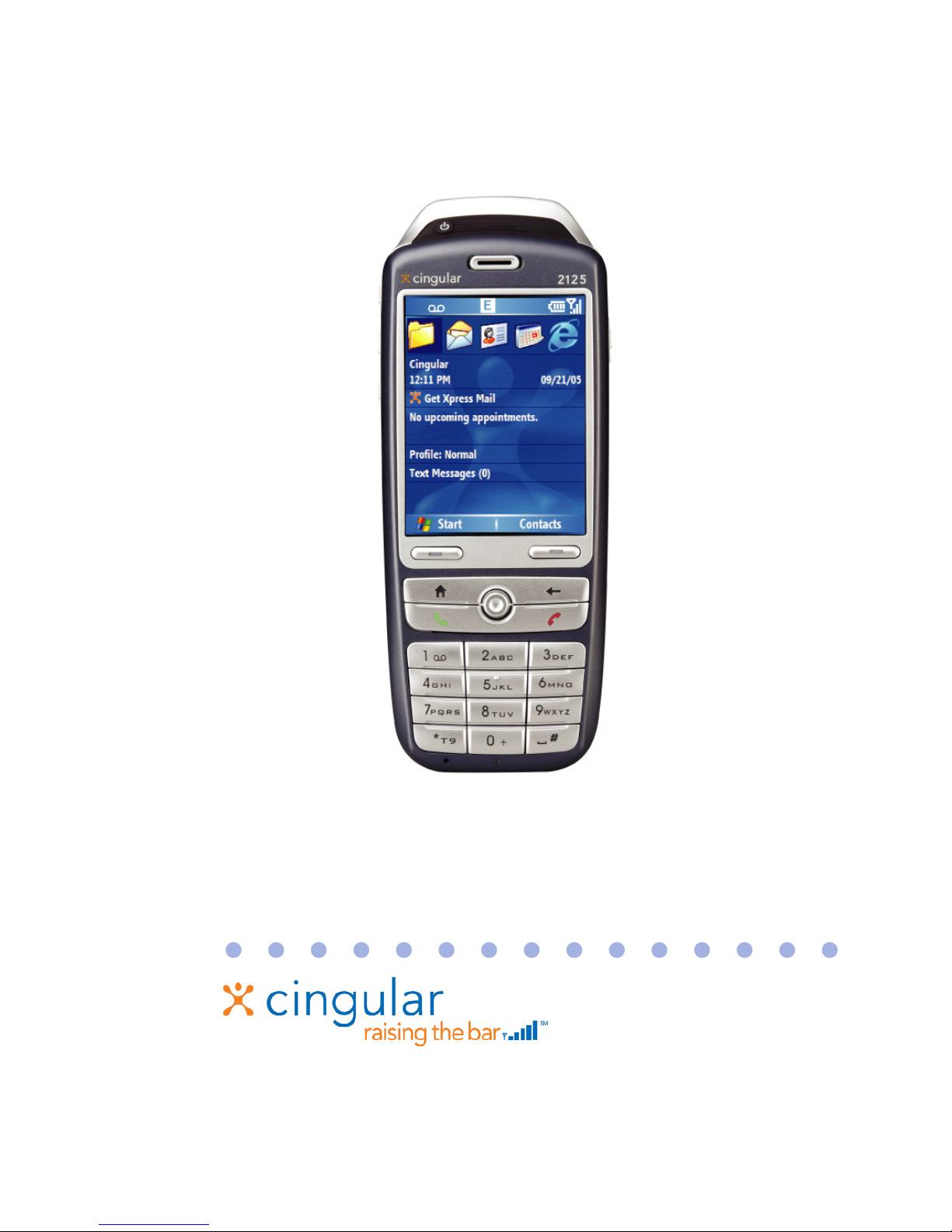
Cingular 2125 User manual

User Manual

2
Congratulations on the purchase of your new Windows Mobile™
Smartphone!
Microsoft, MS-DOS, Windows, Windows NT, Windows Server,
Windows Mobile, ActiveSync, Excel, Internet Explorer, MSN,
Outlook, PowerPoint, and Word are either registered trademarks
or trademarks of Microsoft Corporation in the United States and/or
other countries.
Please read before operating your device.
THE DEVICE IS NOT CHARGED WHEN YOU TAKE IT OUT OF THE
BOX.
DO NOT REMOVE THE BATTERY PACK WHEN THE DEVICE IS
CHARGING.
WHEN INSERTING YOUR SIM CARD, MAKE SURE THE DEVICE
IS POWERED OFF, AND THAT THE SIM CARD SNAPS INTO THE
SOCKET SECURELY.
YOUR WARRANTY IS INVALIDATED IF YOU OPEN OR TAMPER
WITH THE DEVICE’S OUTER CASING. (For more information, see the
enclosed warranty statement.)
EXPLOSIVE ATMOSPHERES
When in any area with a potentially explosive atmosphere or where
flammable materials exist, the product should be turned off and the
user should obey all signs and instructions. Sparks in such areas could
cause an explosion or fire resulting in bodily injury or even death. Users
are advised not to use the equipment at refueling points such as service
or gas stations. Users are reminded of the need to observe restrictions
on the use of radio equipment in fuel depots, chemical plants or where
blasting operations are in progress. Areas with a potentially explosive
atmosphere are often, but not always, clearly marked. These include
fueling areas, below deck on boats, fuel or chemical transfer or storage
facilities, and areas where the air contains chemicals or particles, such
as grain, dust, or metal powders.

3
Contents
Chapter 1 Getting Started 7
1.1 The Home Screen ............................................8
1.2 Status Indicators and Program Icons ............9
1.3 Using the Start Menu .....................................12
1.4 Using the Quick List ......................................12
1.5 Entering Information .....................................13
1.6 Battery Information .......................................16
Chapter 2 Using Phone Features 19
2.1 Using the Phone ............................................20
2.2 Making a Call .................................................21
2.3 Receiving a Call .............................................25
2.4 In-Call Options ...............................................25
2.5 Additional Dialing Information .....................27
2.6 Using Voice Tags ...........................................29
Chapter 3 Synchronizing your Phone 31
3.1 About ActiveSync ..........................................32
3.2 Setting Up ActiveSync ..................................32

4
3.3 Synchronizing Information ...........................33
3.4 Synchronizing via Infrared and Bluetooth ..36
3.5 Synchronizing Music, Video, and Pictures .37
Chapter 4 Managing your Phone 39
4.1 Personalizing your Phone ............................40
4.2 Adding and Removing Programs .................46
4.3 Using Task Manager and Managing Memory ..
........................................................................48
4.4 Managing and Backing Up Files ..................49
4.5 Protecting your Phone ..................................54
4.6 Restarting your Phone ..................................56
4.7 Resetting your Phone ...................................56
Chapter 5 Getting Connected 57
5.1 Connecting to the Internet ............................58
5.2 Using Internet Explorer Mobile ....................61
5.3 Using Modem Link .........................................63
5.4 Using Comm Manager ..................................66
5.5 Using Bluetooth .............................................67

5
Chapter 6 Exchanging Messages and Using
Outlook 73
6.1 Using E-mail and Text Messages .................74
6.2 Using MMS Messages ...................................80
6.3 Using Pocket MSN Messenger .....................86
6.4 Using Calendar ..............................................88
6.5 Using Contacts ..............................................89
6.6 Using Tasks ....................................................92
6.7 Using Voice Notes .........................................93
Chapter 7 Experiencing Multimedia 95
7.1 Using Camera and Video Recorder .............96
7.2 Using Pictures & Videos .............................103
7.3 Using Windows Media Player .....................108
7.4 Using MIDlet Manager .................................117
Appendix 123
A.1 Regulatory Notices ......................................124
A.2
PC Requirement to Run ActiveSync 4.x ..........132
A.3 Troubleshooting ..........................................132
A.4 Specifications ..............................................140
Index 143

6

Chapter 1
Getting Started
1.1 The Home Screen
1.2 Status Indicators and Program Icons
1.3 Using the Start Menu
1.4 Using the Quick List
1.5 Entering Information
1.6 Battery Information

8
1
Getting Started
1.1 The Home Screen
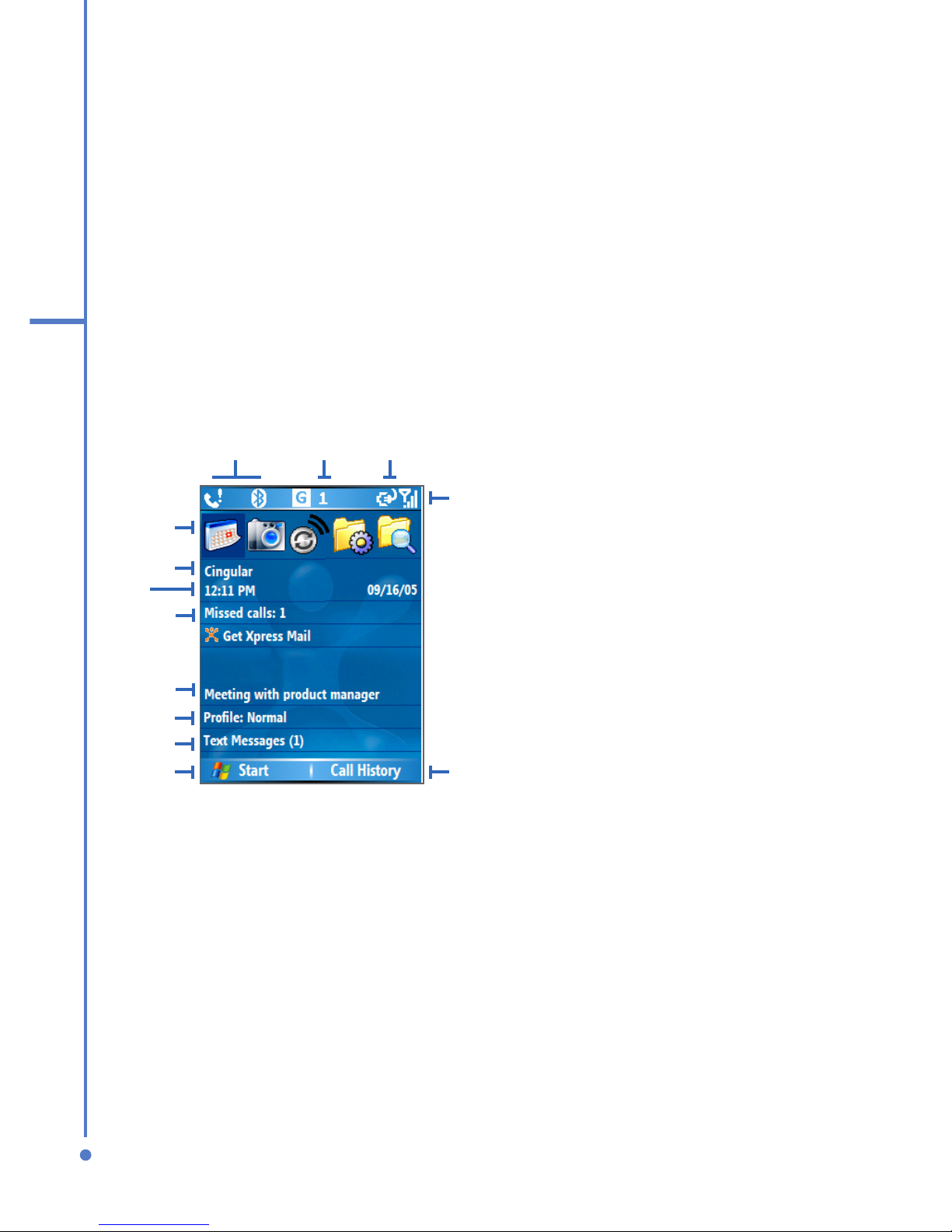
The Home screen displays important information, such
as upcoming appointments, status indicators, the current
date, time, and profile, and icons of programs that you have
recently used. You can open a program directly by selecting
its icon and pressing ENTER.
• To access the Home screen from anywhere, press
HOME.
• To customize the Home screen display, including the
background, click Start > Settings > Home Screen.
7Click to open the Messages folder.
8. Click to display all program icons.
9. Displays notifications, such as missed calls or new messages.
10. Displays the GPRS or GSM network status.
11. Displays the power status.
12. Displays the network signal strength.
13. Click to open Contacts, Call History, or Messages.
1. Select a recently-used
program, and open it
directly from the Home
screen.
2. Displays the name of your
wireless service provider.
3. Displays the current date
and time.
4. Click to view the details of a
missed call.
5. Click to see the time of your
next appointment.
6. Displays the current profile.
Click to change the profile.
Home Screen
2
1
3
4
5
6
7
8
12
13
9 10 11

9
1
Getting Started
1.2 Status Indicators and Program Icons
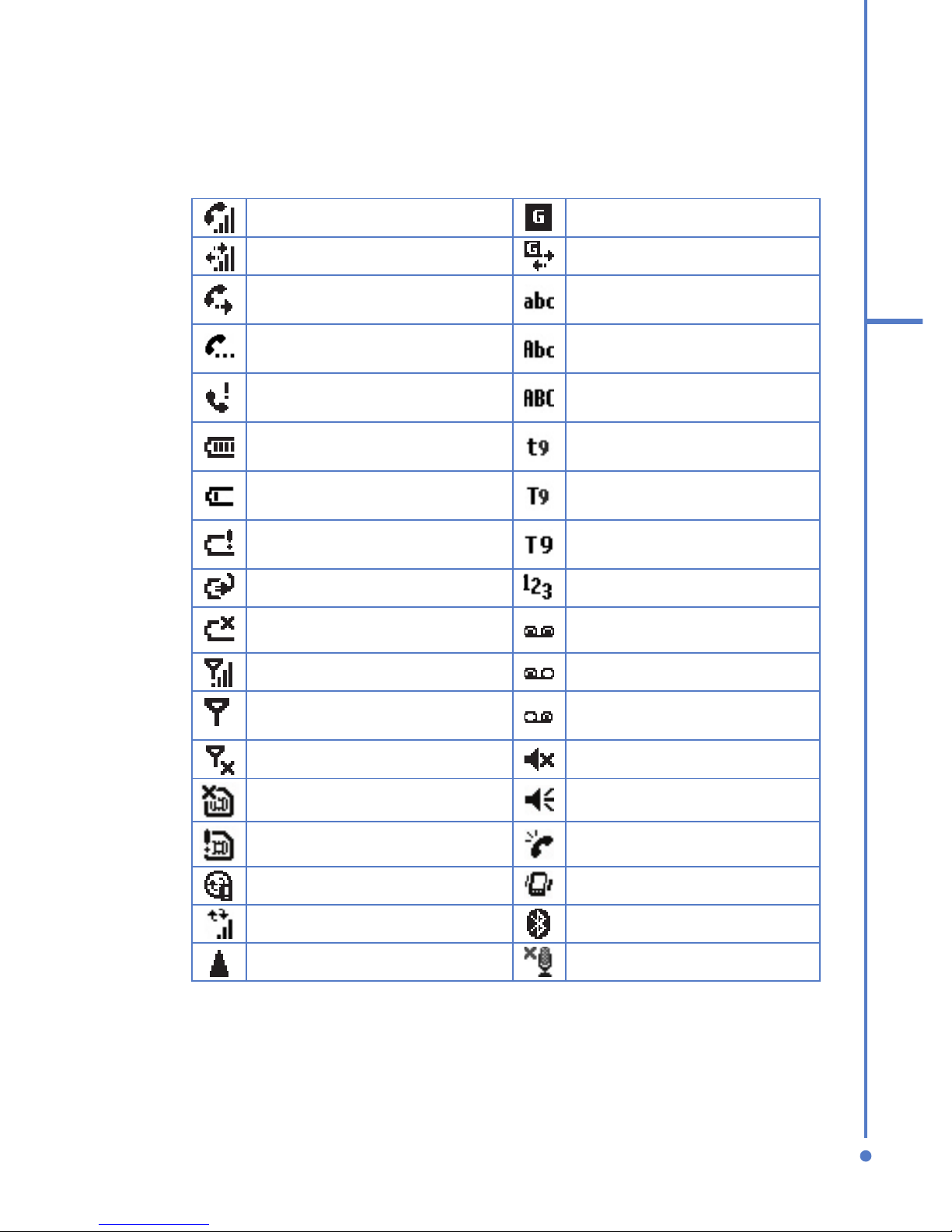
The following table lists common status indicators and their
meanings.
Voice call in progress GPRS available
Data call in progress GPRS connected
Calls forwarded Multipress text input
mode, lowercase
Call on hold Multipress text input
mode, uppercase
Missed call Multipress text input
mode, caps lock
Battery level T9 text input mode,
lowercase
Low battery
T9 text input mode,
uppercase
Very low battery T9 text input mode, caps
lock
Battery charging Numeric input mode
No battery or battery fault Voice mail at both lines
Signal strength Voice mail at line 1
Radio connected or no
signal Voice mail at line 2
Radio off Ringer off
No SIM card installed Ringer on
SIM card with fault Phone volume
Sync error Vibrate call alert
Synchronization in progress Bluetooth
Roaming Microphone muted

10
1
Getting Started
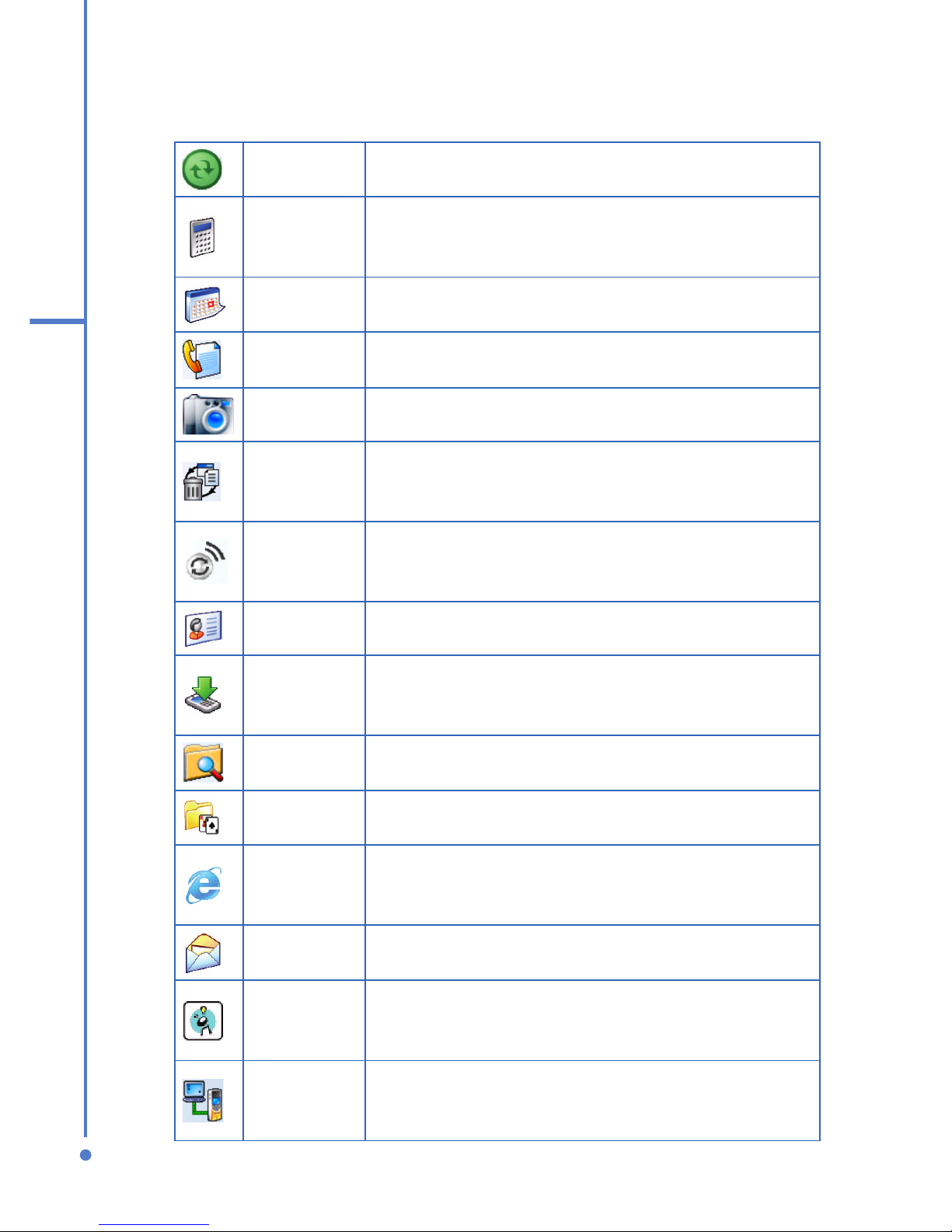
The following table lists icons of the programs that are
already installed on your phone.
ActiveSync Synchronizes information between your phone
and a PC.
Calculator
Performs basic arithmetic and calculations,
such as addition, subtraction, multiplication,
and division.
Calendar Keeps track of your appointments, and creates
meeting requests.
Call History Keeps track of all phone calls made, received,
and missed.
Camera Captures photos in various modes.
Clear
Storage
Clears the memory, restores the phone back
to factory default settings, then restarts the
phone.
Comm
Manager
Lets you enable or disable Bluetooth,
synchronize with a PC, and switch your phone
to Silent mode.
Contacts Keeps track of contact information.
Download
Agent
Provides information about the download
status and the downloaded content from the
Internet.
File
Manager
Lets you organize and manage files on your
phone.
Games Lets you play two games: Bubble Breaker and
Solitaire come with your phone.
Internet
Explorer
Allows you to browse Web and WAP sites, and
to download new programs and files from the
Internet.
Messaging Lets you send and receive e-mail and text
messages.
MIDlet
Manager
Lets you download and install Java-based
applications, such as games and tools, on your
phone.
Modem
Link
Lets you use your phone as an external
modem for a PC, connecting through a USB
port or infrared.
Other manuals for 2125
2
Table of contents
Other Cingular Cell Phone manuals