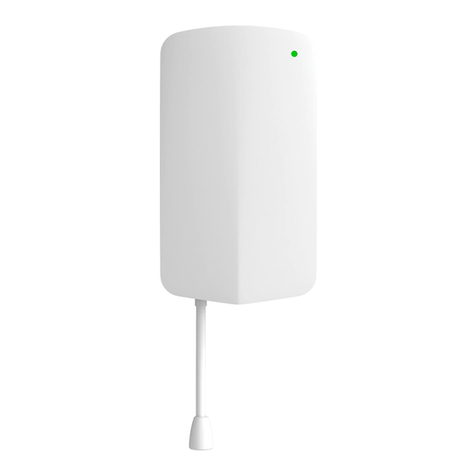
MT20 Installation Guide - Open/Close Detection
Overview
The Cisco Meraki MT20 is a cloud-managed intrusion-detection sensor that is exceptionally simple to configure and deploy due to its integration with the Meraki
dashboard and the use of Bluetooth Low Energy technology. The MT family eliminates the complex and costly setup required by traditional solutions by
removing the limitations of placement of these sensors.
Pre-Installation Preparation
You should complete the following steps before going on-site to perform an installation:
Configure Your Network in the Dashboard
The following is a brief overview only of the steps required to add an MT20 to your network. For detailed instructions about creating, configuring, and managing
Meraki sensor networks, refer to the MT - Sensors online documentation.
1. Log in to http://dashboard.meraki.com. If this is your first time, create a new account.
2. Find the network to which you plan to add your sensor, or create a new network.
3. Add the sensors to your network. You will need your Meraki order number (found on your invoice) or the serial
number of each sensor, which looks like Qxxx-xxxx-xxxx, and can be found on the back of the unit or included in
the box.
4. Add the gateway (MV or MR) to the same network as the sensor.
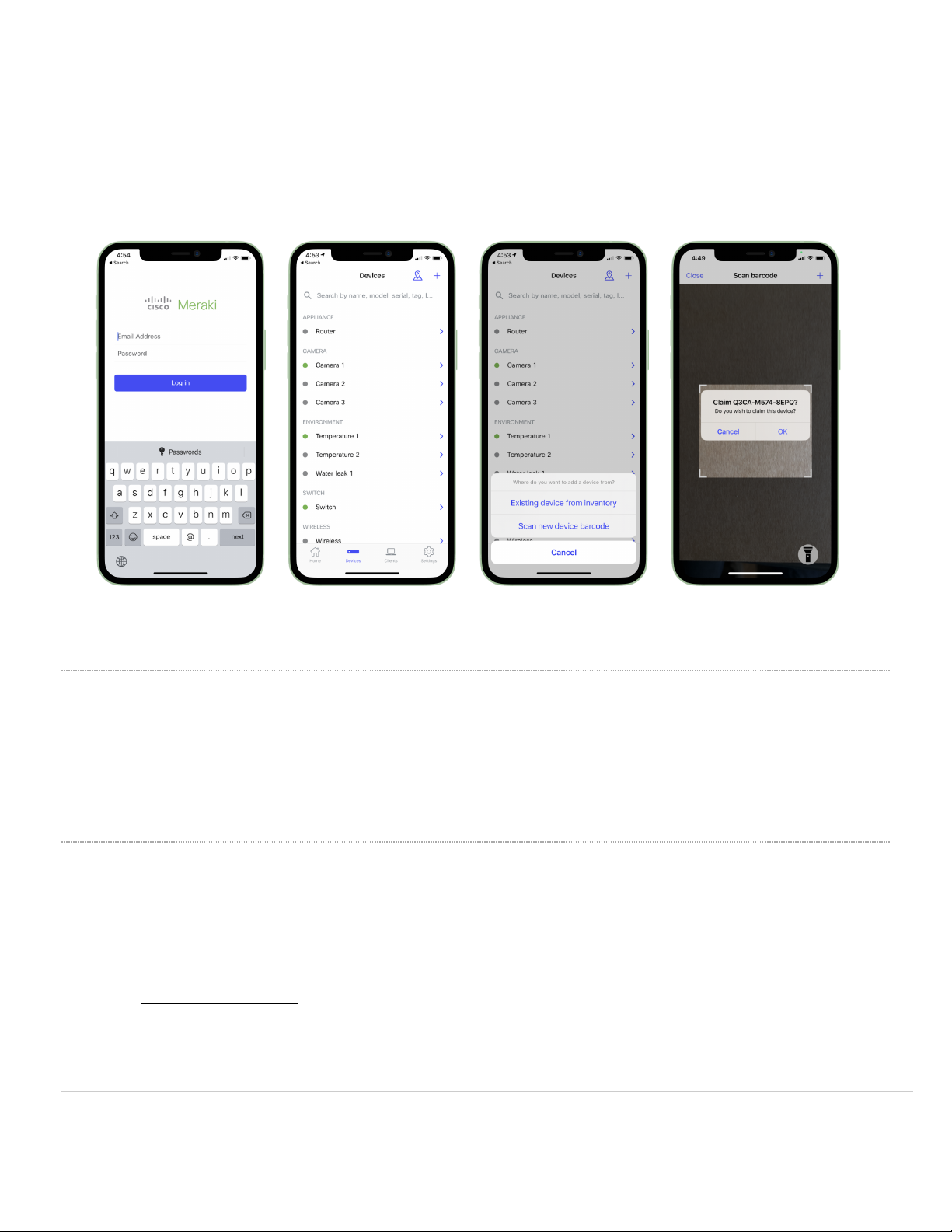
Quickly Scan and Claim Multiple Devices through the Meraki Mobile App
If you have to claim multiple devices, the quickest way is by scanning their barcode using the Meraki app.
1. Log in to your Meraki iOS or Android app with your Meraki dashboard account. Create a new account if you do not
have one.
2. Navigate to the correct network through left-side bar.
NOTE: Make sure the gateway is online and operational.
Click here for MV setup instructions and MR setup instructions.
WARNING: Environmental sensors are only supported with second-generation MV cameras and Wi-Fi 6-compatible APs.
1