manuals.online logo
Brands
  1. Home
  2. •
  3. Brands
  4. •
  5. Cypress
  6. •
  7. Extender
  8. •
  9. Cypress Suprex SPX-5600 Series User manual

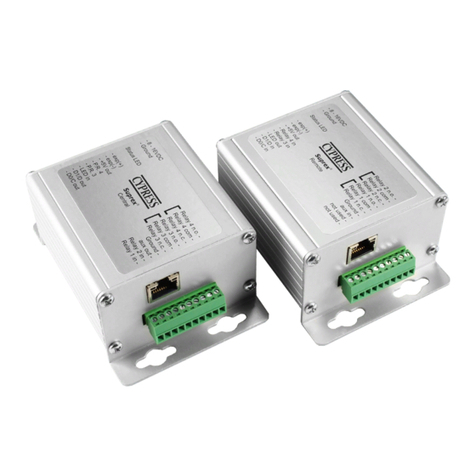
Cypress Suprex SPX-5600 Series User manual

This manual suits for next models

2

Other Cypress Extender manuals

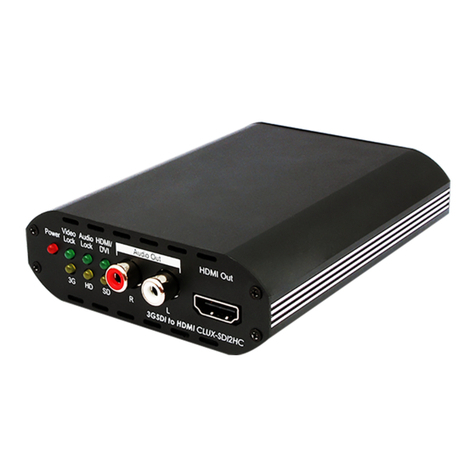
Cypress CLUX-SDI2HC User manual

Cypress

Cypress CLUX-SDI2HC User manual

Cypress CIR-03 User manual

Cypress

Cypress CIR-03 User manual

Cypress CMDP-13MDPI User manual

Cypress

Cypress CMDP-13MDPI User manual

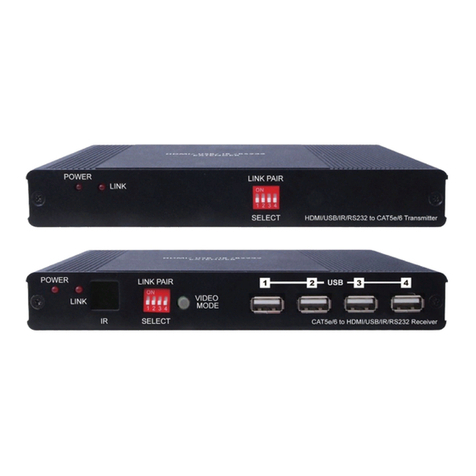
Cypress PU-515PL-KIT HDBaseT User manual

Cypress

Cypress PU-515PL-KIT HDBaseT User manual

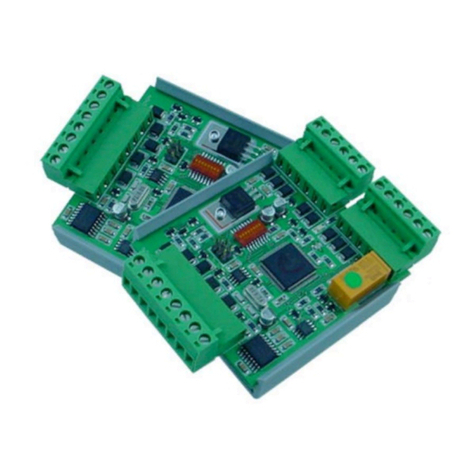
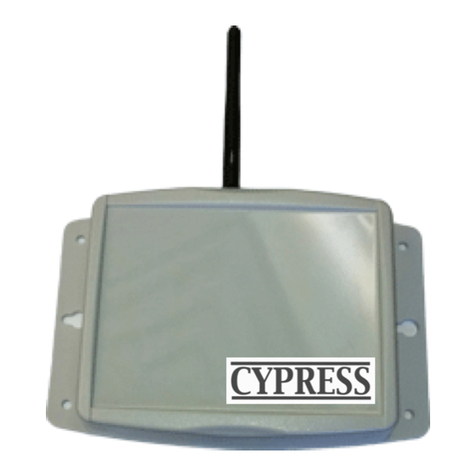
Cypress Suprex RF SPX-5631R User manual

Cypress

Cypress Suprex RF SPX-5631R User manual

Cypress DPX-5500 Series User manual

Cypress

Cypress DPX-5500 Series User manual

Cypress Suprex SPX-7200 User manual

Cypress

Cypress Suprex SPX-7200 User manual

Cypress Suprex RS-485 User manual

Cypress

Cypress Suprex RS-485 User manual

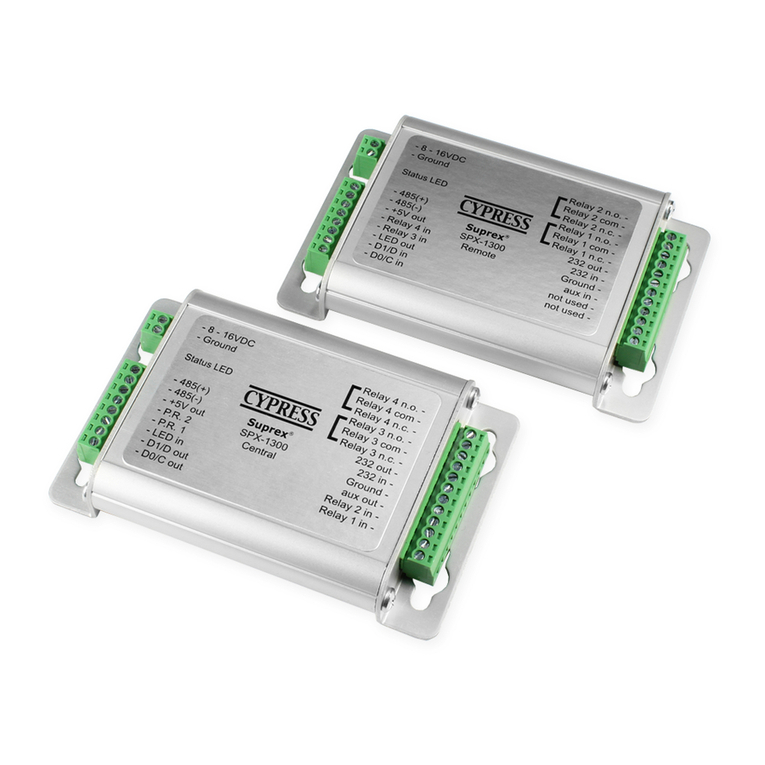
Cypress Suprex SPX-1300 User manual

Cypress

Cypress Suprex SPX-1300 User manual

Cypress DCT-32TX User manual

Cypress

Cypress DCT-32TX User manual

Cypress Suprex SPX-7400 Series User manual

Cypress

Cypress Suprex SPX-7400 Series User manual

Cypress Suprex  SPX-5631 User manual

Cypress

Cypress Suprex SPX-5631 User manual

Cypress Suprex SPX-7200 User manual

Cypress

Cypress Suprex SPX-7200 User manual

Cypress Suprex  SPX-5631 User manual

Cypress

Cypress Suprex SPX-5631 User manual

Cypress Suprex SPX-7500 User manual

Cypress

Cypress Suprex SPX-7500 User manual

Cypress CIR-12 User manual

Cypress

Cypress CIR-12 User manual

Cypress CY3242-IOXlite User manual

Cypress

Cypress CY3242-IOXlite User manual

Cypress SPX-1200 User manual

Cypress

Cypress SPX-1200 User manual

Cypress CLUX-SDI2HC User manual

Cypress

Cypress CLUX-SDI2HC User manual

Cypress Suprex WMR-9600MAN User manual

Cypress

Cypress Suprex WMR-9600MAN User manual

Cypress CA-USBHUT User manual

Cypress

Cypress CA-USBHUT User manual

Cypress Suprex SPX-1300 User manual

Cypress

Cypress Suprex SPX-1300 User manual

Popular Extender manuals by other brands

Paugge ENT-EXT20B user manual

Paugge

Paugge ENT-EXT20B user manual

REIGN XRE-100 manual

REIGN

REIGN XRE-100 manual

Lindy 42805 user manual

Lindy

Lindy 42805 user manual

Digi ConnectPort Network Device user manual

Digi

Digi ConnectPort Network Device user manual

British General N300 instructions

British General

British General N300 instructions

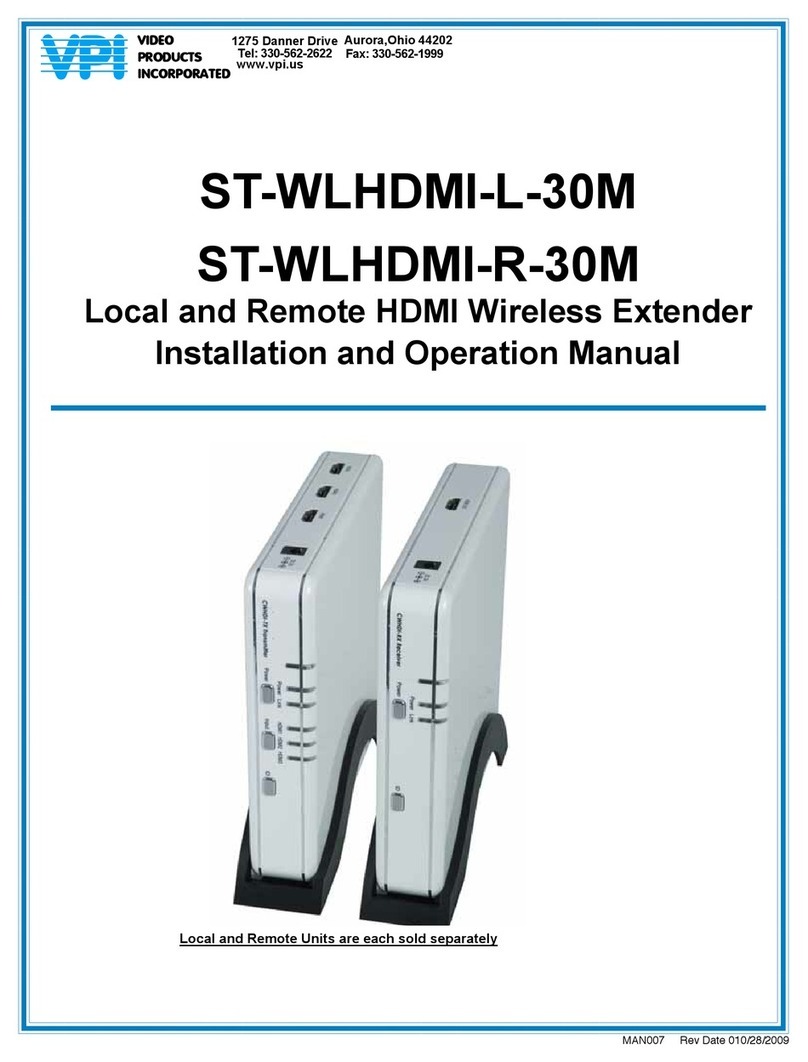
VPI ST-WLHDMI-L-30M Installation and operation manual

VPI

VPI ST-WLHDMI-L-30M Installation and operation manual

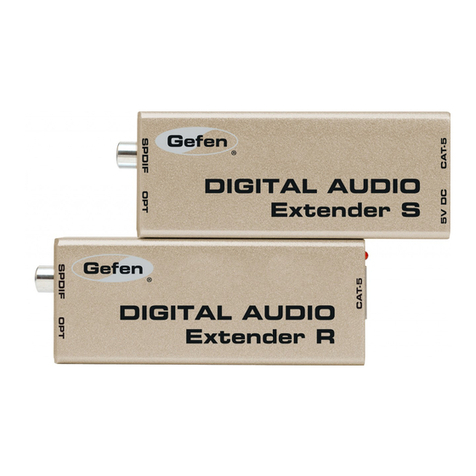
Gefen EXT-DIGAUD-141 user manual

Gefen

Gefen EXT-DIGAUD-141 user manual

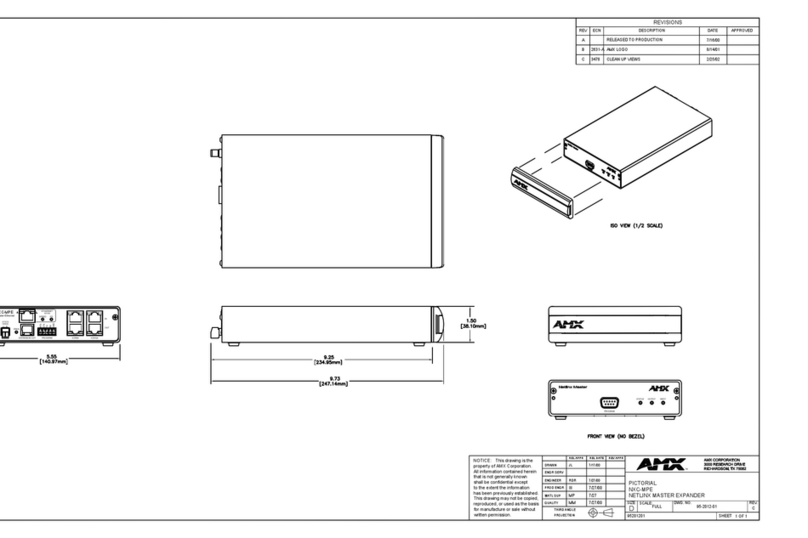
AMX netlinx NXC-MPE Dimensional drawing

AMX

AMX netlinx NXC-MPE Dimensional drawing

SY HDBT-60T installation guide

SY

SY HDBT-60T installation guide

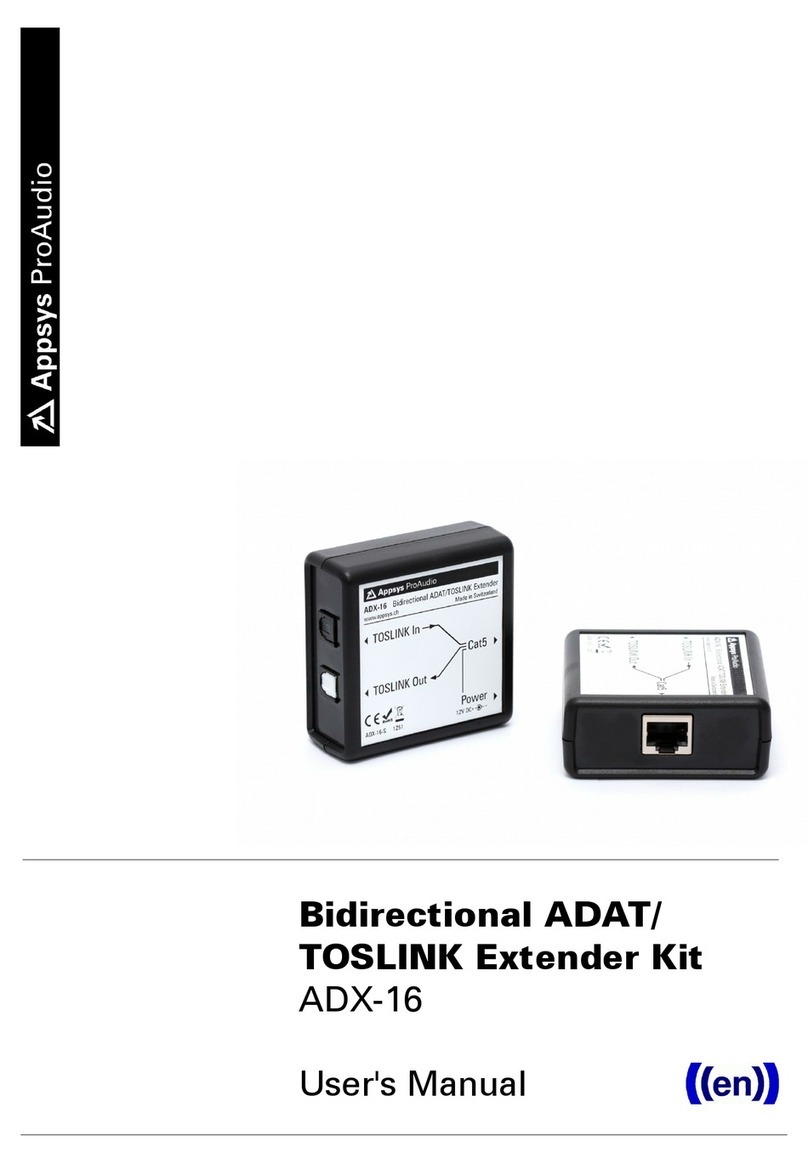
Appsys ProAudio ADX-16 user manual

Appsys ProAudio

Appsys ProAudio ADX-16 user manual

Atlona RS232 user manual

Atlona

Atlona RS232 user manual

IDK OPF-TH1000-A user guide

IDK

IDK OPF-TH1000-A user guide

Enable-IT 824WP quick start guide

Enable-IT

Enable-IT 824WP quick start guide

Worx Landroid RadioLink WA0864 Get started

Worx

Worx Landroid RadioLink WA0864 Get started

TP-Link TL-WA730RE user guide

TP-Link

TP-Link TL-WA730RE user guide

Camplex CMX-HDMI-SFPL user manual

Camplex

Camplex CMX-HDMI-SFPL user manual

SC&T HE03-4K user manual

SC&T

SC&T HE03-4K user manual

Samsung SCS-26UC4 user guide

Samsung

Samsung SCS-26UC4 user guide

manuals.online logo
manuals.online logoBrands
  • About & Mission
  • Contact us
  • Privacy Policy
  • Terms and Conditions

Copyright 2025 Manuals.Online. All Rights Reserved.

Page 1 of 20
SPX-5600MAN
SPX-5600 Series
Suprex® Reader Extender - RF Wireless Interface
Operations Manual
Page 2 of 20
This manual covers the operation and setup of the Cypress Suprex RF SPX-5600 series units.
Overview:
The SPX-5600 series of RF Wireless solutions provides a wireless bridge from Card Readers with gates or door
hardware to most access control manufacturers panels. The SPX or Suprex products typically include both the remote
( Door/Gate ) unit and the central ( AC Panel ) unit. In the case of the SPX-5600 series of wireless products optional
repeaters / extenders are also available.
Features:
-- Service mode for setup and configuration.
--“Quiet” protocol to conserve bandwidth and power
-- Field configurable reader formats
-- Multifunction indicator for determining operational status of the unit
-- Auxiliary I/O connections available for Door/Gate/Panel status signaling.
-- Multiplexing of RF bridge providing for additional door/gate on a single RF link.
-- Economical expansion capabilities using Suprex Lynk technology
Electrical Specifications:
(Each Unit)
Supply Voltage! ! 8-16VDC
Current!!!500mA
RF Specifications:
2.4GHz frequency
AES Encryption optional
SPX-5600 Series:
Cypress Suprex SPX-5600 Series
Physical
SPX-56XX !- Weatherproof Enclosure
6.75” x 3.75” x 2.00” (Each unit)
SPX-56XX !- Weatherproof Enclosure
6.75” x 3.75” x 2.00” (Each unit)
Temp
Storage(-55˚C to + 150˚C)
Operating(-40˚C to +80˚C)
Storage(-55˚C to + 150˚C)
Operating(-40˚C to +80˚C)
Humidity
95% (non-condensing)
Power
Input
Unreg Input 8 to 16 VDC* @ 300mA Max
Power
Output
+5VDC @100mA
Data I/O
Interface
Reader -Wiegand, Strobed (Clock & Data),
LED - 0 - 30V
Electrical and Mechanical Specifications
Page 3 of 20
External connections and DIP Switch Settings
Switch
6 7 8
0
1 x
2 x
3 x x
4 x
5 x x
6 x x
7 x x x
Wiegand
Wiegand / No Filter
Strobed Rising Edge (MR-5)
Strobed Rising Edge (Dorad0 644)
Strobed Rising (Mag-Tek)
Strobed Falling Edge
Reserved
F2F
x = ON
1
2
3
4
5
6
7
8
Dip switch #4 is ON
-Disable Pullup resistors
Dip switch #4 is OFF
-Enable Pullup resistors
DIP Switch #1 ON
-Service Mode
DIP Switch #1 OFF
-Run Mode
Central Unit Settings
Switch
6 7 8
0
1 x
2 x
3 x x
4 x
5 x x
6 x x
7 x x x
Wiegand
Wiegand / No Filter
Strobed Rising Edge (MR-5)
Strobed Rising Edge (Dorad0 644)
Strobed Rising (Mag-Tek)
Strobed Falling Edge
Reserved
F2F
x = ON
1
2
3
4
5
6
7
8
Dip switch #4 is ON
-Enable Pullup resistors
Dip switch #4 is OFF
-Disable Pullup resistors
DIP Switch #1 ON
-Service Mode
DIP Switch #1 OFF
-Run Mode
Remote Unit Settings
1 - 8 to 16 VDC In
2 - Ground
Status LED
1 - exp (+)
2 - exp (-)
3 - +5 VDC out
4 - Prog Res 2
5 - Prog Res 1
6 - LED In
7 - D1/Data out
8 - D0/Clk out
1- Relay 2 N.O.
2- Relay 2 Com
3 - Relay 2 N.C.
4 - Relay 1 N.O.
5 - Relay 1 Com
6 - Relay 1 N.C.
7 - Ground
8 - Aux in
9 - Not used
10 - Not used
1 - 8 to 16 VDC In
2 - Ground
Status LED
1 - exp (+)
2 - exp (-)
3 - +5 VDC out
4 - R4
5 - R3
6 - LED out
7 - D1/Data In
8 - D0/Clk In
1- Relay 4 N.O.
2- Relay 4 Com
3 - Relay 4 N.C.
4 - Relay 3 N.O.
5 - Relay 3 Com
6 - Relay 3 N.C.
7 - Ground
8 - Aux out
9 - R2 in
10 - R1 in
SPX-5600
Remote
SPX-5600
Central
Page 4 of 20
Typical Suprex Remote
Connections
Suprex Remote
SPX-5600 Remote
1
2
3
4
5
6
7
8
Wiegand
Wiegand / No Filter
Strobed Rising Edge (MR-5)
Strobed Rising Edge (Dorad0 644)
Strobed Rising (Mag-Tek)
Strobed Falling Edge
Reserved
F2F
x = ON
Switch
6 7 8
0
1 x
2 x
3 x x
4 x
5 x x
6 x x
7 x x x
Switch #4 ON
Enable Pullup Resistors
Switch #4 OFF
Disable Pullup
Resistors
Diagnostic LED
Door
Strike
Ground
+8 to +16 VDC
D0/Clock In
D1/Data In
LED Out
R1 N.C.
R1 Com
R1 N.O.
Card
Reader
D0/Clock
D1/Data
LED
DC
Power
Supply
(-)
(+)
SPX-5600 Series Central Quick Reference
Typical Suprex Central Connections
Suprex Central
1
2
3
4
5
6
7
8
Wiegand
Wiegand / No Filter
Strobed Rising Edge (MR-5)
Strobed Rising Edge (Dorad0 644)
Strobed Rising (Mag-Tek)
Strobed Falling Edge
Reserved
F2F
x = ON
Switch
6 7 8
0
1 x
2 x
3 x x
4 x
5 x x
6 x x
7 x x x
Switch #4 ON
Disable Pullup Resistors
Switch #4 OFF
Enable Pullup Resistors
DC
Power
Supply
(-)
(+)
Access
Control
Panel
D0/Clock
D1/Data
LED
Diagnostic LED
Ground
+8 to +16 VDC
D0/Clock Out
D1/Data Out
LED In
R1 IN
R1 Input
Controls
Strike on
Remote
Quick Reference For Typical Connections
Page 5 of 20
Wiegand connection
card reader
RS-485 multi-drop
Obstruction
ACS
Typical RF installation with repeater
Typical RF installation - line of sight
SPX-5601C (1) SPX-5651
ACS
SPX-5601C (1)
SPX-5601R (1)
EXP-1000R (3)
EXP-1000R (2)
SPX-5601R (1)
SPX-5601R (1)
Typical RF installation -
expansion modules
EXP-1000C (2)
EXP-1000C (3)
ACS
SPX-5601C (1)
Page 6 of 20
8
10
12
14
16
80
55
35
-40
Ambient Temperature
(Degrees Celsius)
Supply Voltage
Temperature/Voltage de-rating curve
The Suprex units should be operated with a filtered 12 Volt nominal DC supply.
Any voltage between 8 and 16 volts can be utilized by following the temperature /voltage
derating curve. Voltage should not exceed 16 VDC under normal operating conditions.
Temperature Rating vs Voltage Derating Curve
Page left intentionally blank
Page 7 of 20
Page 8 of 20
Unpacking:
Remove covers from units and check interior for any shipping damage. Remove any packing material if present.
Inventory any included parts (depending on model) such as antennas, coax cables etc.
Bench Testing:
Before installing the units in the field they should be assembled and tested at a convenient “Bench top” location. This
will make it easier to verify / change settings and check operation when both units are visible at the same time.
It is also a chance to become familiar with the system if this is the first time using the Suprex system. It is much more
difficult to setup and test the units when they are several thousand feet apart.
Both units will need to have the antenna and a suitable power supply connected. For testing purposes, the units can
share the same power supply.
During initial setup it is helpful to use the Setup/Config mode. This allows a relative indication of the radio link quality
between the units.
Basic Bench Test:
1. Connect any antennas if the unit was shipped without antennas installed.
2. Connect a suitable power supply to both units. Each unit should be provided with 8 - 16 volts DC and approx
300mA. Both units should be separated by a minimum of 24 inches.
3. Apply power. After about a 1 -2 second delay both units Diagnostic LED should indicate Green.
5. Touch a jumper wire from the Ground connection the the Relay 1 input on the Central unit. Relay #1 on the Remote
unit should activate with an audible click and the Diagnostic LEDs should flash green on both the Central and
Remote units.
6. Units are shipped from the factory set for the Wiegand data format. If a different format is required set the DIP switch
to the required reader and panel format.
7. If a reader and panel is accessible, connect the reader to the Remote unit and the Central unit to the panel and
verify that card reads are being accepted by the access control system. If any troubleshooting is necessary, it will be
easier to do with both units in close proximity to each other.
8. Once these steps are completed, the units are ready for installation it their permanent locations and final
commissioning as a system.
Cypress Suprex RF Series - Setup and Pre-installation
Page 9 of 20
LED Diagnostic Indicator:
The LED Diagnostic indicator provides information on the operational status of the unit.
If the units are not communicating, viewing the diagnostic indicator LEDʼs may help to determine the
nature of the problem.
When the Suprex units are operating correctly and have a valid communication channel between
the Remote and Central units, the Diagnostic indicators on each unit will flash green rapidly
(2-3 flashed per second) in Service / Config mode and illuminate a steady green in quiet mode.
DIAGNOSTIC LED NOT ILLUMINATED:
If the LED(s) are not illuminated on the unit(s) then the unit is not getting power or there is an electrical problem.
The Diagnostic LEDʼs will be illuminated Red/Green or flashing whenever power is applied.
CENTRAL UNIT FLASHING BETWEEN RED/GREEN:
With power applied and no communication path between the Remote and Central, the Central unit will flash the
diagnostic indicator alternately between Red and Green.
REMOTE UNIT ILLUMINATED RED:
The Remote unit will diagnostic LED will illuminate solid (not flashing) red if it is not receiving communication from
the Central.
REMOTE AND CENTRAL UNITS FLASHING BETWEEN RED/GREEN:
The Central is not Receiving communication from the Remote.
Operating modes:
By setting DIP switch 1 to the ON position, the unit is placed in Setup / Config mode. When the switch position is
changed, cycle power to the unit to make the switch change take effect.
In "Quiet" mode (DIP switch #1 OFF) the units will remain quiet unless there is a status change, and will slowly
poll each other about every 10 to 15 seconds to check the link integrity.
The Setup / Config mode places the units in a rapid polling sequence to allow troubleshooting and setup of the
communication link.
The Suprex RF units use a quiet protocol when operating in Quiet mode. Communication between the Central
and Remote unit only occurs when an event requires data transmission or contact needs to be made to maintain
supervision. The RF channel remains quiet most of the time.
During setup or troubleshooting it may be necessary to observe the communication link between the Central and
Remote units. The rapid polling used in the Setup / Config mode can help indicate whether the units can “See”
each other. Additionally the Central unit Diagnostic LED will indicate Red when communication is lost.
In some cases an optimal mounting location can be selected by operating one of the units on a small 12 volt
battery and moving the location while observing the diagnostic LED indicators.
Cypress Suprex RF Series - Indicators and Operating Modes

Page 10 of 20
Cypress Suprex RF Series - Door Strike and LED I/O
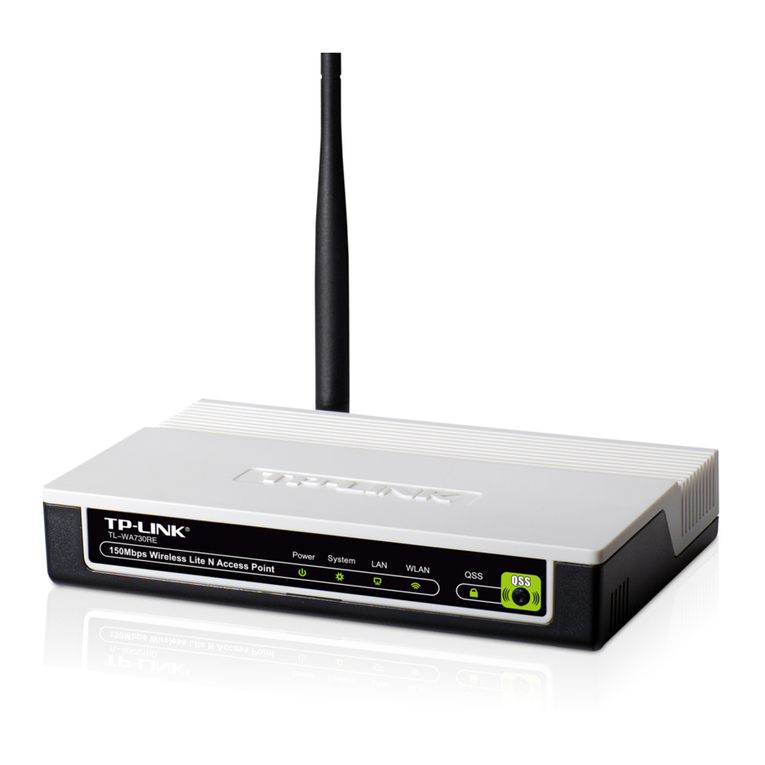
Note: The LED and Door Strike operation of the RF Suprex differs from previous Suprex versions.
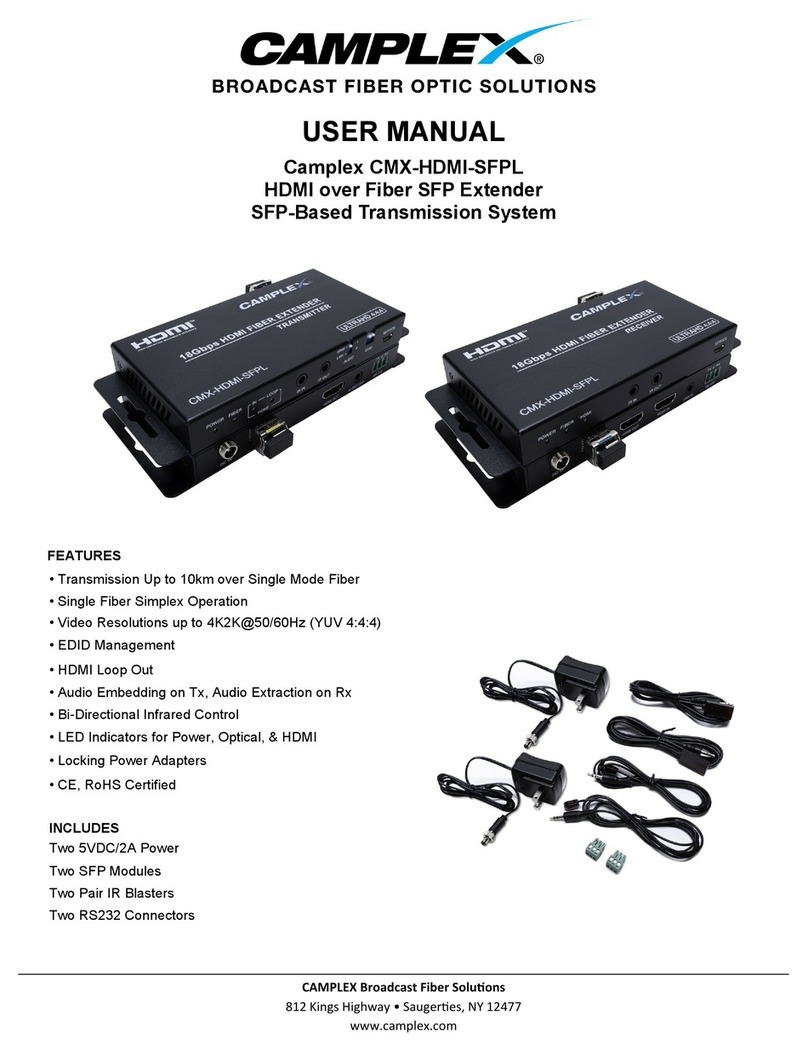
To activate the relay on the Remote unit, connect as shown below. These connections can be used
to allow the Remote relay to operate a DOOR STRIKE, GATE, or other locking hardware. Refer to
following pages in this document for details of each I/O operation and connection.
There are two relays available for accessory outputs at the Remote end. Either relay can be used
to provide the Door Strike or Gate activation function. This example uses Relay 1.
Wiring Example - Door Strike Follows LED
Only Relay and LED Connections are shown for clarity, refer to previous diagrams for Power and Data connections.
Access
Control
Panel
Ground
LED Signal LED In
R1 IN
R1 Input
Controls
Strike on
Remote
Suprex RF Central
Ground
Wiring Example - Door Strike does not follow LED
LED In
R1 IN
R1 Input
Controls
Strike on
Remote
Suprex RF Central
Ground
Access
Control
Panel
Ground
LED Signal
Strike Signal