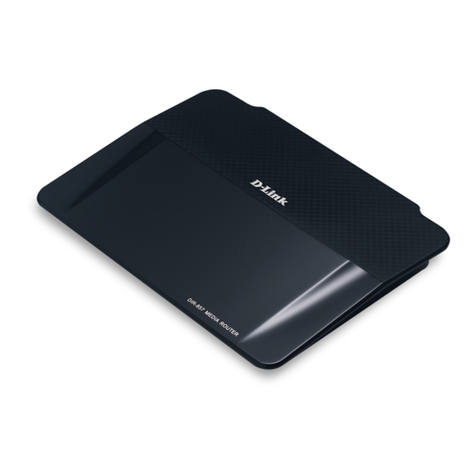
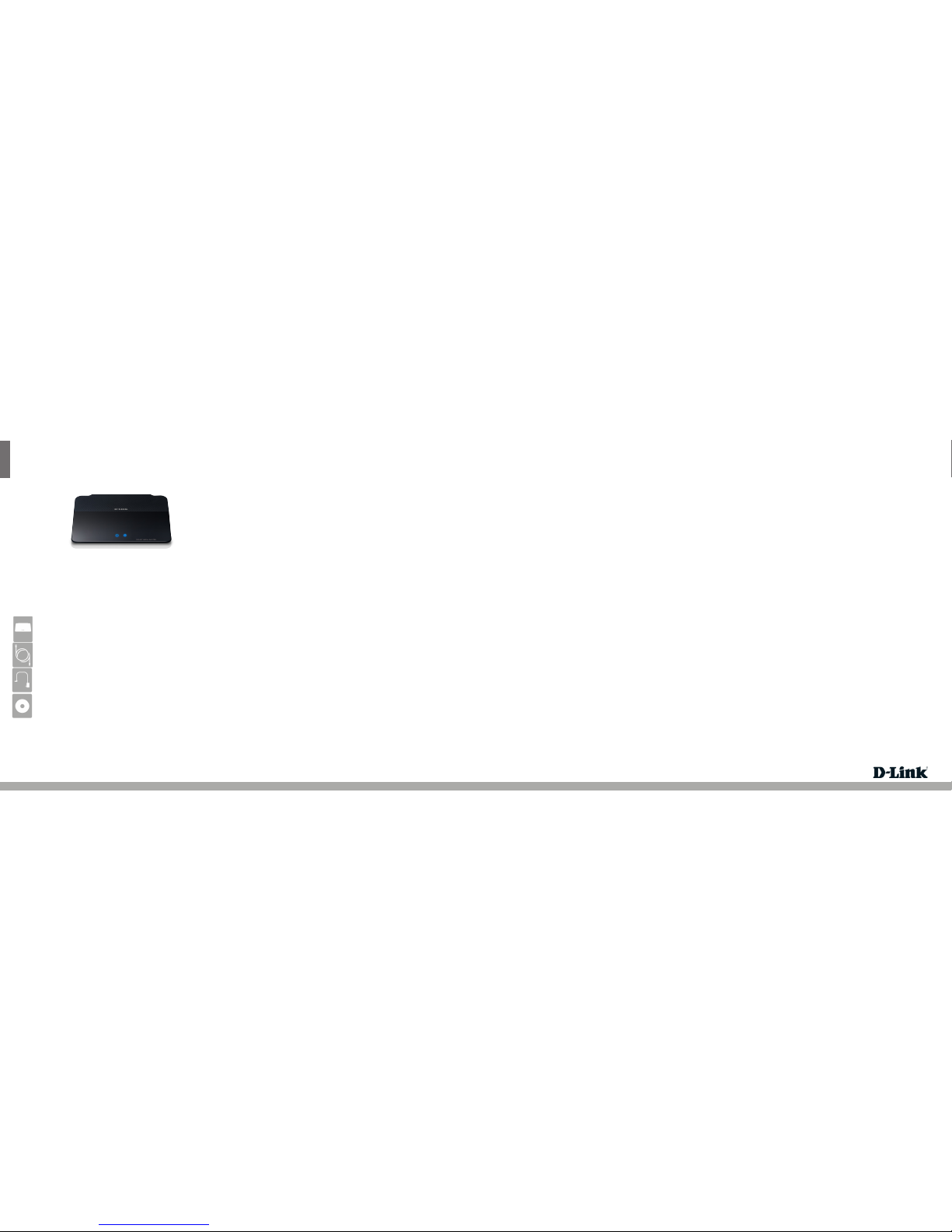
DIR-657
ENGLISH
Quick Install Guide
HD Media Router 1000
Thank you for purchasing the DIR-657 HD Media Router 1000. Follow the easy
steps in this guide to properly set up your router. Please verify that all the package
contents listed below are available.
Technical Support
Having trouble installing your new product? D-Link’s website contains the latest
user documentation and software updates for D-Link products. U.S. and Canadian
customers can contact D-Link Technical Support through our website or by phone.
United States
Telephone: (877) 453-5465
Internet: http://support.dlink.com
Canada
Telephone: (800) 361-5265
Internet: http://support.dlink.ca
©2011 D-Link Corporation/D-Link Systems, Inc. All rights reserved. D-Link and the D-Link logo are registered trademarks of D-Link
Corporation or its subsidiaries in the United States and/or other countries. Other trademarks or registered trademarks are the
property of their respective owners. Product specications, size and shape are subject to change without notice, and actual product
appearance may dier from that depicted on the package. Visit dlink.com (US) or dlink.ca (Canada) for more details.
Version 1.0 | February 22, 2011
Windows users can use the Quick Router Setup Wizard (from the CD) to congure
their router. If you do not want to use the wizard, lost your CD, or are running Mac
or Linux, you will need to use the manual setup procedure.
Power LED
A solid light indicates a proper connection to the power supply.
Internet LED
A solid light indicates connection on the Internet port. This LED blinks during
data transmission.
LEDs
Manual Setup
If you are using Mac or Linux, or are unable to use the wizard, use the manual setup
outlined below and refer to the user manual on the CD for more information.
Step 1
Position your router close to your modem and the computer that is already online.
Place this router in an open area of your intended work area for better wireless
coverage.
Step 2
Unplug the Ethernet cable from your modem that is connected to your computer.
Plug it into the blue port labeled 1 on the back of your router. The router is now
connected to your computer.
Step 3
Plug one end of the included Ethernet cable that came with your router into the
port labeled INTERNET on the back of the router. Plug the other end of this cable
into the Ethernet port on your modem.
Step 4
Connect the supplied power adapter into the power port on the back of the router
and then plug into a power outlet or surge protector. Verify the power light is lit.
Step 5
Open a web browser, enter http://192.168.0.1 (or http://dlinkrouter) and then
press Enter. When the login window appears, set the user name to Admin and
leave the password box blank. Click Log In to continue the setup. Please refer to
the user manual for more detailed installation information and advanced features.
Before You Begin
• You can only use the Ethernet port on your modem. If you were using the
USB connection before using the router, then you must turn o your modem,
disconnect the USB cable and connect an Ethernet cable to the Internet port
on the router, then turn the modem back on. In some cases, you may need to
call your ISP to change connection types (USB to Ethernet).
• If you have DSL and are connecting via PPPoE, make sure you disable or uninstall
any PPPoE software such as WinPoet, Broadjump, or Enternet 300 from your
computer or you will not be able to connect to the Internet.
• When running the Setup Wizard from the D-Link CD, make sure the computer
you are running the CD from is connected to the Internet and online or the
wizard will not work. If you have disconnected any hardware, re-connect your
computer back to the modem and make sure you are online.
Package Contents
If any of the above items are missing, please contact your reseller.
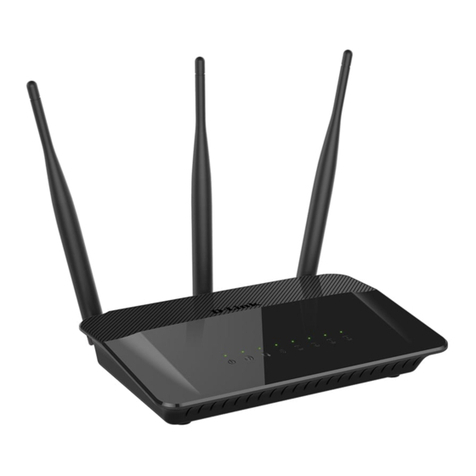
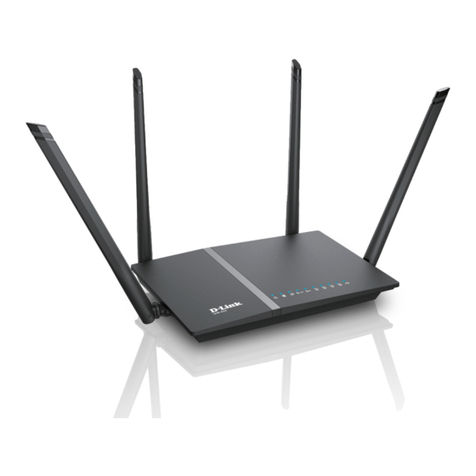
DIR-657 HD Media Router 1000
Ethernet Cable
Power Adapter
CD-ROM with Manual and Setup Wizard
Start Here
Quick Router Setup Wizard
For the Wizard to work, the computer must be connected to the Internet and be
online. If you have disconnected any hardware, please re-connect your computer
back into the modem and make sure you are online.
Insert the CD into your drive on a computer that is online and click Install Router
to start the Quick Router Setup Wizard. Follow the on-screen instructions to install
and congure your router.
Router Placement
To get the best wireless coverage, place your router in an open area away from your
computer, monitor, and speakers. Try to position the router so that the signal passes
through drywall or open doorways. Materials and objects such as glass, steel, metal,
walls with insulation, water (sh tanks), mirrors, le cabinets, brick, and concrete will
degrade your wireless signal.
Wi-PnP allows you to copy your wireless settings from your router to a USB ash
drive and use to automatically congure the wireless settings on your Windows®
computers. Follow the steps below:
1. Plug in USB Flash Drive in USB port on the back of the router.
2. Press and hold the WPS button (located on the front of the router) for 5 seconds.
The power LED will blink.
3. Wait 10 seconds and unplug the USB Flash Drive from the router.
4. Plug the USB Flash Drive in a Windows-based computer.
5. The window below will automatically appear. Double-click Connect to a
wireless network. Click Yes to add your computer to your wireless network.
Note: If the window does not automatically pop up, proceed to the following
steps:
6. Open the folder contents of your USB thumb drive and double-click
WiPnP.exe.
7. Click Yes to the pop-up window to continue. Click OK and then click Finish.
Repeat steps 4-7 on any other Windows computer that you want to wirelessly
connect to your router.
Please refer to the user manual for more information and alternate setup
procedures.
Wi-PnP Wireless Setup