D-Link DIR-615 - Wireless N Router User manual
Other D-Link Network Router manuals
D-Link
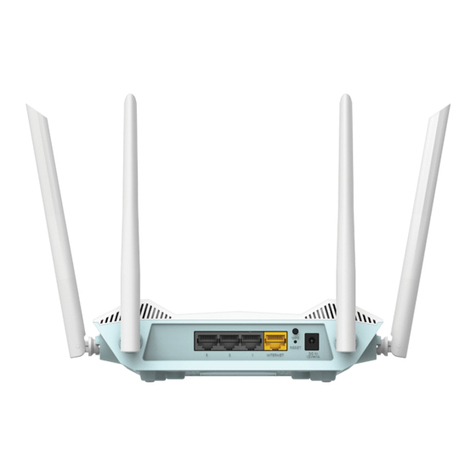
D-Link R15 Manual
D-Link
D-Link DIR-506L User manual
D-Link
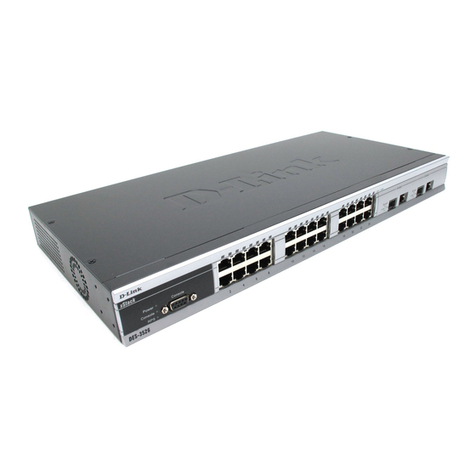
D-Link DES-3526 - Switch - Stackable User manual
D-Link
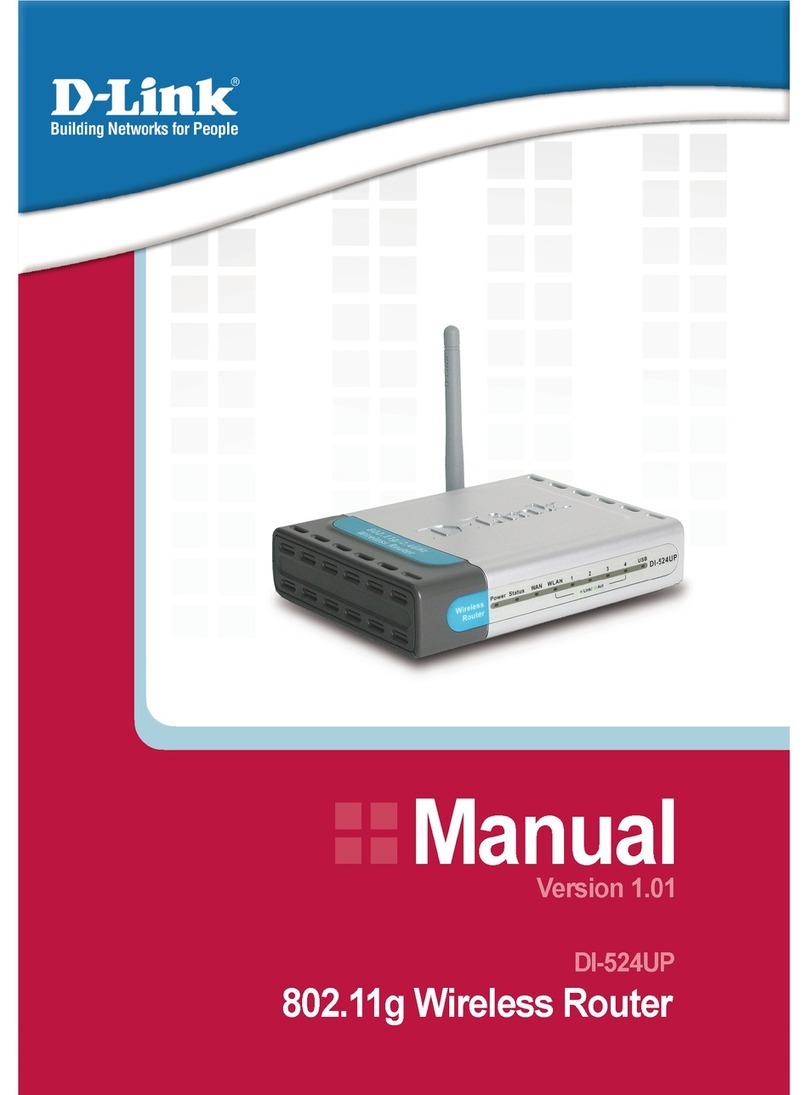
D-Link DI-524UP User manual
D-Link
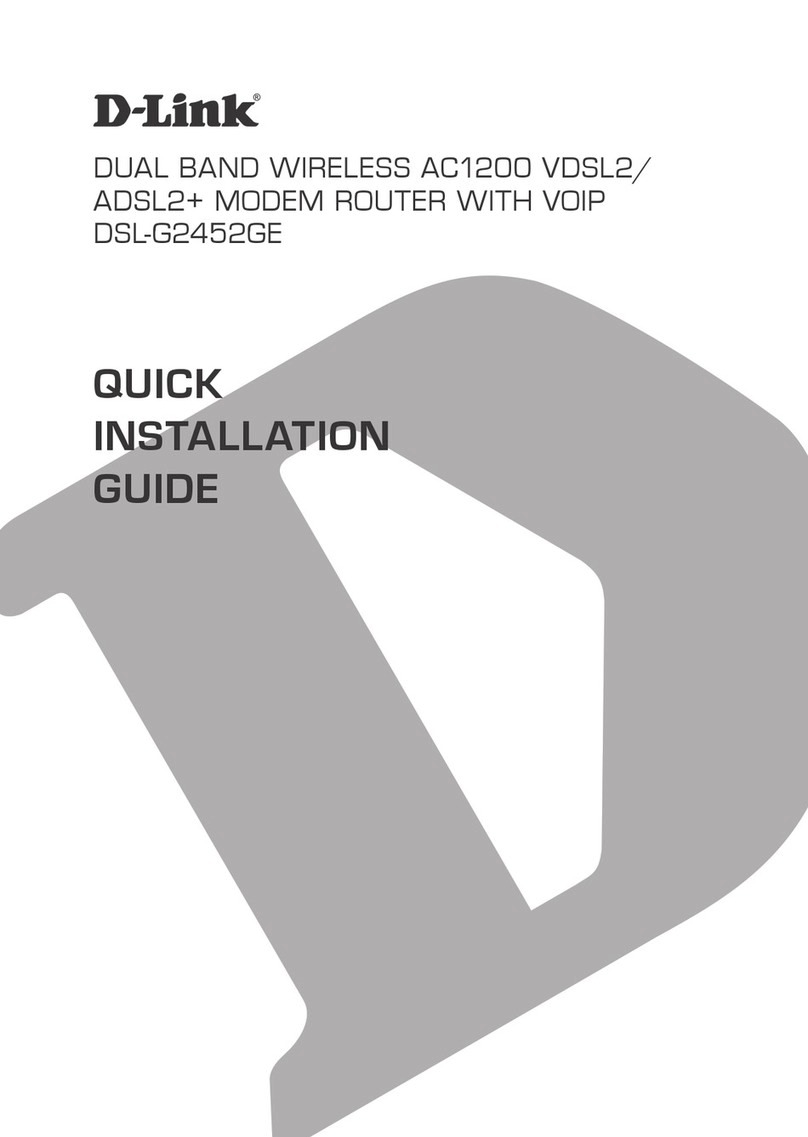
D-Link DSL-G2452GE User manual
D-Link
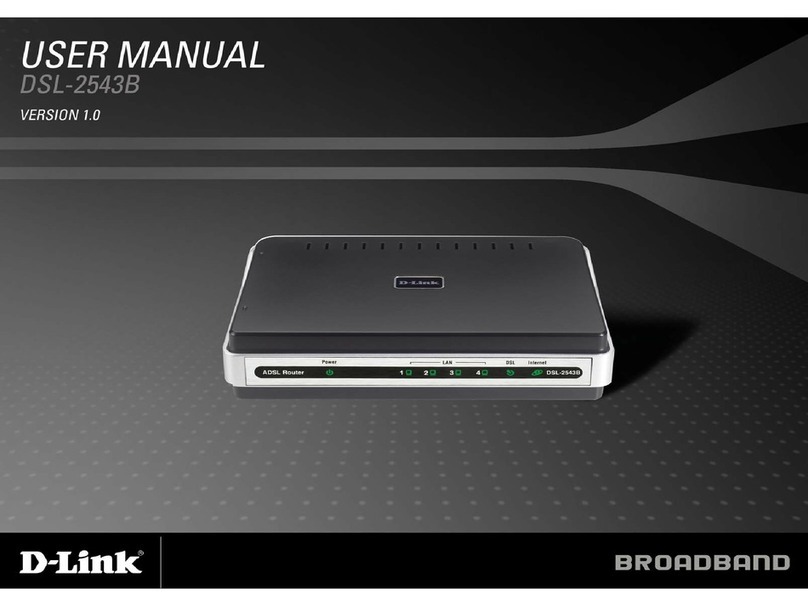
D-Link DSL-2543B User manual
D-Link
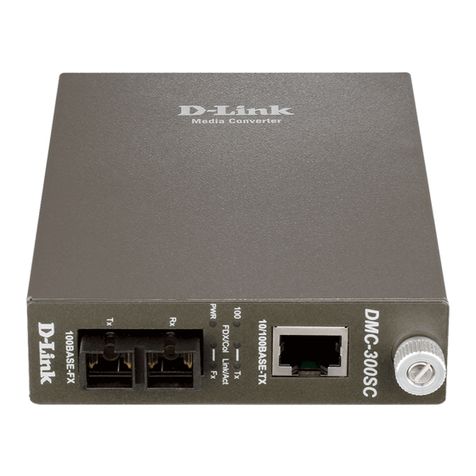
D-Link DMC-300SC - Media Converter - External User manual
D-Link
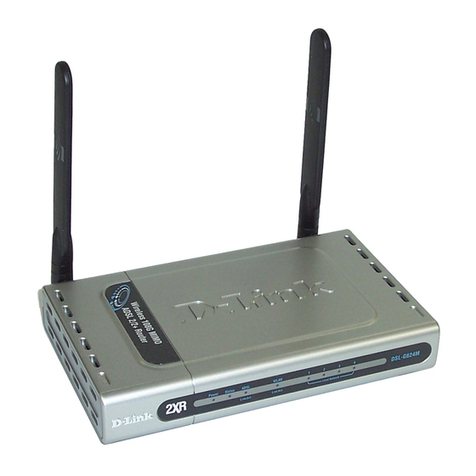
D-Link DSL-G624M User manual
D-Link
D-Link DFL-900 User manual
D-Link
D-Link DIR-518L User manual
D-Link
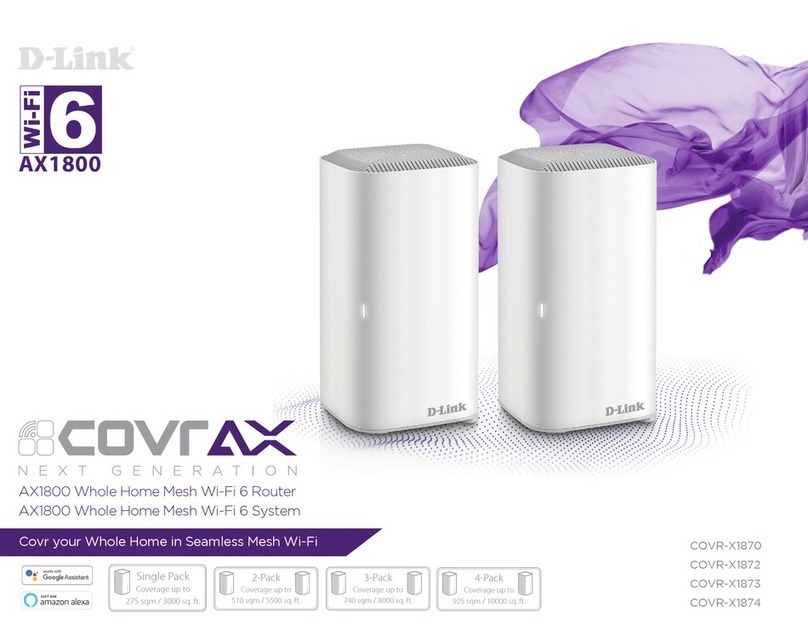
D-Link Covrax COVR-X1870 User manual
D-Link
D-Link DES-3226L User manual
D-Link
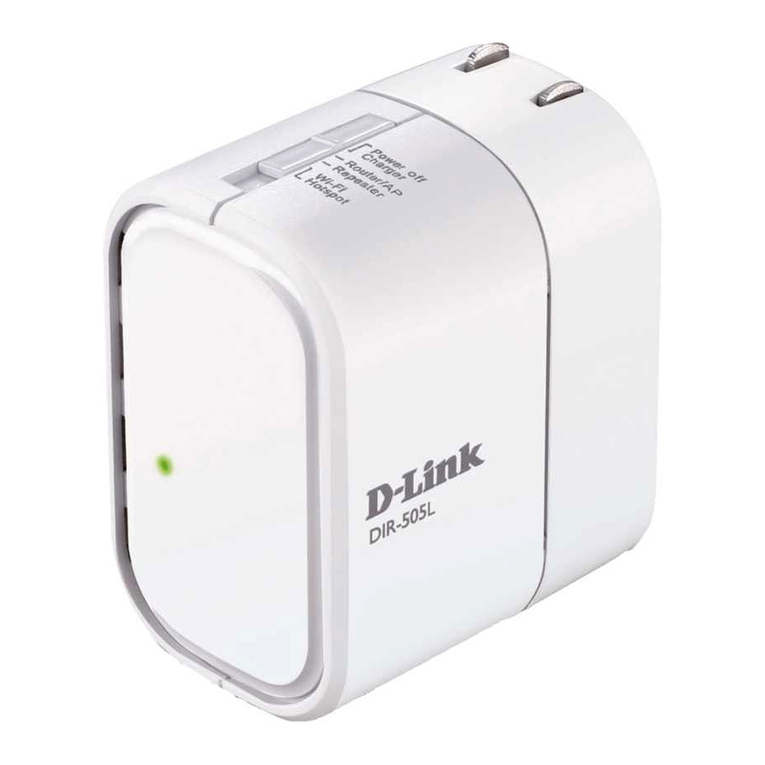
D-Link DIR-505L User manual
D-Link
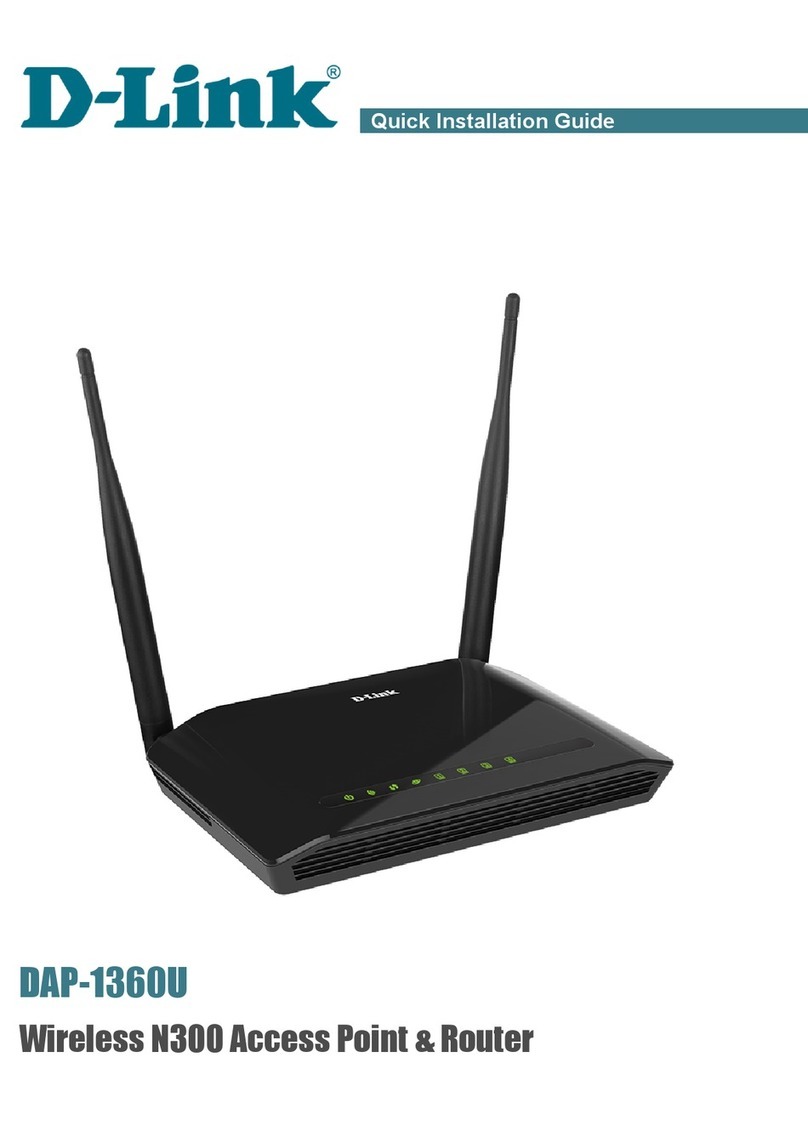
D-Link DAP-1360U User manual
D-Link
D-Link DFL-1500 User manual
D-Link
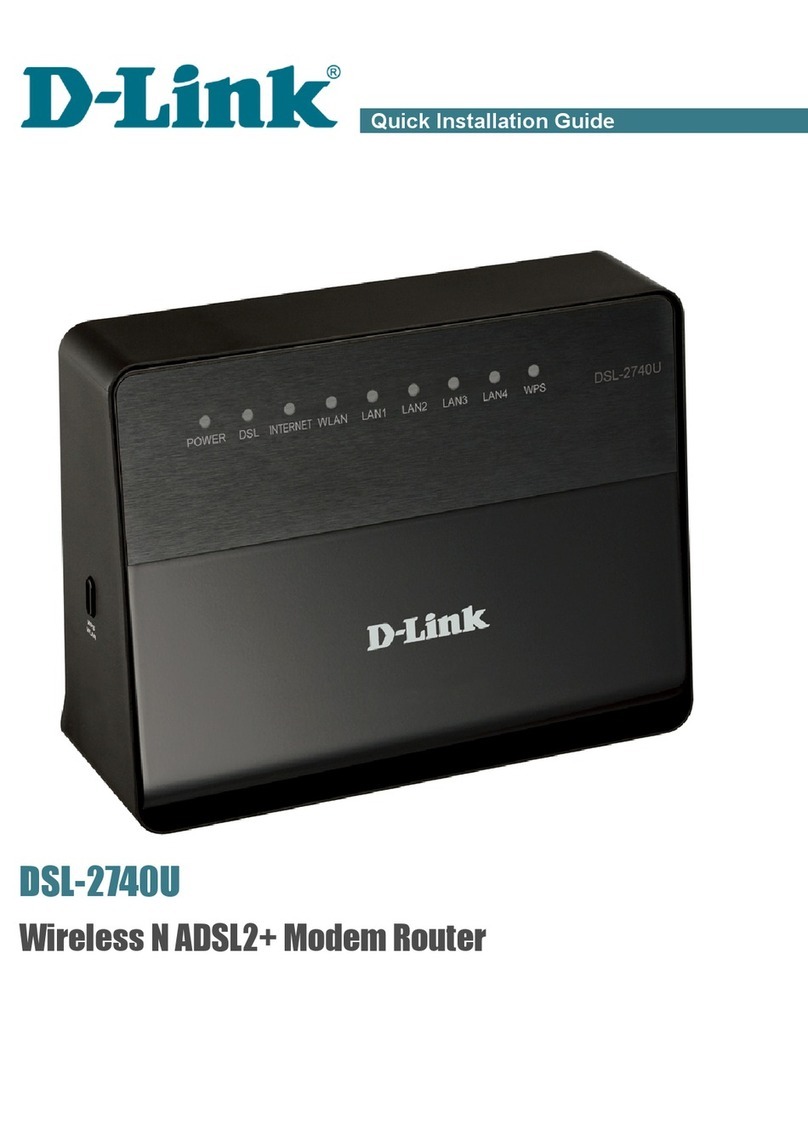
D-Link DSL-2740U User manual
D-Link
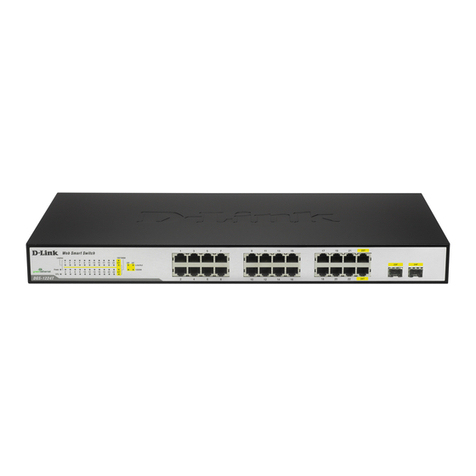
D-Link DGS-1224T - Web Smart Switch User manual
D-Link
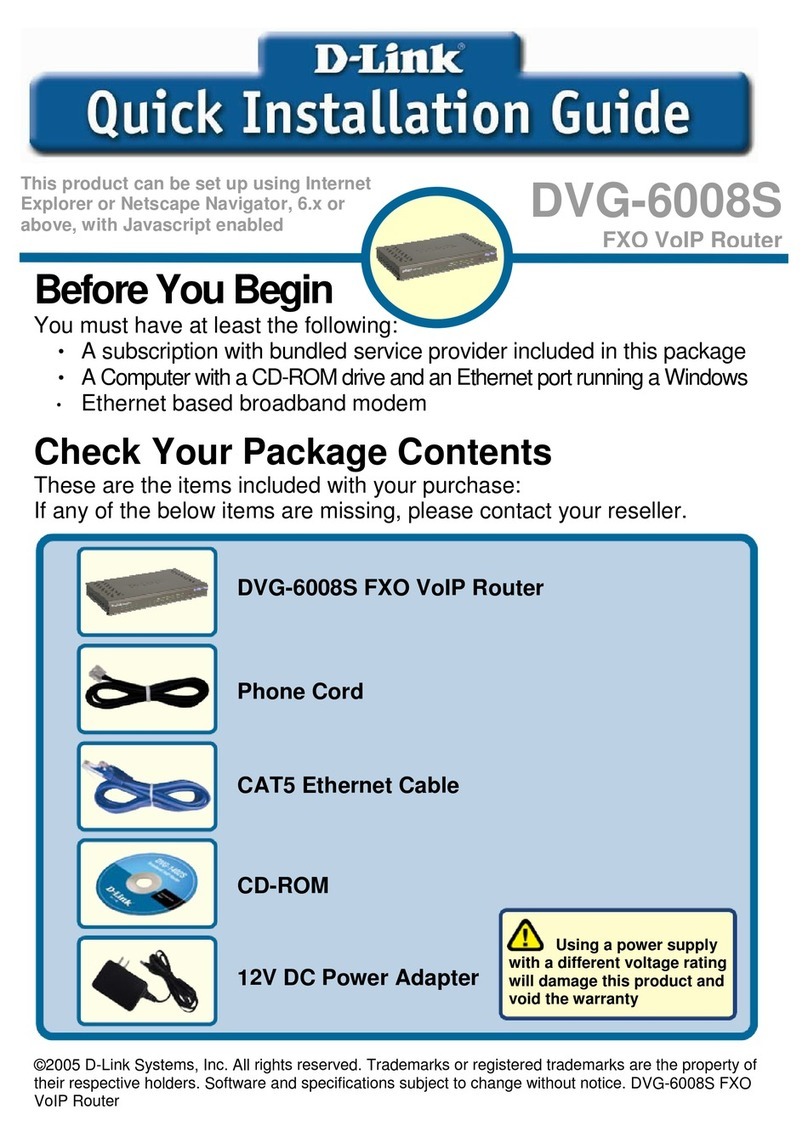
D-Link DVG-6008S User manual
D-Link
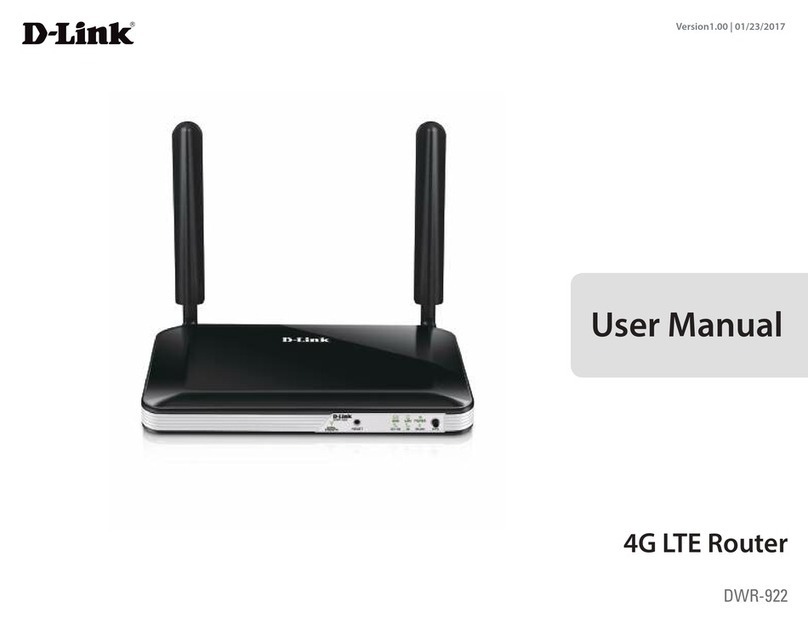
D-Link DWR-922 User manual
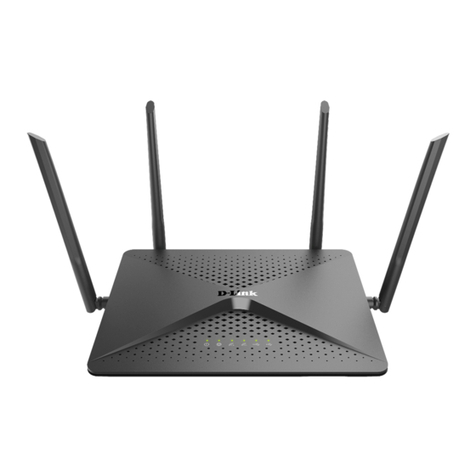
D-Link
D-Link DIR-882 User manual