- 2 -
Usually the way to initial set up the stack is as follows (quick and simple)
-set up the stack devices, but do NOT connect the stacking cables
-turn on all devices and connect to the first on by Console
-connect to them via console program like PUTTY (COMx, 115200 baud , 8N1)
oenter command “config stacking_mode enable” and confirm with “y”
“
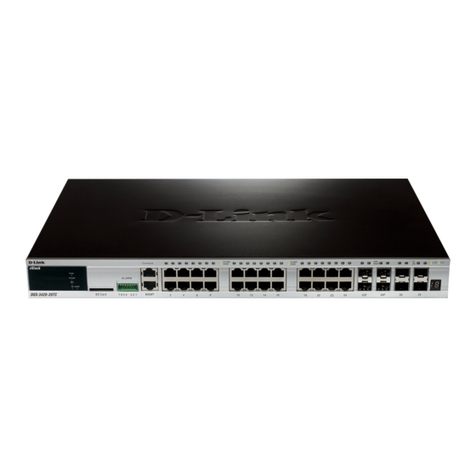
DGS-3420-28SC:admin#config stacking_mode enable
Command: config stacking_mode enable
Change Box bootmode may cause devices work restart, still continue?(y/n) y
Please wait, the switch is rebooting...
“
-repeat this step for ALL devices in your setup to enable the stacking
-after enabling stacking on all devices we recommend to manually define BoxID and Priority for Master
and Backup-Master
oconfig box_id current_box_id 1 new_box_id 1
oconfig box_priority current_box_id 1 priority 5
osave the settings with “save”
othen reboot the switch again with “reboot”
-repeat this for all the Switches, but increase the “Priority” Value in 5 numbers (f.e.
5,10,15,20,25,30,35,40,45,50,55,60) and the “new_box_id” from 1-12 (depending of the maximum
number of devices which can be stacked together)
-now you can connect the stacking cable on the last 2 10G Ports , which by now are pure stacking ports
-then connect the console to the device with the “H” and run following command
o“show stack_information”, to see then all the stacked devices
“
DGS-3420-28SC:admin#show stack_information
Command: show stack_information
Topology : Duplex_Chain
My Box ID : 1
Master ID : 1
Box Count : 1
Force Master Role : Disabled
Trap State : Enabled
Log State : Enabled
Box User Prio- Prom Runtime H/W
ID Set Type Exist rity MAC version version version
--- ---- ----------------- ----- --- ----------------- -------- --------- ------
1 User DGS-3420-28SC Exist 60 FC-75-16-3C-6E-00 1.00.006 1.50.B063 A1
2 - NOT_EXIST No
3 - NOT_EXIST No
“
-Save the configuration again with “save”