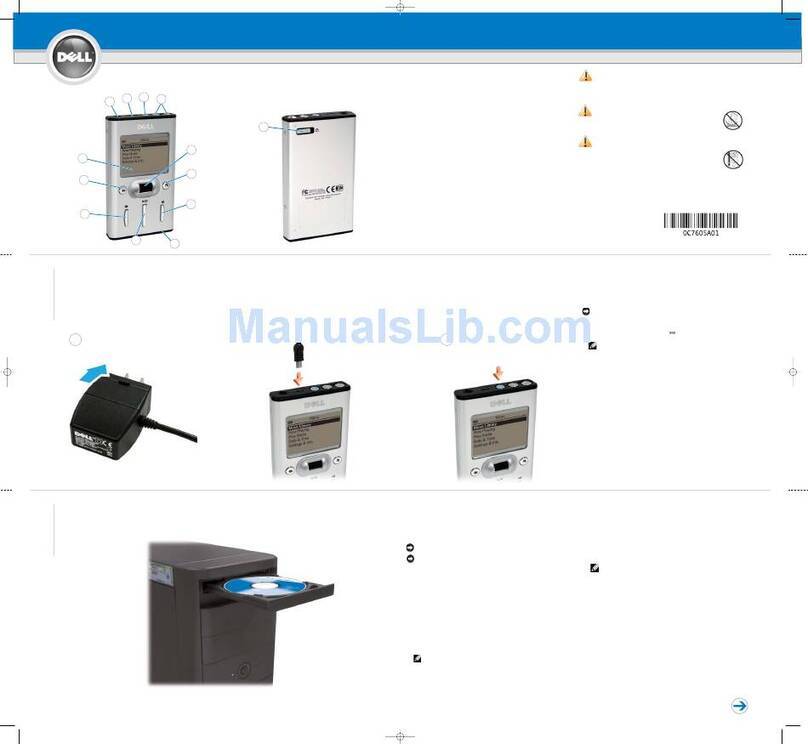
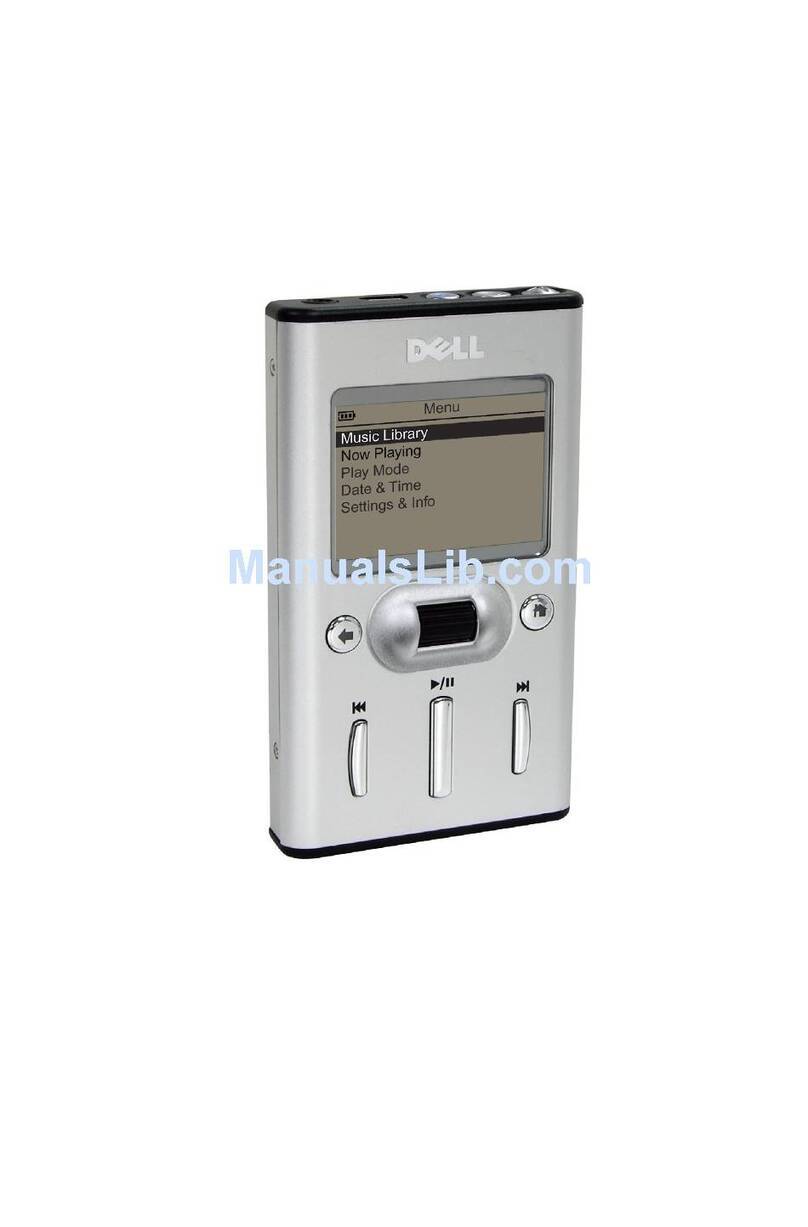
The Dell DJ can play tracks in MP3, WMA, or WAV file formats. The Dell DJ
comes with a few sample MP3 tracks already loaded into the Music Library.
To play all music tracks:
1. Press the HHoommeebutton on your Dell DJ.
2. Scroll-select MMuussiiccLLiibbrraarryy.
NNOOTTEE: Scroll-select means rotate and then press the scroll dial.
3. Scroll-select PPllaayyAAllllMMuussiiccTTrraacckkss.
All tracks are added to the Selected Music list. Playback starts after all music
tracks have been queued.
NNOOTTEE::In addition to playing digital music, you can also use your Dell DJ
as a data storage device.
Be sure to check the
User’s Guide
to learn about using these features.
Also, be sure to periodically check support.dell.com for software and
documentation updates for your Dell DJ.
Using Dell DJ Explorer
NNOOTTEE: When transferring music tracks to your Dell DJ, be sure to transfer them to the Music Library folder of your Dell DJ. If you transfer music files from your computer
to the Data Library folder of your Dell DJ, these music tracks will be stored as data files and will not be playable on your Dell DJ.
1. Connect the Dell DJ to your computer using the included USB synchronization cable or cradle.
2. Select
SSttaarrttPPrrooggrraammssDDeellllDDeellllDDJJEExxpplloorreerrDDeellllDDJJEExxpplloorreerr..
oorr
Open Microsoft Windows Explorer, then double-click DDeellllDDJJEExxpplloorreerr.
3. With Dell DJ Explorer open, click FFoollddeerrssin the Dell DJ Explorer toolbar.
4. Click
DDeellllDDJJEExxpplloorreerrin the left window to expand its contents.
5. Click
DDeellllDDJJbeneath DDeellllDDJJEExxpplloorreerrin the left window to expand its contents.
6. Click
DDaattaaLLiibbrraarryyor MMuussiiccLLiibbrraarryybeneath DDeellllDDJJin the left window to expand its contents.
7. Using Dell DJ Explorer, locate the track, file, or folder you want to copy.
8. To drag-and-drop, locate the track, file, or folder that you want to copy, and drag it to the folder in which you want to place the track, file, or folder.
9. To copy-and-paste, right-click the track, file, or folder you want to copy and click CCooppyy. Locate and right-click the folder in which you want to place the copy, and then
click PPaassttee. A copy of the track, file, or folder is placed in the selected folder.
Transfer Files
4
Using Musicmatch
NNOOTTEE: Musicmatch has the capability to 'rip' or convert music CDs to digital music files on your computer. Refer to the Musicmatch Help tutorial to create digital
music files from your music CDs.
1. Start Musicmatch by clicking SSttaarrttPPrrooggrraammssMMuussiiccmmaattcchhMMuussiiccmmaattcchhJJuukkeebbooxx. The Musicmatch main window appears.
2. Click VViieewwPPoorrttaabblleeDDeevviicceeMMaannaaggeerr.
3. With the Portable Device Manager (PDM) open, you can transfer tracks or playlists in a drag-and-drop or copy-and-paste operation from your computer's
Musicmatch Jukebox playlists onto the Dell DJ.
4. To drag-and-drop, locate and click the track or playlist that you want to copy, then drag it to Dell DJ or one of its playlists.
5. To copy-and-paste, locate and right-click the track or playlist that you want to copy, then click CCooppyy. Right-click DDeellllDDJJor one of its playlists, then click PPaassttee.
Play Digital Music
5
OR
USB synchronization cable
Connect the USB connector of the USB synchronization cable to your computer.
NNOOTTEE: To release the USB synchronization cable later, press the side buttons.
Cradle
1. Connect the larger end of the USB cable to your computer.
2. Align the dock connector on the bottom of your Dell DJ to
the connector on the cradle, while facing the front of the
Dell DJ toward the Dell logo, and insert the Dell DJ gently
but firmly onto the connector.
Connect Your Dell DJ
31 2
TTooccoommppuutteerr’’ss
UUSSBBccoonnnneeccttoorr
TTooccoommppuutteerr’’ss
UUSSBBccoonnnneeccttoorr
Safety Precautions
• Do not store or use in areas outside of this temperature range:
0ºC - 40ºC or 32ºF - 104ºF.
• Do not expose to heat or incinerate.
• Keep away from strong magnetic fields.
• Do not subject to excessive force or impact.
• Keep away from excessive moisture.
• Do not dismantle.
Finding Information
• Dell DJ User’s Guide Setting up, and using your device. Install Adobe®
Acrobat®Reader to view the file mmaannuuaall..ppddfffound in
dd::\\uusseerr’’ssgguuiiddee\\ddjj\\<<llaanngguuaaggee>>\\
(replace dd::\\with the drive letter of your CD-ROM/DVD-ROM drive and
<<llaanngguuaaggee>>with the language the document is in).
• Musicmatch Help Click SSttaarrttPPrrooggrraammssMMuussiiccmmaattcchh
MMuussiiccmmaattcchhJJuukkeebbooxx..Click HHeellppin Musicmatch.
• support.dell.com Up-to-date information on your device including the latest
software downloads, latest versions of the User’s Guide, Getting Started
Guide, and answers to the most Frequently Asked Questions.
Information in this document is subject to change without notice.
© 2005 Dell Inc. All rights reserved.
Reproduction in any manner whatsoever without the written permission of Dell Inc. is strictly forbidden.
Dell, Dell DJ, and the DELL logo are trademarks of Dell Inc.; Musicmatch is a registered trademark of Musicmatch Inc.;
Microsoft and Windows are registered trademarks of Microsoft Corporation. Dell Inc disclaims any proprietary interest in the
marks and names of others.
April 2005
Printed in Singapore