manuals.online logo
Brands
  1. Home
  2. •
  3. Brands
  4. •
  5. Digital Watchdog
  6. •
  7. DVR
  8. •
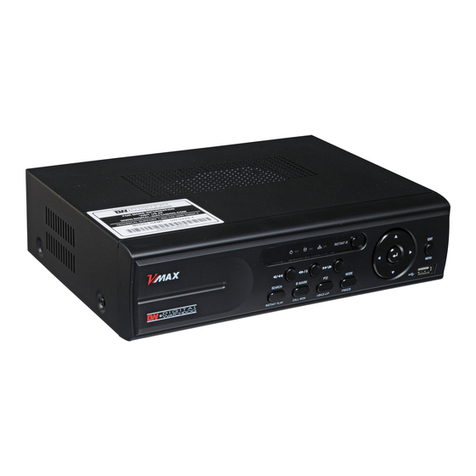
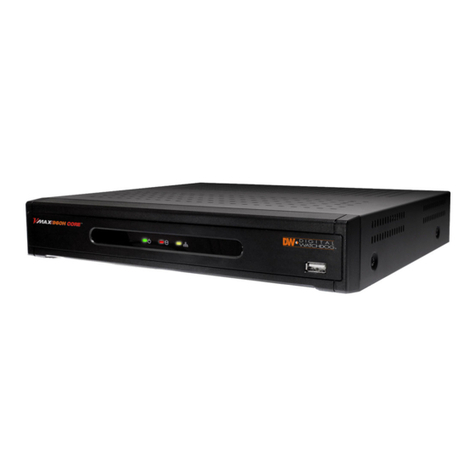
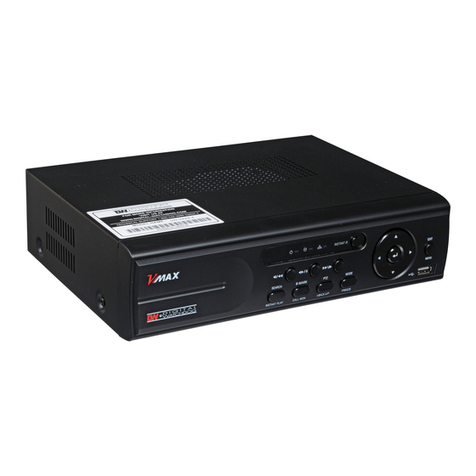
  9. Digital Watchdog VMAX 480 User manual

Digital Watchdog VMAX 480 User manual

Other Digital Watchdog DVR manuals
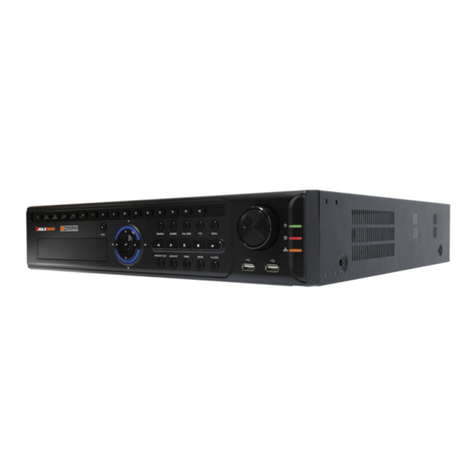
Digital Watchdog VMAX A1 G4 DW-VA1G442T User manual

Digital Watchdog

Digital Watchdog VMAX A1 G4 DW-VA1G442T User manual

Digital Watchdog VMAXD1 16 User manual

Digital Watchdog

Digital Watchdog VMAXD1 16 User manual

Digital Watchdog VMAX AND CORE DW-VACB2T User manual

Digital Watchdog

Digital Watchdog VMAX AND CORE DW-VACB2T User manual

Digital Watchdog VMAX AHD CORE DW-VAC44 User manual

Digital Watchdog

Digital Watchdog VMAX AHD CORE DW-VAC44 User manual

Digital Watchdog VMax Flex DW-VF4 User manual

Digital Watchdog

Digital Watchdog VMax Flex DW-VF4 User manual

Digital Watchdog VMAX IP PLUS DW-VP12P User manual

Digital Watchdog

Digital Watchdog VMAX IP PLUS DW-VP12P User manual

Digital Watchdog VMAX A1 Plus DW-VA1P8 User manual

Digital Watchdog

Digital Watchdog VMAX A1 Plus DW-VA1P8 User manual

Digital Watchdog VMAX User manual

Digital Watchdog

Digital Watchdog VMAX User manual

Digital Watchdog VMAXip PLUS DW-VP9P User manual

Digital Watchdog

Digital Watchdog VMAXip PLUS DW-VP9P User manual

Digital Watchdog Transporter User manual

Digital Watchdog

Digital Watchdog Transporter User manual

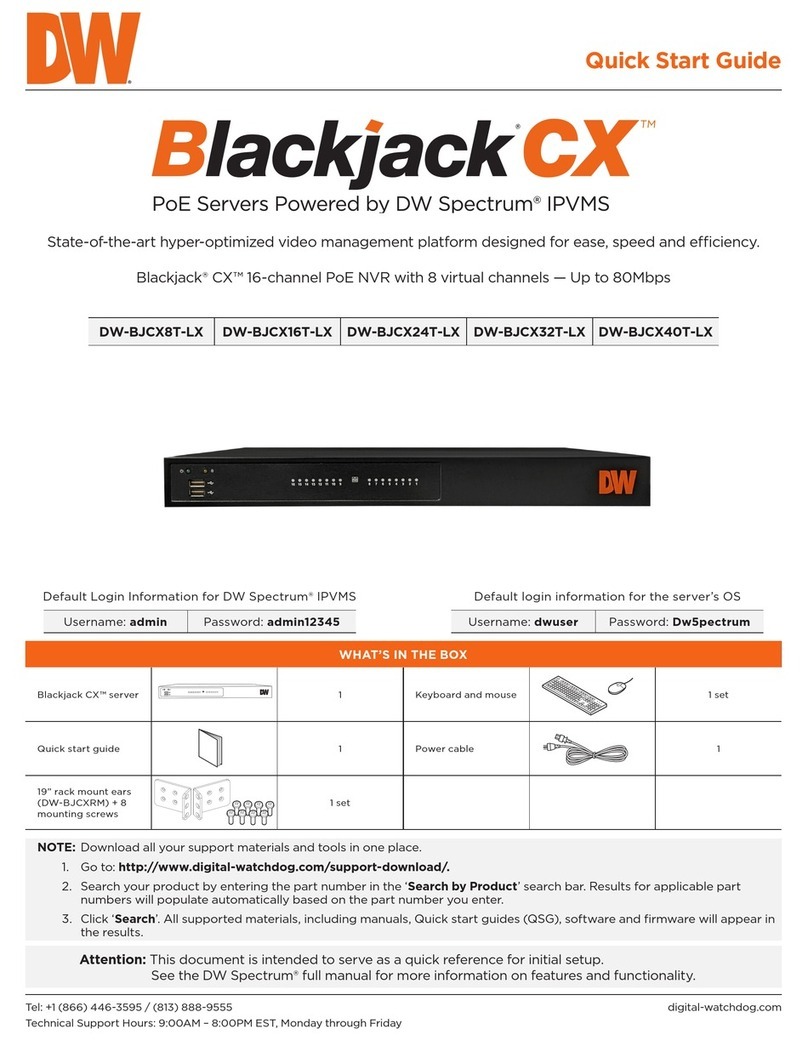
Digital Watchdog Blackjack CX DW-BJCX8T-LX User manual

Digital Watchdog

Digital Watchdog Blackjack CX DW-BJCX8T-LX User manual

Digital Watchdog MAX User manual

Digital Watchdog

Digital Watchdog MAX User manual

Digital Watchdog VMAX IP G4 DW-VG416 T16P Series User manual

Digital Watchdog

Digital Watchdog VMAX IP G4 DW-VG416 T16P Series User manual

Digital Watchdog DW-VC16 series User manual

Digital Watchdog

Digital Watchdog DW-VC16 series User manual

Digital Watchdog VMAX A1 Plus DW-VA1P4 User manual

Digital Watchdog

Digital Watchdog VMAX A1 Plus DW-VA1P4 User manual

Digital Watchdog DW-716 DW-709 User manual

Digital Watchdog

Digital Watchdog DW-716 DW-709 User manual

Digital Watchdog VMAX A1 PLUS DW-VA1P4T Series User manual

Digital Watchdog

Digital Watchdog VMAX A1 PLUS DW-VA1P4T Series User manual

Digital Watchdog VMAX960H CORE User manual

Digital Watchdog

Digital Watchdog VMAX960H CORE User manual

Digital Watchdog VMAX A1 DW-VAONE 41TB User manual

Digital Watchdog

Digital Watchdog VMAX A1 DW-VAONE 41TB User manual

Digital Watchdog VMAX480 User manual

Digital Watchdog

Digital Watchdog VMAX480 User manual

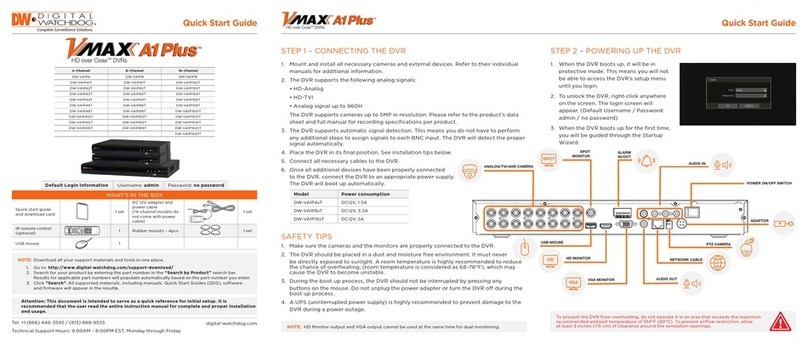
Digital Watchdog Vmax 960 H User manual
Digital Watchdog

Digital Watchdog Vmax 960 H User manual

Digital Watchdog DW-VHD4 User manual

Digital Watchdog

Digital Watchdog DW-VHD4 User manual

Digital Watchdog VMAX IP 4CH User manual

Digital Watchdog

Digital Watchdog VMAX IP 4CH User manual

Digital Watchdog DW-VAONE 41T User manual
Digital Watchdog

Digital Watchdog DW-VAONE 41T User manual

Popular DVR manuals by other brands

Pace TDC577X manual

Pace

Pace TDC577X manual

Zavio NQ2040 user manual

Zavio

Zavio NQ2040 user manual

KGuard Security KG-SHA104 user manual

KGuard Security

KGuard Security KG-SHA104 user manual

SanDisk V-Mate Quick manual

SanDisk

SanDisk V-Mate Quick manual

Panasonic WJND200 - NETWORK DISK RECORDER Setup instructions

Panasonic

Panasonic WJND200 - NETWORK DISK RECORDER Setup instructions

Hunt Electronic HVRM-T1600Q Install & user's guide

Hunt Electronic

Hunt Electronic HVRM-T1600Q Install & user's guide

Portwell PIVS-6104 user manual

Portwell

Portwell PIVS-6104 user manual

AVer EXR6004 Mini Quick user guide

AVer

AVer EXR6004 Mini Quick user guide

Security Labs SLD261 owner's manual

Security Labs

Security Labs SLD261 owner's manual

Swann DIGITAL VIDEO RECORDER instruction manual

Swann

Swann DIGITAL VIDEO RECORDER instruction manual

EverFocus ECOR 4 instruction manual

EverFocus

EverFocus ECOR 4 instruction manual

Xoro HRK 7550 user manual

Xoro

Xoro HRK 7550 user manual

FLIR M3100E Series instruction manual

FLIR

FLIR M3100E Series instruction manual

VTRACKPRO FPRO300 user manual

VTRACKPRO

VTRACKPRO FPRO300 user manual

Swann NVR-7085 models instruction manual

Swann

Swann NVR-7085 models instruction manual

RMRC FPV1000 manual

RMRC

RMRC FPV1000 manual

urmet domus 1093/004AHD instructions

urmet domus

urmet domus 1093/004AHD instructions

Toshiba D-VR3SU Service manual

Toshiba

Toshiba D-VR3SU Service manual

manuals.online logo
manuals.online logoBrands
  • About & Mission
  • Contact us
  • Privacy Policy
  • Terms and Conditions

Copyright 2025 Manuals.Online. All Rights Reserved.

1
9
1211
2 3 4
10
14
5 6 7 8
13
22
11
20
21
12
2
13
14
15
16
17
18
19
9
10
1
3
4
5
6
7
8
front panel of the DVR
IR Remote Control
No.
Name
Description
1
Video-In
2
Audio-In
Audio input device (with amplifier)
3 Audio-Out Audio output device (with amplifier)
4
MIC-In
MIC input device
5 Composite Monitor
6
Composite Spot Monitor
7
RS-232 input device
8
USB port (Ver2.0) for mouse operation, backup, or F/W update.
9
HDMI Output
10 10/100 Ethernet connection terminal
11
12 Sensor input
13 Alarm output
14
16
PTZ camera or external keyboard
15
Video-Out
Spot-Out
RS-232 Port
USB Port
VGA Port VGA Monitor
HDMI Port
LAN Port
Sensor Input
Alarm Output
RS-485 Port
Power Input
Power supply connection
(Default : 12 V, 3.33A/6.67A)
Loop Out Port
Loop Out
No. Functions
1
2 Numeric Button
3 Auto-Sequence Button on Live Display Mode
4 Freeze button
5 Call Monitor button
6 Numeric Button
7 Instant (Emergency) Playback Button
8 Search Button
9 OK (Select) Button
10 Audio Mute Button
11 Playback Button on Search Mode
(Fast Backward/Playback/Stop/Fast Forward)
12 Exit Button
13 Display Mode Button
14 Zoom button
15 PIP Mode button
16 BookMark Button
17 Zoom In &out Button
18 Backup Button
19 PTZ Button
20 Direction Button (Up/Down/Right/Left)
21 Menu Button
22 ID Select Button
No. Buttons Functions
1 Menu / Exit Button
2 Fast Reverse Playback Button Fast rewind during playback
4 Fast Forward Button Fast forward during playback
5 Search
Instant Play(Press and hold) Go to search mode / Used to initiate Instant Reverse
Playback
6 Book-Mark
Call Mon(Press and hold) Book-Mark / Used to display full screen video of all
installed cameras in sequence by spot out
7 PTZ
I-backup(Press and hold) Bring up PTZ Camera control /
Used to initiate instant back up
8 Mode
Freeze(Press and hold) Change screen mode / Used to initiate Freeze function
9 USB Port USB port(Ver.
2.0)for mouse operation or backup or F/W update
10 LED Indicator Indicates system status
Power, Record, HDD and Remote Controller
11 Instant Record Button Emergency Recording
12 Enter Button Select value or setting
13 Direction Button Move to the direction that user wants to select
14 DVD±RW DVD±RW door
3Forward & Backward Play
Pause Button Forward play & Backward Play (Long Press)
Pause (Short Press)
Start Instant Emergency Record
Toggles On or Off Menu Setup Display
8. You can configure the Live Stream (Resolution/FPS/Quality) setting independently
by clicking the [LIVE STREAM] button in RECORD SETUP tab.
2. Change the [Network Type] to [Static IP], if the DVR is assigned to a new IP address
from the DHCP server.
- Click [ACS SETUP] button and go to DVR REGISTRATION tab.
- Click [ADD] to add a site. Click [EDIT] to edit an existing site information.
Click [REMOVE] to delete a site.
Default Login for the ACS : administrator and password box is blank.
Default Login to a remote DVR : admin and password box is blank.
[DVR Name]. [DDNS Link]
Please enter the IP address in the address bar when using
Internet Explorer.
The user has to download Active-X Control from the DVR and
install it on the Client Workstation/PC before monitoring live video.
prioritize the Quick Setup configurations
and will follow the settings regardless of the configurations
set in other menus.
Users should not mark the [USE QUICK SETUP] checkbox,
marks [USE QUICK SETUP] checkbox
in other menus.
on
[HELP]
[HELP]
Default Port # : 80
Default Login to a remote DVR : admin and password box is blank.
Press [Menu] button on the front panel
of the DVR or the IR remote controller to
access the Menu Setup.
Dynamic IP
digitalwatchdog.dwddns.net
[dwddns.net] for the DDNS Server. (Recommended)
[START] button to check.
“DDNS Success”
"dyndns.com," go to http://dyndns.org and create an account.
1. Locate RECORD icon from the main menu and select it.
2. Select RECORD SETUP.
3. Choose the desired resolution, frame rate, quality, and recording type in the drop down list.
Individually configure the settings for each channel, or use the [COPY SETTINGS] button to
apply the same configurations to multiple cameras.
4. Select SCHEDULE tab to setup the record schedule.
1. Go to the SYSTEM INFO tab in System Menu.
1. Go to HDD tab in System Menu.
2. Click on the [HDD Clear] button.
[DATE/TIME FORMAT]
in the [DATE/TIME SETUP]
[TIME ZONE]
section.
NETWORK tab,
DDNS, information
5. For a more detailed record setup, mark the checkbox for [ADVANCED] in the RECORD SETUP tab.
6. When [ADVANCED] is marked, you can setup two record schedules: [Schedule 1] and [Schedule 2].
7. Go to SCHEDULE tab to setup [Schedule 1] and [Schedule 2].
*주의 : 인쇄시 레이어상의 빨간색 가이드 라인은 지우고 작업 바람.