manuals.online logo
Brands
  1. Home
  2. •
  3. Brands
  4. •
  5. Dreadbox
  6. •
  7. Recording Equipment
  8. •
  9. Dreadbox Erebus Instructions for use

Dreadbox Erebus Instructions for use

Other manuals for Erebus

3

Other Dreadbox Recording Equipment manuals

Dreadbox Hypnosis User manual

Dreadbox

Dreadbox Hypnosis User manual

Dreadbox HYPNOSIS Time Effects Processor User manual

Dreadbox

Dreadbox HYPNOSIS Time Effects Processor User manual

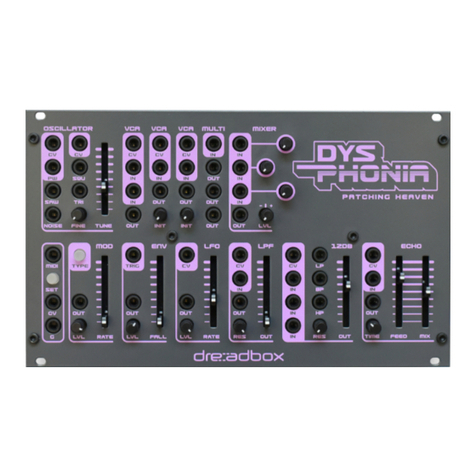
Dreadbox Dysphonia User manual

Dreadbox

Dreadbox Dysphonia User manual

Dreadbox Darkness User manual

Dreadbox

Dreadbox Darkness User manual

Dreadbox TELEPATHY BUNDLE User manual

Dreadbox

Dreadbox TELEPATHY BUNDLE User manual

Dreadbox telepathy User manual

Dreadbox

Dreadbox telepathy User manual

Popular Recording Equipment manuals by other brands

ThermoFisher Scientific Dionex DRS 600 Installation checklist

ThermoFisher Scientific

ThermoFisher Scientific Dionex DRS 600 Installation checklist

Shure ANIUSB-Matrix user guide

Shure

Shure ANIUSB-Matrix user guide

Nady Audio HE-1 user guide

Nady Audio

Nady Audio HE-1 user guide

AUDAC APM 01 User manual & installation guide

AUDAC

AUDAC APM 01 User manual & installation guide

Teac GF-350 owner's manual

Teac

Teac GF-350 owner's manual

Fractal Audio MFC-101 MARK III owner's manual

Fractal Audio

Fractal Audio MFC-101 MARK III owner's manual

bmcm USB-OI16 manual

bmcm

bmcm USB-OI16 manual

HHB BurnIT CDR-830 Service manual

HHB

HHB BurnIT CDR-830 Service manual

GE VersaMax IC200CPUE05 manual

GE

GE VersaMax IC200CPUE05 manual

IntesisBox MH-RC-MBS-1 user manual

IntesisBox

IntesisBox MH-RC-MBS-1 user manual

Attero Tech unD4l user manual

Attero Tech

Attero Tech unD4l user manual

Sennheiser UI 765 instruction manual

Sennheiser

Sennheiser UI 765 instruction manual

Sony RCD-W1 Operating Instructions  (primary... Service manual

Sony

Sony RCD-W1 Operating Instructions (primary... Service manual

Roland Planet-P  MKS-10 owner's manual

Roland

Roland Planet-P MKS-10 owner's manual

Roland BOSS GT-PRO Turbostart

Roland

Roland BOSS GT-PRO Turbostart

8x8 Inc Valcom V-2001A manual

8x8 Inc

8x8 Inc Valcom V-2001A manual

Waves SUB Align user guide

Waves

Waves SUB Align user guide

Mitsubishi Electric MAC-334IF-E installation manual

Mitsubishi Electric

Mitsubishi Electric MAC-334IF-E installation manual

manuals.online logo
manuals.online logoBrands
  • About & Mission
  • Contact us
  • Privacy Policy
  • Terms and Conditions

Copyright 2025 Manuals.Online. All Rights Reserved.

CONSTRUCTION
MANUAL
In the box you will nd:
- 3 x PCB boards
- The Aluminum panel
- A plastic bag with parts
- The metal enclosure
- A ribbon cable
- A DIN5 to 3,5mm MIDI Adapter
The plastic bag contains:
- 16 small knobs
- 4 large knobs
- 4 rubber feet
- A 2mm hex driver
- 14 M3 brass bolts
- 6 M3 black bolts
- 8 metal spacers 10mm length M3
- 1 plastic spacer
- 6 washers M3
- 20 pot washers
- 20 pot nuts M10
Additionally, you will need to have:
- A tuner
- A multimeter
- A 10mm HEX nut screwer
- A small straight screwdriver for trimming
- A larger straight screwdriver for the knobs
- A Philips PH1 screwdriver
- A USB adapter at least 1A of power
- A good USB cable
- A mini jack 3,5mm to 6,4mm
- A few patch cables 3,5mm
- A couple of crocks connectors
Step 1
Place the 2 bolts as shown in the picture, so that the spacers are facing on the components side.
Step 2
Place the 4 bolts as shown in the picture, so that the spacers are not facing on the components side.
Step 3
Connect the panel with the board. Place all nuts and washers as shown in the picture and then bolt
the 2 black bolts. While doing this do not apply too much force.
Step 4
Prepare the bottom PCB by attaching the holders for the power board.
Step 5
Connect the three boards. Be careful not to bend the headers while you attach them. Then bolt them
in place.
Step 6
Attach the knobs to the potentiometers. All knobs have a set screw to the side. Use the straight
screwdriver to rm them tightly as shown in the picture.
Step 7 - Tuning
This is the most challenging part of the build.
First thing you should do, is to prepare your workbench. Make sure that
your working area is all cleaned up and we strongly suggest to use the
foam to support the module.
1. Connect a patch cable to the CV1 output.
2. Use the crocks to connect the multimeter with the minijack as shown in
the picture. The red goes to the tip and the black goes to the ground. Then
turn the multimeter on to the DC voltage measurement.
3. Connect the module to a USB power source.
IMPORTANT NOTE: To enter the calibration mode you must ip the OMNI/
CHAN switch 6 times in the rst 10 seconds that the unit is powered.
4. After entering the calibration mode :
- Set GLIDE 1, GLIDE 2, A, D, S, R knobs (from the Envelope) to about 50%.
- Set the LEG/OFF switch to the OFF position
5. Tuning of CV1:
- set the OSC1 octave switch to “32”
- The multimeter will show a measurement of about 3 volts. Use the
“GLIDE 1” knob to set it as close as possible to 3 volts. The ideal voltage is
3.000mV (3V = 3000mV) but that is not always possible. You can allow a
0,010 offset with no problems.
- Then set the octave 1 to “16”. The multimeter will show about 6 volts.
This time use the GLIDE 2 knob to set it to 6.000 volts.
- Then set the octave 1 switch to “8”. The multi meter will show about 9
volts. Use the A knob to set it to 9,000.
IMPORTANT NOTE: After setting it up make sure not to touch these knobs
again while in calibration mode, because the setting will be lost and you will need to run the process
again.

6. Tuning of CV2:
- Remove the patch cable from CV1 and connect it to CV2 .
- set the OSC2 octave switch to “16”
- The multimeter will show a measurement of about 3volts. Use the “D” knob to set it as close as possible
to 3 volts. Ideal is 3,000 but that is not always possible. You can allow a 0,010 offset with no problems.
- Then set the octave 2 to “8”. The multimeter will show about 6 volts. This time use the “S” knob to set
it to 6.000 volts.
- Then set the octave 1 switch to “4”. The multi meter will show about 9 volts. Use the “R” knob to set it
to 9,000.
IMPORTANT NOTE: After setting it up make sure not to touch these knobs again while in calibration
mode, because the setting will be lost and you will need to run the process again.