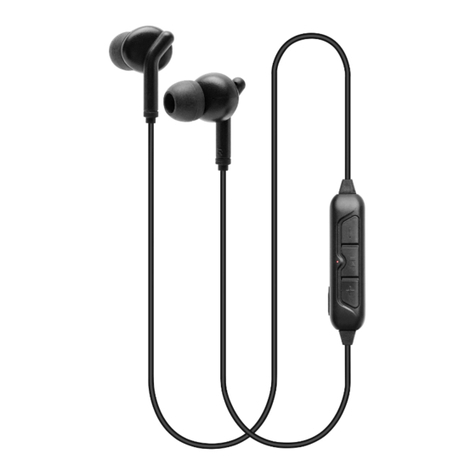
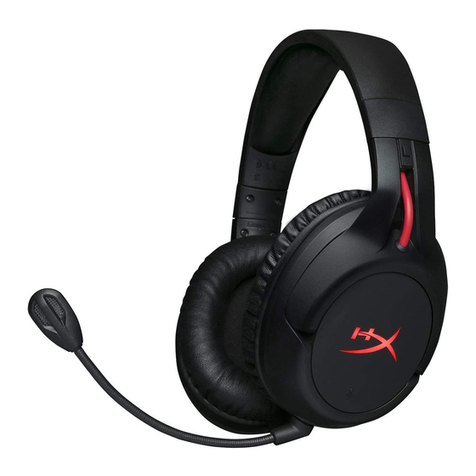
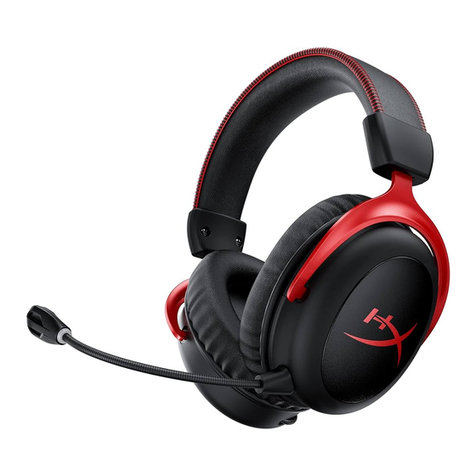
essential HS20BT User manual
Quick Start Guide
www.CyberAcoustics.com
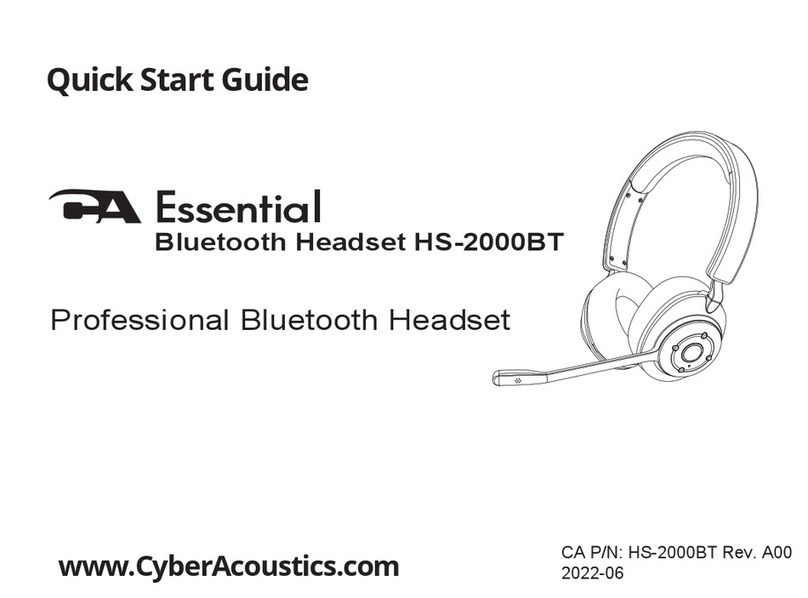
Bluetooth Headset HS-2000BT
Professional Bluetooth Headset
CA P/N: HS-2000BT Rev. A00
2022-08

Bluetooth Headset HS-2000BT
CA Essential
Bluetooth Headset
In the Package
Quick Start Guide
USB Type C to C Charging Cable
CA Essential
Bluetooth Dongle
DG-001BT2
Bluetooth Adapter Note: The Bluetooth Adapter and USB Type C to C Charging
Cable are packed along with the QSG in the box
Quick Start Guide
www.CyberAcoustics.com
Bluetooth Headset HS-2000BT
Professional Bluetooth Headset
CA P/N: HS-2000BT Rev. A00
2022-08

Table of Contents
Using the Headset
Getting Started
Controls
Technical Specifications
Frequently Asked Questions
CustomerSupport
Safety and Precautions
Pages
1
6, 7
8
9
10
11
12,13
Compliance Information
Lights 5
Connecting with Windows PC or Mac2
Connecting with smartphone or two devices3
Disconnecting from connected devices 4
Using the Headset
Page 1
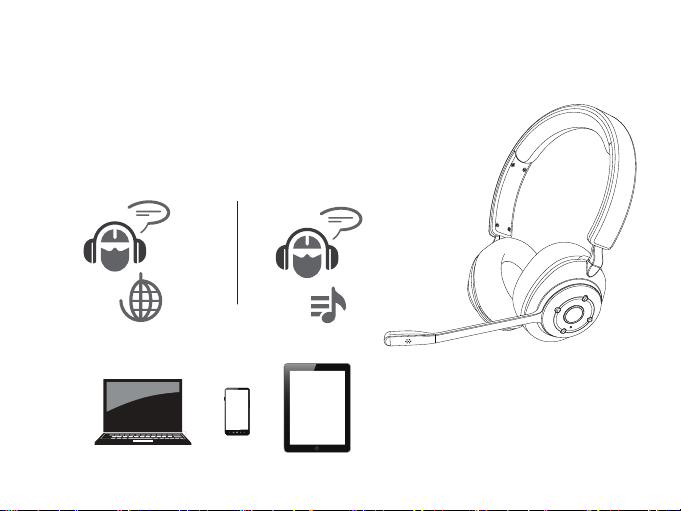
Skype, Zoom &
Other UC Applications
Music
Getting Started
The CA Essential Bluetooth Headset is designed to be used with both a Windows PC
or Mac, smartphone or both at the same time. Before you start, please fully charge
the CA Essential Bluetooth Headset. (See Page 7)
See below for connecting with a Windows PC or Mac
See Page 3 for connecting with your Smartphone or connecting with both your
computer and smartphone at the same time.
To connect with a Windows PC or Mac
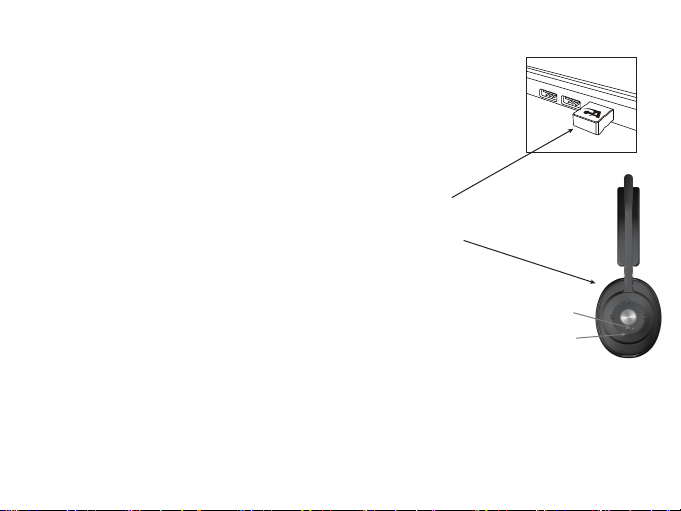
- Plug the USB Bluetooth Adapter into an available USB port on your computer.
- The USB Bluetooth Adapter will automatically install on your computer and is
available as the audio device “CA Essential BT Headset” on your computer.
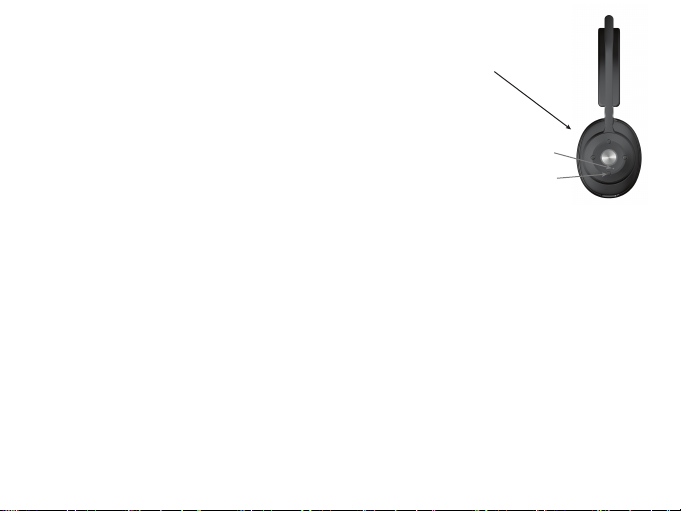
- Turn on the CA Essential Bluetooth Headset by pressing and holding the Power
button until the Bluetooth/Charging Light is flashing Blue and Red.
- The CA Essential Bluetooth Headset will connect automatically with the USB Bluetooth
Adapter plugged into your computer and the Bluetooth/Charging Light will turn solid Blue.
- The CA Essential Bluetooth Headset is ready to use.
Note: The CA Essential Bluetooth Headset will connect automatically with the USB
Bluetooth Adapter when plugged into your computer each time the headset is turned
on and your computer is within range.*
* Your computer or device needs to be within 10 unobstructed feet of the CA Essential Bluetooth Headset to
pair and connect. If there is an issue when connecting, please move the headset closer to your computer or
device, then pair and connect. When the charge is too low indicated by the Bluetooth/Charging Light flashing
Red on the headset, your device will not be able to connect with the headset.
Power Button
Bluetooth /
Charging Light
Page 2
Getting Started
To connect with an iPhone, iPad, Android smartphone or tablet
- Turn on the CA Essential Bluetooth Headset by pressing and holding the Power button
until the Bluetooth/Charging Light is flashing Blue and Red.
- Go to Settings > Bluetooth, check Bluetooth is on
- Select 'CA Essential BT Headset' when it appears under DEVICES
- Your device will connect in a few seconds
- The Bluetooth/Charging Light will turn solid Blue.
- The CA Essential Bluetooth Headset is ready to use.
Note: Your Smartphone or Tablet instructions may vary
Note: The CA Essential Bluetooth Headset will connect automatically with your smartphone
or tablet each time the headset is turned on and your smartphone or tablet is within range.*
To connect with your computer and smartphone at the same time
- First follow the steps to connect to your computer on Page 2
- To connect your smartphone at the same time, disconnect the headset from computer by removing the USB
Bluetooth Adapter from the USB port on your computer. The headset will then go into pairing mode with the
Bluetooth/Charging Light flashing Blue and Red.
- Connect to your Smartphone by following the steps noted above.
- Plug the USB Bluetooth Adapter back into the USB port on your computer. The headset will automatically
connect to your computer with the USB Bluetooth Adapter.
- Both your computer and smartphone should now both be connected to the headset.
Note: When the headset is connected to both a smartphone and computer with the USB Bluetooth Adapter and
playing music on both, press the Call Button (See page 6 for Controls) to switch back and forth between the
computer and smartphone.
* Your computer or device needs to be within 10 unobstructed feet of the CA Essential Bluetooth Headset to pair
and connect. If there is an issue when connecting, please move the headset closer to your computer or device,
then pair and connect. When the charge is too low indicated by the Bluetooth/Charging Light flashing Red on
the headset, your device will not be able to connect with the headset.
Power Button
Bluetooth /
Charging Light
Page 3

Getting Started
Disconnecting the CA Essential Bluetooth Headset from connected devices
- To disconnect the headset from your computer with the USB Bluetooth Adapter, unplug the USB Bluetooth Adapter
from the computer’s USB port. If your smartphone is connected as well, it will stay connected to the headset.
- To disconnect the headset your smartphone, disconnect the headset in the Bluetooth Settings on your smartphone.
If your computer with the USB Bluetooth Adapter is connected as well, it will stay connected to the headset.
- To disconnect the headset when connected to both your computer with the USB Bluetooth Adapter and your
smartphone, press and hold the Multi-Function Button and Call Button at the same time for 2 seconds.
- The headset will switch to pairing mode and the Bluetooth/Charging Light will flash Blue and Red.
Note: To reconnect to a computer you will need to unplug the USB Bluetooth Adapter and then plug it back into the
USB port on the computer. See page 2 for further instructions to connect to your computer and page 3 for
instructions to connect your smartphone.
Page 4

Lights
Bluetooth Pairing
Bluetooth Connected
Incoming Call
Incoming or Call in Progress
Microphone is Muted
Bluetooth / Charging Light flashes Blue & Red
Bluetooth / Charging Light is lit solid Blue
Busy Light is lit solid Red (smartphone only)
Bluetooth / Charging Light is lit solid Red
Bluetooth / Charging Light is lit solid Blue and
flashing Red
Bluetooth / Charging Light slowly flashing Red
Headset Powered On
Bluetooth Connected and
Charging
Low battery
Headset Powered On Battery Status (Not available when Mic muted)
Bluetooth /
Charging Light
Busy Light
Busy Light Enabled Busy Light is lit solid Red
Bluetooth / Charging Light slowly flashing Red
(smartphone only)
Page 5
Bluetooth / Charging Light flashing Red
Bluetooth / Charging Light is turned off
Charging
Fully Charge
Headset Powered Off Battery Status

- Press to answer an incoming call or hang up a call
- During an incoming call, long press for 2 seconds to reject the call.
Busy Light (Note 1)
- Quickly press two times to turn the Busy Light On or Off.
Call button
Answer / Hang up (Function is for connected Smartphone only)
Volume Up Button
- Short press to increase the volume.
- Long press for more than 2 seconds to continuously increase the volume.
Microphone mute / un-mute (Note 2)
- Short press both “Volume up“ and “Volume down” simultaneously to mute/
un-mute the mic input.
Bluetooth / Power Button
- In standby mode, press & hold the power button until “Power On”
voice prompt to turn on the headset.
- In working mode, long press for 2 seconds to turn off the headset.
Note 1) Not available during a Voice Call.
Note 2) Not available if mic boom is raised and in the mute position.
Controls
Page 6
Volume Down Button
- Short press to reduce the volume.
- Long press for more than 2 seconds to continuously reduce the volume.
Multi-Function Button
Play / Pause
- Short press to pause music, press again to resume music.
ANC On/Off
- Long press continuously for more than 3 seconds to turn ANC On/Off
Battery Status
- Quickly press two times to hear the battery status
Controls
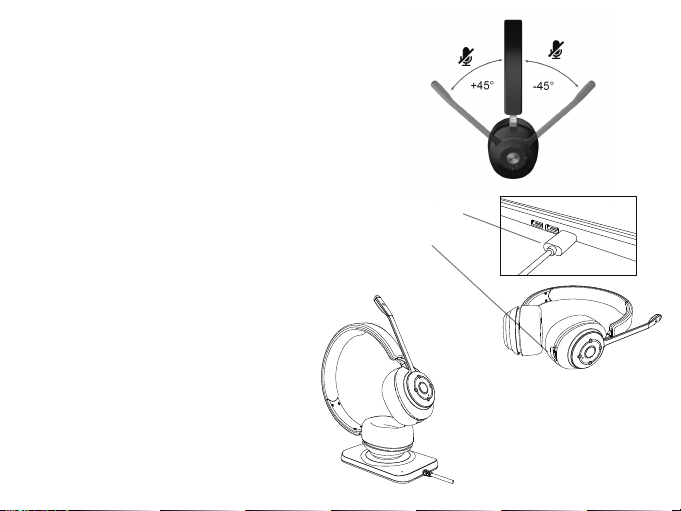
Mute / Un-mute mic by Mic Boom
- Rotate the Mic Boom up towards the headband to less than
45 degrees to mute.
- Rotate the Mic Boom down greater than 45 degrees to un-mute.
USB Charging
- Insert the USB Type C Cable into a USB Type C port on your computer
or a UL approved wall charger with Type C port.
- Insert the other end of the USB Type C cable into the USB Type C
Charging Port on the headset.
- The headset will still function with your connected device when
connected to a charging source.
Qi Charging
- Place the headset on a Qi charging pad as
shown in the diagram.
(Charging pad is not included)
Page 7
This manual suits for next models
1
Table of contents
Other essential Headset manuals