1
IMPORTANT:
Go to www.extron.com for the
, installation
instructions, and specifications.
XTP SFR HD 4K • Setup Guide
CLASS 1 LASER PRODUCT, see the XTP SFR HD 4K User Guide at www.extron.com
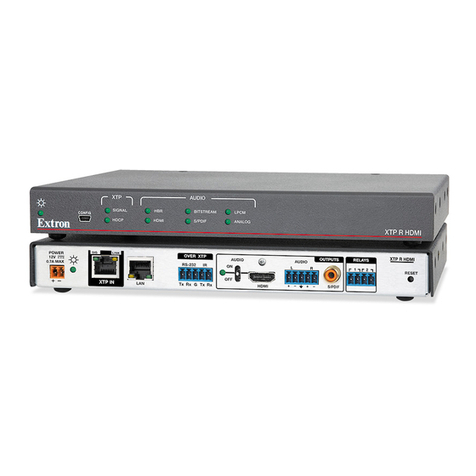
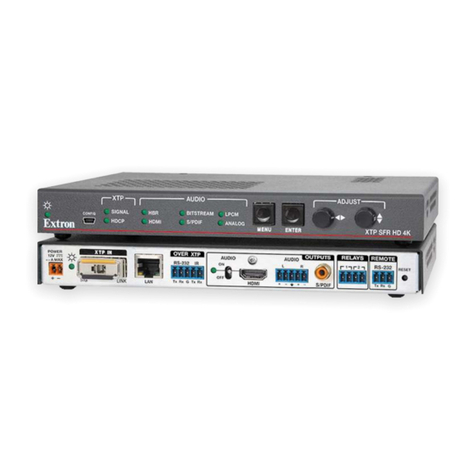
The Extron XTP SFR HD 4K is an XTP ber receiver that scales HDMI, DVI, RGB, HD component video, and standard denition
video to the optimal output resolution. This guide provides instructions for an experienced installer to install and connect the
XTP SFR HD 4K scaling receiver.
Installation
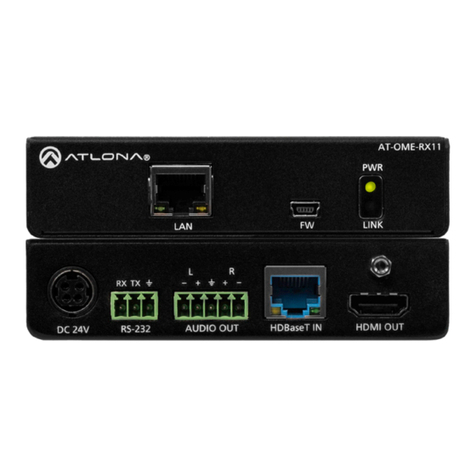
Rear Panel Features
Power and Throughput Connections Output Connections Control Connections and Reset
A DC power connector and power LED
B XTP input connector
C LAN connector and LEDs
D RS-232 and IR Over XTP connector
E HDMI output connector and
corresponding HDMI audio switch
F Analog audio output connector
G S/PDIF digital audio output connector
H Relay connectors
I Remote RS-232 connector
J Reset button
Figure 1. Rear Panel Features
Mounting and Cabling
Step 1 — Mount the device
Turn off or disconnect all equipment power sources and mount the XTP SFR HD 4K on a tabletop or in a rack.
Step 2 — Connect throughput devices
a. Connect an XTP transmitter or XTP matrix switcher to the XTP ber input connector (B).
WARNING: Potential risk of severe injury. The XTP SFR HD 4K outputs continuous invisible light (class 1 laser rated),
which may be harmful to the eyes; use with caution.
AVERTISSEMENT : Risque potentiel de blessure grave ou de mort. Le XTP SFR HD 4K émet une lumière invisible
en continu (conforme à la classe 1 laser) qui peut être dangereux pour les yeux, àutiliser avec précaution.
• Do not look into the ber optic cable connector or into the ber optic cables themselves.
• Ne regardez pas dans le connecteur de câble bre optique sur le ou dans les câbles bre optique euxmêmes.
• Plug the attached dust caps into the connector when the ber optic cable is unplugged.
• Branchez la protection contre la poussière dans le connecteur lorsque le câble bre optique est débranché.
Signal LED indicator — Lights green when it receives an active XTP input signal from a transmitter or matrix switcher.
Link LED indicator — Lights yellow when a valid link between an XTP input and output is established.
b. Connect a host device or control LAN or WAN to the LAN RJ-45 connector (C) for pass-through 10/100 Ethernet
communication. These are Ethernet pass-through ports with LEDs to indicate link and activity status.
c. To pass bidirectional serial, infrared, or other control signals, connect a control device or a device to be controlled to the
RS-232 and IR Over XTP connector (D). See RS-232 and IR Over XTP Wiring on page 2 for wiring details.
Step 3 — Connect outputs
a. Connect a digital video display to the HDMI output connector (E) on the receiver.
b. Connect a balanced or unbalanced stereo or mono audio device to the 3.5 mm, 5-pole captive screw connector (F) on the
receiver for 2-channel stereo analog audio (see Audio Wiring on page 2 for wiring details).
c. Connect an audio device to the female orange RCA connector (G) tor for digital S/PDIF audio output.
Step 4 — Connect control devices
a. Connect a host device, such as a computer, to the front panel female USB mini-B connector (see figure 2, Bon page 2) to
congure the device or update rmware.
b. Connect equipment controlled via momentary or latching contact, like projector screens or lifts, to these normally open
relays (H). Do not exceed 24 V at 1 A for each port.
c. For serial control of the scaler, connect a host device to the Remote RS-232 3.5 mm, 3-pole captive screw connector (I).
Step 5 — Connect power
Connect the provided external power supply to the 2-pole captive screw connector (A).
POWER
12V
1.0 A MAX
HDMI S/PDIF
AUDIOAUDIO
SIG LINK LAN
RS-232 RS-232IR L
Tx Rx Tx Rx
RESET
G
R12ON
OFF
XTP IN OVER XTP OUTPUTS RELAYS
Tx Rx G
REMOTE
ABCD EFGH IJ