FA-9600
Quick Setup Guide
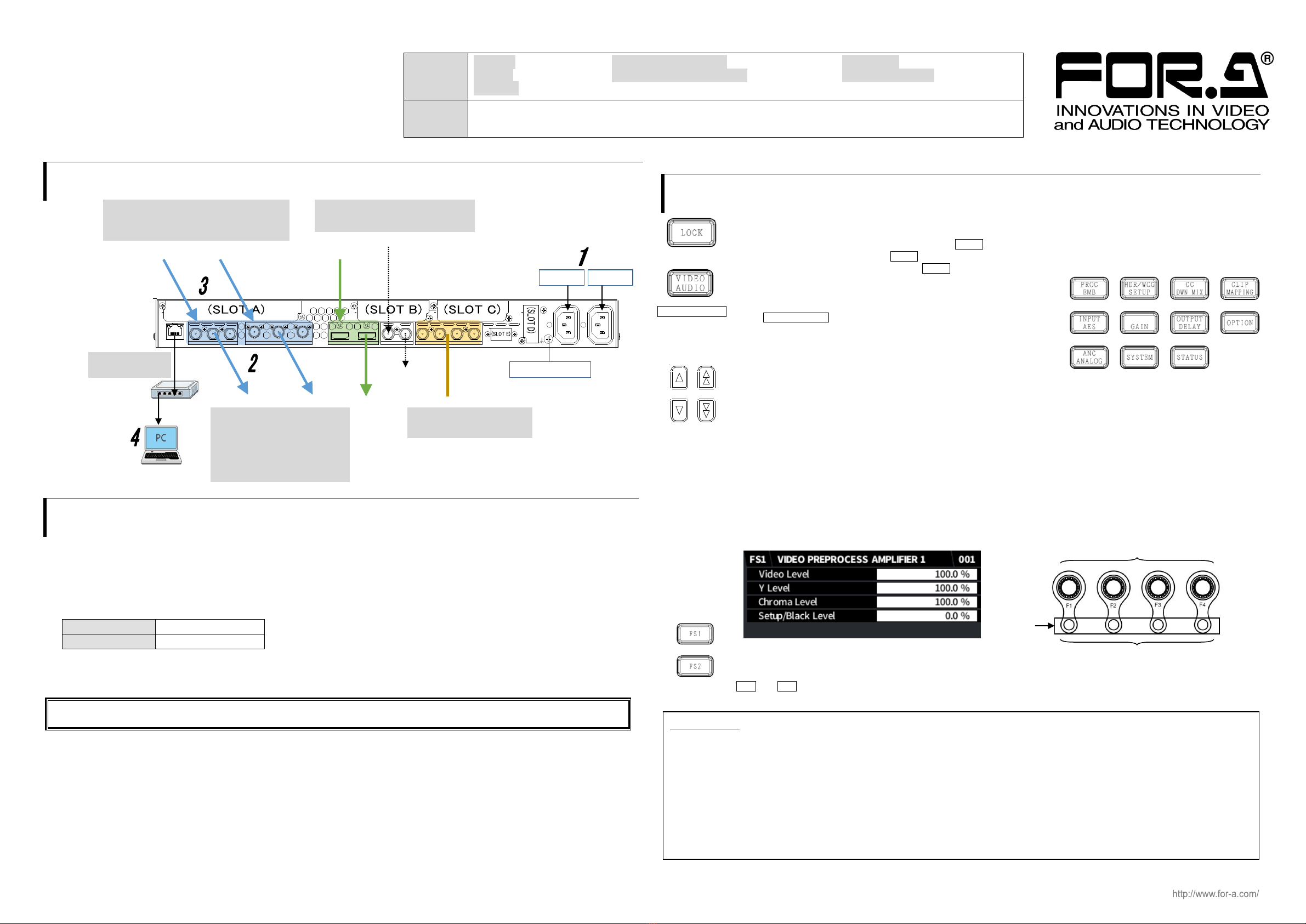
1. Connection
2. Setup Procedure
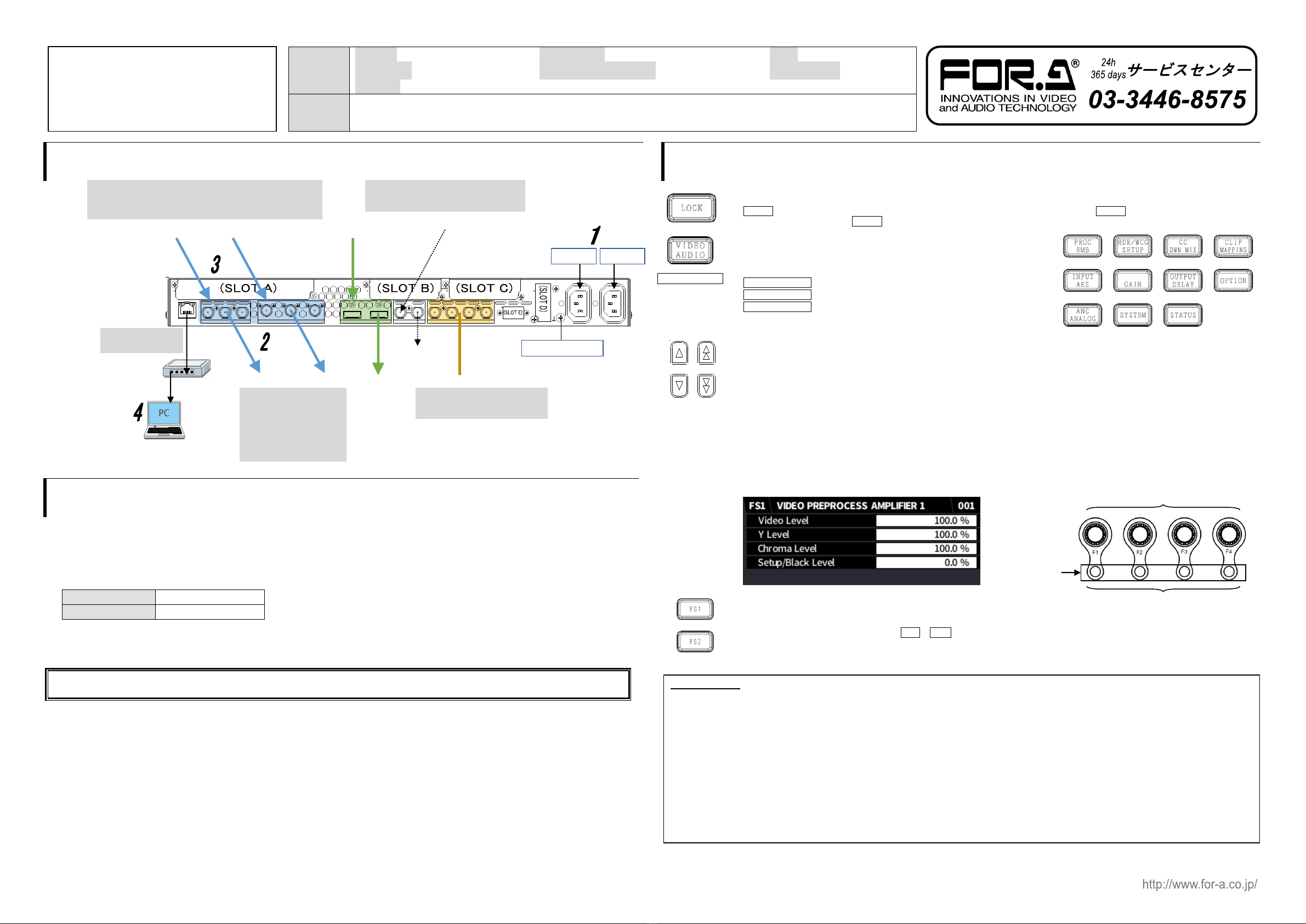
The procedure is shown numbered in the above figure.
1Apply DC power to the FA-9600 using the supplied AC cord. Secure the cord with the supplied AC cord retaining clip.
2Connect monitors and/or recorders to the SDI OUT connectors.
3Connect signal source devices such as video cameras and/or switchers, to the SDI IN connectors.
4Connect a PC to be used for remote control (Windows GUI, etc.) to the FA-9600 via LAN. Set the PC IP address within the following
range.
* The FA-9600 default IP address is 192.168.0.10.
5Turn the power of the FA-9600 unit on. When the unit is powered on, all LEDs on the front panel, including Alarm indicators light.
Once startup is complete, current status will be indicated.
Complete connections before turning the power of the unit on.
After a setting change, do not turn the unit power off for at least 10 seconds. The setting data may otherwise not save properly.
<To start Windows GUI (FA-9600GUI) >
1Install the FA-9600GUI.
Open the FA-9600GUI folder in the CD-ROM. Double-click the Setup file to start the setup wizard and install the FA-9600 GUI.
2Install the Processor Control GUI Launcher.
Open the Processor Control GUI Launcher folder in the CD-ROM. Double-click the Setup file to start the setup wizard and install
the GUI Launcher.
3Launch the Windows GUI (FA-9600GUI) from the GUI Launcher.
Start the GUI Launcher and click Add Unit. Enter the FA-9600 device name (user-defined) and IP address. Once the FA-9600 is
entered in the connection list, the connection process automatically starts. When the PC is connected to the FA-9600, “Connected“ is
displayed under Status in the list. Double-click Connected to launch the FA-9600GUI.
3. Front Panel Operation
Lock Button
All front panel operations are disabled when the LOCK button is lit.
To lock the front panel, press the LOCK button. The button light will turn on.
To unlock the front panel, hold down the LOCK button. The button will turn off.
Selecting a Menu
Both Video and Audio menus are assigned to some menu buttons.
The VIDEO/AUDIO button allows you to select Video or Audio menus
and lights to indicate which menu is enabled
The blue button light indicates Video menus (upper labels) are enabled,
and the orange light indicates Audio menus (bottom labels) are enabled.
Arrow buttons
Moving between menu pages: Use up/down double-arrow buttons to move between menu pages.
Moving between menu items: Use up/down single-arrow buttons to move between menu items.
The buttons are lit if available and unlit if unavailable.
Setting Parameters
Pressing a menu button displays the corresponding menu as shown below on the menu display and function button
(F1-F4) outlines will light if the buttons are available for menu setting. Lighting orange indicates that the selected
parameter is set to default.
To change parameter values, press the corresponding function buttons. (A buzzer sound will be heard if the setting
value exceeds the allowable parameter range.)
To set a parameter to its default value, press the corresponding UNITY button below F1-F4. (In such cases, repressing
the UNITY button reverts it to the previous state.)
FS1 / FS2 Selection Buttons
“FS1” and “FS2” in front of menu titles indicate that the menu can be set independently between FS1 and FS2. Select
an FS using the FS1 and FS2 buttons.
Precautions
-Operate the unit only at the specified supply voltage.
-Ensure the unit is properly grounded at all times.
-Ensure the power cord and connectors are firmly connected.
-Do not access circuitry with power applied to the unit.
-Unit should not be operated or stored with the cover, panels, and/or casing removed.
-Unit should not be operated or stored in a humid, dusty, etc. environment. Doing so could result in fire or electrical shock.
-Do not allow fluids, metal fragments, or any other foreign objects to enter the unit. If foreign matter does enter the unit, turn the power
off and disconnect the power cord immediately. Remove the material or contact your authorized service representative.
-If you notice any strange smells or noises coming from the unit, turn the power off immediately, turn OFF the power switch, disconnect
the power cord, then contact your authorized service representative.
Outlines are lit when settable.
Lit orange to indicate default values.
VIDEO/AUDIO
selection
button
AC100-240V 50/60Hz IN
12
IN2 OUT2a OUT2b IN1 OUT1a OUT1b
IN OUT 1/2 7/85/63/4
3G/HD/SD-SDILAN 12G/6G/3G/HD/SD-SDI GENLOCK IN
HDMI DIGITAL AUDIO IN/OUT
B DA C
E
3G/HD/SD-SDI input/output.
Alternate Input and output allocation.
Bypass relay possible
Monitors, recorders, etc
UHD 4K input/output possible
with options.
(Single Link 12G-SDI and/or
Quad Link 3G-SDI)
GENLOCK IN with loopthrough
(Terminate at 75-ohm, if unused.)
AES I/O
Input or output selectable
FA-9600:1 Rack mount bracket set:1 Rubber foot:4
AC cord:1 set HDMI Cable Lacing Bracket:2 sets Quick Setup Guide:1
CD-ROM:1 (Windows GUI installation disc, including other tools and Operation Manuals)
FA-96PS, FA-964K, FA-96UDC, FA-96AHDR/AHDR2, FA-96AES-UBL/-UBLC, FA-96ANA-AUD, FA-96MADI,
FA-96EX3G44-R, FA-96EX12G06, FA-96SFPC4, FA-96GPI, FA-96DIN4-CBL, FA-96DB9-CBL, FA-10RU