manuals.online logo
Brands
  1. Home
  2. •
  3. Brands
  4. •
  5. Fujitsu
  6. •
  7. Telephone
  8. •
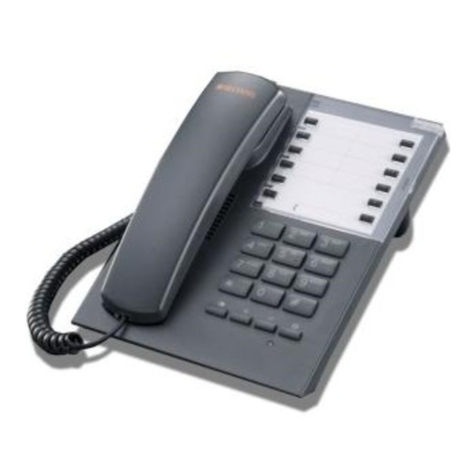
  9. Fujitsu 280D-HS User manual

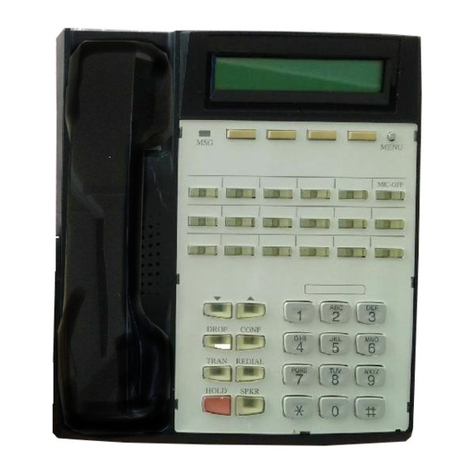
Fujitsu 280D-HS User manual

Other Fujitsu Telephone manuals

Fujitsu DG-station 100A User manual

Fujitsu

Fujitsu DG-station 100A User manual

Fujitsu NTT DOCOMO F-01A User manual

Fujitsu

Fujitsu NTT DOCOMO F-01A User manual

Fujitsu F9600 F9600c User manual

Fujitsu

Fujitsu F9600 F9600c User manual

Fujitsu SRS-1050 User manual

Fujitsu

Fujitsu SRS-1050 User manual

Fujitsu 9924 User manual

Fujitsu

Fujitsu 9924 User manual

Fujitsu SRS-9924-ABM User manual

Fujitsu

Fujitsu SRS-9924-ABM User manual

Fujitsu SRS-1050 User manual

Fujitsu

Fujitsu SRS-1050 User manual

Fujitsu CT-10 User manual

Fujitsu

Fujitsu CT-10 User manual

Fujitsu SRS-9924 User manual

Fujitsu

Fujitsu SRS-9924 User manual

Fujitsu SRS-1050 User manual

Fujitsu

Fujitsu SRS-1050 User manual

Popular Telephone manuals by other brands

Philips BaseLine Pro manual

Philips

Philips BaseLine Pro manual

V-tech i6772 user guide

V-tech

V-tech i6772 user guide

BT FREELANCE XD 5100 quick start guide

BT

BT FREELANCE XD 5100 quick start guide

Uniden 1360 user guide

Uniden

Uniden 1360 user guide

Fanvil D800 user manual

Fanvil

Fanvil D800 user manual

Avaya IP500 user guide

Avaya

Avaya IP500 user guide

NEC Univerge SV9100 installation manual

NEC

NEC Univerge SV9100 installation manual

Amanda MiniSOHO Installation and programming manual

Amanda

Amanda MiniSOHO Installation and programming manual

Hitachi SelecSet 900 Series user guide

Hitachi

Hitachi SelecSet 900 Series user guide

mPTech HAMMER BS21 quick start guide

mPTech

mPTech HAMMER BS21 quick start guide

NEC 2000IVX user guide

NEC

NEC 2000IVX user guide

ooma Phone Genie quick start guide

ooma

ooma Phone Genie quick start guide

Siemens Gigaset S450 user guide

Siemens

Siemens Gigaset S450 user guide

Clarity RC100 operating instructions

Clarity

Clarity RC100 operating instructions

GE 2-9480 user guide

GE

GE 2-9480 user guide

Geemarc PHOTOPHONE 155 user guide

Geemarc

Geemarc PHOTOPHONE 155 user guide

Interquartz Gemini IQ333 operating instructions

Interquartz

Interquartz Gemini IQ333 operating instructions

SSS Siedle HT 840-0 operating instructions

SSS Siedle

SSS Siedle HT 840-0 operating instructions

manuals.online logo
manuals.online logoBrands
  • About & Mission
  • Contact us
  • Privacy Policy
  • Terms and Conditions

Copyright 2025 Manuals.Online. All Rights Reserved.

Adjusting Your Telephone Ring
& Pitch (using the blue buttons)
Volume:
With your phone ON the hook, dial
#136
Your phone will begin to ring
Use the blue UP and DOWN
arrow keys to adjust to the
required level
Press SPKR to save.
Pitch (this will adjust the tune of
your phone ring to differentiate it
from other phones in your area)
With your phone on the hook, dial
#136
Press 2
Use the blue UP and DOWN
arrow keys to adjust to the
required pitch
Press SPKR to save.
Note: Ensure that you have the
“Headset Only” button turned off
when using this feature
Using a HEADSET
Connect your headset to the socket
underneath your digital phone (labelled
#2 port – picture of a headset)
Press the “HEADSET ONLY” button.
The light will go red to indicate that you
are in “headset mode”
Place the handset on the hook.
You are now free to use BOTH the
handset receiver and the headset to
make or answer calls.
To make an outgoing call via your
headset:
Dial out directly from the telephone
keypad (include 0 as usual if this is
an outside call)
You will hear and speak via your
headset.
To answer a call via your headset:
Press the SPKR button to answer a
call. The SPKR and LINE button will
go red.
To disconnect from a call via your
headset
Press the SPKR button while active on
a call. The SPKR and LINE buttons will
go out.
To Go From Headset to Handset
To go from headset to handset during a
Call. Lift the handset.
You can now hear the caller through
both the headset and handset.
To go From Handset to Headset ONLY
Press the TOGGLE Handsfree” button
Return the handset to the cradle
Your SPKR and LINE buttons will
remain lit.
You will now only hear the caller
through your headset.
Using Hands-free (when you
have a headset attached)
Turn off the “HEADSET ONLY”
button. The light will go out.
You can now make hands-free calls by
dialling directly from the keypad.
To answer a call hands-free, press the
SPKR button.
You are free to lift the handset at any
time, however, to go back to hands-
free, you must press the “TOGGLE
Handsfree” button before hanging up
the handset to continue the call hands-
free.
If you do not press the “TOGGLE
Handsfree” button first, then…your call
will be disconnected.
Note: You cannot turn on the headset
button or use your headset while on a
hands-free call. You cannot go to speaker
mode (hands-free) while engaged on a
headset call.
Coral Flexicom Digital
Telephone
ADFA
Digital User
Guide
280D HANDS
280D-HS
28 Button Dis
p
la
y
MAKING A CALL
You may dial directly onto the keypad
– this will put you into handsfree
mode.
Outside calls – Dial 0 followed by the
number you wish to call.
Internal calls – Dial 5 digit extension.
Switchboard – 9
DIALLING UNSW KENSINGTON
Dial 8 + 5 digit extn number
SPEAKER (Hands free Dialling)
All digital phones have full hands-free
dialling and microphone.
Once you have lifted the handset, to
return to hands-free operation, you
must press the “TOGGLE to
Handsfree” button before replacing
the receiver.
HOLD
To place a caller on Hold, press the
“Hold” Button
To retrieve the call, press the relevant
line key OR “Hold” again.
Note that you can make another
outside call whilst your caller is on
hold.
When you have the first party on
HOLD and have dialled the second
party, you may toggle between two
callers by pressing the HOLD button.
You can continue to toggle between
the callers by using this procedure.
TRANSFER:
Press TFER/CONF then dial the
extension or outside number where
you wish to transfer the call. Wait for
ring tone or for the party to answer,
and then hang up to complete the
transfer. If your party does not wish to
take the call, wait until they hang up
and you will get the caller back
automatically.
Transfer Note: Should you wish to go
back to a caller because you have
reached a voice mail, you will need to
press T/FER CONF twice to disconnect
the voice mail and return to the caller.
CALL PICK UP
Press PickUp (or #4) to pick up the
FIRST call into your group.
To pick up a specific extension, use the
Direct Pick Up button (or **) plus the
extn of the phone you wish to answer.
CALL PARK
Ask your caller to hold. Press the PARK
button and hang up. You can now collect
this call from any other phone on site
within 10 minutes. If you do not retrieve
the call in that time, it will ring back at the
extension it was PARKed at.
To take the “Parked call” at another
phone, press PARK followed by your 5
digit extension number (or the extn of the
phone where you are PARKed the call. If
the phone is not a digital telephone, you
can use the code *9 followed by
textension number. To take a “Parked
call’ at your own phone, press the
flashing LINE key.
LAST NUMBER REDIAL -
## Automatically dials the last
number you called or you can simply
press the Last No Redial button.
MUTE
You may turn the Microphone off during
a conversation by pressing the MUTE
button (light will shine red). The
microphone will be muted through the
Hands-free speaker, the handset
receiver or your headset.
To turn it back on, press MUTE again
(light goes out).
3 – WAY CONFERENCE
While in conversation with the first
party, press the TFER/CONF button
and then dial the telephone or
extension number of the second
party. Remember to dial zero if it’s
an outside call. While you do this,
your first call will be on hold. After
the second party answers, press the
TFER/CONF button again to create
a 3-way conversation.
SETTING UP YOUR VOICE MAIL
Refer to the Voice Mail User Guide
to see how to set up a greeting
message and password and also
how to retrieve your messages.
Diverting your Extn (FWD ALL)
Sending calls to another extension
To set, press the FWD ALL button,
and then enter the extension number
where you want your calls to ring.
The FWD ALL button will shine RED
while the feature is active
To cancel your forwarding, press
FWD All and dial #10.
CALL FORWARD BUSY/NO
ANSWER
Press FWD Busy/No Ans button.
Then enter 39999 if you wish your
calls to go to voice mail.
Alternatively, you may enter an
extension number to where your
calls will be redirected.
To cancel at any time, Press FWD
Busy/No Ans button and then #10
The FWD VMAIL button will send
your calls directly to Voice Mail.
Use this feature if you are on leave,
in a meeting or do not wish to be
disturbed. This button toggles
ON/OFF and shines RED when the
feature is active.
FOLLOW ME DIVERSION
Allows you to divert from another
extension
When you arrive at a location and
you wish to receive your calls
Dial #189
Dial your own extn number
Dial activation code #11
You may repeat this at various
locations as you arrive and your
calls will “follow you”
To cancel at your own extn *1#10
PROGAMMING BLANK
BUTTONS
Dial Program feature code #139
Press a blank button
Dial zero for an outside line
Enter the number you wish to
store
Press the blank button again to
save
Press SPKR
You have now created an Auto
Dial.
You can reprogram in the same
way
CALL BACK
When dialling an extension and
you hear busy tone, you may wish
to have the system automatically
call you back when the extension
becomes free.
Press TFER/CONF then the
number 2 when you hear the busy
tone and simply hang up.
Your telephone will call you back
when the extension is free.
FOR ASSISTANCE: 1999 OR
After August 5th 2005:
Call the your On-Site Telephone
representative on 88850