CHAPTER 1 - Initialization
Once you have finished the installation of VLite VT2 to your vehicle,
enter the VLite source of the stereo, as it is described in the installation
guide that came with your product.
You can start using VLite VT2 once the stereo is in VLite VT2 source.
CHAPTER 2 - Using CarPlay®
Setting up the CarPlay® will allow you to connect your phone to the car
and focus on the road while still having access to your phone for maps,
music, messages, calls, and more.
2.1 How to setup wireless CarPlay®
1. Turn on the Bluetooth on your VLite VT2. Go to Support --> Bluetooth.
2. Turn on the Bluetooth in the iPhone® settings;
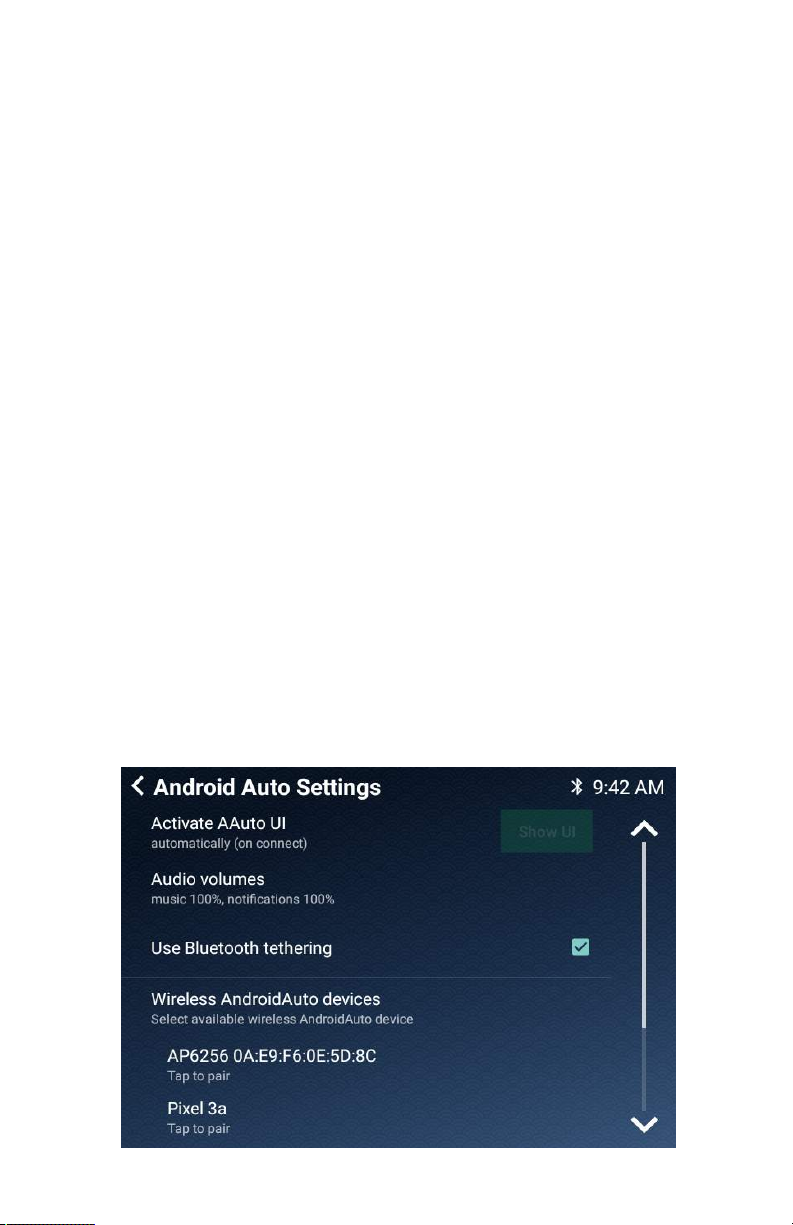
3. Select the grayed-out CarPlay® icon on the VLite VT2 home screen; your
phone will be listed below “Wireless CarPlay Devices.”
4. Tap or select your phone in the list of Wireless CarPlay Devices; the
VLite VT2 will start to connect to your iPhone®.
5. In a few seconds, you will see the “Tap to Pair” pop-up on the VLite VT2
screen. Check “Allow iPhone to access your contacts and call history.”
6. The iPhone will also receive two pop-up notifications- request to pair to
VLite VT2 and then “Use CarPlay with VLITE?” Make sure to hit “pair” for the
first pop-up and “use for CarPlay” for the second.
7. The message on the VLite VT2 screen under your iPhone’s name will
change to “Connecting...”. In a few seconds, the status will change to
“Connected.”
8. The CarPlay UI (user interface) will automatically show on the car stereo
screen. If it does not appear automatically, tap on the “Show UI” button in
the upper right corner of the “CarPlay Settings” screen on VLite VT2.
3