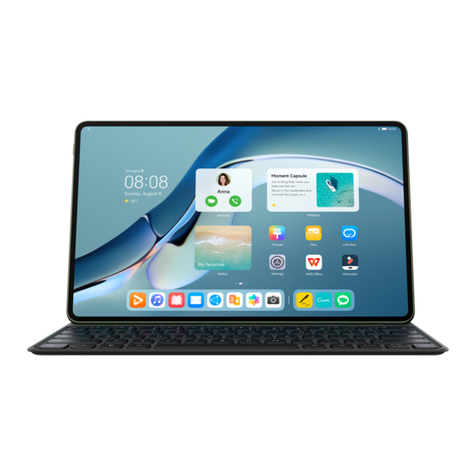
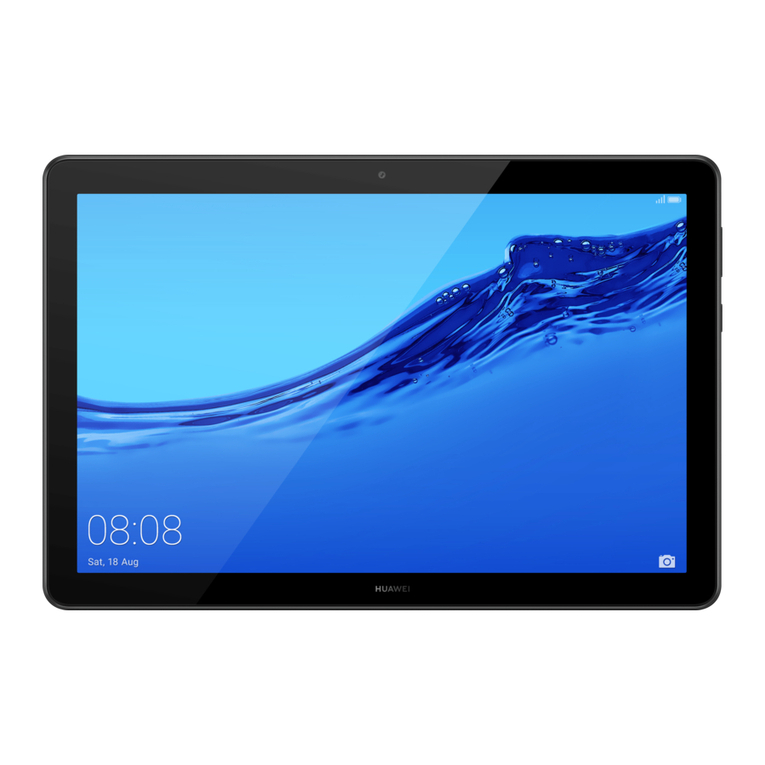
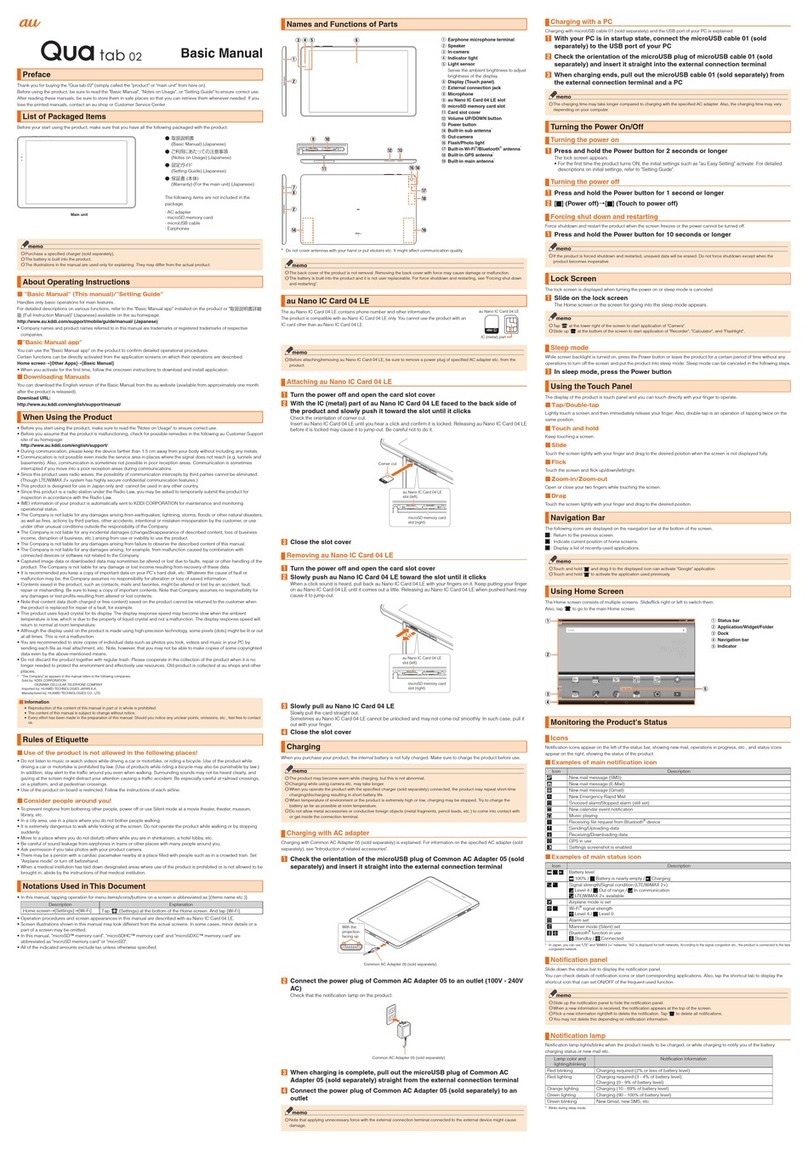
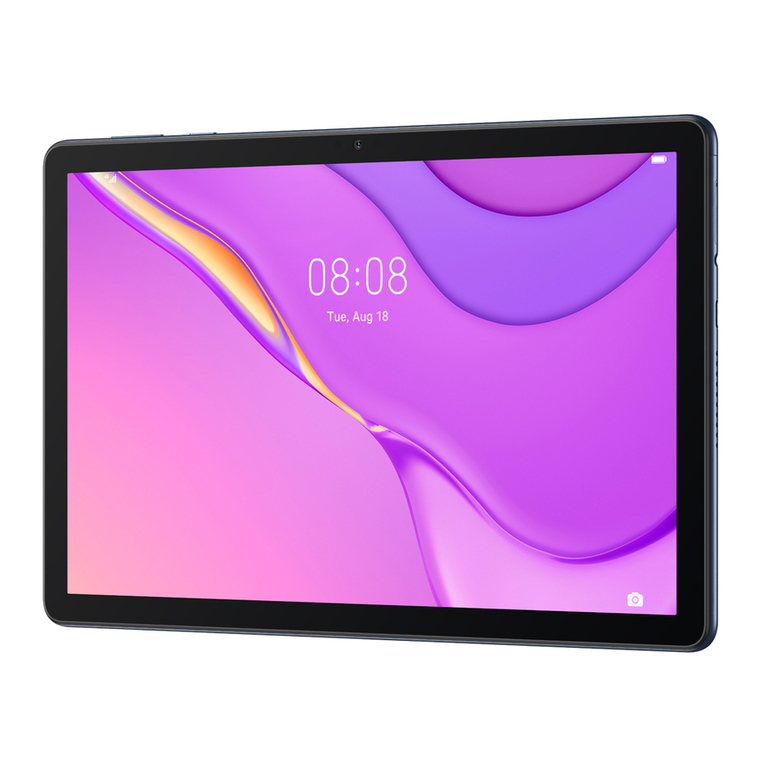
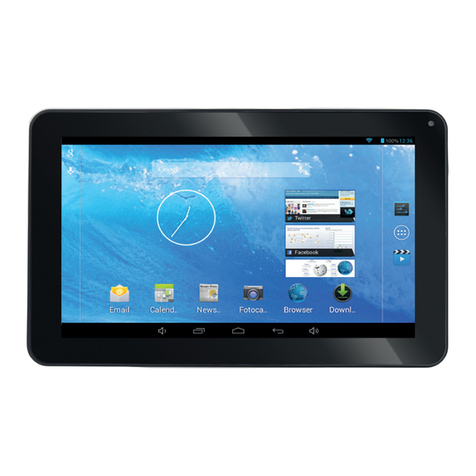
Huawei MediaPad T2 Pro User manual

MediaPad T2 Pro
User Guide

1
Contents
1 About This Guide .............................................................................5
2 Getting Started.................................................................................6
Installing USIM Card/microSD Card ............................................................. 6
Initial settings ................................................................................................ 7
Locking and unlocking the screen................................................................. 7
Main Notification and Status Icons................................................................ 7
Frequently used buttons ............................................................................... 8
Home Screen operations .............................................................................. 8
Dual window gestures................................................................................. 10
USIM Card .................................................................................................. 10
Handling USIM Card ............................................................................................... 10
SIM-unlocking tablet ............................................................................................... 11
Security codes ............................................................................................ 11
Center Access Code ............................................................................................... 11
USIM PIN................................................................................................................ 12
3 Text Entry .......................................................................................14
Editing text .................................................................................................. 14
Selecting an input method .......................................................................... 14
4 Network Connection ......................................................................15
Connecting to a Wi-Fi network.................................................................... 15
Connecting to a Wi-Fi network (WPS) ........................................................ 15
5 Applications ...................................................................................17
Applications list ........................................................................................... 17
Installing applications.................................................................................. 22
6 Contacts .........................................................................................23
Adding contacts .......................................................................................... 23
Syncing contacts......................................................................................... 23
Importing contacts....................................................................................... 24

2
Backing up contacts.................................................................................... 24
Sharing contacts ......................................................................................... 24
7 SoftBank Mail .................................................................................25
Thread list/folder list.................................................................................... 25
Switching between thread list and folder list............................................................ 25
Thread list............................................................................................................... 25
Folder list ................................................................................................................ 26
Sending S! Mail/SMS .................................................................................. 26
Sending S! Mail/SMS .............................................................................................. 26
Sending decore mail by S! Mail .................................................................. 27
Using a template ..................................................................................................... 27
Decorating S! Mail................................................................................................... 27
Opening & replying to S! Mail/SMS............................................................. 27
Opening new S! Mail/SMS ...................................................................................... 28
Retrieving S! Mail/SMS manually............................................................................ 28
Retrieving server mail ............................................................................................. 28
Replying to S! Mail/SMS ......................................................................................... 28
Forwarding S! Mail/SMS ......................................................................................... 29
Managing S! Mail/SMS ............................................................................... 29
Viewing S! Mail/SMS............................................................................................... 29
Thread list............................................................................................................... 31
Thread details ......................................................................................................... 31
S! Mail/SMS message window................................................................................ 32
Backing up S! Mail/SMS data.................................................................................. 33
Restoring S! Mail/SMS data.................................................................................... 33
Moving S! Mail/SMS data (export)........................................................................... 33
Moving S! Mail/SMS data (import)........................................................................... 34
Operations when creating S! Mail/SMS ...................................................... 35
Attaching files ......................................................................................................... 35

3
Specifying date/time to send ................................................................................... 36
Entering emoji pictograms....................................................................................... 36
Previewing before sending...................................................................................... 36
Setting priority levels............................................................................................... 36
Requesting delivery reports .................................................................................... 37
Discarding a message draft .................................................................................... 37
S! Mail/SMS settings................................................................................... 37
Common Settings ................................................................................................... 37
Send/Receive Settings............................................................................................ 38
Mail Group Settings ................................................................................................ 39
Number/Address Settings ....................................................................................... 40
8 Multimedia ......................................................................................41
Taking an all-focus photo ............................................................................ 41
Taking a panoramic photo........................................................................... 41
Importing photos ......................................................................................... 42
Viewing photos & videos............................................................................. 43
Sharing photos & videos ............................................................................. 43
Scanning a QR code using Camera ........................................................... 43
Scanning a QR code using Gallery............................................................. 44
9 Customizing ...................................................................................45
Changing Wallpaper.................................................................................... 45
Adding Widgets to Home Screen................................................................ 45
Managing Home Screen Pages .................................................................. 46
Changing notification tones......................................................................... 46
Changing font sizes .................................................................................... 46
Adjusting Display brightness....................................................................... 46
10 File Sharing ..................................................................................48
Sharing files with Wi-Fi Direct ..................................................................... 48
Sharing files with Bluetooth®....................................................................... 48

4
Copying files from a computer .................................................................... 49
11 Settings.........................................................................................51
Setting screen timeout ................................................................................ 51
Setting a screen lock................................................................................... 51
Adjusting volume......................................................................................... 51
Enabling power saving mode...................................................................... 51
Checking memory status ............................................................................ 52
Setting date and time manually................................................................... 52
Formatting microSD Card ........................................................................... 52
Initializing data ............................................................................................ 52
Updating software ....................................................................................... 53
Disabling automatic data communication/sync settings.............................. 53
Disabling location information ................................................................................. 53
Disabling background data...................................................................................... 53
Disabling automatic syncing.................................................................................... 53
Disabling packet communication abroad................................................................. 54
12 Personal Information and Data Security....................................55
13 Legal Notice .................................................................................56
14 Specifications ..............................................................................58
Tablet .......................................................................................................... 58
15 Warranty & After-Sales Service ..................................................60
Warranty...................................................................................................... 60
After-sales service ...................................................................................... 60
16 Customer Service ........................................................................61

5
1 About This Guide
Thank you for choosing the MediaPad T2 Pro.
This guide is intended for MediaPad T2 Pro running EMUI 4.0.

6
2 Getting Started
Installing USIM Card/microSD Card
1 Open Card Slot Cover
2 Insert USIM Card or microSD Card gently (metal contact up) until it clicks in
place
3 Close Cover

7
Initial settings
Make initial settings for Wi-Fi, a Google account, and other options when powering on
tablet for the first time. Follow onscreen prompts.
Install USIM Card before powering on tablet.
1 Make language and region settings
2 Configure Wi-Fi network to connect to as necessary
3 Follow onscreen prompts
If already using another Android device, Tap "Copy your Google Accounts, apps, and
data from your other device" to copy settings to tablet.
Google Account
If you already have a Google account, then in the screen for adding an account enter the
Gmail email address. Follow onscreen prompts.
Locking and unlocking the screen
Locking the screen
If tablet has been idle for a certain period of time, screen locks itself automatically.
Alternatively, press Power Key to lock the screen.
Note
In Home Screen, Tap Settings →Display →Sleep and select a time.
Unlocking the screen
Press Power Key to wake tablet. Slide finger toward any direction to unlock screen.
Main Notification and Status Icons
Notification and status bars may show the following icons to indicate tablet status.
Icon Description Icon Description
Airplane mode
Bluetooth®on

8
Charging
Battery full
Battery extremely low
Wi-Fi hotspot on
Connected to a Wi-Fi
network Preparing microSD Card
Upcoming event
Alarms enabled
Memory full
System exception
Connected to a VPN
Headset connected
Frequently used buttons
Icon Description Icon Description
More
Share
Completed
Add
Search
Delete data
Refresh Save
Favorites
Home Screen operations
Tap application icons in Home Screen to open applications.
Flick left/right in Home Screen to change pages.
To customize Home Screen, Touch & Hold open area of Home Screen for options menu.
Select customization for Wallpaper, widgets, etc.

9
Drag Status Bar down for Notifications Window. Tap Notifications/Shortcuts to toggle
Notifications Window and Shortcuts Window.
Tap notification to view details. Flick left/right across notification to dismiss.
Tap to delete all notifications.
Tap shortcut switches in Notifications Window to turn on or off functions.
Touch & Hold switch for settings screen of corresponding function. Tap Edit to
customize list.
Drag slider to adjust screen brightness.
Enable/disable automatic brightness.

10
Dual window gestures
Split the screen into two parts and view different content simultaneously.
To enable dual windows mode, Touch & Hold or use two fingers to slide up from
bottom of screen.
On the screen, Drag to adjust the screen ratio.
USIM Card
USIM Card is an IC card containing customer phone number and other information.
Handling USIM Card
See instructions included with USIM Card for handling.
Avoid applying labels. May damage USIM Card.
USIM Card is replaceable (at cost) in case of loss/damage.
Wipe clean with a dry, soft cloth.
Always keep the IC chip (metal) clean.
Always follow emergency procedures to suspend service if your USIM Card or table
(USIM Card inserted) is lost/stolen. For details, contact Customer Service.
Customer is responsible for any damage caused by inserting USIM Card in an other-
brand IC card reader, etc. SoftBank Corp. is not responsible in such case.
It is recommended that you keep a separate copy of information that is stored on USIM
Card. SoftBank Corp. is not responsible for damages from stored information that is lost.
Always power off tablet before inserting/removing USIM Card.

11
Note that USIM Card specifications and performance may change without notice.
Return USIM Card to SoftBank Corp. when cancelling subscription.
USIM Card is the property of SoftBank Corp.
Returned USIM Cards are recycled for environmental purposes.
SIM-unlocking tablet
Tablet can be SIM-unlocked. SIM-unlocking tablet allows other-carrier SIM cards to be used
with it.
Some services, functions, etc. may have restrictions when an other-carrier SIM card is
used. SoftBank Corp. does not guarantee operation whatsoever.
For details on SIM unlocking, see SoftBank Website.
Security codes
The following codes are required for tablet use.
Code Description
Center Access Code Four-digit code you have set in subscription contract.
For details, see "Center Access Code" (→P. 11).
USIM PIN Code for USIM Card.
For details, see "USIM PIN" (→P. 12).
Password Code for unlocking screen.
For details, see "Setting a screen lock" (→P. 51).
Center Access Code
Center Access Code is the four-digit code set at time of subscription, and is required such
as when using option services from a landline phone.
Do not forget Center Access Code. If you forget the code, contact us for recovery. For
details, contact Customer Service.
Be careful not to reveal security codes to others. If misused by others, SoftBank Corp. is
not liable for any resulting damages.

12
USIM PIN
USIM PIN and locking USIM Card
By locking USIM Card, entry of USIM PIN (code for using USIM Card) to use tablet is
required when powering on tablet. This effectively prohibits unauthorized use by others.
USIM Card becomes locked by enabling USIM PIN.
At time of purchasing USIM Card, USIM PIN is set to "9999" (and can be changed).
Note
USIM PIN entry will be required when working with the USIM PIN or powering on tablet
and USIM Card is locked.
Entering incorrect USIM PIN three consecutive times activates PIN Lock. To cancel,
Personal Unblocking Key (PUK) is required; contact Customer Service.
Entering incorrect PUK ten consecutive times locks USIM Card, disabling tablet. For
recovery, USIM Card must be reissued at a SoftBank Shop (fees apply).
Enabling USIM PIN
When USIM PIN is enabled, a window for entering USIM PIN (code for using USIM Card)
appears to allow tablet use each time tablet is powered on with USIM Card installed.
1 In Home Screen, Settings →Advanced settings →Security
2 Set up SIM card lock →Lock SIM card
3 Enter USIM PIN →OK ( )
・USIM PIN is enabled and USIM Card is locked.
Unlocking USIM Card
1 In SIM card lock settings window, Lock SIM card →Enter USIM PIN →OK ( )
Operation when powering on tablet
When powering on tablet and USIM Card is locked, window appears for entering USIM PIN.
To use tablet:
1 Enter USIM PIN →
・Tablet can be used.
Changing USIM PIN
First lock USIM Card to change USIM PIN. For details, see "Enabling USIM PIN" (→P.
13).

13
1 In Home Screen, Settings →Advanced settings
2 Set up SIM card lock →Change SIM PIN →Enter current USIM PIN →OK →
Enter new USIM PIN →OK →Enter new USIM PIN again →OK
・USIM PIN is changed.

14
3 Text Entry
Tablet comes with multiple input methods. Quickly enter text using the onscreen keyboard.
Tap a text input field for onscreen keyboard.
When done, Tap to hide onscreen keyboard.
Editing text
Copy, cut, and paste text.
Select text
Touch & Hold the text field until and appear. Drag and to select the text to
edit, or Tap Select all to select all text.
Copy text
After selecting text, Tap Copy.
Cut text
After selecting text, Tap Cut.
Paste text
Tap where to insert text (to move insertion point, Drag ) and Tap Paste to paste the
copied or cut text.
Selecting an input method
Tablet provides multiple ways to text input. Select preferred input method.
1 On text editing screen, Tap text field
・Onscreen keyboard appears.
2 Flick Notification Bar down
・Notifications Window opens.
3 In Notifications Window, Select input method
4 Select input method

15
4 Network Connection
Connecting to a Wi-Fi network
Select from detected Wi-Fi networks.
1 In Home Screen, Settings →Wi-Fi →Wi-Fi ( )
・Wi-Fi is enabled.
・Tap Wi-Fi again to disable Wi-Fi ( ).
2 Tap access point →Enter password →Connect
・Tablet is connected.
・Password (indicated by WEP, WPA, KEY, etc.) may be found on a label on your Wi-
Fi router. For details, contact the vendor of the router. For public wireless LAN services,
inquire about the password with your ISP.
・Omit password entry for unprotected access points.
Note
To connect to a Wi-Fi network that uses a hidden SSID, Tap Add network → Enter
required network information (SSID etc.) to connect.
Enabling Wi-Fi increases power consumption. To save battery power, disable Wi-Fi when
not in use.
Connecting to a Wi-Fi network (WPS)
If your wireless router supports WPS (Wi-Fi Protected Setup), use WPS to quickly connect
to a Wi-Fi network.
1 In Home Screen, Settings →Wi-Fi →Wi-Fi ( )
・Wi-Fi is enabled.
・Tap Wi-Fi again to disable Wi-Fi ( ).

16
2 Menu →Advanced settings →WPS connection/WPS PIN connection →Follow
onscreen prompts
・Tablet is connected.
Note
Enabling Wi-Fi increases power consumption. To save battery power, disable Wi-Fi when
not in use.

17
5 Applications
Applications list
Icon Function/Service
(App Pass) Packed with must-have smartphone applications. All-you-
can-download service offering popular and standard paid
applications spanning tools, ringtones, and simple games to
travel, health, and other genres. No login required,
download applications quickly. User bonuses such as
monthly tickets for purchasing additional items.
(Chrome)Access the Internet for searching and webpage browsing.
Synchronize with Chrome bookmarks and other data on
your PC.
Supports secret tabs and other privacy features.
(Gmail) Use Google’s email service Gmail anytime and anywhere.
Enter keywords to search for messages, and add labels to
organize messages.
(Google)Search for information on the Internet and for applications
on tablet using Google Search.
View webpages around the world as well as maps, videos,
location/train information for establishments, and other
related information.
(GYAO!) Premium all-you-can-view video application GYAO!.
Movies, anime, music.
Packed with a free-of-charge lineup of currently aired
dramas, popular artist live concerts, etc.

18
(Internet SagiWall)Detect one-click fraud while browsing the Internet and
protect your device.
Alert screen appears when harmful site is detected.
Subscription to "smartphone kihon pack" (smartphone basic
pack) or "Internet SagiWall" required.
(My SoftBank)Special portal where members can check billed amounts,
change plans and option subscriptions, change email
address, make spam settings, etc.
Subscribe and unsubscribe to services, and view bargain
campaigns only with SoftBank.
(My SoftBank+) Application presenting useful information on SoftBank.
Usage charges for your device, how to get more
convenience from your device, and recommended related
products and contents.
(Netflix) The largest video download service of its kind in the world
with more than 81 million members worldwide.
Enjoy favorite movies and dramas on a PC, smart TV,
tablet, smartphone, or other device connected to the
Internet.
(Play Store) Download from a wide range of applications (free/paid) on
Google Play.
Configure downloaded applications to download updates
manually or automatically.
(Play Music)Play music saved on device or microSD Card.
View music by genre, artist, or album.
Create playlists.
(Play Movies & TV)
Rent videos from Google Play or download and install for
video enjoyment.

19
(Wi-Fi Spot
Settings)
Allows tablet to connect (log on) to SoftBank Wi-Fi spots
automatically in SoftBank Wi-Fi spot service areas.
Requires subscription to SoftBank Wi-Fi spot service.
(Yahoo!)Access the smartphone edition of Yahoo! JAPAN. All the
required capability daily from news selects to a wide range
of search menus.
Check weather, disaster, and other information you want
and need to know.
(Y! Backup)Easily back up photos, videos, contacts, and other important
data.
(YouTube)View a variety of video content uploaded to YouTube. View
in high-quality mode on tablet.
Upload videos captured on tablet.
(AnimeHodai)Complete all-you-can-view lineup packed with latest on-air
anime to classic favorites.
(Recorder)Record and play back audio from conferences and
interviews.
(Camera) Capture photos and videos.
Set image size, white balance, etc. Use continuous
shooting.
(Calendar) Check calendar and manage events. Switch between day,
week, month, and year views.
Sync online with Google Calendar.
(Gallery) Manage and view photos and videos. Crop and rotate
images.
View as slideshow.
Table of contents
Other Huawei Tablet manuals

Huawei
Huawei : BTK-W09 User manual

Huawei
Huawei MATEBOOK User manual

Huawei
Huawei AGS3K-W09 User manual

Huawei
Huawei MatePad Pro User manual

Huawei
Huawei MediaPad M5 User manual

Huawei
Huawei MatePad User manual

Huawei
Huawei CPN-W09 User manual

Huawei
Huawei SCM-AL09 User manual

Huawei
Huawei SHT-W09 User manual

Huawei
Huawei IDEOS S7 Slim User manual

Huawei
Huawei MediaPad M3 User manual

Huawei
Huawei : BTK-W09 User manual

Huawei
Huawei AGS2-W09 User manual

Huawei
Huawei HDN-W09 User manual

Huawei
Huawei MediaPad 7 Lite S7-931w User manual

Huawei
Huawei S7-702U User manual

Huawei
Huawei MatePad Pro User manual

Huawei
Huawei MatePad User manual

Huawei
Huawei MediaPad T1 8.0 User manual

Huawei
Huawei MNA-LX9 User manual