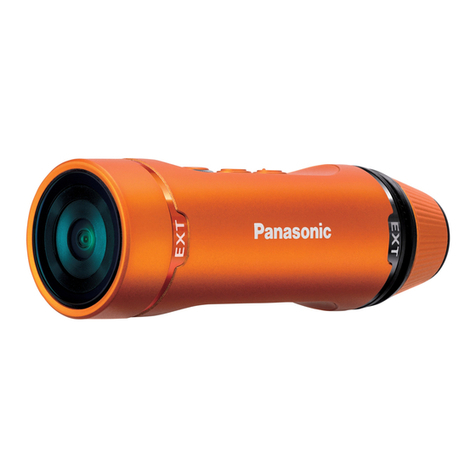
Insta360 GO 3 User manual

GO 3 User Manual
User Manual

GO 3 User Manual
Contents
Product Introduction ............................................................................................1
GO 3 Introduction .............................................................................................................. 1
Standard Accessories .......................................................................................................2
First Use...................................................................................................................................4
Charging .............................................................................................................................4
Activation ...........................................................................................................................5
Basic Use................................................................................................................................ 6
Action Pod Button Instructions ........................................................................................6
GO 3 Button Instructions ..................................................................................................7
Using GO 3 and Action Pod .............................................................................................. 8
Using the Touchscreen ...................................................................................................10
Shortcut Menu.................................................................................................................11
Storage .............................................................................................................................16
Indicator Lights ............................................................................................................... 17
Insta360 App........................................................................................................................18
Connect to the Insta360 app ..........................................................................................18
Android Mode .................................................................................................................. 19
App Interface ................................................................................................................... 19
File Transfer ........................................................................................................19
Maintenance .......................................................................................................22
Firmware Update .............................................................................................................22
Waterproofing ..................................................................................................................23

GO 3 User Manual
1
Product Introduction
GO 3 Introduction
1. Flip Touchscreen
2. Action Pod Indicator Light
3. Shutter Button
4. Power Button
5. Charging Point
6. Quick Button
7. Mounting Latch
8. Release Switch
9. Type-C Charging Port
1. Microphone
2. Lens
3. GO 3 Button
4. Camera Indicator Light
5. Charging Point
6. Speaker

GO 3 User Manual
2
Standard Accessories
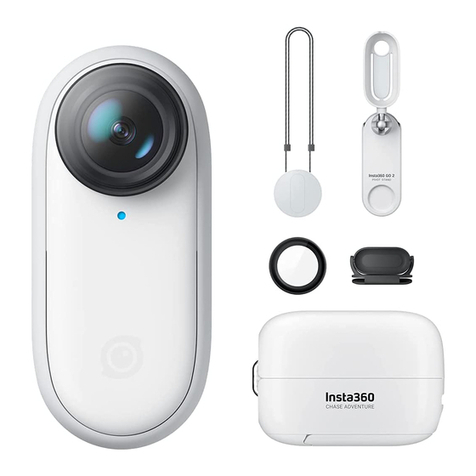
GO 3 and the Action Pod can be mounted on different accessories for flexible shooting wherever you go.
Accessories
Description
Figure
Magnet
Pendant
Wear the Magnet Pendant by
placing it inside your clothing.
Then, attach the camera to the
front of the Magnet Pendant.
Attach the Angle Adjustment
Insert to the back of the
Magnet Pendant to adjust the
angle.
Note: If you have a pacemaker,
do not use this accessory due
to its magnetism.
It is recommended to make the
neck cord shorter for optimal
shooting height.

GO 3 User Manual
3
Pivot Stand
Can be used with GO 3 or the
Action Pod.
How to Use:
1. Press the buckles on the
two sides of the Pivot Stand
and attach GO 3 or the Action
Pod onto it. Make sure the
camera's direction is the same
as the camera mark on the
Pivot Stand.
2. Remove the silicone
protective cover from the base
of the Pivot Stand and stick the
Pivot Stand onto a clean, flat
surface.
Stick to a flat, clean surface.
Press firmly for 10 seconds
after sticking and leave it for
around 30 minutes before use.

GO 3 User Manual
4
Notes:
The base of the Pivot Stand can be disassembled. The 1/4'' mounting point on the
bottom of the Pivot Stand supports use with other accessories.
Easy Clip
Insert GO 3 into the Easy Clip
and ensure it is secure.
Attach the Easy Clip onto the
edge of a hat or other object
and adjust it to the desired
angle.
First Use
Charging
Use the Type-C to Type-A fast charging cable included in the box to connect the USB-C port of the GO 3
Action Pod to a USB-C charger. When charging while the device is powered off, the Action Pod Indicator
Light will be red. The Indicator Light will turn off once the battery is fully charged. It takes approximately
47 minutes to charge up to 80% and around 65 minutes for a full charge.
GO 3 Charging Time
23 minutes - 80%
35 minutes - 100%
Action Pod Charging Time
47 minutes - 80%
65 minutes - 100%

GO 3 User Manual
5
Place GO 3 camera inside the Action Pod and connect the charging cable to the Action Pod. While
charging, both the camera and the Action Pod's indicator light will be solid red. The corresponding
indicator light will turn off when the device is fully charged. Once both indicator lights turn off, both
devices are fully charged.
Note: It is recommended to use a dedicated charger for GO 3. If it's connected to a USB port on a
computer or other portable power source, there may be an insufficient power supply to charge the camera
and Action Pod simultaneously.
Activation
You need to activate GO 3 in the Insta360 app before using it for the first time.
Steps:
1. Click here to download the Insta360 app. Alternatively, search "Insta360" in the App Store or Google
Play Store to download the Insta360 app.
2. Press the Power Button to turn on GO 3.
3. Enable Wi-Fi and Bluetooth on your smartphone.
4. Open the Insta360 app and click the camera icon at the bottom of the page [icon]. Select the device
you want to connect to in the pop-up window, then follow the on-screen instructions to complete the
connection. The name of your camera is "GO 3 ******" by default, where ****** is the last six digits of the
serial number on the box your GO 3 came in. The first time you connect to GO 3, you will need to confirm
the connection on the Action Pod screen.
5. After successfully connecting the camera, follow the on-screen instructions to activate your camera.
The app will prompt you to update the firmware if there is a new version available. Please follow the
on-screen prompts to update the firmware of GO 3 and the Action Pod.

GO 3 User Manual
6
Basic Use
Action Pod Button Instructions
Power Button:
•Press once:
○Power on GO 3.
○Wake GO 3 up(when GO 3 is not in the Action Pod).
○Turn the Action Pod's touchscreen on/off.
•Long press for 2 seconds: Power off (release the button when the power-off animation appears).
•Long press for 7 seconds: Force shutdown.
Shutter button
•Press once:
○Take a photo or start/stop video recording.
○Quickly power on the camera and start recording (if GO 3 is powered off and in the Action Pod).
○Confirm connection on the app (when connecting for the first time).

GO 3 User Manual
7
Quick Button
•Single press:
Press once to enter the preset menu or switch shooting modes. Press again to switch between
different modes or presets.
The first time you press this it will enter the Shooting Mode page by default. Tap the switch icon in
the upper left corner to enter the Presets page.
GO 3 Button Instructions
•Press once:
○Take a photo or start/stop video recording.
○Confirm connection on the app (when connecting for the first time).
○Quickly power on the camera and start recording (if GO 3 is powered off and out of the Action
Pod).
•Long press for 2 seconds: Power off.
•Long press for 7 seconds: Force shutdown.
Button functions can be customized through the app or the Action Pod.

GO 3 User Manual
8
Using GO 3 and Action Pod
•Using them together:
When the camera is in the Action Pod, it functions as one action camera and the buttons on the camera
body are disabled. You can control the camera with the buttons on the Action Pod or via the app.
•Using them separately:
When GO 3 is taken out of the Action Pod, you can use the Action Pod for remote control and live preview
up to 16ft (5m) away. The buttons on the camera body are enabled.
Note: When using the Action Pod for remote preview, the data is transmitted via Bluetooth. The quality of
preview footage is reduced. The actual footage will not be affected by remote use.
Other manuals for GO 3
3
Table of contents
Other Insta360 Action Camera manuals
Insta360
Insta360 One User manual
Insta360
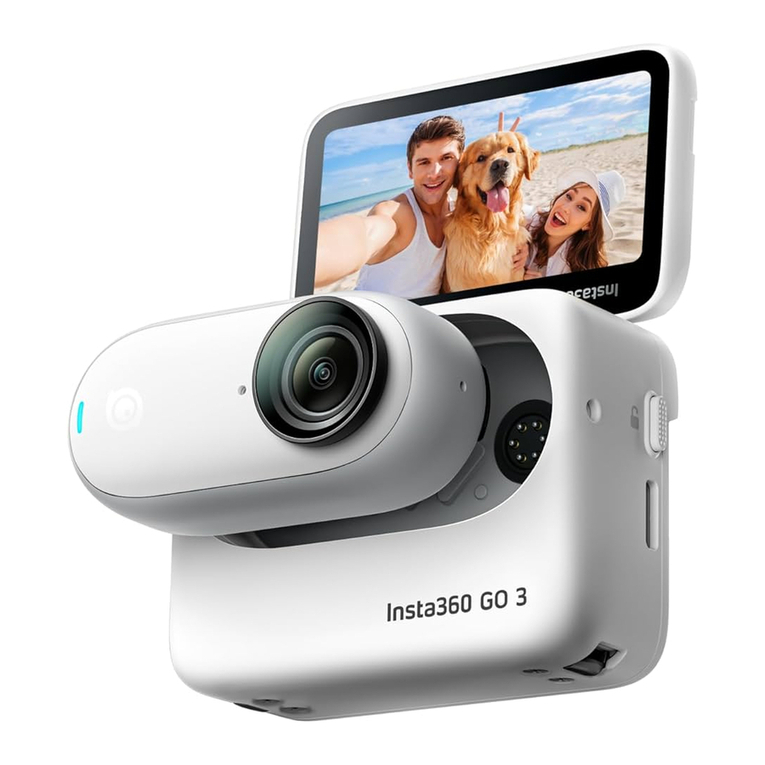
Insta360 GO 3 User manual
Insta360
Insta360 ONE X User manual
Insta360
Insta360 X3 User manual
Insta360
Insta360 ONE R Assembly instructions
Insta360
Insta360 DJI Mavic AIR 2 Instruction Manual
Insta360
Insta360 GO 3 User manual
Insta360
Insta360 ONE X User manual
Insta360
Insta360 ONE RS User manual
Insta360
Insta360 ONE R User manual