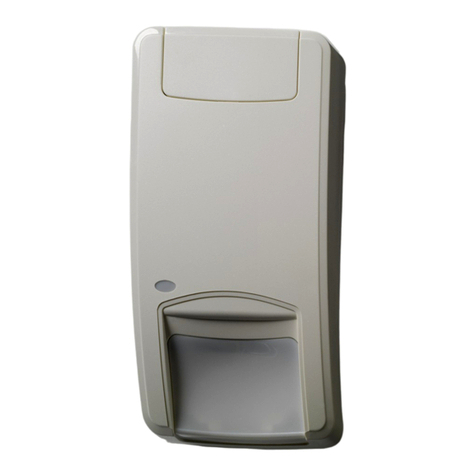
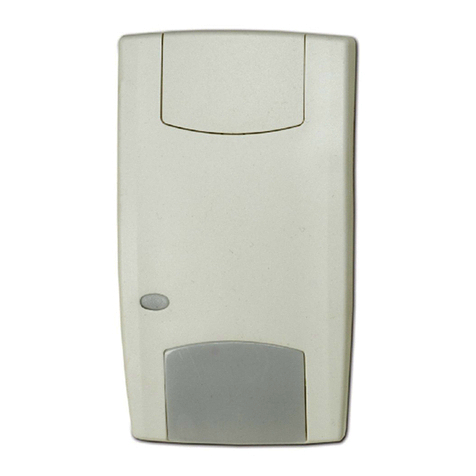
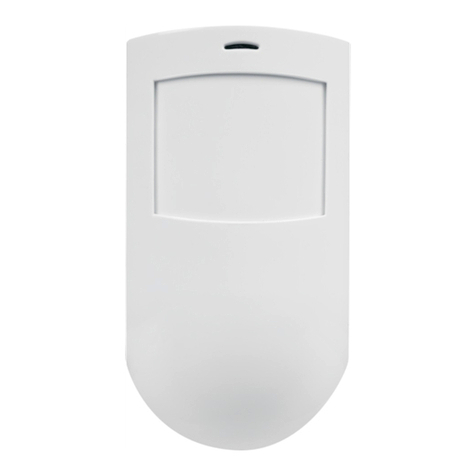
information about enrolling mage Sensors remotely, see Enroll an mage Sensor on an nterlogix Simon XT.
To enroll the mage Sensor locally on a Simon XT:
Important: For smoothest installation, learn in one mage Sensor at a time. nsert batteries only after initiating learn
mode at the panel.
1. Begin with the batteries removed from the mage Sensor.
2. Put the panel into add mode using the keypad.
a. Go to the home screen.
b. Scroll to System Programming, then press [OK].
c. Enter the installer code (default is 4321), then press [OK].
d. Scroll to Interactive Services, then press [OK].
e. Scroll to Image Sensor Setup, then press [OK].
f. Scroll to Image Sensor Learn Mode, then press [OK]. The screen should display Power up or set I. S. Mode.
3. nsert the batteries into the mage Sensor. The LED on the mage Sensor progresses from blinking red to solid red
to blinking yellow. This indicates the mage Sensor is in learn mode.
4. Wait approximately 20 seconds for the mage Sensor to enroll to the panel. The screen on the panel displays the
following: I.S. [x] Added as Sensor [y]. The LED on the mage Sensor turns solid yellow indicating that it has
successfully found the panel.
5. After the mage Sensor LED has turned solid yellow, exit Add Mode on the panel. The mage Sensor LED
alternates between green and yellow while the customer’s device list is updated with Alarm.com. The LED turns
solid green when the mage Sensor has been successfully added to the customer’s account.
Note: f the mage Sensor is moved (tampered) after the LED has turned solid green, the mage Sensor enters test
mode for three minutes which is indicated by a red LED when motion is detected. Continue with the mounting
portion of the installation when in test mode. See the mage Sensor LED Reference Chart for more details.
6. After enrollment, be sure to keep the sensor and panel powered so the sensor can complete an initialization
process with the Alarm.com Network Operations Center. This process takes several minutes. mages cannot be
captured until initialization is complete. Check by verifying if the rules are confirmed on the Partner Portal or
MobileTech app.
The sensor is now learned into the panel. Sensors are enrolled in group 17 by default. To change the sensor group, use
the Sensors menu in Programming. mage Sensors may be enrolled in groups 15, 17, or 25. (No chime issued for group
25)
Note: Alarm.com does not recommend using sensor group 20 for mage Sensor nstallations.
Installation: Mounting Image Sensor
1. Choose the desired location and mounting angle for the mage Sensor using the information in the chart. There are
three options:
https://answers.alarm.com/Partner/ nstallation_and_Troubleshooting/ mage_Sensor/ mage_Sensor_Version_3/ nterlogix_Sim…
Updated: Fri, 10 Mar 2023 20:24:24 GMT
6