Allowed System Configurations
Depending on the requirement of the application, Optipad can be used in
the following different ways:
One Optipad with one drive
One Optipad with multiple Optidrives (up to 63 max)
Two Optipads with one drive
Two Optipads with multiple Optidrives (up to 63 max)
Different drive models can be used on the same Optipad network
provided a unique communications address is assigned to each.
Note: Cable splitter available from Invertek Drives Ltd on request.
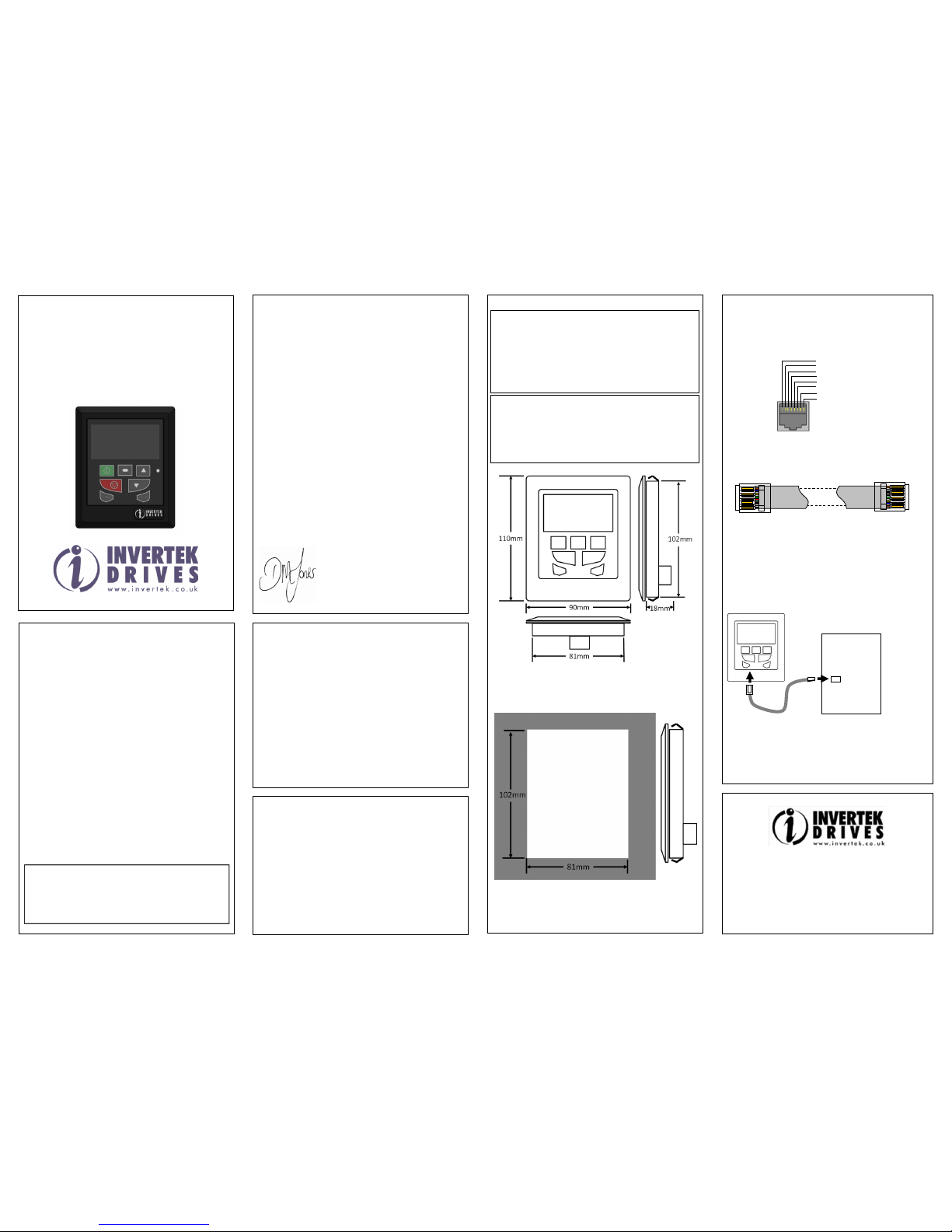
NAVIGATE: Used to display real-time information, to access and exit
parameter edit mode and to store parameter changes
UP: Used to increase speed in real-time mode or to increase parameter
values in parameter edit mode
DOWN: Used to decrease speed in real-time mode or to decrease
parameter values in parameter edit mode
RESET / STOP: When drive is in trip mode, this button is used to reset a
tripped drive. When operating in Keypad or Hand mode (Optidrive HVAC
only), this button is used to stop the drive when enabled and running.
START: When operating in Keypad mode or Hand mode (Optidrive HVAC
only), the button is used to start a stopped drive or to reverse the
direction of rotation if bi-directional keypad mode is enabled (See drive
user guide for more information).
Hand (Optidrive HVAC Only) : Used to select Hand Mode Operation
Auto (Optidrive HVAC Only) : Used to select Auto Mode Operation
CHANGING THE DISPLAY LANGUAGE
Optipad supports multiple languages for the displayed text. To select
a different language, simultaneously press the Start and Up keys. A
list of available languages will be displayed, which can be selected
using the Up and Down keys. To activate the chosen language, press
the Navigate key.
DRIVE FAULT MESSAGES AND TRIP CODES
In the event of a drive fault or trip, the Optipad will display the fault
code information from the connected drive. For a full list of the trip
codes, and diagnosis and remedy information, please refer to the
relevant Optidrive User Guide.
OPTIPAD DISPLAY MESSAGES
Optipad uses various display messages to indicate different working
status. See the following table for more information.
The Optipad is searching for the drive with
address ‘xx’ in the network.
The Optipad has found the drive in the
network and is loading the initialisation
information from the drive.
The communication link between the
Optidrive and Optipad has failed.
Displayed in the language selection
screen, with a list of available languages.
Press the Navigate key to select a
language
Displayed when selecting the address of
the Optidrive that the Optipad should try
to communicate with. Press the Stop key
to select the drive address.
Displayed when selecting the Optipad ID
(1 or 2) so that two Optipads can be
connected to a single drive, or network of
multiple drives.
displayed after
‘SCAN..’ message
The Optipad failed to successfully
communicate with the specified drive
address in the network.
Check that the RJ45 data cable
connection is correct. Check that the
drive with address XX is available in the
network.
If XX > 1 and only one Optipad is
connected, then check the Optipad
device number, make sure the number is
1.
Display ‘Err-id’ on
power up
This normally occurs when there are two
Optipad units in the same drive network
and both of them have the same device
number. Check and change the device
number of one Optipad.
Display ‘Err-id’ during
normal operation
This normally occurs when the user plugs
a second Optipad into the drive network.
Change the device number of one of the
Optipad units.
Communication link between the Optipad
and Optidrive has failed during operation.
Check the electrical connection, and
make sure the cable is connected
correctly between the Optipad and the
drive. Press ‘STOP’ button to enable the
Optipad to search for the drive again.
To setup the Optidrive communication address
By default, the Optipad will try to communicate with the drive that has
Address 1 in the network after powering up for the first time.
The Optipad will display “Scanning for Drive 01.
” after power up, which
indicates that the Optipad is searching for the drive with the correct
drive address in the network. Once the drive has been found, the
” will be displayed on the Optipad, which indicates that
the Optipad is reading the configuration information from the drive.
Usually it will take 1~2 seconds for the Optipad to read this information.
After the data has been loaded, the Optipad will display the drive real
If the Optipad cannot find the drive in the network, i.e. there is no drive
in the network with address equal to 1, the Optipad will display “Select
drive address 01”. The user can then adjust the address from 1 to 63 by
using the UP or DOWN buttons on the Optipad.
Once the address has been changed to a value to match that of a
connected drive, the STOP button must be pressed to enable the
Optipad to search for the drive again.
Working with Multiple Drive Networks
When the Optipad is used on networks with multiple drives, the user can
change the drive address to set up communication with another drive in
the same drive network at anytime.
Briefly pressing the STOP and DOWN buttons together results in the
message “Select drive address xx”being displayed, where “xx”
represents the present drive address. Use the UP or DOWN button to
select the desired drive address. After selecting the new address,
pressing STOP and DOWN button together again will result in Optipad
establishing communications with the drive that has this address.
NOTE
For detailed parameter listing and functional setup, please refer to the
corresponding Optidrive user guide
Networks with 2 Optipads connected
A maximum of 2 Optipads can be connected within the same drive
network to communicate with the same drive or different drives.
When using two Optipads simultaneously on a network, the user must
change the Optipad Device Number on the second Optipad to ensure
correct operation. All Optipad units are set to Device Number 1 by
To change the Device Number, press the NAVIGATE, STOP and DOWN
buttons together. The message “Select OptiPad ID xx” (xx = 01 or 02) will
be displayed. The User can then use the UP or DOWN buttons to change
the Optipad Device Number to 1 or 2 as required. Press the STOP button
to return to normal operation.
Note:
Once the User has set the Optipad as Device Number 2, Optistore or
OptiTools software cannot be used on the same drive network.
The Optipad Device Address should only be changed to 2 if 2
Optipad units are connected on a network. An Optipad with Device
Number 1 must always be present for the network to function
To change parameter group (ODP-2 & ODV-2 drives only)
Ensure that extended parameter group access is enabled. The default
extended parameter access code is 101 and this should be entered in P1-
14 to enable the extended parameter group access.
Enter parameter edit mode with parameter number PX-XX displayed.
Press NAVIGATE button and then simultaneously press and release the
UP or DOWN key to change the parameter group number until the
required parameter group is displayed.
Locking access to the parameters
To prevent unauthorised access to the parameters via the Optipad set
the following parameter values based on the Optidrive product range
in use:
ODP-2 or ODV-2 Range: P2-39 = 1
ODE-2 Range: P-39 = 1
Once this parameter has been set, access to parameters via the
Optipad will be prevented.
The operational information (e.g. speed, current, power etc.) can be
still accessed as normal and the drive can still be controlled from the
keypad.
To unlock parameter access, change parameter listed above back to 0
via the drive keypad directly.
Pre-setting target speed in keypad mode
Set the following parameter values based on the Optidrive product range
in use:
ODP-2 or ODV-2 Range: P1-12 = 1 or 2
ODE-2 Range: P-12 = 1 or 2
Setting a value of 1 enables keypad mode with forward direction only,
whilst a value of 2 enables keypad mode with forward and reverse
rotation (Except Optidrive HVAC).
Ensure the following parameters are also set based on the Optidrive
product range in use to enable the drive to start from the keypad speed:
ODP-2 or ODV-2 Range: P2-37 = 1 or 5
ODE-2 Range: P-31 = 1 or 3
Whilst the drive is stopped, press the STOP key. The value of the digital
potentiometer will be displayed, indicating target speed. Use the UP and
DOWN keys to select the required target speed.
Press the STOP key to return to the real time display showing “Stop”, or
the START key to start the drive ramping up to the target speed.
To vary the speed in real time in keypad control mode
Press the START key. The drive will ramp up to the preset speed set in
the digital potentiometer (assuming P2-37 / P-31 = 1).
Press UP to increase speed.
The drive will run forward, increasing speed until the UP button is
released. The maximum speed is the speed set in:
ODP-2 or ODV-2 Range: P1-01
ODE-2 Range: P-01
Press DOWN to decrease speed.
The drive will decrease speed until the STOP button is released. The
minimum speed is the speed set in:
ODP-2 or ODV-2 Range: P1-02
ODE-2 Range: P-02
Press the STOP key to stop the drive.
The drive will decelerate to stop at the selected deceleration ramp.
The display will finally show “Stop” at which point the drive is disabled.
Pressing the START key once more results in the drive running back up to
the speed at which it was previously running (assuming P2-37 / P-31 = 1).
To reverse direction of rotation with P1-12 = 2 (Not Optidrive HVAC)
Set the following parameter values based on the Optidrive product range
in use to select keypad mode with reverse direction enabled:
ODP-2 or ODV-2 Range: P1-12 = 2
ODE-2 Range: P-12 = 2
Press the START key. The drive ramps up to the preset speed as set in the
digital potentiometer (assuming P2-37 / P-31 = 1).
Press UP or DOWN to increase or decrease the speed.
Press the START key again. The motor will reverse its direction of
rotation.
Press the STOP key to decelerate the motor to standstill.
Whenever the drive is started, it will start with a positive speed unless
the direction is negated by the digital inputs on the user terminals.
REAL TIME OPERATION
Once the communication has been established between the drive and
Optipad, the user can operate and monitor the drive by using the control
buttons on the front panel of the Optipad.
To monitor or change a parameter value
Press and hold the NAVIGATE key for more than 1s when the drive
is displaying “Stop”. The display changes to the first parameter in
the Optidrive parameter menu.
Press and release the NAVIGATE key to display the value of the
parameter to be edited.
Change to the required value using the UP and DOWN keys.
Press and release the NAVIGATE key once more to store the
change.
Press and hold the NAVIGATE key for more than 1s to return to real-
time mode. The display shows “Stop” if the drive is stopped or the
real-time information (e.g. speed, current or power) if the drive is