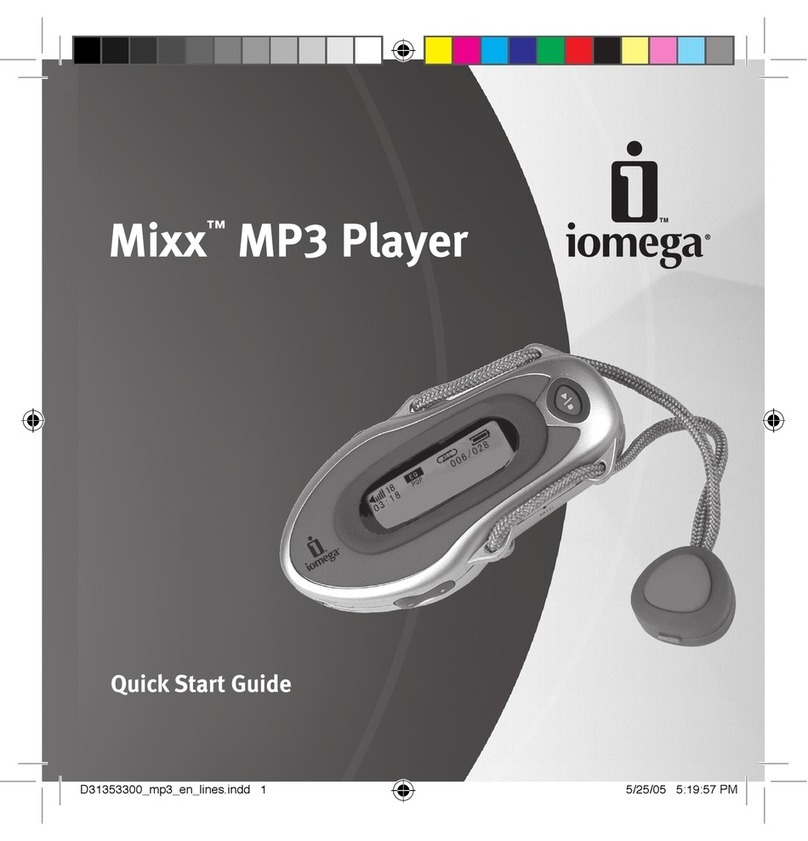
Iomega HipZip User manual

Digital Audio Player
Quick Start Guide

Table of Contents
Installing Audio Management Software ................................ 3
Installing IomegaWare
™
Software .......................................... 4
Connecting the HipZip
™
layer to Your Computer ................ 5
Inserting/Ejecting ocketZip
™
Disks ....................................... 7
HipZip
™
layer Overview
Controls and Connections ................................................................. 8
Menu Controls .................................................................................... 9
Menu Screens .................................................................................... 10
Icons ................................................................................................... 11
Messages ...........................................................................................12
MusicMatch Jukebox
™
lus Software .................................... 13
Troubleshooting ..................................................................... 15

3
Installing Audio Management Software
1
Insert the A lication and User’s Manual CD to install the
audio management software rovided for the Hi Zi ™ layer.
CAUTION! IomegaWare
™
software must be installed before you
can transfer files to your HipZip
™
player.
Windows
®
95 users should read the “USB Guidelines”
section on the User’s Manual CD before installing the
IomegaWare
™
software.
NOTE: Illustrations on cover may not match actual contents.

Installing IomegaWare
™
Software
4
Insert the IomegaWare™ software CD. Follow the instructions
on screen to install the software.
Mac
®
Users: If the setup program does not start up
automatically, start it manually by double clicking on the
IomegaWare
™
software CD icon on your Mac desktop and
double click on the IomegaWare install icon.
Windows
®
PC Users: If the setup program does not start up
automatically, start it manually by double clicking on the
IomegaWare
™
software CD icon in My Computer.
2

5
Connecting the Hi Zi
™
Player to Your Com uter
4
3
Connect the Hi Zi ™ mini USB cable
to the USB ort* on your com uter.
Connect the other end of the
Hi Zi ™ mini USB cable to the
Hi Zi layer.
CAUTION! Do not use USB extension
cables with your HipZip
™
player. Data
loss may result.
*

Connecting the Hi Zi
™
Player to Your Com uter
6
Connect the ower su ly into your Hi Zi ™ layer and an
electrical outlet.
You must charge the battery until the “Battery Full” icon
( ) appears (approximately 2 hours).
NOTE: You must connect the power supply to use the player
without initially charging the battery.
5

7
Inserting/Ejecting PocketZi
™
Disks
6
Insert a PocketZi ™ disk, and the Hi Zi ™ layer is now
ready to use.
햲Open a ocketZip
™
* disk case by squeezing the top and
bottom of the case together.
햳Open the door on the top of the HipZip
™
player and
insert a ocketZip
™
disk (label side up) until it clicks in
place.
햴Eject a ocketZip
™
disk by opening the door on the top
of the HipZip
™
player and gently pressing in on the disk
until it clicks. The disk will pop out and you can
remove it.
*You can also use Iomega 40MB Clik!
™
disks with your HipZip
™
layer
햲햳햴

8
Hi Zi
™
Player Overview
Controls and Connections
Fast Forward/Ski
Track Forward:
ress once to skip
to next track;
press and hold to
fast forward
within current
track.
Head hone Jack
Connection:
Connect
headphone.
Lock Button:
Slide button
down to lock all
controls. Slide
up to release.
Mini USB
Connection:
Connect Iomega
mini USB cable. Off/Sto :
ress once to stop
playback; press and
hold to turn off player.
Rewind/Ski Track Reverse:
ress once to skip to the beginning
of current track; press twice to skip
to previous track; press and hold to
rewind within current track.
Disk Drive Door:
Open the door and
insert a ocketZip™
disk.
On/Play/Pause:
ress to turn on.
ress again to play.
While playing, press
to pause. ress again
to resume playback.
Power Su ly
Connection:
Connect power
supply cable.

9
Hi Zi
™
Player Overview
Menu Controls
Volume U /Down:
Use these buttons to
raise or lower volume
control when not in
menu mode.
Menu/Select:
ress to show
menu options;
press again to
select a
highlighted
menu item.
Menu U /Down:
Use these buttons
to move up and
down within the
menu options.
Reset:
Insert one end
of a paper clip,
then remove to
reset player.

10
Hi Zi
™
Player Overview
Menu Screens
Equalizer: Choose standard,
rock, classical, jazz, or a
custom mode.
Play Mode:
Select mode: normal,
random, scan, repeat
all, repeat random, or
repeat track.
Exit: Exit menu.
Player Info:
View player
information.
Song Info: View all
available information
about a song—file
name, size, location,
and more.
Settings:
Turn the
backlight
on and off.
Play List Manager:
Create and select
play lists.
Disk Info: View
megabytes free, total
play time, and number
of tracks on the disk.
NOTE: ress any button on the front of the player to exit from
any menu.
Other manuals for HipZip
1
Other Iomega MP3 Player manuals