2s
Bluetooth ON
Connect
ISOtunes Free-R
TWS Pairing
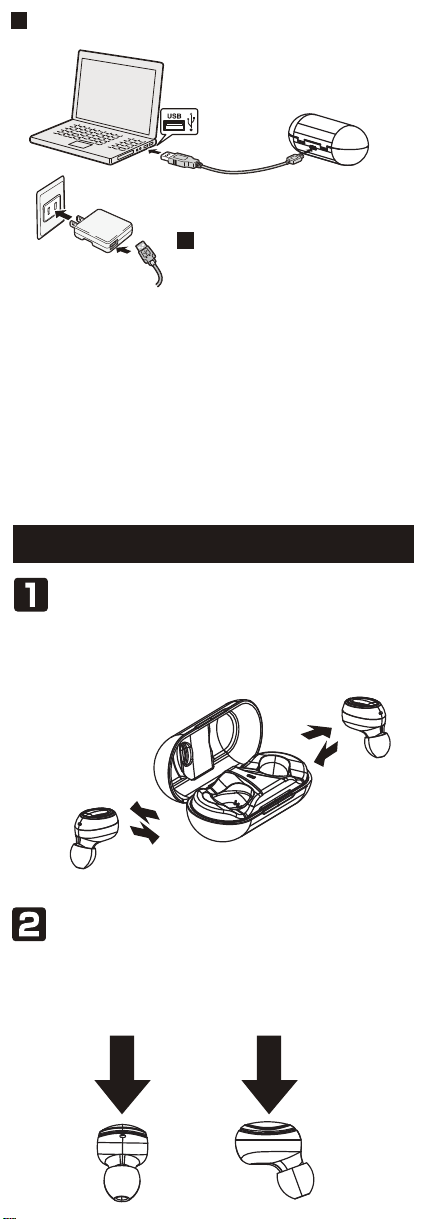
Pick up the two headsets from the charging base to power on and
waiting about few seconds , the two headsets will enter auto-pairing
mode. The two headsets connect with each other after few seconds,
the headset (R) alternately flashing red and blue, and then open the
phone's bluetooth device to search“ISOtunes Free-R”.
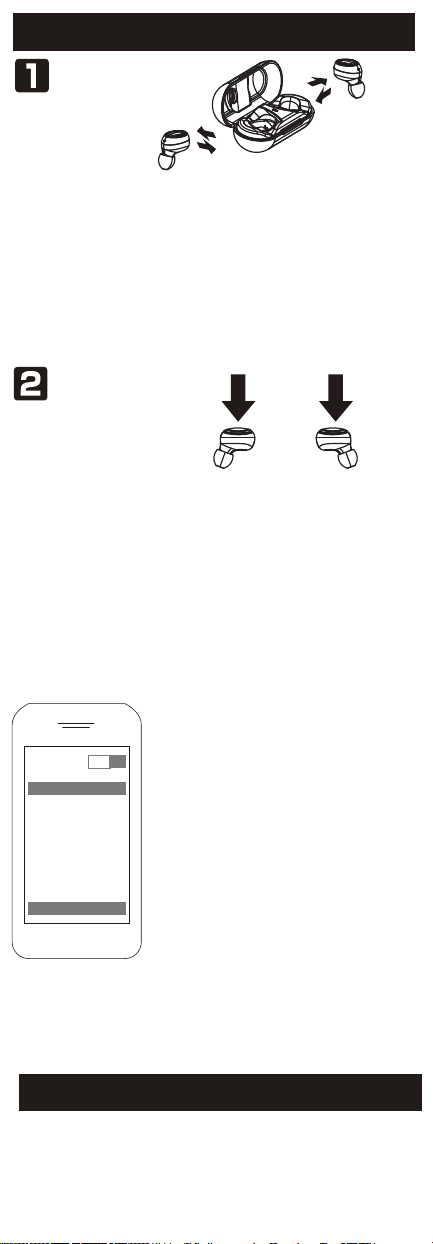
In OFF state, press MFB key for 2 seconds to power on and
waiting for few seconds , the two headsets will enter auto-pairing
mode. The two headsets connect with each other after few
seconds, the headset (R) alternately flashing red and blue, and
then open the phone's bluetooth device to search “ISOtunes
Free-R”.
Answer /End a Call
When call incoming, short press MFB of headset (R) or headset (L)
to answer the call;In call mode, short press MFB of headset (R)
or headset (L) to end the call when you hear “Call End” .
Reject a call
Press and hold MFB of headset(R) or
headset(L) for 2 seconds to reject the call, the
speaker prompts “Doo, Call Reject”.
On standby mode or music playing state, short
press the MFB of headset(L). (This function only
supports phone with voice dialing function)
Two-call Handling
Voice Dialing
When you are answering a call, there is another call coming :
(Only support the mobile phone which has the function of handling two
phones.)
Long press and hold MFB for 2 seconds to end the current call and
answer the incoming call;
Short press MFB to hold the current call and answer the incoming call;
After the second implementation, short press MFB to switch between two
calls;
After the second implementation, long press MFB for 2 seconds to end the
current call, and short press MFB to end the other call.
Music Pause/Playing
In standby mode, shortly press MFB of
headset(R) to play music.
On music playing state, shortly press MFB of
headset(R) to PAUSE music.
Volume +/-
Forward/Backward
In call mode or music playing mode, double click MFB of
headset(R) to volume up; double click MFB of headset(L ) to
volume down, once “Doo” can be heard from headset R/L when
volume is up to maximum or minimum.
In music playing mode, long press MFB of headset(R) for 2
seconds to next song; long press MFB of headset(L)for 2 seconds
to previous song.
Delete Pairing Records on the Headset
In OFF mode, press MFB of headset(R) or headset(L) for 10
seconds(OFF MODE→On Mode (2 seconds)→Delete Pairing
Records (10 seconds) until hearing “Doo” 3 times and indictors
flash red and blue twice at the same time.
Maintenance
Do not use abrasive cleaning solvents to clean the headset.
Do not allow the headset to touch with any sharp objects as this will cause
scratching and damages.
Please keep headset away from high-temperature, humidity and dust.
•
•
•
Note: When the first time to pairing or after delete the pairing
records, the headsets should be paired under 20cm unobstructed.
Operate as the above ways: 1 or 2 ,
It prompts “
Pairing successful
” after TWS paired successfully:
After TWS connection, the headset (R) enters the pairing mode
with the phone and prompts "pairing" .
Cell phone begins to search for bluetooth
devices (see the user guide of your phone
instructions), and select “ISOtunes Free-R”
from bluetooth device list.the right headset
prompts”Pairing successful”. the left and
right headset prompts :”dengdong”,and
the right headset prompts”Connected”.
After the right headset paired with mobile
phone successfully, the mobile phone will
have a Bluetooth pairing request (iphone
must be connected to the Bluetooth
interface on the mobile phone), select the
match, and the left headset prompts
“paring successful”. Unpairing headset(L)
can’t use master and slave function.
Trouble Shooting
Trouble Reasons Solutions
Can not turn on low battery protection Charging headsets for 1-2 hours
Turning off
automatically Low battery Charging headset for 1-2 hours
Headset echo Volume is too loud or
environment is noisy
Adjust the volume at phone
change a place
Noise in call
Wrong pairing Pairing again
Too many pairing records Delete pairing records
Charging base without
indicator light when
charging
DC power supply doesn’t
output power
Check whether the micro USB
charging
not line is plugged well or
Headsets without
indicator light when
charging
Can not turn on by picking
up the headset /No indicator
light when headset
being
charged
Charging base low battery
protection
Charging both the headsets and
charging base for 1-2 hours
The two headsets TWS
pairing failure/TWS paired
successful but can not find
the headset(R)
No sounds after
pairing
Low voice of the calling
party Wearing headset is wrong Adjusting wearing position of
headset
The headsets couldn’t being
charged in charging base
1)Checking headset charging interface
whether has touched to POGO PIN of
charging base and the location is
correct or not.
2)Charging for charging base
Environmental interference
caused or distance between
headset and mobile is too far
Change a place or move the
headset close to the mobile
phone
Note: When the headsets TWS pairing failures, double press the
headset R and headset L to enter TWS pairing, then pair with
phone.
Master-slave switching
The master and slave headset are automatically paired after
being turned on. The right headset is defautt as master headset.
When the master headset is placed in the charging box, the slave
headset will automatically connect to the mobile phone and can
be used continuously.
When the left headset is turn on first and reconnected with mobile
phone , the left headset is the master headset; the right headset is
the slave headset.
Note: Single connection instructions: TWS and mobile pairing
records are required for single use.
TWS Reconnected
Press MFB of headset(R) or headset(L) for 2 seconds to power
on wait for few seconds, the two headsets connect automatically,
the headset pairs with the mobile phone that has ever paired after
few seconds reconnected successfully.
Pick up the headsets from charging base to power on wait for few
seconds, the two headsets connect automatically the headset
pairs with the mobile phone that has ever paired after few seconds
,reconnected successfully.
Method2:
Method1:
Note: the right and left headset will prompt“Dengdong” after TWS
reconnected successfully, the right headset prompts“ connected”
after reconnected with mobile phone successfully.
Note:All the above operations have to respect the preconditionsupported
Bluetooth hands free profile V1.5 and Phones areholding function (Network
services) from telecom.
NOTE: This equipment has been tested and found to comply with the limits for a
Class B digital device, pursuant to part 15 of the FCC Rules. These limits are
designed to provide reasonable protection against harmful interference in a
residential installation. This equipment generates uses and can radiate radio
frequency energy and, if not installed and used in accordance with the
instructions,
may cause harmful interference to radio communications. However, there is no
guarantee that interference will not occur in a particular installation. If this
equipment does cause harmful interference to radio or television reception, which
can be determined by turning the equipment off and on, the user is encouraged
to
try to correct the interference by one or more of the following measures:
- Reorient or relocate the receiving antenna.
- Increase the separation between the equipment and receiver.
-Connect the equipment into an outlet on a circuit different from that to which the
receiver is connected.
-Consult the dealer or an experienced radio/TV technician for help
Changes or modifications not expressly approved by the party responsible for
compliance
could void the user's authority to operate the equipment.
This device complies with Part 15 of the FCC Rules. Operation is subject to the
following
two conditions:
(1) this device may not cause harmful interference, and
(2) this device must accept any interference received, including interference that
may
cause undesired operation.