Installation Instructions
Diagram A
(a) (b)
(c)
Installing the Integration Terminal
►Diagram A
1. Remove:
left fairing pocket (a)
ignition switch cover (b)
wiring cover plate under left handlebar (c)
2. Clean the surface inside the left fairing pocket mounting area
with denatured alcohol.
3. Remove the backing from the double-sided mounting tape and
mount the CGBH-GL18 on to the inner surface of the outer fairing
shell directly beside the fairing pocket location, making sure that
the fairing pocket can be reinstalled properly. Diagram A.
Note: The CGBH-GL18 should be mounted as far rearward as pos-
sible with the connection cables exiting forward toward the front of
the fairing.
Mounting the Multifunction/volume switch
assembly.
►Diagram A
1. Mount the multifunction/volume switch assembly by install-
ing the bracket/clamp assembly around the exposed handlebar,
between the left-side handlebar grip and switch housing. (If handle-
bar grip gap is not sufficient for handlebar switch installation,
remove grip end cap and twist grip back and forth as you pull out
on the grip until the gap is wide enough for switch bracket installa-
tion.)
2. Route the wire alongside the stock wiring down the handlebar,
under the ignition switch cover and into the left fairing pocket area
of the fairing.
3. Make connections as shown in Diagram B. Note: Disconnect
the factory Driver’s headset lead and plug the corresponding con-
nectors from the CGBH-GL18 in-line between the factory (RED)
6-pin plugs.
General Operation Instructions
To clear all previously linked devices from your J&M CGBH-GL18
Bluetooth unit, first turn on the ignition, then press & hold down on
the multifunction button until the unit turns OFF completely (about
10 seconds), then while leaving the ignition on for all of this entire
sequence, press and hold down on the multifunction button again
continuously for about 10 seconds, cycling thru the slow flashing
blue, to rapid flashing red and blue, at which point the CGBH-GL18
unit is now cleared and in pairing mode.
Operation Instructions
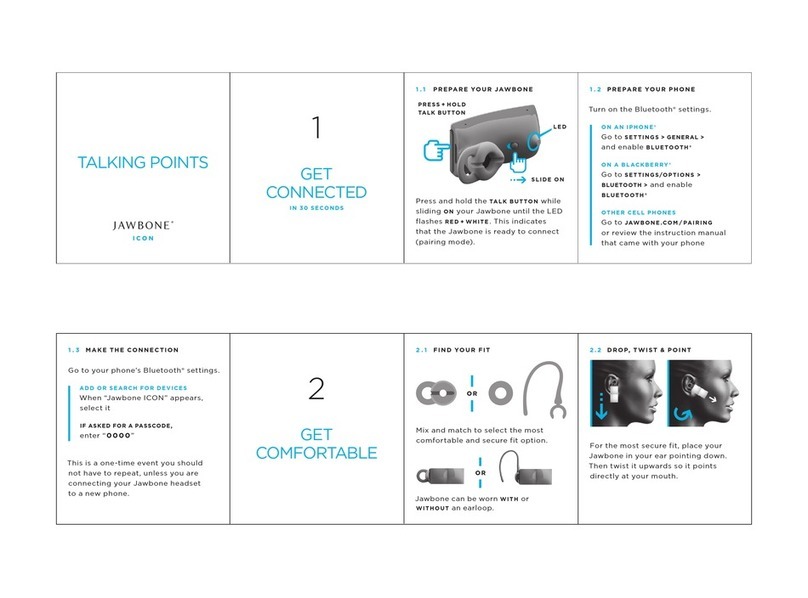
Pairing the CGBH-GL18 to Bluetooth Enabled
Devices.
1. To Pair To a Cell/Smart Phone.
a. Turn on the CGBH-GL18 by switching the ignition switch to the
ACC or ON position. The LED on the multifunction switch assem-
bly will flash slow blue.
b. Press and hold down on the multifunction button for approxi-
mately 10 seconds. When the LED goes off, release the button.
c. Press and hold down on the multifunction button again continu-
ously for about 10 seconds, cycling thru the slow flashing blue,
to flashing red & blue, at which point the CGBH-GL18 is in pair-
ing mode.
d. In the phone menu select Bluetooth and “search for devices”.
e. Once the JMCORP_CGBH-2.0 shows up on the phone’s display
select it and if asked for a PIN code type in “0000”.
f. The cell phone should now pair to the CGBH-GL18 and the blue
LED should flash slowly.
2. To pair to a Bluetooth Enabled GPS.
a. Turn on the CGBH-GL18 by switching the ignition switch to
the ACC or ON position. The LED on the multifunction button
assembly will flash slow blue.
b. Press and hold down on the multifunction button for approxi-
mately 10 seconds. When the LED goes off, release the button.
c. Press and hold down on the multifunction button again continu-
ously for about 10 seconds, cycling thru the slow flashing blue,
to flashing red & blue, at which point the CGBH-GL18 is in pair-
ing mode.
d. Turn on the Bluetooth enabled GPS and select Bluetooth “head-
set” in the menu. Then select “search for devices”.
e. Once the JMCORP_CGBH-2.0 shows up on the GPS display select
it and if asked for a PIN code type in “0000”
f. The GPS should now pair to the CGBH-GL18 and the blue LED
should flash slowly.
Note: The CGBH-GL18 does not require re-pairing each time the
motorcycle is turned off. After initial pairing, the Cell Phone or GPS
unit should automatically reconnect with the CGBH-GL18 each time
the ignition switch is turned on.
Operation of the CGBH-GL18 with a cell phone.
1. After successfully pairing your cell phone with the CGBH-GL18,
make a phone call. During the phone call adjust the volume control
on the cell phone to maximum. Make further volume adjustments
using the handlebar mounted volume control.
2. When receiving an incoming call the “incoming call indicator-
sound” will override all other audio in the drivers headset (except