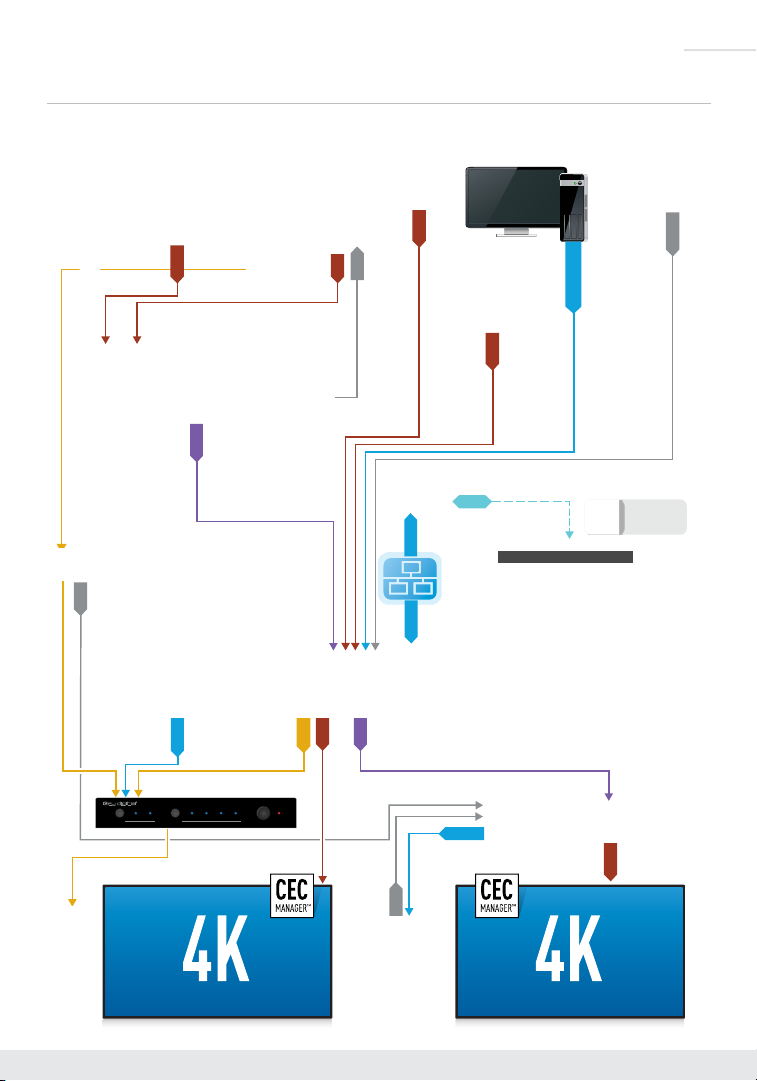
Key Digital KD-PS22UTx User manual
Other Key Digital Extender manuals
Key Digital
Key Digital FatCAT KD-CATHD250POH User manual

Key Digital
Key Digital KD-X444S User manual

Key Digital
Key Digital KD-CATHD300Lite User manual
Key Digital
Key Digital KD-X422WP User manual

Key Digital
Key Digital KD-4KWHCEX User manual
Key Digital
Key Digital KD-FIX418 User manual

Key Digital
Key Digital Smart Baluns KD-BBRX User manual

Key Digital
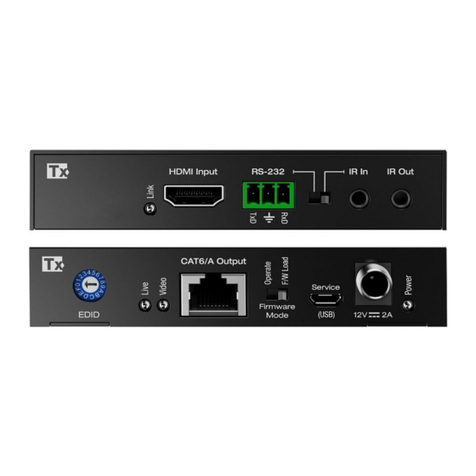
Key Digital KD-HDDA1x1Pro User manual
Key Digital
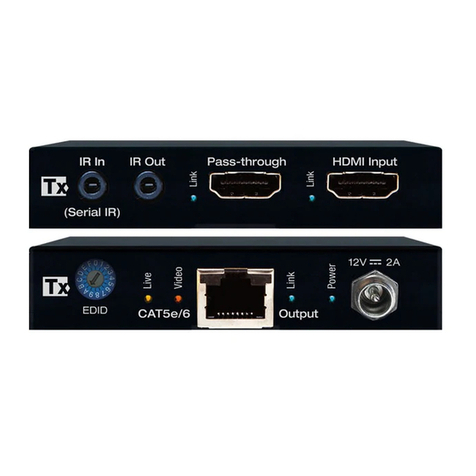
Key Digital KD-X444SP User manual
Key Digital
Key Digital KD-EX18G User manual

Key Digital
Key Digital KD-X411ProK User manual
Key Digital
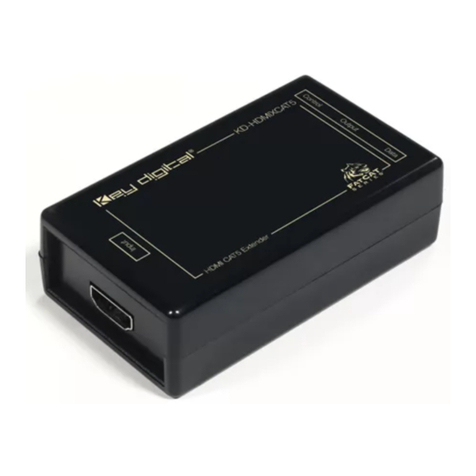
Key Digital KD-HDMIXCAT5 User manual
Key Digital
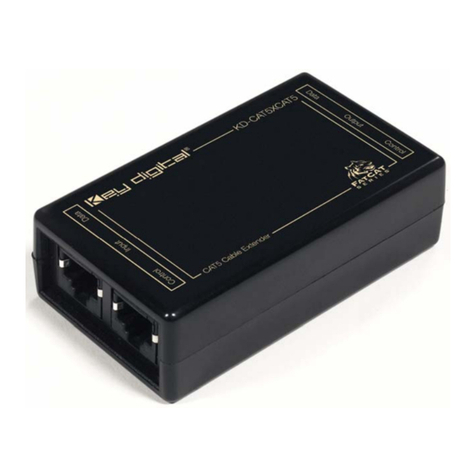
Key Digital KD-CAT5XCAT5 User manual

Key Digital
Key Digital FatCAT KD-CATHD Tx User manual

Key Digital
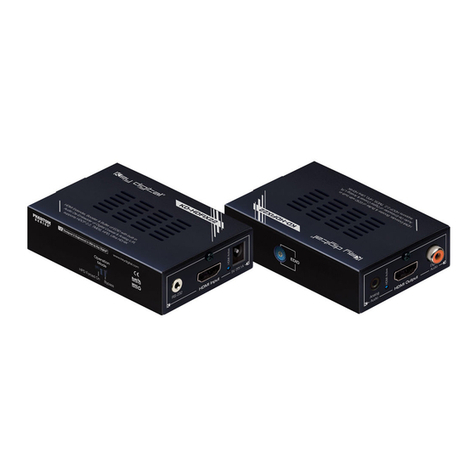
Key Digital KD-IP120TX User manual
Key Digital
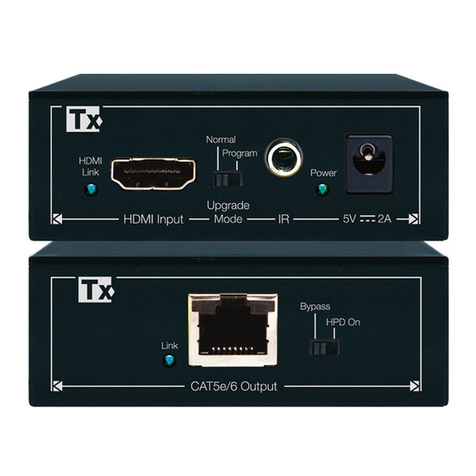
Key Digital KD-HDFIX22 User manual
Key Digital
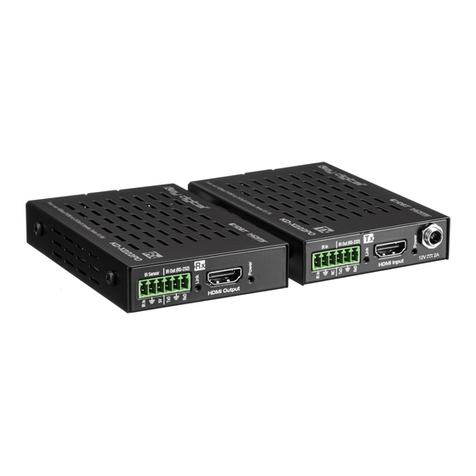
Key Digital FatCAT KD-CATHD250Lite User manual
Key Digital
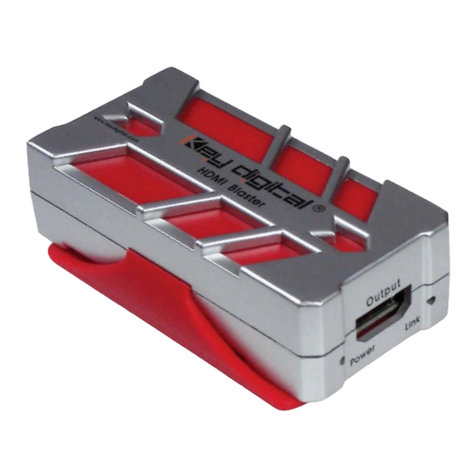
Key Digital KD-X222PO User manual
Key Digital
Key Digital KD-HDB150 User manual
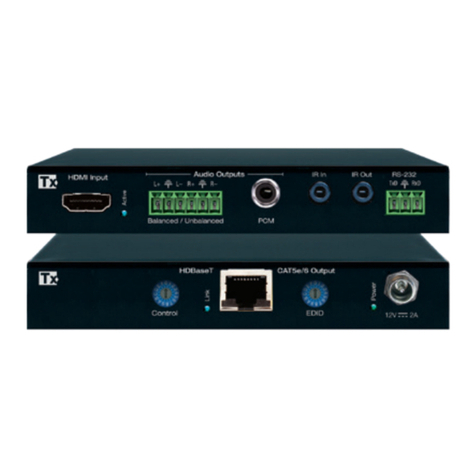
Key Digital
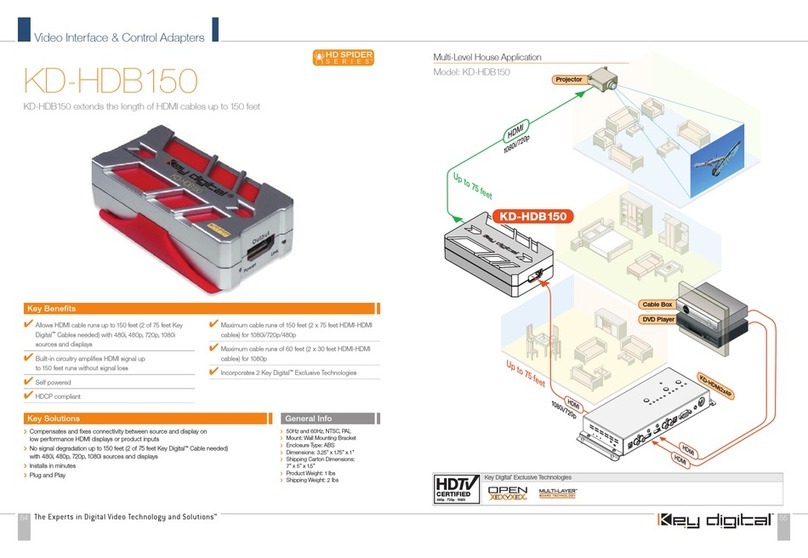
Key Digital KD-X422POA User manual

Popular Extender manuals by other brands






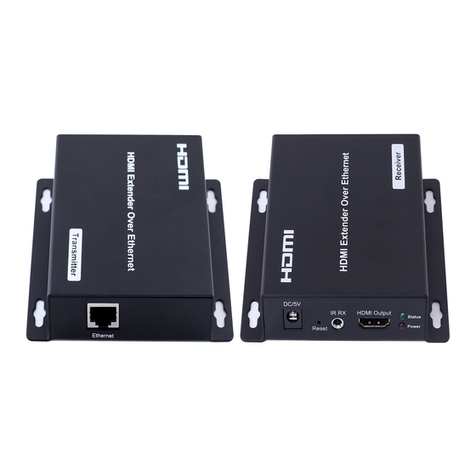
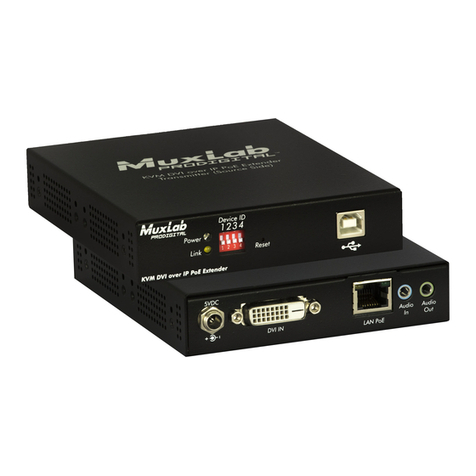

foxunhd
foxunhd SX-AEX01 operating instructions

TERK Technologies
TERK Technologies LFIRX2 owner's manual

Devolo
Devolo Audio Extender supplementary guide

Edimax
Edimax EW-7438RPn V2 instructions
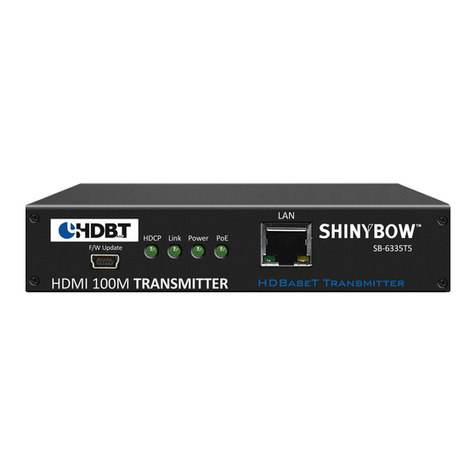
Shinybow USA
Shinybow USA SB-6335T5 instruction manual
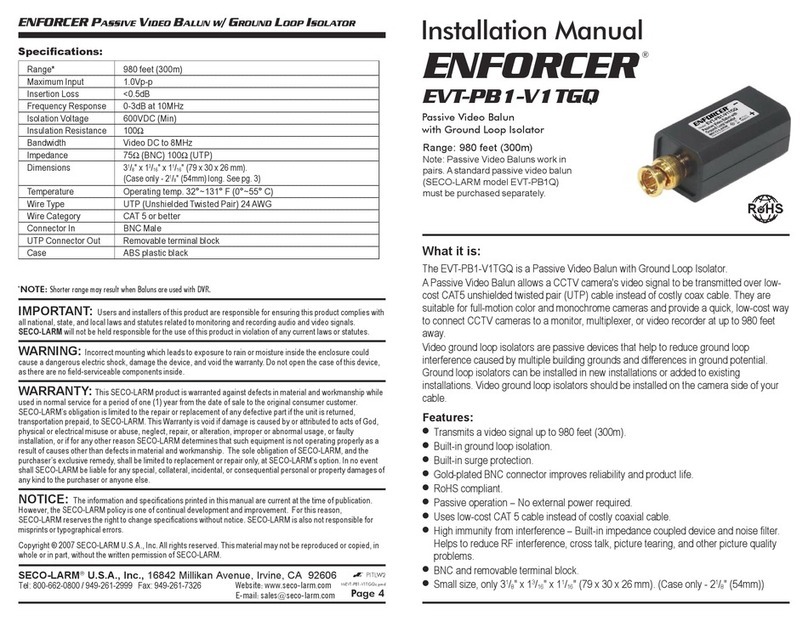
SECO-LARM
SECO-LARM ENFORCER EVT-PB1-V1TGQ installation manual