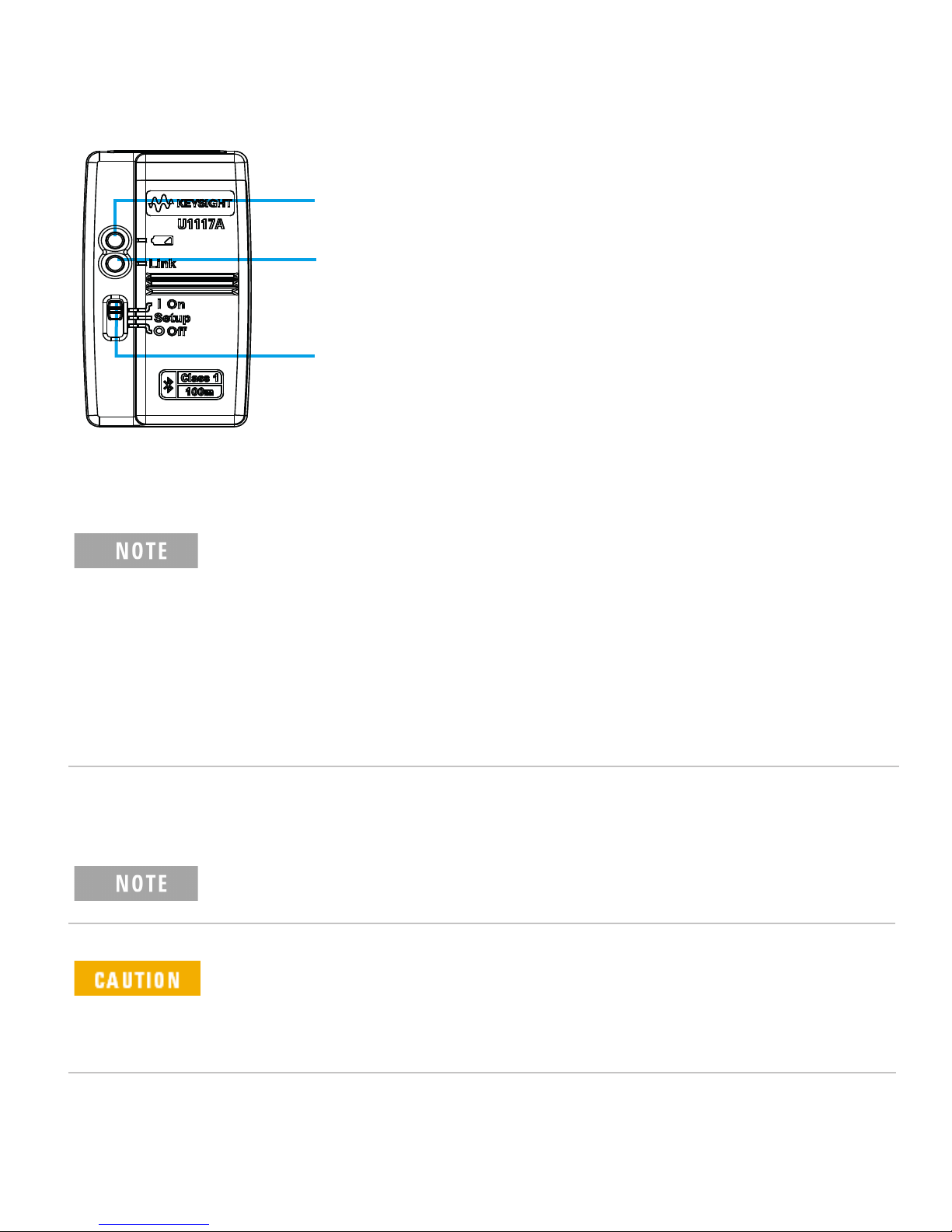
Install the U1117A to PC via Bluetooth
Before you begin, make sure the• Bluetooth connection on your PC
is enabled.
It is• recommended to use brand new batteries before running any
operations that are critical or require a longer duration.
In so• me cases, the Bluetooth Device Manager will create two COM
ports. Use the COM port with the “Outgoing” label only.
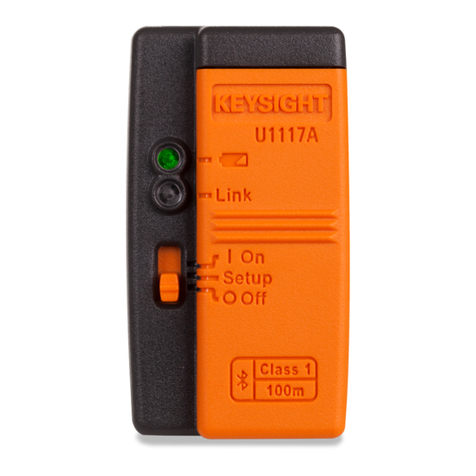
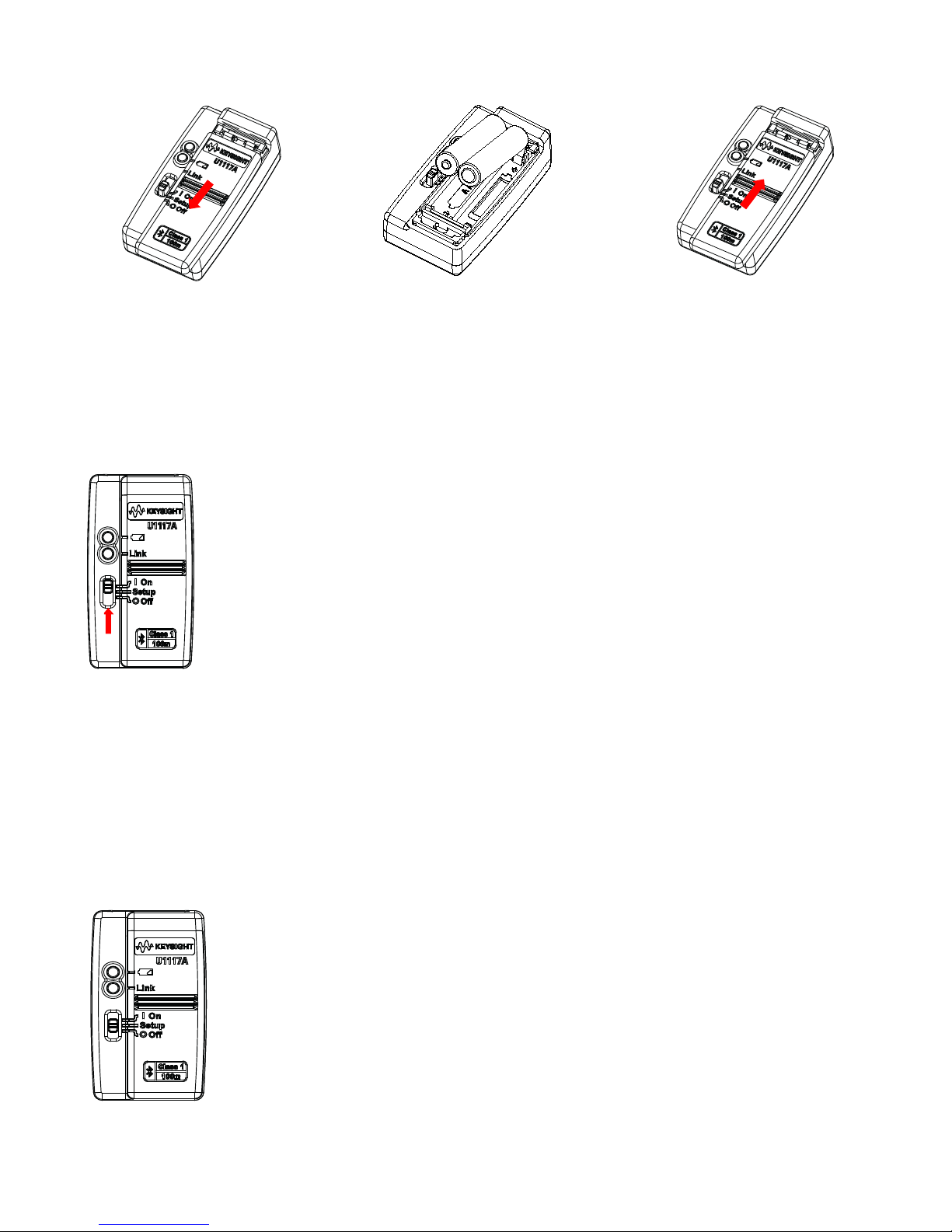
1. Set the U1117A slide switch to On.
2. From your PC (Windows 7), go to Start > Devices and Printers.
3. Click Add a device.
4. Select Keysight U1117A-XXXXXX—the XXXXXX represents U1117A device ID
—and click Next.
5. Type the default Bluetooth pairing code “1234” and click Next.
6.Oncepairingissuccessful,anoticationwindowwillappear.ClickClose.
7. The U1117A-XXXXXX is now added and connected successfully to your PC.
Connect a Meter to the Keysight Handheld Meter Logger via
the U1117A
Before you begin, make sure you download the Keysight Handheld Meter Logger at
www.keysight.com/nd/hhmeterlogger
1. Open the Keysight Handheld Meter Logger.
2. On the Connected Instruments List (at the bottom), select the U1117A-XXXXX and
click Connect to establish the multimeter connection.
3. The multimeter will remain connected until the connection is disconnected or the
U1117A is turned off.
Only one host computer is able to conne• ct to the U1117A at a time.
Connect a Meter to the Keysight U1115A Remote Logging
Display via the U1117A
For details, refer to the U1115A Remote Logging Display Operating Instructions at
www.keysight.com/nd/U1115A.
9