manuals.online logo
Brands
  1. Home
  2. •
  3. Brands
  4. •
  5. Kobil
  6. •
  7. Card Reader
  8. •
  9. Kobil opTAN touch User manual

Kobil opTAN touch User manual

Other Kobil Card Reader manuals

Kobil KAAN Standard User manual

Kobil

Kobil KAAN Standard User manual

Kobil KAAN Base User manual

Kobil

Kobil KAAN Base User manual

Kobil KAAN Standard Plus Manual

Kobil

Kobil KAAN Standard Plus Manual

Kobil KAAN Base User manual

Kobil

Kobil KAAN Base User manual

Kobil SecOVID Reader III User manual

Kobil

Kobil SecOVID Reader III User manual

Popular Card Reader manuals by other brands

RealTrace V8BT Comprehensive manual

RealTrace

RealTrace V8BT Comprehensive manual

Datalogic Touch 65 pro manual

Datalogic

Datalogic Touch 65 pro manual

Digitus DA-70318 user manual

Digitus

Digitus DA-70318 user manual

Salto WRDx0E4 Series installation guide

Salto

Salto WRDx0E4 Series installation guide

Lindy 43185 user manual

Lindy

Lindy 43185 user manual

Lindy 43185 user manual

Lindy

Lindy 43185 user manual

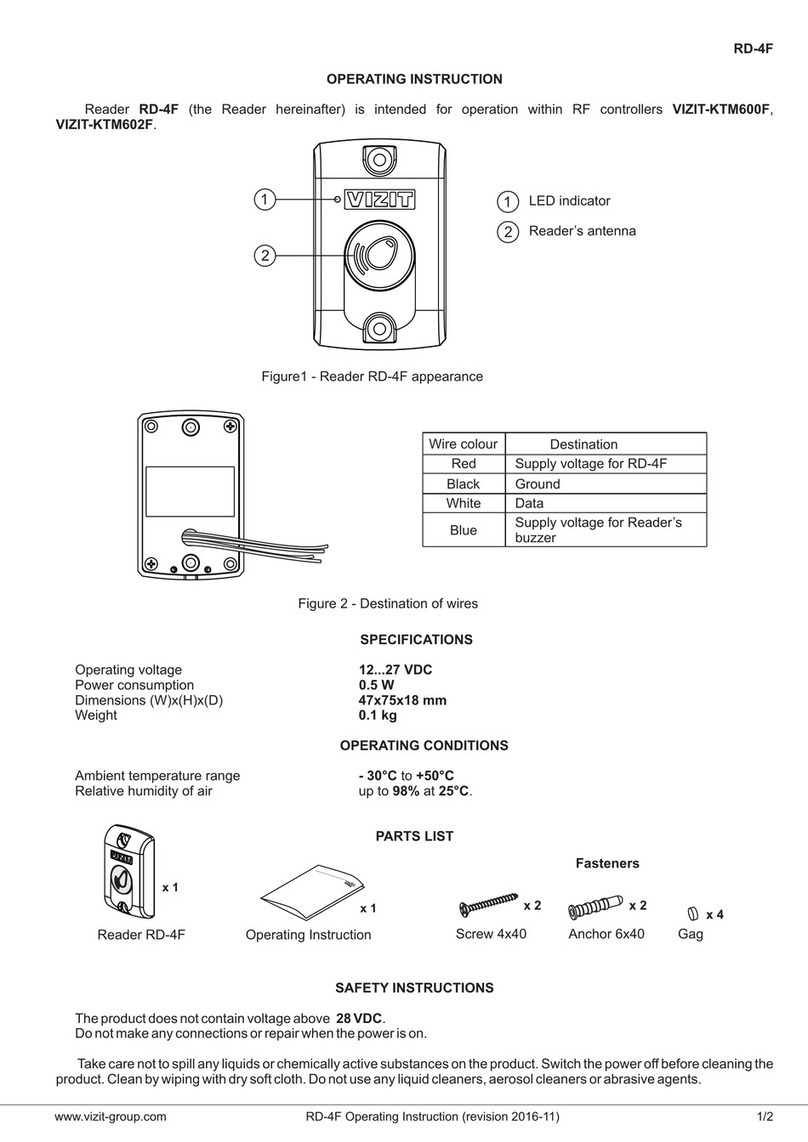
ViziT RD-4F operating instructions

ViziT

ViziT RD-4F operating instructions

Jinmuyu Electronics MR811 Series user manual

Jinmuyu Electronics

Jinmuyu Electronics MR811 Series user manual

Conrad PCMCIA operating instructions

Conrad

Conrad PCMCIA operating instructions

Lindy 51541 user manual

Lindy

Lindy 51541 user manual

Diapro T?bbi Ürünler Across System user manual

Diapro T?bbi Ürünler

Diapro T?bbi Ürünler Across System user manual

Johnson Controls Kantech tyco ioSmart installation guide

Johnson Controls

Johnson Controls Kantech tyco ioSmart installation guide

Secukey S2-MF user manual

Secukey

Secukey S2-MF user manual

Elecom MR-SMC07 series user manual

Elecom

Elecom MR-SMC07 series user manual

Alien ALR-9800 Quick installation guide

Alien

Alien ALR-9800 Quick installation guide

ACS ACR310 Operation manual

ACS

ACS ACR310 Operation manual

Datamars R-IN1300 MID user manual

Datamars

Datamars R-IN1300 MID user manual

Alarm Lock AL-PRE2 user guide

Alarm Lock

Alarm Lock AL-PRE2 user guide

manuals.online logo
manuals.online logoBrands
  • About & Mission
  • Contact us
  • Privacy Policy
  • Terms and Conditions

Copyright 2025 Manuals.Online. All Rights Reserved.

KOBIL opTAN touch
This device and its accessories may include small parts.
Please keep these out of the reach of small children. Do not
insert foreign objects into the card slot. Do not incinerate
the device or the batteries under any circumstance.
Note for Epileptics:
In some cases (about 1 person in 4000), flashing lights
or patterns when viewing TV or computer screen images
or when playing video games are known to have caused
epileptic symptoms. Persons belonging in this group may
experience a seizure when using computers. Even indivi-
duals with no prior history of epilepsy or epileptic seizures
may be affected. If you or any of your family members have
experienced symptoms (seizures or blackouts) associable
with epilepsy when exposed to flashing lights, please
use the manual data input mode for your online banking
business.
Please be sure to download the full-length manual at
http://www.kobil.de/ott, and carefully read the manual
before the start-up and/or first-time use of the device.
1 Please remove the
insulating strip, if stil
in place (Figure 1).
2. Insert your chipcard.
Figure 2) Inserting the
card will activate the
reader. Your card must
be of a type tha
supports this process
If you have any questions in this
context, please contact your bank.
3. Start your online banking
application, and follow the
instructions.
DBXX.UK.1/X
Important Safety Instructions Start-Up
Figure 2: Card slot
1. Insert your chipcard (see Figure 2).
2. Press the “F” button; the display will read
<Transmission enabled>.
3. Hold your opTAN touch up to your computer screen,
opposite from the flickering box of your online banking
application (Figure 3), the rubber studs on the device
backside will protect the display. You may have to resize
the optic sensor box on the screen until the on-screen
arrow markings are perfectly aligned with the device
arrows (Figure 4).
4. Your display will say <Searching start> as the
transmission process executes (Figure 4).
Starting the Optical Process
Figure 3: Application
Figure 1:
insulating
strip
5. The display will read <Transmission completed>.
6. Be sure to verify the transaction data on you
opTAN touch carefully, and confirm by pressing
the green OK button.
7. A TAN will be generated and displayed. Enter the
TAN into the online banking application, and
confirm the transaction.
Figure 4: Optical transmission
Resize optic sensor box
]
]
1. Insert your chipcard (Figure 2).
2. Press the “TAN” button.
3. Enter the start code from your online banking
application in your opTAN touch, and press
the “OK” button.
4. Enter the transaction details (account number,
amount, etc.), and press the “OK”button to confirm.
5. A TAN will be generated and read out on your
opTAN touch display.
6. Enter the TAN in the online banking application,
and confirm the transaction.
Starting the Manual Process
KOBIL Systems GmbH hereby declares that the opTAN
touch device complies with the basic requirements and
other relevant provisions of the 2004/108/EC Directive.
The CE symbol confirms that the device meets Europe-
an Union standards.
KOBIL Systems accepts no liability of any sort for
damages caused by improper handling of its products.
Improper handing includes, while not being limited to,
the use of excessive pressure when operating the TAN
generator or the failure to hold it steadily or to properly
align it for the optic sensor readout.
Ismet Koyun
Managing Director of KOBIL
Note: Exposure of the display to direct light from lamps,
daylight or sunlight may cause reflections on the display
surface. Such exposure should be avoided.
0An error occurred during the communication
with the chip. Please check to make sure that
you are using the proper card and that it is
correctly placed in the reader.
2,3,4,7 An error occurred during the TAN generation.
8,12,15, aufgetreten. Please try again. If the error
17,18,19 occurs at least three times n a row,
either the card or the reader is defective.
In this case, please see your bank.
20 An error occurred during the TAN generation.
Please try again.
21 The entered/transmitted start code is invalid.
Please try again.
For other error codes, as well as for answers to frequently
asked questions, please go to http://www.kobil.de/ott
Error Codes/FAQ Declaration of Conformity:
Replacing the Batteries
Good for generating up to
3000 TAN.
Whenever the opTAN touch displays the message <Battery
low> please replace the batteries. To do so, please use a
pointed object, e.g. a ballpoint pen, to remove the cover
of the battery compartment in the back of the device, and
replace the spent batteries with two new batteries of the
“CR2016” type. Be sure to watch for correct alignment of
the battery poles using the polarity diagram inside the
battery compartment.
Battery type: CR2016
Optimising the Optical
Recognition
If the optical transmission fails even after several
attempts, go to the menu item <Flicker mode> to choose
between various optimisation options for the optical
transmission. To this end, please insert your chipcard,
press “Menu”, use the “Arrow down” button to select
“Reader,” press the OK button to confirm, the use the
“Arrow down” button again to select the reader mode,
and press OK again to confirm.
The default setting is reader mode <00> (Figure 7). If you
experience problems using the optical transmission, you
may alternatively use reader modes <01> or<02>.
Use the “Arrow left” and “Arrow right”button to select
the reader mode of your choice, then press the OK button
to confirm.
Figure 7:
select Flicker Mode
Insert the chipcard into your opTANtouch with the brass-
coloured contact facing upward (Figure 2). The display will
read:
Function Keys
Will start the optical process to generate
a transaction number
Will start the manual process to generate
a transaction number
Will call up the functions menu for
the reader settings
Will display the current credit balance on your
cash card or the decimal places when manually
entering “amount”or “number”
Press to correct or cancel
Press to confirm the data you entered
Figure 6:
Message
displayed
Basic Functions
Starting up your opTAN touch may require synchronisation/
registration with your online banking application. In this
case, please proceed as follows:
Synchronising
1. Insert your chipcard (Figure 2).
2. Keep the TAN button pressed for three seconds.
3. Use the start code <no input>, and press the OK button.
4. Enter the TAN and ATC data in the online
banking application.
Registering (Manually)
1. Insert your chipcard (Figure 2).
2. Press the TAN button.
3. Enter the start code <09>, and press the OK button.
4. Enter the reader type details in the online
banking application.
Registering (Optically)
1. Insert your chip card (Figure 2).
2. Press the F button, and start the optical process
Figure 4).
3. Enter the reader type details in the online banking
application. The reader type is identified by
a 12-digit ID number.
Synchronisation/Registration
FF
F
TAN
MENU
E
/,
C
OK