manuals.online logo
Brands
  1. Home
  2. •
  3. Brands
  4. •
  5. Korg
  6. •
  7. Musical Instrument
  8. •
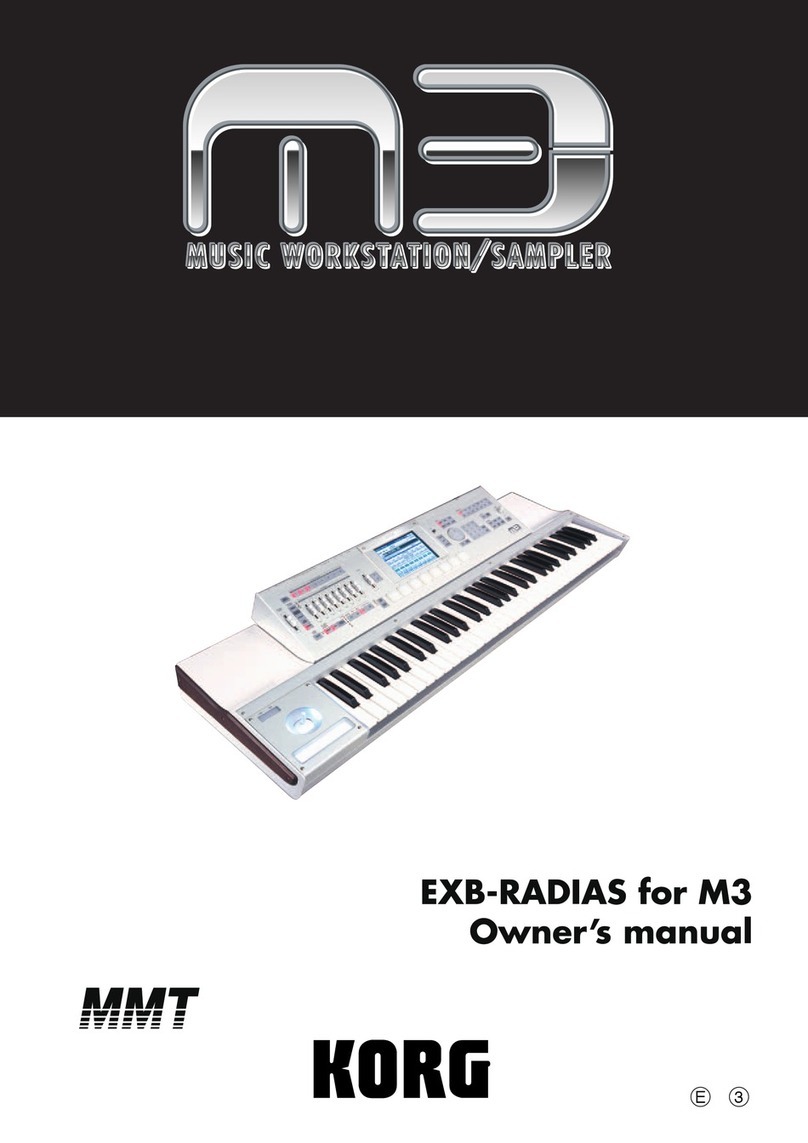
  9. Korg MICROSTATION KLC M1 Manual

Korg MICROSTATION KLC M1 Manual

This manual suits for next models

1

Other Korg Musical Instrument manuals

Korg PA1000 User manual

Korg

Korg PA1000 User manual

Korg O1/W FD User manual

Korg

Korg O1/W FD User manual

Korg KRONOS2-61 User manual

Korg

Korg KRONOS2-61 User manual

Korg Concert C-4500 User manual

Korg

Korg Concert C-4500 User manual

Korg MA-30 User manual

Korg

Korg MA-30 User manual

Korg PA80 User manual

Korg

Korg PA80 User manual

Korg XE20 User manual

Korg

Korg XE20 User manual

Korg Stage Vintage SV-1 User manual

Korg

Korg Stage Vintage SV-1 User manual

Korg Krome EX User manual

Korg

Korg Krome EX User manual

Korg S3 User manual

Korg

Korg S3 User manual

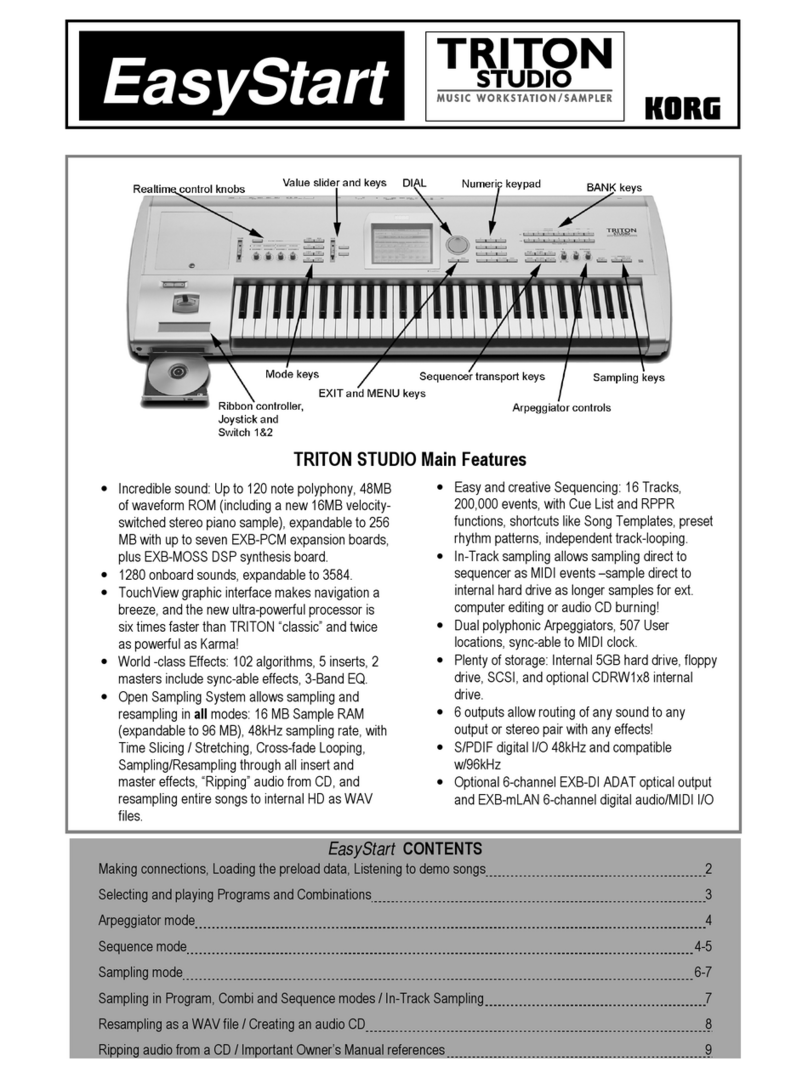
Korg Triton Studio Product information sheet

Korg

Korg Triton Studio Product information sheet

Korg SV-2 User manual

Korg

Korg SV-2 User manual

Korg Grandstage 88 User manual

Korg

Korg Grandstage 88 User manual

Korg SP-200 User manual

Korg

Korg SP-200 User manual

Korg Krome User manual

Korg

Korg Krome User manual

Korg SV-2 User manual

Korg

Korg SV-2 User manual

Korg Stage Vintage SV-1 User manual

Korg

Korg Stage Vintage SV-1 User manual

Korg TRITON Extreme Technical manual

Korg

Korg TRITON Extreme Technical manual

Korg S3 User manual

Korg

Korg S3 User manual

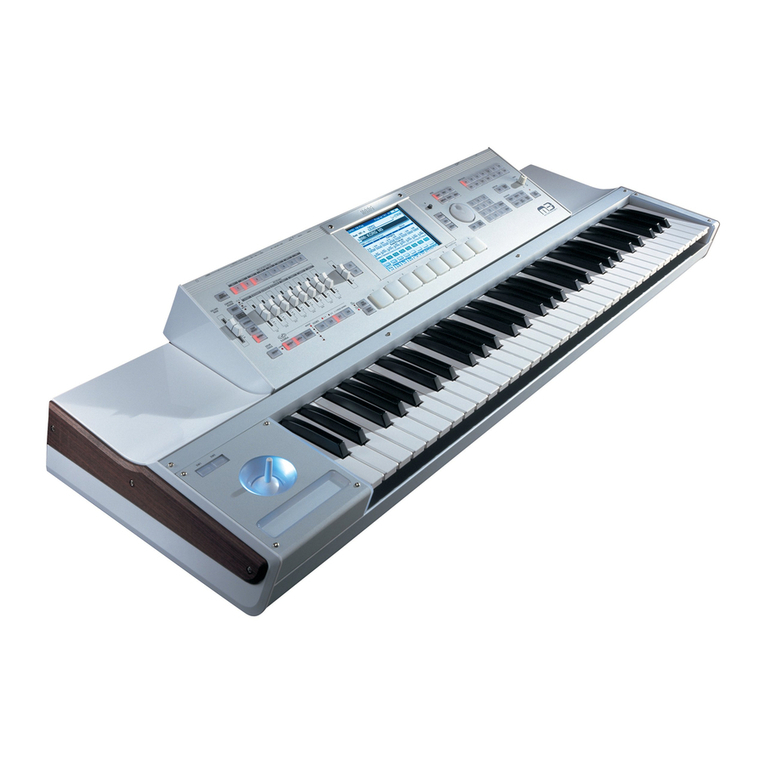
Korg M3 User manual

Korg

Korg M3 User manual

Korg PA4X Use and care manual

Korg

Korg PA4X Use and care manual

Korg concert A-4501 User manual

Korg

Korg concert A-4501 User manual

Korg Stage Vintage SV-1 User guide

Korg

Korg Stage Vintage SV-1 User guide

Korg KRONOS 61 User manual

Korg

Korg KRONOS 61 User manual

Popular Musical Instrument manuals by other brands

Funkey SP-561 user manual

Funkey

Funkey SP-561 user manual

thomann DP-275 GP BP user manual

thomann

thomann DP-275 GP BP user manual

Kawai CN17 Operation guide

Kawai

Kawai CN17 Operation guide

Yamaha PCY130 owner's manual

Yamaha

Yamaha PCY130 owner's manual

Roland LX-15 Brochure & specs

Roland

Roland LX-15 Brochure & specs

Johannus Rembrandt 200 user manual

Johannus

Johannus Rembrandt 200 user manual

Yamaha Clavinova CVP-609 Reference manual

Yamaha

Yamaha Clavinova CVP-609 Reference manual

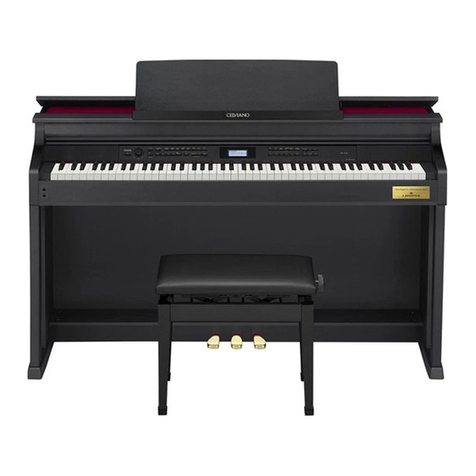
Casio celviano ap-700 user guide

Casio

Casio celviano ap-700 user guide

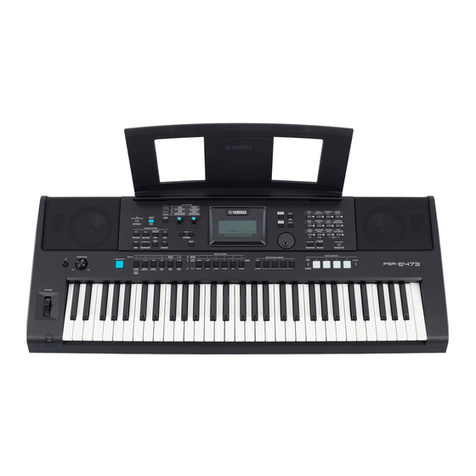
Yamaha PSR-E473 owner's manual

Yamaha

Yamaha PSR-E473 owner's manual

Modulus Quantum Series owner's manual

Modulus

Modulus Quantum Series owner's manual

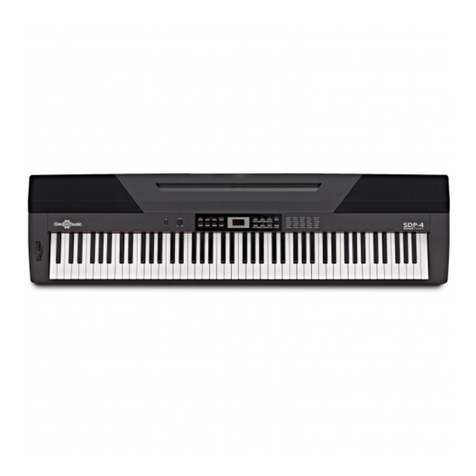
Gear4music SDP-4 user manual

Gear4music

Gear4music SDP-4 user manual

HOMCOM 390-006 Assembly instruction

HOMCOM

HOMCOM 390-006 Assembly instruction

Xotic Guitars ProVintage Series owner's manual

Xotic Guitars

Xotic Guitars ProVintage Series owner's manual

Sadowsky MetroLine Series operating manual

Sadowsky

Sadowsky MetroLine Series operating manual

Bosendorfer CEUS user manual

Bosendorfer

Bosendorfer CEUS user manual

Yamaha Electone EL-17 owner's manual

Yamaha

Yamaha Electone EL-17 owner's manual

Alesis AHB-1 Assembly guide

Alesis

Alesis AHB-1 Assembly guide

Hotpoint RF512GP How to get the best

Hotpoint

Hotpoint RF512GP How to get the best

manuals.online logo
manuals.online logoBrands
  • About & Mission
  • Contact us
  • Privacy Policy
  • Terms and Conditions

Copyright 2025 Manuals.Online. All Rights Reserved.

1
External Setups
E
2
1: These operations will overwrite the previous MIDI Control settings. If necessary, back up the previous control Midi file.
2: When the MIDI channel settings of the host application and the plug-in software are the same, proper control may not be available. Please change the MIDI channel setting on
either the host application or the plug-in software. Please refer to the application’s manual for the correct setting
Manufacturers Product Name Scene
Variation Knob 1 Knob 2 Knob 3 Knob 4 HINT

0
KORG
KLC M1
Name OSC BAL RESO CUTOFF EG INT
Click the “KORG” logo. Select “ Load Controller Map...” from the displayed KORG logo
menu. Load the controller settings file “M1.cmap” from the “Presets” folder that’s
located inside the folder where the KORG Legacy Collection is installed.
Ch Global Ch Global Ch Global Ch Global Ch
CC#/Note CC#8 CC#71 CC#74 CC#79
1KLCM1Le
Name OSC BAL Free CUTOFF EG INT
Click the “KORG” logo. Select “Load Controller Map...” from the displayed KORG logo
menu. Load the controller settings file “M1 Le.cmap” from the “Presets” folder that’s
located inside the folder where the KORG Legacy Collection is installed.
Ch Global Ch Global Ch Global Ch Global Ch
CC#/Note CC#8 off CC#74 CC#79
2KLCWAVESTATION
Name Vector X Vector Y Free Free
Ch Global Ch Global Ch Global Ch Global Ch
CC#/Note CC#16 CC#17 off off
3
KLC MS-20
[A]
Name VCO 1 WAVE FORM VCO 2 WAVE FORM HPF CUTOFF LPF CUTOFF
Click the “KORG” logo. Select “Load Controller Map...” from the displayed KORG logo
menu. Load the controller settings file “MS-20.cmap” from the “Presets” folder located
inside the folder where the KORG Legacy Collection is installed.
Ch Global Ch Global Ch Global Ch Global Ch
CC#/Note CC#77 CC#82 CC#28 CC#74
4[B]
Name VCO 1 LEVEL VCO 2 LEVEL HPF PEAK LPF PEAK
Ch Global Ch Global Ch Global Ch Global Ch
CC#/Note CC#20 CC#21 CC#29 CC#71
5
KLC Polysix
[A]
Name VCO WAVE FORM VCO PWM ADJUST VCF CUTOFF VCF RESONANCE
Click the “KORG” logo. Select “Load Controller Map...” from the displayed KORG logo
menu. Load the controller setting file “Polysix.cmap” from the “Presets” folder located
inside the folder where the KORG Legacy Collection is installed.
Ch Global Ch Global Ch Global Ch Global Ch
CC#/Note CC#77 CC#14 CC#74 CC#71
6[B]
Name MG FREQUENCY MG DELAY TIME MG LEVEL EG ATTACK
Ch Global Ch Global Ch Global Ch Global Ch
CC#/Note CC#27 CC#24 CC#76 CC#73
3
7
KORG
KLC LegacyCell
[Encoder]
Name Encoder 1 Encoder 2 Encoder 3 Encoder 4
Click the controller logo on the “PERFORMANCE” page. Select “Load Controller Map...”
from the displayed controller menu. Load the controller setting file “LegacyCell.cmap”
from the “Presets” folder that’s located inside the folder where the KORG Legacy Collec-
tion is installed.
Ch Global Ch Global Ch Global Ch Global Ch
CC#/Note CC#28 CC#29 CC#30 CC#31
8[Slider]
Name Slider 1 Slider 2 Slider 3 Slider 4
Ch Global Ch Global Ch Global Ch Global Ch
CC#/Note CC#77 CC#15 CC#5 CC#20
9
KLC Mono/Poly
[A]
Name XMOD INT FREQ MOD PWM INT VCF Cut
Click the “FILE” button at the bottom of the screen. Click the “LOAD” button in the dis-
play and make the popup menu appear. Choose “Controller Map...” from the popup
menu. Load the controller setting file “MonoPoly.cmap” from the “Presets” folder
located inside the folder where the KORG Legacy Collection is installed.
Ch Global Ch Global Ch Global Ch Global Ch
CC#/Note CC#12 CC#13 #CC15 #CC74
10 [B]
Name VCF EG ATTACK VCF EG DECAY VCF EG SUSTAIN VCF EG RELEASE
Ch Global Ch Global Ch Global Ch Global Ch
CC#/Note #CC28 #CC29 #CC30 #CC31
11
microKORG
[A]
Name OSC 1 Wave Filter Cutoff Filter Resonance Filter EG Int
1: Connect the microSTATION’s MIDI OUT jack to the microKORG’s MIDI IN jack with a
MIDI cable.
2: Set the EDIT SELECT 2 knob to “MIDI”. Move Knob 1 to set the MIDI CH to “1”. Move
Knob 3 to set the CLOCK to “Ext”.
3: Set the EDIT SELECT 2 knob to “GLOBAL”. Move Knob 4 to set the POSITION to “PrE”
(Pre TG).
4: Press the 4 key while holding the SHIFT key to enter MIDI Filter settings. Move Knob 1
to select “P-E” (PROGRAM CHANGE Enabled). Move Knob 2 to select “C-E” (CONTROL
CHANGE Enabled). Move Knob 3 to select “b-E” (PITCH BEND Enabled).
Ch Global Ch Global Ch Global Ch Global Ch
CC#/Note CC#77 CC#74 CC#71 CC#79
12 [B]
Name OSC 1 Control2 OSC 2 Tune OSC 1 Level OSC 2 Level
Ch Global Ch Global Ch Global Ch Global Ch
CC#/Note CC#15 CC#19 CC#20 CC#21
13
microKORG XL
[A]
Name Filter1 Balance Filter1 Cutoff Filter1 Resonance Drive/WS Depth
1: Connect the microSTATION’s MIDI OUT jack to the microKORG XL’s MIDI IN jack with a
MIDI cable.
2: Set the KNOB FUNCTION SELECT dial to “FULL EDIT”.
3: Move Knob 1 to set the page to “MIDI.” Move Knob 2 to set the parameter to “MIDI
CH.” Move Knob 3 to set the value to “01.” Move Knob 2 to set the parameter to
CLOCK” Move Knob 3 to set the value to “EXT MIDI.”
4: Move Knob 1 to set the page to “GLOBAL.” Move Knob 2 to set the parameter to
“POSITION ” Move Knob 3 to set the value to “PRE TG.”
5: Move Knob 1 to set the page to “MIDI FLT.” Move Knob 2 to set the parameter to
“PROG CHG ” Move Knob 3 to set the value to “ENABLE.” Move Knob 2 to set the
parameter to “CTRL CHG ” Move Knob 3 to set the value to “ENABLE.” Move Knob 2 to
set the parameter to “P.BEND CHG ” Move Knob 3 to set the value to “ENABLE.”
Ch Global Ch Global Ch Global Ch Global Ch
CC#/Note CC#27 CC#74 CC#71 CC#83
14 [B]
Name EG2(AmpEG) Attack EG2(AmpEG) Release MFX1 We/Dry MFX2 We/Dry
Ch Global Ch Global Ch Global Ch Global Ch
CC#/Note CC#73 CC#72 CC#115 CC#116
1: These operations will overwrite the previous MIDI Control settings. If necessary, back up the previous control Midi file.
2: When the MIDI channel settings of the host application and the plug-in software are the same, proper control may not be available. Please change the MIDI channel setting on
either the host application or the plug-in software. Please refer to the application’s manual for the correct setting
Manufacturers Product Name Scene
Variation Knob 1 Knob 2 Knob 3 Knob 4 HINT

4
15
KORG
RADIAS
[A]
Name OSC1 Wave Filter 1 Cut Filter 1 Resonance Filter 1 Balance
1: Connect the microSTATION’s MIDI OUT jack to the RADIAS’ MIDI IN jack with a MIDI
cable.
2: Press the [GLOBAL] key to enter Global mode. Set “Position” on the “GLOBAL” page to
“Pre TG”.
3: Press the [PAGE] key to move to the “MIDI” page. Set “MIDI Ch” to “01” and “Clock” to
“Ext-MIDI”.
4: Press the [PAGE] key to move to the “MIDI FILTER” page. Set “ProgChg” to “o”,
“CtrlChg” to “o”, “P.Bend” to “o”.
Ch Global Ch Global Ch Global Ch Global Ch
CC#/Note CC#8 CC#74 CC#71 CC#27
16 [B]
Name OSC 1 Control2 LFO 1 Frequency OSC 2 Tune Amp Level
Ch Global Ch Global Ch Global Ch Global Ch
CC#/Note CC#17 CC#90 CC#21 CC#7
17
R3
[A]
Name OSC1 Wave Filter 1 Cut Filter 1 Resonance Filter 1 Balance
1: Connect the microSTATION’s MIDI OUT jack to the R3’s MIDI IN jack with a MIDI cable.
2: Turn [PAGE SELECT] dial to move to “EDIT-P40 Global-A” page and set [KNOB4]’s
“Position” to “Pre TG.”
3: Turn [PAGE SELECT] dial to move to “EDIT-P42 MIDI” page and set [KNOB1]’s “MIDI
Ch” to “01”, [KNOB4]’s “Clock” to “Ext-MIDI.”
4: Turn [PAGE SELECT] dial to move to “EDIT-P43 MIDIFilt” page and set [KNOB1]’s
“PROG Chg” to “Enable,” [KNOB2]’s “Ctrl Chg” to “Enable”, [KNOB3]’s “PitchBend” to
“Enable.”
Ch Global Ch Global Ch Global Ch Global Ch
CC#/Note CC#8 CC#74 CC#71 CC#27
18 [B]
Name OSC 1 Control2 LFO 1 Frequency OSC 2 Tune Amp Level
Ch Global Ch Global Ch Global Ch Global Ch
CC#/Note CC#17 CC#90 CC#21 CC#7
19
Ableton Live
[Send]
Name Track 1 Send Track 2 Send Track 3 Send Track 4 Send
Load the “KORG microSTATION template.als” file.
Select “Preferences...” in the “Options” menu (or select “Preferences...” from the “Live”
menu on the Mac) to open the “Preferences” dialog. Set “Input” of “Remote Control” to
“microSTATION(KEYBOARD)”.
Ch Ch:01G Ch:02 Ch:03 Ch:04
CC#/Note CC#18 CC#18 CC#18 CC#18
20 [Pan]
Name Track 1 Pan Track 2 Pan Track 3 Pan Track 4 Pan
Ch Ch:01G Ch:02 Ch:03 Ch:04
CC#/Note CC#10 CC#10 CC#10 CC#10
21 [Volume]
Name Track 1 Volume Track 2 Volume Track 3 Volume Track 4 Volume
Ch Ch:01G Ch:02 Ch:03 Ch:04
CC#/Note CC#7 CC#7 CC#7 CC#7
1: These operations will overwrite the previous MIDI Control settings. If necessary, back up the previous control Midi file.
2: When the MIDI channel settings of the host application and the plug-in software are the same, proper control may not be available. Please change the MIDI channel setting on
either the host application or the plug-in software. Please refer to the application’s manual for the correct setting
Manufacturers Product Name Scene
Variation Knob 1 Knob 2 Knob 3 Knob 4 HINT
5
22
Applied Acoustics
Systems
Lounge Lizard EP-3
[A]
Name Mallet Stiffness
soft/hard
Mallet Force
strength Mallet Noise pitch Mallet Noise decay
Select “Import...” from the “File” menu and load the setting file “KORG Midi Links.lx3”.
Ch Global Ch Global Ch Global Ch Global Ch
CC#/Note CC#44 CC#45 CC#46 CC#47
23 [B]
Name Pickup Geometry
Symmetry
Pickup Geometry
Distance
Pickup Volume
Input
Pickup Volume Out-
put
Ch Global Ch Global Ch Global Ch Global Ch
CC#/Note CC#52 CC#53 CC#54 CC#55
24
Ultra Analog VA
[A]
Name OSC1 Detune OSC1 PW FILTER1 Cutoff FILTER1 Q
Select “Import...” from the “File” menu and load the setting file “KORG Midi Links.axf”
file.
Ch Global Ch Global Ch Global Ch Global Ch
CC#/Note CC#44 CC#45 CC#46 CC#47
25 [B]
Name FILTER1 ENV1 A FILTER1 ENV1 D FILTER1 ENV1 S FILTER1 ENV1 R
Ch Global Ch Global Ch Global Ch Global Ch
CC#/Note CC#52 CC#53 CC#54 CC#55
26
String Studio VS
[A]
Name Chorus Mix Chorus Depth Chorus Rate Delay Mix
Select “Import...” from the “File” menu and load the setting file “KORG Midi Links.sxf” file.
Ch Global Ch Global Ch Global Ch Global Ch
CC#/Note CC#44 CC#45 CC#46 CC#47
27 [B]
Name Excitator Prot
(Force, Mass)
Excitator Stiff (Fric-
tion) Excitator Velocity Filter Cutoff
Ch Global Ch Global Ch Global Ch Global Ch
CC#/Note CC#102 CC#103 CC#104 CC#105
28 Lounge Lizard Session
Name Piano Tune Tremolo Depth Tremolo Speed
Select “Import...” from the “File” menu and load the setting file “KORG Midi Links.lls” file.
Ch Global Ch Global Ch Global Ch Global Ch
CC#/Note CC#71 CC#70 CC#92 CC#79
29 Ultra Analog Session
Name Keyboard Glide Filter Cutoff Filter Q Filter Env Attack
Select “Import...” from the “File” menu and load the setting file “KORG Midi Links.uas”
file.
Ch Global Ch Global Ch Global Ch Global Ch
CC#/Note CC#5 CC#74 CC#71 CC#85
1: These operations will overwrite the previous MIDI Control settings. If necessary, back up the previous control Midi file.
2: When the MIDI channel settings of the host application and the plug-in software are the same, proper control may not be available. Please change the MIDI channel setting on
either the host application or the plug-in software. Please refer to the application’s manual for the correct setting
Manufacturers Product Name Scene
Variation Knob 1 Knob 2 Knob 3 Knob 4 HINT
6
30
Arturia
minimoog V
[A]
Name Wave Osc 1 Wave Osc 2 Wave Osc 3 Cutoff
Copy the setting file “controlMidi” into the following folder:
Windows: The “save” folder is located inside the folder where minimoog V is installed.
(e.g. C:\Program Files\Arturia\minimoog V\save)
Mac: /Library/Preferences/minimoog V/save folder This operation will overwrite the
previous MIDI Control settings. If necessary, back up the previous controlMidi file.
Ch Global Ch Global Ch Global Ch Global Ch
CC#/Note CC#16 CC#17 CC#18 CC#74
31 [B]
Name Level Osc 1 Level Osc 2 Level Osc 3 Level Ext
Ch Global Ch Global Ch Global Ch Global Ch
CC#/Note CC#80 CC#81 CC#82 CC#83
32
CS-80V
[A]
Name Attack Time Vca 1 Decay Time Vca 1 Sustain Level Vca 1 Release Time Vca 1
Copy the setting file “controlMidi” into the following folder:
Windows: The “save” folder is located inside the folder where CS-80V is installed.
(e.g. C:\Program Files\Arturia\CS-80V\save)
Mac: /Library/Preferences/Cs80V/save folder. This operation will overwrite the previous
MIDI Control settings. If necessary, back up the previous controlMidi file.
Ch Global Ch Global Ch Global Ch Global Ch
CC#/Note CC#92 CC#94 CC#95 CC#96
33 [B]
Name HighPass 1 Cutoff HighPass 1 Reso-
nance LowPass 1 Cutoff LowPass 1 Reso-
nance
Ch Global Ch Global Ch Global Ch Global Ch
CC#/Note CC#65 CC#66 CC#67 CC#68
34
moog modular V
[A]
Name Filter 1 Cutoff Fre-
quency Filter 1 Resonance Filter 2 Cutoff Fre-
quency Filter 2 Resonance
Copy the setting file “controlMidi” into the following folder:
Windows: The “save” folder is located inside the folder where Moog Modular V is
installed. (e.g. C:\Program Files\Arturia\Moog Modular V\save)
Mac:/Library/Preferences/MoogModularV/save folder This operation will overwrite the
previous MIDI Control settings. If necessary, back up the previous controlMidi file.
Ch Global Ch Global Ch Global Ch Global Ch
CC#/Note CC#80 CC#16 CC#81 CC#17
35 [B]
Name 125Hz Band Gain 350Hz Band Gain 1000Hz Band Gain 2800Hz Band Gain
Ch Global Ch Global Ch Global Ch Global Ch
CC#/Note CC#106 CC#107 CC#108 CC#109
36
ARP2600 V
[A]
Name PORTAMENTO TIME DELAY Dry/Wet DELAY time L DELAY time R
Copy the setting file “controlMidi” into the following folder:
Windows: The “save” folder inside the folder where ARP2600 V is installed.
(e.g. C:\Program Files\Arturia\ARP2600V\save)
Mac: /Library/Preferences/arp2600v/save folder This operation will overwrite the previ-
ous MIDI Control settings. If necessary, back up the previous controlMidi file.
Ch Global Ch Global Ch Global Ch Global Ch
CC#/Note CC#44 CC#45 CC#46 CC#47
37 [B]
Name INT.FIRTER FRE-
QUENCY RESONANCE ADSR FILTER TYPE
Ch Global Ch Global Ch Global Ch Global Ch
CC#/Note CC#52 CC#53 CC#54 CC#55
1: These operations will overwrite the previous MIDI Control settings. If necessary, back up the previous control Midi file.
2: When the MIDI channel settings of the host application and the plug-in software are the same, proper control may not be available. Please change the MIDI channel setting on
either the host application or the plug-in software. Please refer to the application’s manual for the correct setting
Manufacturers Product Name Scene
Variation Knob 1 Knob 2 Knob 3 Knob 4 HINT
7
38
Arturia
Prophet V
[V]
Name Osc A PW Filter Cutoff Filter Resonace Filter Env Amount
Copy the setting file “controlMidi” into the following folder:
Windows: The “save” folder is located inside the folder where Prophet V is installed.
(e.g. C:\Program Files\Arturia\ProphetV\save)
Mac: /Library/Preferences/prophetv/save folder This operation will overwrite the previ-
ous MIDI Control settings. If necessary, back up the previous controlMidi file.
Ch Global Ch Global Ch Global Ch Global Ch
CC#/Note CC#20 CC#74 CC#71 CC#79
39 [VS]
Name Filter Env Amount Filter Cutoff Filter Resonace Volume
Ch Global Ch Global Ch Global Ch Global Ch
CC#/Note CC#69 CC#30 CC#68 CC#83
40
Analog Factory
[A]
Name Level Cut Off Resonance LFO Rate
Copy the setting file “midi.prefs” into the following folder:
Windows: The “save” folder inside the folder where Analog Factory is installed. (e.g.
C:\Program Files\Arturia\Analog Factory\save)
Mac: /Library/Preferences/AnalogFactory folder This operation will overwrite the previ-
ous MIDI Control settings. If necessary, back up the previous controlMidi file.
Ch Global Ch Global Ch Global Ch Global Ch
CC#/Note CC#7 CC#74 CC#71 CC#90
41 [B]
Name Param 1 Param 2 Param 3 Param 4
Ch Global Ch Global Ch Global Ch Global Ch
CC#/Note CC#18 CC#19 CC#16 CC#17
42 Apple GarageBand
Name Pan Volume Free Free
Ch Global Ch Global Ch Global Ch Global Ch
CC#/Note CC#10 CC#7 off off
43
Fxpansion BFD
[master]
Name Direct Master Level Overhead Level Room Level PZM Level
Click the “Load” icon (located in the upper right corner of the BFD window) to load the
“BFD_KORG.bfd” file.
Ch Global Ch Global Ch Global Ch Global Ch
CC#/Note CC#16 CC#17 CC#18 CC#19
44 [trim]
Name Kick Trim Snr Trim HiH Trim F Tom Trim
Ch Global Ch Global Ch Global Ch Global Ch
CC#/Note CC#52 CC#53 CC#54 CC#55
45 [tune]
Name Kick Tune Snr Tune HiH Tune F Tom Tune
Ch Global Ch Global Ch Global Ch Global Ch
CC#/Note CC#44 CC#45 CC#46 CC#47
1: These operations will overwrite the previous MIDI Control settings. If necessary, back up the previous control Midi file.
2: When the MIDI channel settings of the host application and the plug-in software are the same, proper control may not be available. Please change the MIDI channel setting on
either the host application or the plug-in software. Please refer to the application’s manual for the correct setting
Manufacturers Product Name Scene
Variation Knob 1 Knob 2 Knob 3 Knob 4 HINT
8
46
GMEDIA
impOSCar
Name Filter Frequency Filter Q Filter Separation Filter Amount
Ch Global Ch Global Ch Global Ch Global Ch
CC#/Note CC#74 CC#71 CC#73 CC#52
47 M-Tron
Name Volume Tone Pitch Amp Env Attack
Ch Global Ch Global Ch Global Ch Global Ch
CC#/Note CC#7 CC#74 CC#95 CC#73
48 Oddity
Name VCF Cutoff Fre-
quency VCF Resonance HPF Cutoff Freq Q LFO Freq Q
Ch Global Ch Global Ch Global Ch Global Ch
CC#/Note CC#74 CC#71 CC#9 CC#8
49 minimonsta
Name Filter Emphasis Filter Cutoff Filter Contour VCF Attack
For stand-alone operation Windows: Click the “SET UP” button in the lower right part of
the “minimonsta” window to open the menu. Click on “Input device” and select “micro-
STATION KEYBOARD”. Mac: Click the “SET UP” in the lower right part of the “minimonsta”
window to open the menu. Click on “Input device” and select “CoreMIDI”.
Ch Global Ch Global Ch Global Ch Global Ch
CC#/Note CC#71 CC#74 CC#70 CC#20
50
Image-Line Software FL Studio
[Pan]
Name Master Pan FX1 Pan FX2 Pan FX3 Pan
For stand-alone and plug-in synthesizer operation Select “MIDI settings” (located in the
“OPTIONS” menu in the upper left corner of FL STUDIO window), and select “microSTA-
TION 1 KEYBOARD”. Select “Open” from the “FILE” menu, and load the “KORG microSTA-
TION.flp” file.
Ch Global Ch Global Ch Global Ch Global Ch
CC#/Note CC#16 CC#17 CC#18 CC#19
51 [Volume]
Name Master Volume FX1 Volume FX2 Volume FX3 Volume
Ch Global Ch Global Ch Global Ch Global Ch
CC#/Note CC#80 CC#81 CC#82 CC#83
1: These operations will overwrite the previous MIDI Control settings. If necessary, back up the previous control Midi file.
2: When the MIDI channel settings of the host application and the plug-in software are the same, proper control may not be available. Please change the MIDI channel setting on
either the host application or the plug-in software. Please refer to the application’s manual for the correct setting
Manufacturers Product Name Scene
Variation Knob 1 Knob 2 Knob 3 Knob 4 HINT
9
52
MOTU
MachFive
Name Filter Cutoff Filter Resonance Drive Transpose
Ch Global Ch Global Ch Global Ch Global Ch
CC#/Note CC#74 CC#71 CC#75 CC#76
53
DP (Digital Performer)
[Pan]
Name Track 1 Pan Track 2 Pan Track 3 Pan Track 4 Pan
Select “Open...” from the “File” menu and open the song file “DP_microSTATION”.
Ch Ch:01G Ch:02 Ch:03 Ch:04
CC#/Note CC#10 CC#10 CC#10 CC#10
54 [Level]
Name Track 1 Level Track 2 Level Track 3 Level Track 4 Level
Ch Ch:01G Ch:02 Ch:03 Ch:04
CC#/Note CC#7 CC#7 CC#7 CC#7
55
Native Instruments
B4
[A]
Name PERCUSSION VOL-
UME
PERCUSSION
DECAY VIBRATO MIX VIBRATO DEPTH
Ch Global Ch Global Ch Global Ch Global Ch
CC#/Note CC#70 CC#71 CC#73 CC#74
56 [B]
Name UPPER MANUAL 16' UPPER MANUAL 5
1/3' UPPER MANUAL 8' UPPER MANUAL 4'
Ch Global Ch Global Ch Global Ch Global Ch
CC#/Note CC#12 CC#13 CC#14 CC#15
57
B4 II
[A]
Name PERCUSSION VOL-
UME
PERCUSSION
DECAY VIBRATO MIX VIBRATO DEPTH
Ch Global Ch Global Ch Global Ch Global Ch
CC#/Note CC#70 CC#71 CC#73 CC#74
58 [B]
Name Upper Drawbar 16' Upper Drawbar 5 1/
3' Upper Drawbar 8' Upper Drawbar 4'
Ch Global Ch Global Ch Global Ch Global Ch
CC#/Note CC#12 CC#13 CC#14 CC#15
1: These operations will overwrite the previous MIDI Control settings. If necessary, back up the previous control Midi file.
2: When the MIDI channel settings of the host application and the plug-in software are the same, proper control may not be available. Please change the MIDI channel setting on
either the host application or the plug-in software. Please refer to the application’s manual for the correct setting
Manufacturers Product Name Scene
Variation Knob 1 Knob 2 Knob 3 Knob 4 HINT
10
59
Native Instruments
Battery
Name Controller A Controller B Controller C Controller D
Press the “OPTIONS” button and open the Preference dialog. Set the MIDI controllers as
below.
A: CC#0, B: CC#1, C: CC#2, D: CC#3, E: CC#4, F: CC#5, G: CC#6, H: CC#7
Ch Global Ch Global Ch Global Ch Global Ch
CC#/Note CC#0 CC#1 CC#2 CC#3
60 Elektrik Piano
Name Sound Control
Knob 1
Sound Control
Knob 2
Sound Control
Knob 3
Sound Control
Knob 4
Press the “OPTIONS” button to open the “Settings” dialog. Confirm that “USE STD. CC#7
/ CC#10 VOLUME & PAN” is active. In case it is not active, click it.
Ch Global Ch Global Ch Global Ch Global Ch
CC#/Note CC#20 CC#21 CC#22 CC#23
61
FM7
[A]
Name Easy Edit Timbre
Brightness
Easy Edit Timbre
Harmonic
Easy Edit Timbre
Detune
Easy Edit Timbre
Env Amount
On the “MASTER” page, locate the “CONTROLLER DEFINE” parameters then press the
“LOAD” button for “CONTROLLER ASSIGN” to load the setup file “KORG microSTA-
TION.f7c”.
Ch Global Ch Global Ch Global Ch Global Ch
CC#/Note CC#102 CC#103 CC#104 CC#105
62 [B]
Name Filter Cutoff Filter 1 Resonance Filter Envelope
Amount Filter 1 Mode
Ch Global Ch Global Ch Global Ch Global Ch
CC#/Note CC#111 CC#112 CC#113 CC#110
63
FM8
[A]
Name Timbre Harmonic Timbre Detune Timbre Brightness Timbre Env Amount
On the “MASTER” page, locate the “MIDI Controller Assignment” parameters then press
the “LOAD” button for “CONTROLLER ASSIGN” to load the setup file “KORG MIDI Assign-
ment.f8c”.
Ch Global Ch Global Ch Global Ch Global Ch
CC#/Note CC#83 CC#20 CC#74 CC#79
64 [B]
Name LFO Rate LFO Vibrato LFO Timbre LFO Tremolo
Ch Global Ch Global Ch Global Ch Global Ch
CC#/Note CC#90 CC#103 CC#104 CC#105
65 Massive
Name Filter 1 Cutoff Filter 1 Resonance Filter 2 Cutoff Filter 2 Resonance
1: Copy the setting file “KORG MIDI Setup.mca” into the following folder. Windows: The
“mca” folder is located in the folder where the Massive is installed.
(e.g. C:\Program Files\Native Instruments\Massive\mca)
Mac: /Library/Application Support/Native Instruments/Massive/mca
2: Select “Preference...” in “Massive” menu to open “Massive Options”. Double-Click
“KORG MIDI Setup” in the “Midi Setups” of “Midi” page to turn it “on”.
Ch Global Ch Global Ch Global Ch Global Ch
CC#/Note CC#74 CC#71 CC#30 CC#68
1: These operations will overwrite the previous MIDI Control settings. If necessary, back up the previous control Midi file.
2: When the MIDI channel settings of the host application and the plug-in software are the same, proper control may not be available. Please change the MIDI channel setting on
either the host application or the plug-in software. Please refer to the application’s manual for the correct setting
Manufacturers Product Name Scene
Variation Knob 1 Knob 2 Knob 3 Knob 4 HINT