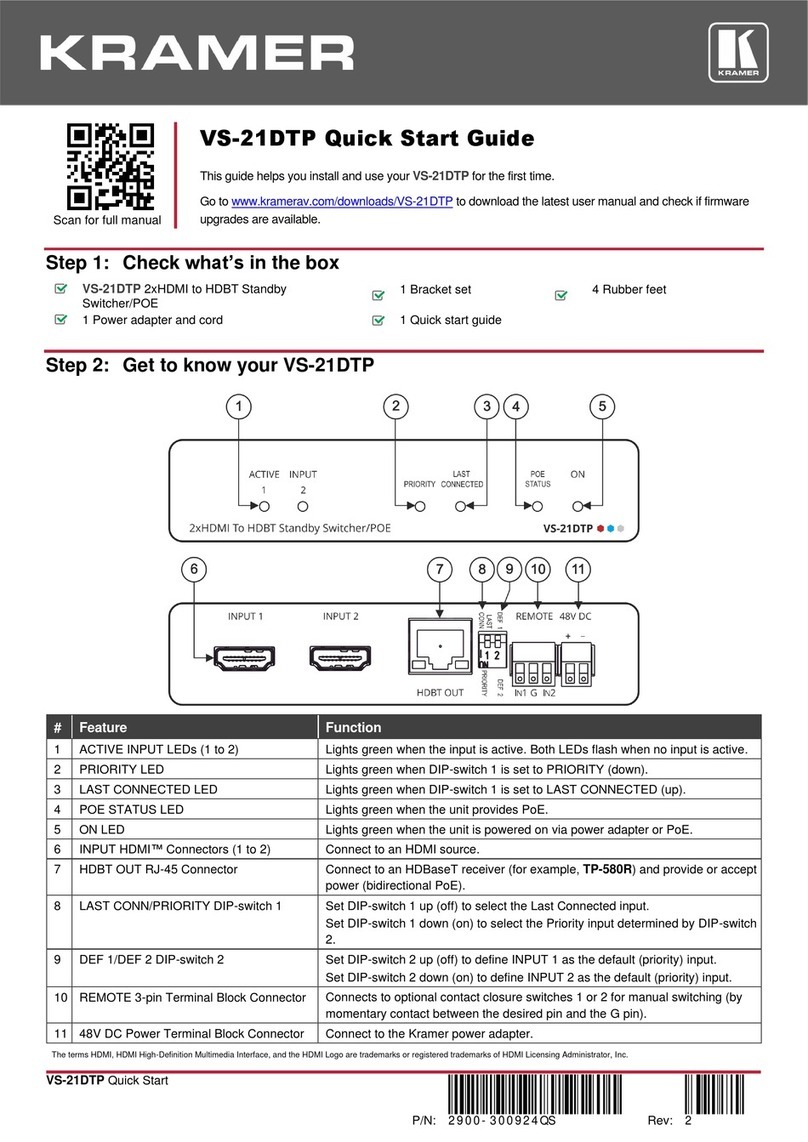
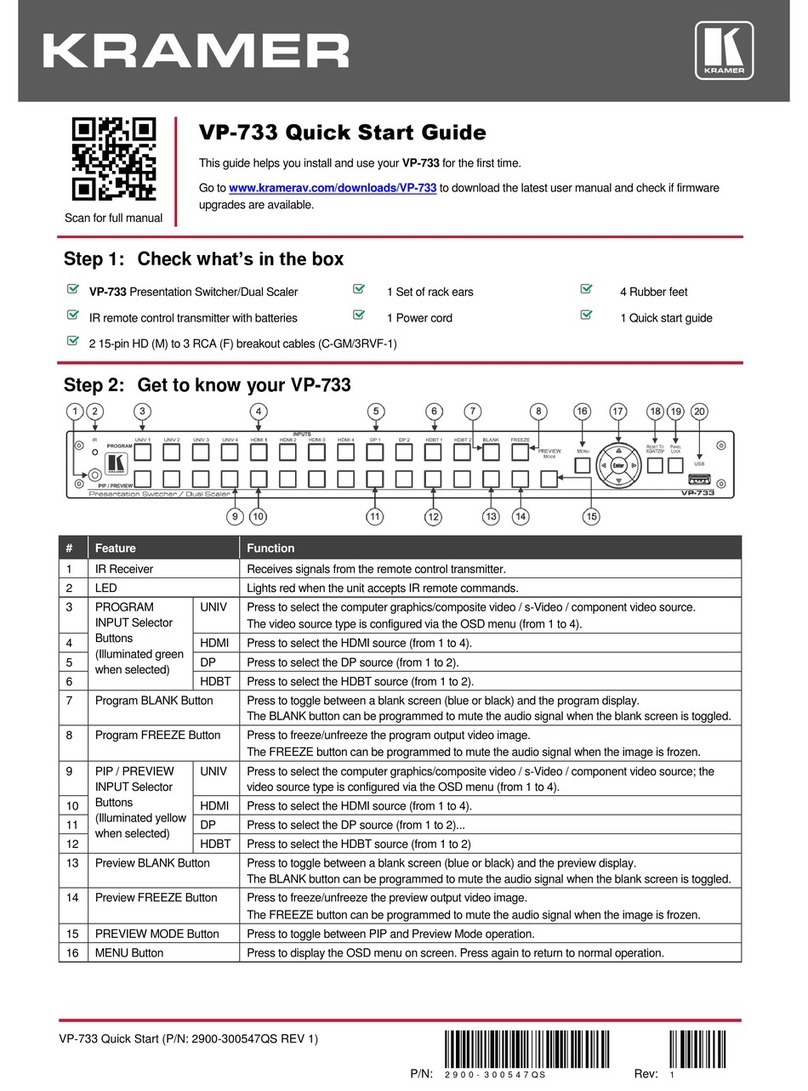
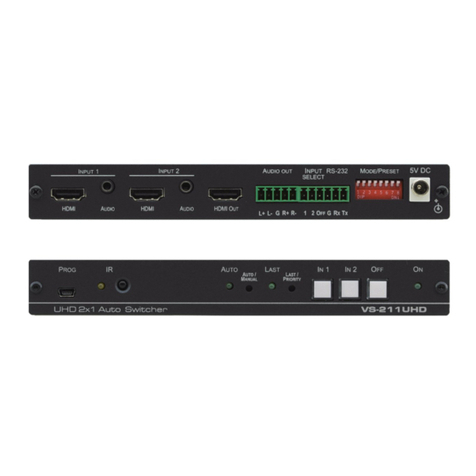
CONTROL (G, Rx, Tx)Terminal
Block Connectors
Connect to the PC or to a serial remote controller to control DIP-22.
DATA (G, Rx, Tx)Terminal Block
Connectors
Connect to a serial data source (for example, a room controller) or to an acceptor for
tunneling control commands via HDBaseT.
Remote 5-pin Terminal Block
Connector
Connect to contact closure switches (by momentary contact between the desired pin
and G pin).
INPUT –Short press—toggles between the PC, DP++ and HDMI inputs; Long press—
adjusts the VGA phase shift.
STEP-IN –activate the STEP-IN function.
VOL UP, VOL DOWN –Short press—increases/decreases the volume by one step;
Long press—Increases/decreases the volume from 0% to 100%/100% to 10% in 10
seconds.
Short press –Power cycle (reboot) the device.
Long press –Reset IP settings to factory default values.
Connect to a PC to perform firmware upgrade.
Connect to an HDBaseT receiver (for example, TP-780Rxr, TP-588D or TP-580Rxr)
and provide or accept power (bidirectional PoE).
Lights green when there is a valid HDBT link.
48V DC Power Terminal Block
Connector
Connect to the Kramer power adapter.
Step 3: Install the DIP-22
Install DIP-22 using one of the following methods:
Attach the rubber feet and place the unit on a flat surface.
Fasten a bracket (included) on each side of the unit and attach it to a flat surface.
For more information go to www.kramerav.com/downloads/DIP-22.
Mount the unit in a rack using an optional RK-T2B rack adapter.
Step 4: Connect the inputs and outputs
Always switch OFF the power on each device before connecting it to your DIP-22. For best results, we recommend that you always
use Kramer high-performance cables to connect AV equipment to DIP-22.