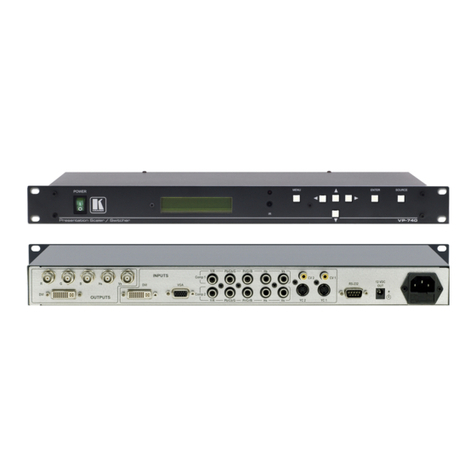
5
REMOTE Terminal Block Connectors Connect to a contact closure switch (see Section 5.3
6
)
5V DC +5V DC connector for powering the unit
7 REMOTE IR Receiver Window Receives signals from the infrared remote control transmitter
LED (yellow)The yellow LED lights when receiving signals from the
infrared remote control transmitter
8 ON LED (Green) Lights when receiving power
9 IN 1 LED (Green)Lights when input 1 is selected
10 IN 2 LED (Green) Lights when input 2 is selected
11 OUT LED (Green) Lights when the output is connected
12 SELECT Switch Press to toggle between selecting input 1 and input 2
5 Connecting a VS-21HDCP-IR 2x1 DVI Switcher
To connect the VS-21HDCP-IR 2x1 DVI Switcher, as illustrated in the
example in Figure 2, do the following2
1. Connect up to two DVI sources to the INPUT connectors, as follows:
:
INPUT 1 connector to DVI source 1 (for example, a computer)
INPUT 2 connector to DVI source 2 (for example, a set top box)
2. Connect the OUTPUT connector to the DVI acceptor (for example, a
DVI display).
3. Connect the 5V DC power adapter to the power socket and connect the
adapter to the mains electricity (not illustrated in Figure 2).
4. If required, connect a PC or controller to the RS-232 port (see Section
5.1
5. Press the SELECT button
).
3
1 No Null-modem adapter/Connector is required
to choose which DVI input to route to the
output.
The SELECT button toggles between INPUT 1 and INPUT 2, lighting
the IN 1 LED when INPUT 1 is selected, or the IN 2 LED when IN 2 is
selected.
2 Switch OFF the power on each device before connecting it to your VS-21HDCP-IR. After connecting your
VS-21HDCP-IR, switch on its power and then switch on the power on each device
3 Alternatively you can press key 1 or 2 on the remote transmitter, once setup (see Section 5.2), or use the contact closure
remote control pins (see Section 5.3) or use RS-232