Operating your Video Recorder
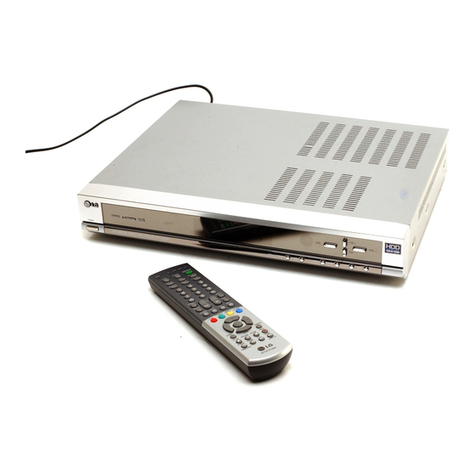
The main functions of your Video Recorder can be operated using either the Remote Control or front control panel on the Video
Recorder. Before starting, you should ensure that your television and your Video Recorder have been plugged in and switched
on and that the video channel on your television is selected.
7
Playing a video tape
Press PLAY B. The television screen
will display PLAY and SP or LP
depending on whether the
recorded tape is Standard Play or
Long Play.
Auto tracking
Your Video Recorder will automatically
adjust the tracking to give you the
best picture quality. A.TRACKING will
be displayed on screen while this
function is in operation.
If the quality of the recording is poor,
repeatedly press TRK + or - on the
remote control to manually adjust the
tracking until any distortions have
been removed. Press numbered 0
on the remote control to switch
automatic tracking back on again.
Stopping play
Simply press STOP 9to halt video
play. The Video Recorder will revert
to television mode.
Picture Search
While a video cassette is playing you
can search the tape forward and
backward to look for a specific
position on the tape.
Press REW 5or FF 6 to make
the tape play rapidly forwards or
backwards. The picture will be
shown at seven times normal play
speed.
Fast Forward/ Rewind
To fast forward or rewind at
maximum speed, the tape must not
be in play mode. Press STOP 9then
press either 5for rewind or 6for
fast forward. Whilst you are rewinding
or fast forwarding you can view the
section you are passing. Press and
hold (for a few seconds) either REW
5or FF 6. Releasing the FF 6
button or REW 5button will return
the Video Recorder to normal rewind
or fast forward operation.
Slow Motion Playback,
Shuttle
Using the 1 or 2buttons it is
possible to adjust playback speed
during playing back or still picture.
Below is a list of what speeds are
accessible and how to reach them.
1onec = slow play
1twice = still
1three times = play backwards
1four times = Reverse play 3x speed
1five times = Reverse play 7x speed
2once = 2x forward play
2twice = 7x forward play
To switch off the slow motion and
shuttle, press the desired function.
During slow motion and shuttle, the
noise bars may appear on the
picture according to the status of
tape. If distortions can be seen in the
picture, reduce them with TRK + or -.
Pausing a tape
Pressing P/STILL ;will pause play,
giving you a still picture on the
screen. This picture may display
some interference in the form of
black and white horizontal lines. This
is perfectly normal and does not
mean that the video tape or Video
Recorder are damaged.
The tape can be paused for up to
five minutes. The Video Recorder will
then automatically stop playing in
order to avoid damaging the tape or
your Video Recorder.
Frame Advance
1Pressing P/STILL ;repeatedly will
advance the picture frame by
frame.
2You can use the 3 or 4buttons
to reduce any vertical movement
seen on the still picture.
3Press PLAY Bto continue play
from pause.
Removing the Video
tape
Press EJECT /to remove the video
cassette from your Video Recorder.
If the end of the tape is reached,
your Video Recorder will
automatically stop, rewind, eject the
tape and place itself into Standby
mode.