manuals.online logo
Brands
  1. Home
  2. •
  3. Brands
  4. •
  5. LG
  6. •
  7. Telephone
  8. •
  9. LG GB250F User manual

LG GB250F User manual

Other manuals for GB250F

1

Other LG Telephone manuals

LG LSP-400 User manual

LG

LG LSP-400 User manual

LG LDP-7000 BTU User manual

LG

LG LDP-7000 BTU User manual

LG Aria-34e User manual

LG

LG Aria-34e User manual

LG GS290 User manual

LG

LG GS290 User manual

LG Stylo H364 User manual

LG

LG Stylo H364 User manual

LG P880 User manual

LG

LG P880 User manual

LG G STYLO User manual

LG

LG G STYLO User manual

LG GX300 User manual

LG

LG GX300 User manual

LG LG-RD2750 User manual

LG

LG LG-RD2750 User manual

LG KP175 User manual

LG

LG KP175 User manual

LG GC900 User manual

LG

LG GC900 User manual

LG GM310 User manual

LG

LG GM310 User manual

LG Hymax User manual

LG

LG Hymax User manual

LG LSP-350 User manual

LG

LG LSP-350 User manual

LG C300 User manual

LG

LG C300 User manual

LG KG288 User manual

LG

LG KG288 User manual

LG Verizon G4 User manual

LG

LG Verizon G4 User manual

LG LDK-20 User manual

LG

LG LDK-20 User manual

LG X155 User manual

LG

LG X155 User manual

LG T5100 User manual

LG

LG T5100 User manual

LG LSP-345 User manual

LG

LG LSP-345 User manual

LG Vodafone KU990i User manual

LG

LG Vodafone KU990i User manual

LG E900 User manual

LG

LG E900 User manual

LG S5000 User manual

LG

LG S5000 User manual

Popular Telephone manuals by other brands

Philips BaseLine Pro manual

Philips

Philips BaseLine Pro manual

V-tech i6772 user guide

V-tech

V-tech i6772 user guide

BT FREELANCE XD 5100 quick start guide

BT

BT FREELANCE XD 5100 quick start guide

Uniden 1360 user guide

Uniden

Uniden 1360 user guide

Fanvil D800 user manual

Fanvil

Fanvil D800 user manual

Avaya IP500 user guide

Avaya

Avaya IP500 user guide

NEC Univerge SV9100 installation manual

NEC

NEC Univerge SV9100 installation manual

Amanda MiniSOHO Installation and programming manual

Amanda

Amanda MiniSOHO Installation and programming manual

Hitachi SelecSet 900 Series user guide

Hitachi

Hitachi SelecSet 900 Series user guide

mPTech HAMMER BS21 quick start guide

mPTech

mPTech HAMMER BS21 quick start guide

NEC 2000IVX user guide

NEC

NEC 2000IVX user guide

ooma Phone Genie quick start guide

ooma

ooma Phone Genie quick start guide

Siemens Gigaset S450 user guide

Siemens

Siemens Gigaset S450 user guide

Clarity RC100 operating instructions

Clarity

Clarity RC100 operating instructions

GE 2-9480 user guide

GE

GE 2-9480 user guide

Geemarc PHOTOPHONE 155 user guide

Geemarc

Geemarc PHOTOPHONE 155 user guide

Interquartz Gemini IQ333 operating instructions

Interquartz

Interquartz Gemini IQ333 operating instructions

SSS Siedle HT 840-0 operating instructions

SSS Siedle

SSS Siedle HT 840-0 operating instructions

manuals.online logo
manuals.online logoBrands
  • About & Mission
  • Contact us
  • Privacy Policy
  • Terms and Conditions

Copyright 2025 Manuals.Online. All Rights Reserved.

GB250f User Guide
Some of the contents in this manual
may differ from your phone depending
on the software of the phone
or your service provider.
ENGLISH
Part 15.21 statement
" Change or Modifications that are not expressly approved by the manufacturer could void
the user's authority to operate the equipment. “
Part 15.105 statement
This equipment has been tested and found to comply with the limits for a class B digital
device, pursuant to Part 15 of the FCC Rules.
These limits are designed to provide reasonable protection against harmful interference in
a residential installation. This equipment generates uses and can radiate radio frequency
energy and, if not installed and used in accordance with the instructions, may cause harmful
interference to radio communications. However, there is no guarantee that interference will
not occur in a particular installation. if this equipment does cause harmful interference or
television reception, which can be determined by turning the equipment off and on, the user
is encouraged to try to correct the interference by one or more of the following measures:
- Reorient or relocate the receiving antenna.
- Increase the separation between the equipment and receiver.
- Connect the equipment into an outlet on a circuit different from that to
which the receiver is connected.
- Consult the dealer or an experienced radio/TV technician for help.
Part 15 Class B Compliance
This device and its accessories comply with part15 of FCC rules.
Operation is subject to the following two conditions:
(1) This device & its accessories may not cause harmful interference.
(2) This device & its accessories must accept any interference received,
including interference that may cause undesired operation.
Body-worn Operation
This device has been tested for typical body-worn operations
with the distance of 0.79inches (2.0cm) from the user’s body.
To comply with FCC RF exposure requirements, a minimum separation distance
of 0.79inches(2.0cm) must be maintained from the user's body.
Additionally, Belt clips, holsters & other body-worn accessories may not contain
metallic components.
LG GB250f | User Guide
14
YOUR HOME SCREEN
Your Home screen
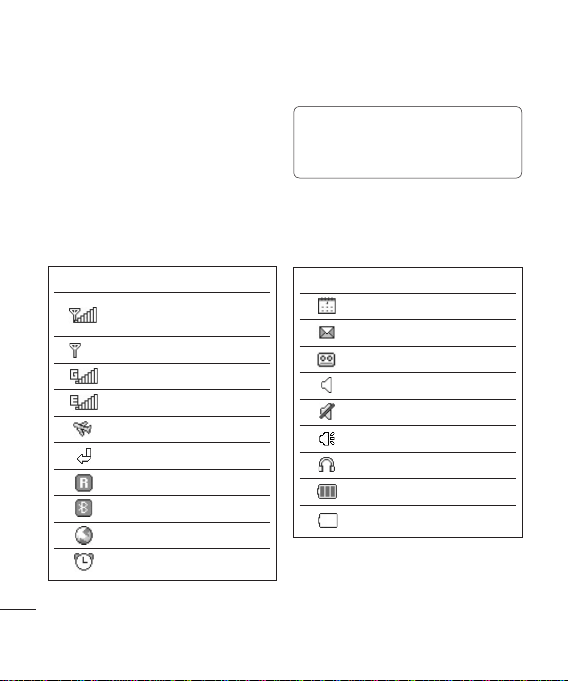
The status bar
The status bar uses various icons to indicate
things like signal strength, new messages
and battery life, as well as telling you whether
your Bluetooth connection is active.
The table below explains the meaning of
icons you’re likely to see in the status bar.
Icon Description
Network signal strength
(number of bars will vary)
No network signal
GPRS available
EDGE available
Flight mode is activated
Calls are diverted
Roaming service
Bluetooth®is activated
WAP service is connected
An alarm is set
Icon Description
Schedule
New message
New voice message
Normal profile in use
Silent profile in use
Outdoor profile in use
Headset profile in use
Remaining battery life
Battery empty
TIP! You can quickly access chosen menus
using your Favourites list. In standby mode
press the left soft key. Select <Empty>, and then
Add to add a menu as a favourite.
15
01
02
03
04
05
06
07
08
THE BASICS
Calls
Making a call
1Make sure your phone is on.
2
Y
ou can use the keypad after opening the
slide. To delete a digit press
or theor the
back arrow.
3Press
to begin the call.to begin the call.
4To end the call, press
or slide theor slide the
cover closed.
TIP! To enter + when making an international
call, press and hold 0.
Making a call from your contacts
1Select Contacts in the menu and then
Contacts list.
2Using the keypad, enter the first letter of
the contact you want to call and scroll to
the contact.
3Press
to begin the call.to begin the call.
Answering and rejecting a call
When your phone rings, press Accept or
press
to answer the call.to answer the call.
While your phone is ringing you can press
Silent to mute the ringing. This is useful if
you have forgotten to change your profile to
Silent for a meeting.
Press
or selector select Reject in order to reject
an incoming call.
Speed dialling
You can assign a speed dial number to a
contact you call frequently.
1Press
to open the main menu. Select
Contacts, then select Speed dials.
2Your voicemail is preset to speed dial
1 and you cannot change this. Select
any other number either by using the
navigation keys and selecting Add or by
pressing the hard key number.
3Your address book will open. Select the
contact you’d like to assign to that number
using the navigation keys then select OK.
To call a speed dial number, press and
hold the assigned number until the contact
appears on screen. The call will begin
automatically and there is no need to press
.
LG GB250f | User Guide
16
THE BASICS
Calls
Viewing your call logs
Press
and select Contacts. Choose
Calls.
All calls - View a complete list of all your
dialled, received and missed calls.
Dialled calls - View a list of all the numbers
you have called.
Received calls - View a list of all the
numbers that have called you.
Missed calls - View a list of any calls you
have missed.
TIP! From any call log select Options and then
Delete to delete selected items.
TIP! Use the navigation keys to highlight any
single call entry in order to to view the date
and time of the call. To view the call duration
select View.
Using call divert
1Press
, select Settings and choose
Call settings.
2Select Call divert.
3Choose whether to divert all calls, when
the line is busy, when there is no reply,
when you are out of reach, or deactivate
all.
4Choose Activate and select whether to
divert to voice mail, or to other number.
5Enter your divert number or select Search
to browse Contacts for your divert
number.
Note: Charges are incurred for diverting
calls. Please contact your network provider
for details.
TIP! To turn off all call diverts, choose
Deactivate all from the Call divert menu.
Using call barring
1Press
, select Settings and choose
Call settings.
2Select Call barring.
3Choose any or all of the six options:
All outgoing
Outgoing international
Outgoing international calls except
All incoming
Incoming when abroad
Deactivate all
4 Select Activate and enter the call barring
password. Please check with your network
operator for this service.
17
01
02
03
04
05
06
07
08
THE BASICS
TIP! Select Fixed dial numbers from the Call
settings menu to turn on and compile a list of
numbers which can be called from your phone.
You’ll need your PIN2 code from your operator.
When activated, only numbers included in the
fixed dial list can be called from your phone.
Changing the call settings
1Press
, select Settings and choose
Call settings.
2From here you can amend the settings for:
Call durations - View details of how long
you have spent on your calls both received
and dialled.
Call barring - Select which calls you
would like to be barred.
Fixed dial number - Choose a list of
numbers that can be called from your
phone.
Data volume - View the amount of all
your received and sent data for Web, Data
or All, measured in kilobytes.
Call costs - View the charges applied to
your Last call or All calls. This service is
network dependent, some operators are
unable to support this.
Call divert - Choose whether to divert
your calls.
Call waiting - Be alerted when you have
a call waiting.
Voicemail - You can add or modify a
voicemail centre.
Common settings
Call reject - You can set whether to rejectYou can set whether to reject
incoming calls.
Send my number
Set by network - Configures with the
default settings determined by the service
provider.
On -Your number will be sent when
making an outgoing call.
Off - Your number will be withheld when
making an outgoing call.
Auto redial - Allows you to set the autoAllows you to set the auto
redial function when a call attempt has failed.
Answer mode - Allows you to set theAllows you to set the
answering method.You can choose between
Press send key, Slide up and Press any key.
Minute minder - Determines whether toDetermines whether to
sound a tone every 1 minute when you are
on the phone.
LG GB250f | User Guide
18
THE BASICS
BT answer mode
Hands-free - You can answer a call using
a Bluetooth headset.
Handset - Press O on the handset to
answer a call when using a Bluetooth
headset.
Save new number - Selecting this optionSelecting this option
will save numbers that are not already in your
contacts upon ending the call.
Slide close setting - Set whether or not aSet whether or not a
call is ended upon closing the slide.
Calls
19
01
02
03
04
05
06
07
08
THE BASICS
Contacts
Searching for a contact
1Select Contacts from the main menu, and
choose Contacts list.
2Using the keypad enter the first letter of
the name of the contact you want to call.
3
To scroll through the contacts and their
different numbers use the navigation keys.
Adding a new contact
1Select Contacts and choose Add new.
2Choose whether to store your new contact
on your Handset or USIM card.
3Enter the information you want in the fields
provided and select Done.
Or to use a slightly quicker method…
1Enter the number you wish to store and
press Options.
2Choose Save number, and choose either
New contact or Update contact.
3Enter the relevant information and select
Done.
Contact options
There are many things you can do when
viewing a contact. Here’s how to access and
use the Options menu:
1Select Contacts from the main menu, and
choose Contacts list.
2Select Options to open the list of options.
From here you can:
Send message - Send a message to
the contact. If the contact has an email
address, select whether you’d like to send
a Message or Email.
Send business card - Send the contact’s
details to another person as a business
card. Choose to send as a Text message,
Multimedia message,via Email or
Bluetooth.
Make voice call- Directly make voice call
to a contact you choose.
Add new contact - Add a new contact.
Edit - To Change any of the contact’s
details.
Add to group - Move a contact to a group
Mark/Unmark - Mark a caontact or all
Search by - Search a contact by Number
or Group
LG GB250f | User Guide
20
THE BASICS
Contacts
Save to USIM - Choose to move or copy
to the SIM card or phone (depending on
where you originally saved the contact).
Delete - Delete the contact. Select Yes
only if you are sure.
Text input-You can insert symbol a
contact, change writing method or
language and add a word to dictionary
Adding a contact to a group
You can save your contacts into groups. This
is useful for keeping your work colleagues
and family separate, for example. There are a
number of groups including Family,Friends,
Colleagues,VIP and School already set up
on your phone.
1Select Contacts and choose Groups.
2Scroll to the group you wish to add a
contact to and select Open then select
Add.
3Your contacts list will open. Scroll to any
contacts you would like to add to the group
and press , then select Done.
4Select Yes if you are sure.
TIP! You can assign a ringtone to a group.
Select the group you wish to assign the ringtone
to, select Options and choose the item you
want.
Renaming a group
You can rename any of the groups to fit your
lifestyle.
1Select Contacts and choose Groups.
2Select the group you want to rename.
3Choose Options, select Rename and
enter your new group name.
4Select Done.
Note: You can only assign a contact to a
group or add a picture to a contact that is
saved in your phone (not SIM) memory.
Adding a picture to a contact
You can change the appearance of your
contacts in your address book to include a
picture.
1Select Contacts and choose Contact
settings.
2Select Contact list settings and choose
Show picture and select On.
3Then return to the address book and select
the contact you want to add a picture to.
4Choose Options and select Edit.