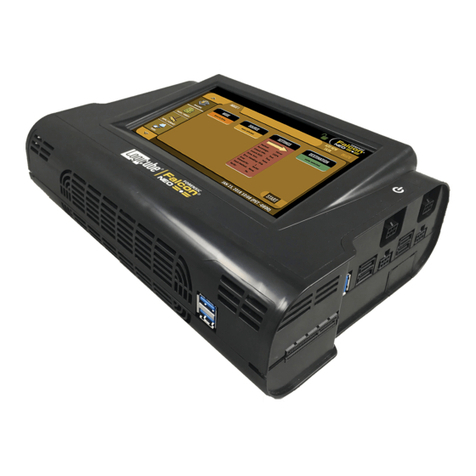
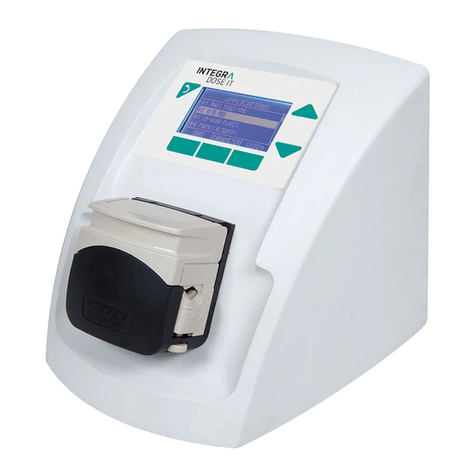
Logicube TALON ULTIMATE User manual

Logicube Talon®Ultimate User’s Manual I
Talon®Ultimate User’s Manual
Logicube, Inc.
Chatsworth, CA 91311
USA
Phone: 818 700 8488
Fax: 818 700 8466
Version: 2.0
Date: 04/18/2018
MAN-TALON_ULTIMATE

Logicube Talon®Ultimate User’s Manual I
Limitation of Liability and Warranty Information
Logicube Disclaimer
LOGICUBE IS NOT LIABLE FOR ANY INCIDENTAL OR CONSEQUENTIAL DAMAGES, INCLUDING,
BUT NOT LIMITED TO PROPERTY DAMAGE, LOSS OF TIME OR DATA FROM USE OF A LOGICUBE
PRODUCT, OR ANY OTHER DAMAGES RESULTING FROM PRODUCT MALFUNCTION OR FAILURE
OF (INCLUDING WITHOUT LIMITATION, THOSE RESULTING FROM: (1) RELIANCE ON THE
MATERIALS PRESENTED, (2) COSTS OF REPLACEMENT GOODS, (3) LOSS OF USE, DATA OR
PROFITS, (4) DELAYS OR BUSINESS INTERRUPTIONS, (5) AND ANY THEORY OF LIABILITY, ARISING
OUT OF OR IN CONNECTION WITH THE USE OR PERFORMANCE (OR FROM DELAYS IN
SERVICING OR INABILITY TO RENDER SERVICE ON ANY) LOGICUBE PRODUCT.
LOGICUBE MAKES EVERY EFFORT TO ENSURE PROPER OPERATION OF ALL PRODUCTS.
HOWEVER, THE CUSTOMER IS RESPONSIBLE TO VERIFY THAT THE OUTPUT OF LOGICUBE
PRODUCT MEETS THE CUSTOMER’S QUALITY REQUIREMENT. THE CUSTOMER FURTHER
ACKNOWLEDGES THAT IMPROPER OPERATION OF LOGICUBE PRODUCT AND/OR SOFTWARE,
OR HARDWARE PROBLEMS, CAN CAUSE LOSS OF DATA, DEFECTIVE FORMATTING, OR DATA
LOADING. LOGICUBE WILL MAKE EFFORTS TO SOLVE OR REPAIR ANY PROBLEMS IDENTIFIED BY
CUSTOMER, EITHER UNDER WARRANTY OR ON A TIME AND MATERIALS BASIS.
Warranty
DISCLAIMER
IMPORTANT - PLEASE READ THE TERMS OF THIS AGREEMENT CAREFULLY. BY INSTALLING OR
USING LOGICUBE PRODUCTS, YOU AGREE TO BE BOUND BY THIS AGREEMENT.
IN NO EVENT WILL LOGICUBE BE LIABLE (WHETHER UNDER THIS AGREEMENT, RESULTING FROM
THE PERFORMANCE OR USE OF LOGICUBE PRODUCTS, OR OTHERWISE) FOR ANY AMOUNTS
REPRESENTING LOSS OF PROFITS, LOSS OR INACCURACY OF DATA, LOSS OR DELAYS OF
BUSINESS, LOSS OF TIME, COSTS OF PROCUREMENT OF SUBSTITUTE GOODS, SERVICES, OR
TECHNOLOGY, PROPERTY DAMAGE, OR INDIRECT, CONSEQUENTIAL, OR PUNITIVE DAMAGES OF
A PURCHASER OR USER OF LOGICUBE PRODUCTS OR ANY THIRD PARTY. LOGICUBE’S
AGGREGATE LIABILITY IN CONTRACT, TORT, OR OTHERWISE (WHETHER UNDER THIS
AGREEMENT, RESULTING FROM THE PERFORMANCE OR USE OF LOGICUBE PRODUCTS, OR
OTHERWISE) TO A PURCHASER OR USER OF LOGICUBE PRODUCTS SHALL BE LIMITED TO THE
AMOUNT PAID BY THE PURCHASER FOR THE LOGICUBE PRODUCT. THIS LIMITATION OF
LIABILITY WILL BE EFFECTIVE EVEN IF LOGICUBE HAS BEEN ADVISED OF THE POSSIBILITY OF ANY
SUCH DAMAGES.
LOGICUBE MAKES EVERY EFFORT TO ENSURE PROPER OPERATION OF ITS PRODUCTS.
HOWEVER, THE PURCHASER IS RESPONSIBLE FOR VERIFYING THAT THE OUTPUT OF A LOGICUBE

Logicube Talon®Ultimate User’s Manual II
PRODUCT MEETS THE PURCHASER’S REQUIREMENTS. THE PURCHASER FURTHER
ACKNOWLEDGES THAT IMPROPER OPERATION OF LOGICUBE PRODUCTS CAN CAUSE LOSS OF
DATA, DEFECTIVE FORMATTING, OR DEFECTIVE DATA LOADING. LOGICUBE WILL MAKE EFFORTS
TO SOLVE OR REPAIR ANY PROBLEMS IDENTIFIED BY PURCHASER, EITHER UNDER THE
WARRANTY SET FORTH BELOW OR ON A TIME AND MATERIALS BASIS.
LIMITED WARRANTY
FOR ONE YEAR FROM THE DATE OF SALE (THE “WARRANTY PERIOD”) LOGICUBE WARRANTS
THAT THE PRODUCT (EXCLUDING CABLES, ADAPTERS, AND OTHER “CONSUMABLE” ITEMS) IS
FREE FROM MANUFACTURING DEFECTS IN MATERIAL AND WORKMANSHIP. THIS LIMITED
WARRANTY COVERS DEFECTS ENCOUNTERED IN THE NORMAL USE OF THE PRODUCT DURING
THE WARRANTY PERIOD AND DOES NOT APPLY TO: PRODUCTS DAMAGED DUE TO PHYSICAL
ABUSE, MISHANDLING, ACCIDENT, NEGLIGENCE, OR FAILURE TO FOLLOW ALL OPERATING
INSTRUCTIONS CONTAINED IN THE OPERATING MANUAL; PRODUCTS WHICH ARE MODIFIED;
PRODUCTS WHICH ARE USED IN ANY MANNER OTHER THAN THE MANNER FOR WHICH THEY
WERE INTENDED, AS SET FORTH IN THE OPERATING MANUAL; PRODUCTS WHICH ARE
DAMAGED OR DEFECTS CAUSED BY THE USE OF UNAUTHORIZED PARTS OR BY UNAUTHORIZED
SERVICE; PRODUCTS DAMAGED DUE TO UNSUITABLE OPERATING OR PHYSICAL CONDITIONS
DIFFERING FROM THOSE RECOMMENDED IN THE OPERATING MANUAL OR PRODUCT
SPECIFICATIONS PROVIDED BY LOGICUBE; ANY PRODUCT WHICH HAS HAD ANY OF ITS SERIAL
NUMBERS ALTERED OR REMOVED; OR ANY PRODUCT DAMAGED DUE TO IMPROPER
PACKAGING OF THE WARRANTY RETURN TO LOGICUBE. AT LOGICUBE’S OPTION, ANY PRODUCT
PROVEN TO BE DEFECTIVE WITHIN THE WARRANTY PERIOD WILL EITHER BE REPAIRED OR
REPLACED USING NEW OR REFURBISHED COMPONENTS AT NO COST. THIS WARRANTY IS THE
SOLE AND EXCLUSIVE REMEDY FOR DEFECTIVE PRODUCTS. IF A PRODUCT IS HAS BECOME
OBSOLETE OR IS NO LONGER SUPPORTED BY LOGICUBE THE PRODUCT MAY BE REPLACED WITH
AN EQUIVALENT OR SUCCESSOR PRODUCT AT LOGICUBE’S DISCRETION. THIS WARRANTY
EXTENDS ONLY TO THE END PURCHASER OF LOGICUBE PRODUCTS. THIS WARRANTY DOES NOT
APPLY TO, AND IS NOT FOR THE BENEFIT OF, RESELLERS OR DISTRIBUTORS OF LOGICUBE
PRODUCTS. UNLESS OTHERWISE AGREED IN WRITING BY LOGICUBE, NO WARRANTY IS
PROVIDED TO RESELLERS OR DISTRIBUTORS OF LOGICUBE PRODUCTS.
IN ORDER TO RECEIVE WARRANTY SERVICES CONTACT LOGICUBE’S TECHNICAL SUPPORT
DEPARTMENT VIA PHONE OR E-MAIL. PRODUCTS RETURNED TO LOGICUBE FOR REPAIR UNDER
WARRANTY MUST REFERENCE A LOGICUBE RETURN MATERIAL AUTHORIZATION NUMBER
(“RMA”). ANY PRODUCT RECEIVED BY LOGICUBE WITHOUT AN RMA# WILL BE REFUSED AND
RETURNED TO PURCHASER. THE PURCHASER MUST CONTACT LOGICUBE’S TECHNICAL SUPPORT
DEPARTMENT VIA E-MAIL (SUPPORT@LOGICUBE.COM) OR VIA PHONE AT +1-818-700-8488
OPT. 3 TO OBTAIN A VALID RMA#. THE PURCHASER MAY BE REQUIRED TO PERFORM CERTAIN
DIAGNOSTIC TESTS ON A PRODUCT PRIOR TO LOGICUBE ISSUING AN RMA#. THE PURCHASER
MUST PROVIDE THE PRODUCT MODEL, SERIAL NUMBER, PURCHASER NAME AND ADDRESS,
EMAIL ADDRESS AND A DESCRIPTION OF THE PROBLEM WITH AS MUCH DETAIL AS POSSIBLE.
AT LOGICUBE’S SOLE AND ABSOLUTE DISCRETION, REASONABLE TELEPHONE AND EMAIL
SUPPORT MAY ALSO BE AVAILABLE FOR THE LIFE OF THE PRODUCT AS DEFINED BY LOGICUBE.
EXCEPT AS OTHERWISE SPECIFICALLY PROVIDED IN THIS AGREEMENT, LOGICUBE PRODUCTS
ARE PROVIDED AS-IS AND AS-AVAILABLE, AND LOGICUBE DISCLAIMS ANY AND ALL OTHER
WARRANTIES (WHETHER EXPRESS, IMPLIED, OR STATUTORY) INCLUDING, WITHOUT

Logicube Talon®Ultimate User’s Manual III
LIMITATION, ANY WARRANTIES OF MERCHANTABILITY, FITNESS FOR A PARTICULAR PURPOSE,
OR NONINFRINGEMENT OF THIRD PARTY RIGHTS.
SOME JURISDICTIONS DO NOT ALLOW THE EXCLUSION OR LIMITATION OF INCIDENTAL OR
CONSEQUENTIAL DAMAGES, OR LIMITATIONS ON HOW LONG AN IMPLIED WARRANTY LASTS,
SO THE ABOVE LIMITATIONS OR EXCLUSIONS MAY NOT APPLY TO YOU. THIS WARRANTY GIVES
YOU SPECIFIC LEGAL RIGHTS, AND YOU MAY HAVE OTHER RIGHTS WHICH VARY FROM
JURISDICTION TO JURISDICTION.
RoHS Certificate of Compliance
LOGICUBE PRODUCTS COMPLY WITH THE EUROPEAN UNION RESTRICTION OF THE USE OF
CERTAIN HAZARDOUS SUBSTANCES IN ELECTRONIC EQUIPMENT, ROHS DIRECTIVE
(2002/95/EC).
THE ROHS DIRECTIVE PROHIBITS THE SALE OF CERTAIN ELECTRONIC EQUIPMENT CONTAINING
SOME HAZARDOUS SUBSTANCES SUCH AS MERCURY, LEAD, CADMIUM, HEXAVALENT
CHROMIUM AND CERTAIN FLAME-RETARDANTS IN THE EUROPEAN UNION. THIS DIRECTIVE
APPLIES TO ELECTRONIC PRODUCTS PLACED ON THE EU MARKET AFTER JULY 1, 2006.
Logicube Technical Support Contact Information
•By website: www.logicube.com
•By email: techsupport@logicube.com
•By telephone: 1 - (818) 700 8488 ext. 3 between the hours of 8am –5pm PST, Monday
through Friday, excluding U.S. legal holidays.

Logicube Talon®Ultimate User’s Manual I
Table of Contents
TALON®ULTIMATE USER’S MANUAL .................................................................... I
LIMITATION OF LIABILITY AND WARRANTY INFORMATION............................................. I
LOGICUBE DISCLAIMER ................................................................................................................... I
WARRANTY.................................................................................................................................. I
ROHS CERTIFICATE OF COMPLIANCE ............................................................................................... III
LOGICUBE TECHNICAL SUPPORT CONTACT INFORMATION .................................................................... III
TABLE OF CONTENTS ........................................................................................................ I
1: INTRODUCTION.......................................................................................................... 1
1.0 INTRODUCTION TO THE LOGICUBE TALON ULTIMATE..................................................................... 1
1.1 FEATURES............................................................................................................................ 1
1.2 IN THE BOX .......................................................................................................................... 4
1.3 OPTIONS ............................................................................................................................. 4
1.4 SPECIFICATIONS .................................................................................................................... 5
2: GETTING STARTED...................................................................................................... 6
2.0 OVERVIEW OF THE TALON ULTIMATE......................................................................................... 6
2.1 TURNING THE TALON ULTIMATE ON AND OFF .............................................................................. 9
2.2 CONNECTING VARIOUS DRIVE TYPES........................................................................................... 9
2.2.1 Connecting Source Drives .......................................................................................... 9
2.2.2 Connecting Destination Drives................................................................................. 11
2.2.3 Using USB/FireWire/eSATA drives or enclosures...................................................... 12
2.2.4 Connecting PCIe/mPCIe/M.2 drives ......................................................................... 12
2.2.5 Connecting an external Optical Drive (CD/DVD/Blu-ray) .......................................... 12
2.3 THE USER INTERFACE............................................................................................................ 13
2.4 FRONT AND REAR PORTS ....................................................................................................... 13
2.4.1 Front ports .............................................................................................................. 13
2.4.1.1 USB 2.0 host ports ............................................................................................ 14
2.4.1.2 Micro-B USB 3.0 device port ............................................................................. 14
2.4.2 Rear ports................................................................................................................ 14
2.4.2.1 DC IN power port.............................................................................................. 14
2.4.2.2 Gigabit Ethernet port........................................................................................ 14
2.4.2.3 HDMI................................................................................................................ 14
2.5 TOUCH SCREEN ................................................................................................................... 15
3: QUICK START............................................................................................................ 16
3.0 QUICK START GUIDE ............................................................................................................ 16
3.1 IMAGING........................................................................................................................... 16
3.1.1 Step-by-step instructions –Imaging......................................................................... 17
3.1.1.1 Blank Disk Check............................................................................................... 19

Logicube Talon®Ultimate User’s Manual II
3.1.1.2 Drive Spanning ................................................................................................. 20
3.2 HASH /VERIFY.................................................................................................................... 21
3.2.1 Step-by-step instructions –Drive Hash or Case Verify .............................................. 22
3.3 WIPE/FORMAT................................................................................................................... 22
3.3.1 Step-by-step instructions –Wipe/Format ................................................................ 23
3.4 PUSH................................................................................................................................ 25
3.4.1 Step-by-step instructions - Push .............................................................................. 25
3.5 USB DEVICE (VIEWING DRIVE CONTENTS FROM A COMPUTER)...................................................... 26
3.5.1 Step-by-step instructions –USB Device.................................................................... 26
3.6 FILE BROWSER.................................................................................................................... 27
3.6.1 Step-by-step instructions –File Browser .................................................................. 27
3.7 LOGS ................................................................................................................................ 28
3.7.1 Step-by-step instructions –Viewing or exporting logs.............................................. 28
3.7.2 Deleting log files...................................................................................................... 29
3.7.3 Accessing the logs over a network ........................................................................... 29
3.8 STATISTICS......................................................................................................................... 31
3.9 MANAGE REPOSITORIES........................................................................................................ 31
3.10 SYSTEM SETTINGS.............................................................................................................. 32
3.11 NETWORK SETTINGS .......................................................................................................... 32
3.12 SOFTWARE UPDATES.......................................................................................................... 32
3.13 POWER OFF ..................................................................................................................... 33
4: IMAGING.................................................................................................................. 34
4.0 IMAGING -INTRODUCTION .................................................................................................... 34
4.1 MODE .............................................................................................................................. 34
4.2 SOURCE ............................................................................................................................ 35
4.3 SETTINGS........................................................................................................................... 35
4.3.1 Case Info ................................................................................................................. 36
4.3.2 HPA/DCO/TRIM....................................................................................................... 37
4.3.2.1 DRIVE TRIM ...................................................................................................... 37
4.3.3 Error Handling ......................................................................................................... 39
4.3.4 Hash/Verification Method ....................................................................................... 40
4.3.5 File Image Method Settings ..................................................................................... 41
4.3.6 Clone Method Settings ............................................................................................ 41
4.3.7 Special Settings in File to File mode ......................................................................... 42
4.3.7.1 Root Directory .................................................................................................. 42
4.3.7.2 Output Format ................................................................................................. 42
4.3.7.3 Filter Settings ................................................................................................... 42
4.3.7.3.1 Path Filter .............................................................................................................................42
4.3.7.3.2 Signature Based File Categories.............................................................................................44
4.3.7.3.3 Keywords..............................................................................................................................44
4.4 DESTINATION/IMAGE FILE..................................................................................................... 45
4.5 STARTING THE IMAGING OPERATION ....................................................................................... 46
5: TYPES OF OPERATIONS ............................................................................................ 47
5.0 TYPES OF OPERATIONS -INTRODUCTION .................................................................................. 47
5.1 IMAGING........................................................................................................................... 49
5.2 HASH /VERIFY.................................................................................................................... 50

Logicube Talon®Ultimate User’s Manual III
5.2.1 Mode ...................................................................................................................... 51
5.2.2 Drives ...................................................................................................................... 51
5.2.3 Settings ................................................................................................................... 51
5.2.3.1 Drive Hash Settings ............................................................................................ 51
5.2.3.1.1 Hash Method.........................................................................................................................52
5.2.3.1.2 Hash Values..........................................................................................................................52
5.2.3.1.3 LBA......................................................................................................................................53
5.2.3.2 Case Verify ....................................................................................................... 53
5.2.4 Case Info ................................................................................................................. 54
5.3 WIPE /FORMAT ................................................................................................................. 54
5.3.1 Destination.............................................................................................................. 55
5.3.2 Settings ................................................................................................................... 55
5.3.2.1 Secure Erase ..................................................................................................... 55
5.3.2.2 Wipe Patterns................................................................................................... 56
5.3.2.2.1 Mode ....................................................................................................................................56
5.3.2.2.2 HPA/DCO.............................................................................................................................57
5.3.2.2.3 LBA......................................................................................................................................57
5.3.2.2.4 PASSES................................................................................................................................57
5.3.2.3 Format ............................................................................................................. 58
5.3.3 Case Info ................................................................................................................. 59
5.4 PUSH................................................................................................................................ 59
5.4.1 Source ..................................................................................................................... 60
5.4.2 Settings ................................................................................................................... 61
5.4.3 Destination.............................................................................................................. 61
5.5 USB DEVICE....................................................................................................................... 61
5.5.1 Settings ................................................................................................................... 62
5.6 FILE BROWSER.................................................................................................................... 63
5.6.1 Viewing files from the web interface ....................................................................... 66
5.6.2 Important notes about using the File Browser ......................................................... 66
5.7 LOGS ................................................................................................................................ 67
5.8 STATISTICS......................................................................................................................... 68
5.8.1 About Screen........................................................................................................... 68
5.8.2 Adv. Drive Statistics ................................................................................................. 68
5.8.3 Options ................................................................................................................... 69
5.8.4 Network Interface Stats........................................................................................... 69
5.9 MANAGE REPOSITORIES........................................................................................................ 70
5.9.1 Add/Remove ........................................................................................................... 70
5.9.2 iSCSI ........................................................................................................................ 73
5.9.3 Configuration .......................................................................................................... 73
5.10 SYSTEM SETTINGS.............................................................................................................. 74
5.10.1 Profiles .................................................................................................................. 74
5.10.2 Passwords ............................................................................................................. 76
5.10.2.1 Setting Key Passwords .................................................................................... 76
5.10.2.1.1 Config Lock Notes ..............................................................................................................77
5.10.2.1.2 Forgotten password for any keys ..........................................................................................79
5.10.2.2 User Account Passwords................................................................................. 80
5.10.3 Encryption Settings................................................................................................ 81
5.10.4 Language/Time Zone ............................................................................................. 82
5.10.4.1 Language ....................................................................................................... 82

5.10.4.2 Time Zone....................................................................................................... 82

Logicube Talon®Ultimate User’s Manual IV
5.10.5 Display................................................................................................................... 83
5.10.6 Notifications.......................................................................................................... 84
5.11 NETWORK SETTINGS .......................................................................................................... 85
5.11.1 Interfaces .............................................................................................................. 85
5.11.1.1 Configuring a Static IP address........................................................................ 86
5.11.1.2 Enabling/Disabling Network Services .............................................................. 86
5.11.2 HTTP Proxy ............................................................................................................ 87
5.11.2.1 Server............................................................................................................. 88
5.11.2.2 Username/Password ...................................................................................... 88
5.12 SOFTWARE UPDATE ........................................................................................................... 89
5.13 POWER OFF ..................................................................................................................... 89
6: PREVIEWING DRIVES.................................................................................................. 90
6.0 PREVIEWING DRIVES -INTRODUCTION ..................................................................................... 90
6.1 FILE BROWSER.................................................................................................................... 91
6.2 COMPUTER +FILE BROWSER ................................................................................................. 91
6.3 USB................................................................................................................................. 92
6.4 SMB ................................................................................................................................ 92
6.5 ISCSI................................................................................................................................ 93
7: DRIVE ENCRYPTION AND DECRYPTION .................................................................... 94
7.0 DRIVE ENCRYPTION/DECRYPTION -INTRODUCTION .................................................................... 94
7.1 ENCRYPTING A DESTINATION ................................................................................................. 95
7.1.1 Step-by-step Instructions......................................................................................... 95
7.1.2 Using previously encrypted Destination drives......................................................... 95
7.2 DECRYPTING A TALON ULTIMATE ENCRYPTED DESTINATION DRIVE WITH A TALON ULTIMATE............... 96
7.2.1 Step-by-step Instructions......................................................................................... 96
7.3 DECRYPTING THE DRIVE WITHOUT A TALON ULTIMATE ................................................................ 97
7.3.1 Which decryption software to use? ......................................................................... 98
7.3.2 Decrypting using VeraCrypt ..................................................................................... 98
7.3.3 Decrypting using TrueCrypt ................................................................................... 100
7.3.4 Decrypting using FreeOTFE .................................................................................... 102
8: UPDATING/LOADING/RE-LOADING SOFTWARE..................................................... 107
8.0 UPDATING/LOADING/RE-LOADING SOFTWARE –INTRODUCTION ................................................ 107
8.1 UPDATING/LOADING/RE-LOADING SOFTWARE INSTRUCTIONS .................................................... 107
8.1.1 From Network (Over the Internet) ......................................................................... 107
8.1.2 From USB Drive (Through a software file download).............................................. 108
8.2 FIRMWARE LOADING INSTRUCTIONS...................................................................................... 109
9: REMOTE OPERATION ............................................................................................. 110
9.0 REMOTE OPERATION -INTRODUCTION................................................................................... 110
9.1 WEB INTERFACE................................................................................................................ 110
9.2 COMMAND LINE INTERFACE (CLI)......................................................................................... 111
9.2.1 Connecting via Telnet ............................................................................................ 111
9.2.2 Connecting via SSH ................................................................................................ 111
9.3 ZERO CONFIGURATION NETWORKING (ZEROCONF)................................................................... 112

Logicube Talon®Ultimate User’s Manual V
10: VIEWING SOURCE AND DESTINATION DRIVES OVER A NETWORK....................... 113
10.0 VIEWING DRIVES OVER A NETWORK –OVERVIEW ................................................................... 113
10.1 VIEWING SOURCE OR DESTINATION DRIVES OVER THE NETWORK USING SMB............................... 113
10.1.1 Step-by-step –Viewing Source or Destination drives ........................................... 113
10.2 VIEWING SOURCE DRIVES OVER THE NETWORK USING ISCSI...................................................... 115
10.2.1 Configuring the iSCSI initiator .............................................................................. 115
11: PRINTING LOG FILES ............................................................................................. 117
11.0PRINTING LOG FILES -INTRODUCTION.................................................................................. 117
11.1 PRINTING FROM THE WEB INTERFACE .................................................................................. 117
11.2 CONFIGURING A LOCAL OR NETWORKED PRINTER.................................................................... 117
11.2.1 Step-by-step –Configuring a local or networked printer ...................................... 117
12: VIEWING EXT4 FORMATTED DESTINATION DRIVES IN WINDOWS....................... 120
12.0 VIEWING EXT4 FORMATTED DESTINATION DRIVES -INTRODUCTION........................................... 120
12.0.1 Step-by-step instructions –Using Ext2fsd ............................................................ 120
13: USB BOOT CLIENT................................................................................................. 123
13.0 USB BOOT CLIENT INTRODUCTION...................................................................................... 123
13.1 REQUIREMENTS .............................................................................................................. 123
13.2 CREATING THE USB BOOT CLIENT....................................................................................... 123
13.3 USING THE USB BOOT CLIENT............................................................................................ 126
14: FREQUENTLY ASKED QUESTIONS ......................................................................... 128
14.0 FAQS........................................................................................................................... 128
15: INDEX ................................................................................................................... 130
TECHNICAL SUPPORT INFORMATION............................................................................................. 131
SOFTWARE ATTRIBUTION ........................................................................................................... 131

Logicube Talon®Ultimate User’s Manual 1
1: Introduction
1.0 Introduction to the Logicube Talon Ultimate
Designed for field or forensic lab use, the Talon® Ultimate delivers advanced, high-performance
forensic imaging at a budget-friendly price. Featuring a compact footprint, user-friendly
navigation and unbeatable imaging speed it has been engineered specifically for digital forensic
investigators, the Talon Ultimate meets all your forensic imaging, hashing and wiping
requirements.
1.1 Features
•The Talon® Ultimate is an extremely fast forensic imaging solution, achieving speeds
of over 40GB/min.
•Image and verify to multiple image formats; native copy, .dd image, .dmg image, e01
and ex01. The Talon Ultimate provides SHA1, SHA256, and dual hash (MD5+SHA1)
authentication at extremely fast speeds.

GETTING STARTED
Logicube Talon Ultimate™ User’s Manual 2
•Talon Ultimate formats destination drives to NTFS, EXT4, FAT 32 or exFAT file systems.
The unit supports imaging from source drives formatted to any major file system.
•Write-blocked source ports include 1 SATA (SAS optional), 1 USB 3.0, 1 FireWire, 1 PCIe.
SAS support is enabled via a software option, no additional modules required. 1
additional SATA (SAS optional) source port can be activated with the purchase of the
Multi-Task option.
•Destination ports include 2 SATA (SAS optional), 1 USB 3.0 and 1 FireWire. SAS support
is enabled via a software option, no additional modules required.
•PCIe Support. Support for imaging from M.2 PCIe (SATA, AHCI, and NVME types), PCIe
and mini-PCIe express cards, is available using the Talon Ultimate’s PCIe source port and
optional adapters.
•Networking Feature. Use the Talon Ultimate to image to a network location using CIFS
protocol and/or image from a network location using iSCSI. Users can use iSCSI as a source
or destination drive.
•Multi-Task option. This option adds 1 additional SATA source port (SAS optional) and
allows you to image simultaneously from multiple sources to multiple destinations
including a network repository. This option also provides support to image one drive
while hashing and/or wiping a second drive simultaneously. Users can perform up to 5
tasks concurrently.
•Concurrent Image+Verify. Imaging and verifying concurrently takes advantage of
destination hard drives that may be faster than the source hard drive. Duration of total
image process time may be reduced by up to half.
•Parallel Imaging. Perform multiple imaging tasks from the same source drive to multiple
destinations using different imaging formats. Clone to a network location or a destination
drive using mirror copy mode while simultaneously imaging in e01 or .dd format to a
different destination drive. Requires purchase of Multi-task option.
•Targeted Imaging/Logical Imaging feature allows you to create a logical image using
pre-set, custom filters, file signature filters and/or keyword search to capture only specific
files needed. An MFT report can be generated that contains a potential deleted file list.
Format output to LX01, ZIP or directory tree. Users can browse and view directly on the
Talon Ultimate display or manage and view on a networked Talon Ultimate from your
laptop/desktop using a web browser. Requires the purchase of the Targeted Imaging
option.
•Write-Blocked Drive Preview. Preview drive contents directly on the Talon Ultimate.
The file browser feature provides logical access to source or destination drives
connected to Talon Ultimate. Users can view the drive’s partitions and contents, and view
text files, jpeg, PDF, XML, HTML files.
•The Talon Ultimate provides built-in support for SATA/USB3/FireWire storage
devices including solid state drives. SAS devices are supported with the purchase of a
software option. 2.5”/3.5” IDE drives are supported with an adapter included with Talon
Ultimate. PCIe, 1.8” IDE, 1.8” ZIF, mSATA, micro SATA, eSATA and flash drives are
supported with optional adapters.

GETTING STARTED
Logicube Talon Ultimate™ User’s Manual 3
•Secure sensitive evidence data with whole drive AES 256-bit Encryption. Decryption can
be performed using the Talon Ultimate or by using open source software programs such
as VeraCrypt, TrueCrypt or FreeOTFE.
•Network Push Feature. Push evidence files from destination drives connected to the
Talon Ultimate or from a Talon Ultimate repository to a network location. The Push
feature provides a more secure method than simply copying and pasting to the analysis
computer by performing an MD5 or SHA hash during the push process.
•Users can capture from a MAC system booted in target disk mode using the FireWire
port. An off-the-shelf Thunderbolt to FW cable is required for MACs with a Thunderbolt
port. Supports MacBook Pro, supports the capability to image from MACs with USB-C
ports.
•Image from a PC/laptop without removing hard drives. Create a forensic bootable
USB flash drive to image a source drive from a computer on the same network without
booting the computer’s native O/S. Supports Surface Pro 4 and above tablets.
•Use the USB3.0 device port to provide write-blocked preview/triage of suspect
drives connected to Talon Ultimate. Users can also copy files from drives to their PC with
this feature. The Talon Ultimate can be used as a write-blocker.
•Administrative feature allows users to save configuration settings and set password-
protected user profiles.
•A web-based user interface allows users to connect to the device from a web browser
and manage all operations remotely. The browser features automatic page scaling for
iPad type devices and authentication.
•Features an internal, removable storage drive that stores O/S and audit trail/logs. The
drive is easily removed for secure/classified locations.
•Image from a CD/DVD Blu-Ray. The Talon Ultimate can image CD/DVD/Blu-ray media
by using a USB optical drive connected to the USB port on the Talon Ultimate. Supports
multi-session CD/DVDs.
•Wipe drives to DoD specifications or use secure erase to wipe drives.
•Audit Trail/Log files provide detailed information on each operation. Log files can be
viewed on Talon Ultimate or via a web browser, exported to XML, HTML or PDF format to
a USB enclosure. Users can print the log files directly from their PC when connected to
Talon Ultimate via a web browser.
•Additional features include HPA/DCO capture, drive spanning, color touchscreen
display, on-screen keyboard, HDMI port, two USB 2.0 host ports for keyboard, mouse or
printer connectivity, blank disk check feature, drive trim feature, and detailed information,
including S.M.A.R.T. data, on drives connected to Talon Ultimate.
*The Talon® Ultimate achieves speeds of over 40GB/min using solid state “suspect” drives that
contain a freshly installed Windows “X” OS and random data. Settings used are e01/ex01 image
format, with compression and with verify “on”. The specification and condition of the suspect hard
drives as well as the mode, image format and settings used during the imaging process may
affect the achieved speeds.

GETTING STARTED
Logicube Talon Ultimate™ User’s Manual 4
1.2 In the Box
The Talon Ultimate is shipped in a cardboard carrying case that includes a custom foam insert
ready to drop into a standard Pelican hard case which includes:
•The Logicube Talon Ultimate unit
•AC adapter/Power supply and US power cord
•QTY: 3 –SAS/SATA cables
•QTY: 1 –2.5”/3.5” IDE to SATA adapter
•QTY: 1 –FireWire cable
•QTY: 1 –USB 3.0 device cable
•QTY: 1 –CAT6 Network cable
•QTY: 4 –6-pin power plugs for use with external SATA and eSATA devices
•CD-ROM containing the user’s manual
1.3 Options
The following options are available for the Talon Ultimate:
•Multi-Task Option. Software option activates a 2nd SATA source port (SAS optional).
Provides ability to image multiple source drives to multiple destinations simultaneously.
Includes 1 SAS/SATA cable
•SAS Option. Software option enables SAS support on both source and destination ports
•Targeted/Logical Imaging Option. Software option enables a feature that allows you to
create a logical image using pre-set, custom filters, file signature filters and/or keyword
search to capture only specific files needed
•PCIe adapter kit. Includes adapters for M.2 PCIe, M.2 SATA, M.2 NVMe, mSATA, PCIe and
mini-PCIe cards
•USB 3.0 4-port hub
•USB 3.0 to SATA adapter allows you to connect SATA drives to the USB3 ports
•1.8” IDE to SATA, 1.8” ZIF adapters
•eSATA to SATA cable, mSATA to SATA adapter. microSATA to SATA adapter
•Flash media reader
•18” extended length SAS/SATA cable set
•Extended 1 year and 2-year warranties
•Soft-sided carrying bag
•Hard case (Pelican type)

GETTING STARTED
Logicube Talon Ultimate™ User’s Manual 5
1.4 Specifications
WARNINGS:
•Never connect a suspect drive to the Destination ports as data
may be overwritten.
•Incorrectly connecting the suspect drive to the system can result
in data on the suspect drive to be lost forever.
•Avoid dropping the Logicube device or subjecting it to sharp jolts.
When in use, place it on a flat surface.
•Keep the unit dry. If the Logicube device needs to be cleaned, use
a lightly damp, lint free cloth. Avoid using soap or other cleaning
agents particularly those containing bleach, ammonia, alcohol or
other harsh chemicals.
•Do not attempt to service or open the Logicube device. Doing so
may void the warranty. If the unit requires service, please
contact Logicube Technical Support for assistance.

Logicube Talon®Ultimate User’s Manual 6
2: Getting Started
2.0 Overview of the Talon Ultimate
Special Icons –Throughout this manual, there are two icons that can be
seen. Please pay close attention when any of these two icons are found.
These icons highlight additional information or importa`nt warnings on
specific topics.

GETTING STARTED
Logicube Talon Ultimate™ User’s Manual 7

GETTING STARTED
Logicube Talon Ultimate™ User’s Manual 8

GETTING STARTED
Logicube Talon Ultimate™ User’s Manual 9
2.1 Turning the Talon Ultimate on and off
The Talon Ultimate comes with a 12V grounded, 11.5A (output DC) power supply that connects to
the back of the device. Attach the included power supply to the Talon Ultimate’s DC power port in
the back.
To turn the Talon Ultimate on, press and immediately release the power button located on the
top right corner of the Talon Ultimate. The Talon Ultimate will turn on and start the boot process.
It is normal for the fans to either turn off or
slow down after the initial start-up sequence.
There are two ways of turning the Talon Ultimate off:
1. Press and immediately release the power button on the top right corner of the Talon
Ultimate. The Talon Ultimate will begin its shut down process and after a few seconds, the
display and fans will turn off.
2. Using the Graphical User Interface (GUI) either on the touch screen or via a browser
through a remote connection, navigate to the Power Off screen and tap or click the
Power Off icon.
2.2 Connecting various drive types
Cables and adapters are available for the following drive types:
•SATA
•USB
•2.5” and 3.5” PATA/IDE
•FireWire
•SAS (SAS support is a software option)
•1.8” micro SATA (optional)
•1.8” ZIF (optional)
•1.8” PATA/IDE (optional)
•eSATA (optional)
•mSATA (optional)
•Flash Media (optional)
•M.2 (optional)
•PCIe (optional)
2.2.1 Connecting Source Drives
Source drives (also called suspect drives) must be connected to the left side of
the Talon Ultimate. These ports are write-protected and are labeled as follows:
•SAS S1 –SAS/SATA data port for the Source 1 (S1) position. Optional
support for SAS drives requires additional software activation.

GETTING STARTED
Logicube Talon Ultimate™ User’s Manual 10
•SAS S2 –SAS/SATA data port for the Source 2 (S2) position (Optional).
•PWR 1 –Power port for SAS S1.
•PWR 2 –Power port for SAS S2 (Optional).
•SS S1 –USB 3.0 SuperSpeed Source port.
•FW S1 –FireWire Source port.
•PCIe –For use with the optional PCIe Kit (F-ADP-T-PCIE-KT).
The following Source ports require optional software
activations for certain functions:
SAS S1 –Supports SATA drives as standard. Support for SAS
drives requires purchase of optional software activation.
SAS S2 –Requires purchase of Multi-Task Option to activate
this port. SATA support will be standard. SAS support
requires purchase of SAS option.
S2 POWER –Requires purchase of the Multi-task option.
Most of the Talon Ultimate ports are hot swappable. Some drives are not hot
swappable. Please check with the drive manufacturer to find out if the drive
being used does not support hot swapping.
The PCIe port is not hot-swappable. Always
turn the Talon Ultimate off when connecting
or disconnecting drives through the PCIe port.
Source drives do not have to be connected in any order. For example, if the
Multi-Tasking option is purchased and installed, a single SATA Source drive does
not have to be connected to the SAS/SATA S1 port. It can be connected to the
SAS/SATA S2 port without having anything connected to the S1 port.
Never connect a suspect or Source drive to the
Destination ports of the Talon Ultimate. Data may be
overwritten if a drive is connected to a Destination port.

GETTING STARTED
Logicube Talon Ultimate™ User’s Manual 11
Any combination of drives can be connected, up to 5 Source drives. For example,
one SAS drive, one SATA drive, one USB drive, one PCIe drive, and one FireWire
drive can all be connected at the same time.
The Multi-Task Option is required to
perform more than one task at a time.
2.2.2 Connecting Destination Drives
Destination drives (also called evidence drives) must be connected to the right
side of the Talon Ultimate. These ports are labeled as follows:
•SAS D1 –SAS/SATA data port for the Destination 1 (D1) position.
Optional support for SAS drives requires additional software activation.
•SAS D2 –SAS/SATA data port for the Destination 2 (D2) position.
Optional support for SAS drives requires additional software activation.
•PWR –power port for either Destination 1 (D1) or Destination 2 (D2)
position.
•USB D1 –USB 3.0 Destination port.
•FW D1 –FireWire Destination port.
The following Destination ports are affected by
optional software activations:
SAS D1, SAS D2 –Supports SATA drives. Requires
the purchase of the SAS Option to activate support
for SAS drives on both source and destination ports.
Destination drives do not have to be connected in order. For example, a single
SATA Destination drive does not have to be connected to the SAS/SATA D1 port.
It can be connected to the SAS/SATA D2 port without having anything connected
to the D1 port.
Any combination of drives can be connected, up to 4 Destination drives. For
example, one SAS drive, one SATA drive, one USB drives, and one FireWire drive
Other manuals for TALON ULTIMATE
1
Table of contents
Other Logicube Laboratory Equipment manuals