manuals.online logo
Brands
  1. Home
  2. •
  3. Brands
  4. •
  5. Lorex
  6. •
  7. DVR
  8. •
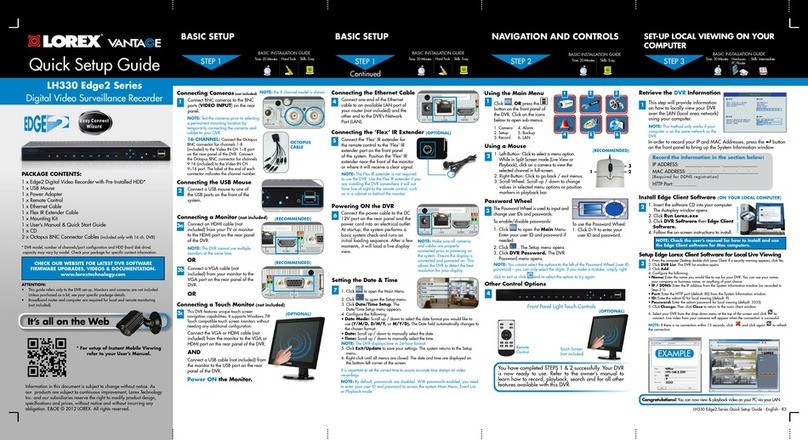
  9. Lorex Vantage LH340 EDGE3 SERIES User manual

Lorex Vantage LH340 EDGE3 SERIES User manual

Other Lorex DVR manuals

Lorex LHV5100W Series User manual

Lorex

Lorex LHV5100W Series User manual

Lorex LH314 User manual

Lorex

Lorex LH314 User manual

Lorex N841 Series User manual

Lorex

Lorex N841 Series User manual

Lorex QLR-0440 Series User manual

Lorex

Lorex QLR-0440 Series User manual

Lorex DHT304 Instruction Manual

Lorex

Lorex DHT304 Instruction Manual

Lorex L104000 User manual

Lorex

Lorex L104000 User manual

Lorex LH600 SERIES User manual

Lorex

Lorex LH600 SERIES User manual

Lorex LHB926 Series User manual

Lorex

Lorex LHB926 Series User manual

Lorex DXR1080-A Installation guide

Lorex

Lorex DXR1080-A Installation guide

Lorex LHV2000 series Instruction Manual

Lorex

Lorex LHV2000 series Instruction Manual

Lorex L16481 User manual

Lorex

Lorex L16481 User manual

Lorex LHA4000LC Series Instruction Manual

Lorex

Lorex LHA4000LC Series Instruction Manual

Lorex LH318 User manual

Lorex

Lorex LH318 User manual

Lorex N883 Series User manual

Lorex

Lorex N883 Series User manual

Lorex D242 Series User manual

Lorex

Lorex D242 Series User manual

Lorex ECO BlackBox3 LH030 Series Instruction Manual

Lorex

Lorex ECO BlackBox3 LH030 Series Instruction Manual

Lorex N882A63B User manual

Lorex

Lorex N882A63B User manual

Lorex L204 User manual

Lorex

Lorex L204 User manual

Lorex TR 1285 User manual

Lorex

Lorex TR 1285 User manual

Lorex QLR464 Instruction Manual

Lorex

Lorex QLR464 Instruction Manual

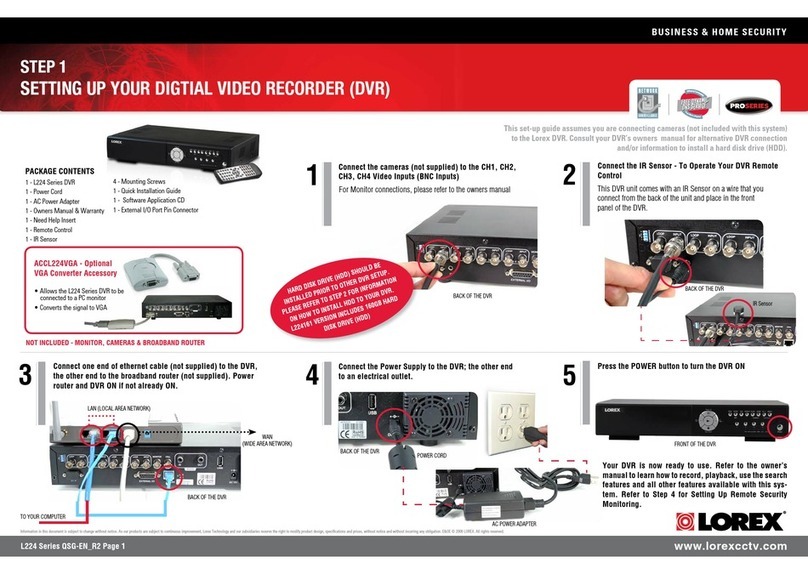
Lorex L224 Series User manual

Lorex

Lorex L224 Series User manual

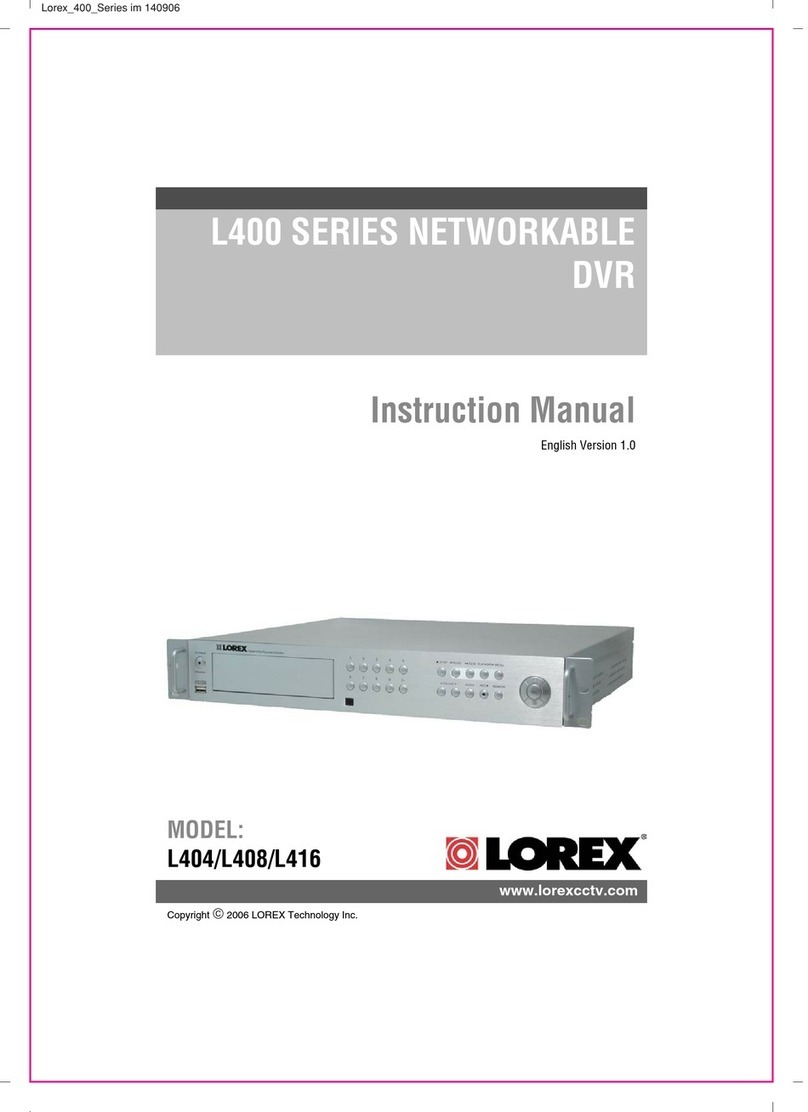
Lorex L404 User manual

Lorex

Lorex L404 User manual

Lorex N862A63B User manual

Lorex

Lorex N862A63B User manual

Lorex L3104000 User manual

Lorex

Lorex L3104000 User manual

Popular DVR manuals by other brands

Pace TDC577X manual

Pace

Pace TDC577X manual

Zavio NQ2040 user manual

Zavio

Zavio NQ2040 user manual

KGuard Security KG-SHA104 user manual

KGuard Security

KGuard Security KG-SHA104 user manual

SanDisk V-Mate Quick manual

SanDisk

SanDisk V-Mate Quick manual

Panasonic WJND200 - NETWORK DISK RECORDER Setup instructions

Panasonic

Panasonic WJND200 - NETWORK DISK RECORDER Setup instructions

Hunt Electronic HVRM-T1600Q Install & user's guide

Hunt Electronic

Hunt Electronic HVRM-T1600Q Install & user's guide

Portwell PIVS-6104 user manual

Portwell

Portwell PIVS-6104 user manual

AVer EXR6004 Mini Quick user guide

AVer

AVer EXR6004 Mini Quick user guide

Security Labs SLD261 owner's manual

Security Labs

Security Labs SLD261 owner's manual

Swann DIGITAL VIDEO RECORDER instruction manual

Swann

Swann DIGITAL VIDEO RECORDER instruction manual

EverFocus ECOR 4 instruction manual

EverFocus

EverFocus ECOR 4 instruction manual

Xoro HRK 7550 user manual

Xoro

Xoro HRK 7550 user manual

FLIR M3100E Series instruction manual

FLIR

FLIR M3100E Series instruction manual

VTRACKPRO FPRO300 user manual

VTRACKPRO

VTRACKPRO FPRO300 user manual

Swann NVR-7085 models instruction manual

Swann

Swann NVR-7085 models instruction manual

RMRC FPV1000 manual

RMRC

RMRC FPV1000 manual

urmet domus 1093/004AHD instructions

urmet domus

urmet domus 1093/004AHD instructions

Toshiba D-VR3SU Service manual

Toshiba

Toshiba D-VR3SU Service manual

manuals.online logo
manuals.online logoBrands
  • About & Mission
  • Contact us
  • Privacy Policy
  • Terms and Conditions

Copyright 2025 Manuals.Online. All Rights Reserved.

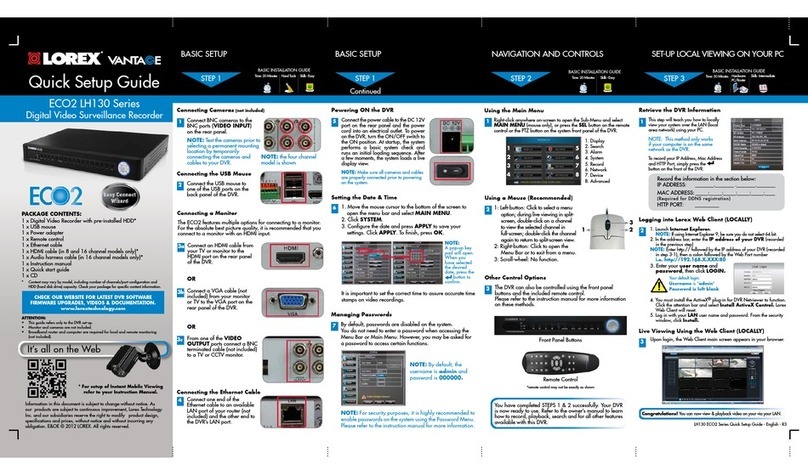
LH340 EDGE3 Series Quick Setup Guide - English - R1
SkillLevel
Intermediate
easy advanced
Time
under30 minutesunder15 minutes under60 minutes
HandTools Hardware
Router
HiSpeed
over60 minutes
SkillLevel
Intermediate
easy advanced
Time
under30 minutesunder15 minutes under60 minutes
HandTools Hardware
Router
HiSpeed
over60 minutes
Time: 20 Minutes Time: 20 Minutes Time: 20 Minutes
Hand Tools Hand ToolsSkills - Easy Skills - Easy Skills - Easy
BASIC INSTALLATION GUIDE BASIC INSTALLATION GUIDE BASIC INSTALLATION GUIDE BASIC INSTALLATION GUIDE
SkillLevel
Intermediate
easy advanced
Time
under30 minutesunder15 minutes under60 minutes
HandTools Hardware
Router
HiSpeed
over60 minutes
SkillLevel
Intermediate
easy advanced
Time
under30 minutesunder15 minutes under60 minutes
HandTools Hardware
Router
HiSpeed
over60 minutes
SkillLevel
Intermediate
easy advanced
Time
under30 minutesunder15 minutes under60 minutes
HandTools Hardware
Router
HiSpeed
over60 minutes
DIGITAL VIDEO SURVEILLANCE RECORDER
LH340 EDGE3 SERIES
Quick Setup Guide
ATTENTION:
• ThisguiderefersonlytotheDVRset-up.Monitorsandcamerasarenotincluded.
Unlesspurchasedasakit,seeyourspecificpackagedetails.
• Broadbandrouterandcomputerarerequiredforlocalandremotemonitoring
(notincluded).
Informationinthisdocumentissubjecttochangewithoutnotice.As
ourproductsaresubjecttocontinuousimprovement,LorexTechnology
Inc.andoursubsidiariesreservetherighttomodifyproductdesign,
specificationsandprices,withoutnoticeandwithoutincurringany
obligation.E&OE©2013LOREX.Allrightsreserved.
* For setup of Instant Mobile Viewing
refer to your Instruction Manual.
It’s all on the Web
Time: 30 Minutes Skills - Intermediate
Hardware:
PC/Router
SkillLevel
Intermediate
easy advanced
Time
under30 minutesunder15 minutes under60 minutes
HandTools Hardware
Router
HiSpeed
over60 minutes
SkillLevel
Intermediate
easy advanced
Time
under30 minutesunder15 minutes under60 minutes
HandTools Hardware
Router
HiSpeed
over60 minutes
Congratulations!Youcannowview&playbackvideoonyourPCviayourLAN.
1xEDGE3DigitalVideoRecorderwithPre-InstalledHDD*
1xUSBMouse
1xPowerAdapter
1xRemoteControl
1xEthernetCable
1xFlexIRExtenderCable
1xMountingKit
1xUser’sManual&QuickStartGuide
1xCD
2xOctopusBNCConnectorCables(includedonlywith16ch.DVR)
*DVRmodel,numberofchannels/portconfigurationandHDD(harddiskdrive)
capacitymayvarybymodel.Checkyourpackageforspecificcontentinformation.
PACKAGE CONTENTS:
4
Connecting the Ethernet Cable
ConnectoneendoftheEthernet
cabletoanavailableLANportof
yourrouter(notincluded)andthe
otherendtotheDVR’sNetwork
Port(LAN).
2
Using a Mouse
1.Left-Button:Clicktoselectamenuoption.
WhileinSplit-Screenmode(LiveViewor
Playback),clickonacameratoviewthe
selectedchannelinfull-screen.
2.Right-Button:Clicktogoback/exitmenus.
3.Scroll-Wheel:Scrollup/downtochange
valuesinselectedmenuoptionsorposition
markersinplaybackbar.
1 2
3
YouhavecompletedSTEPS1&2successfully.YourDVR
isnowready touse.Refer totheinstruction manualto
learnhowtorecord,playback,searchandforallother
featuresavailablewiththisDVR.
Using the Main Menu
Click ,ORpressthe
buttononthefrontpanelof
theDVR.Clickontheicons
belowtoopensub-menus.
1
Other Control Options
4
Retrieve the DVR Information
InordertorecordyourIP and MAC addresses,pressthe button
onthefrontpaneltobringuptheSystemInformationwindow.
1Thisstepwillprovideinformation
onhowtolocallyviewyourDVR
overtheLAN(localareanetwork)
usingyourcomputer.
NOTE:Thismethodonlyworksifyour
computerisonthesamenetworkasthe
DVR.
BASIC SETUPBASIC SETUP NAVIGATION AND CONTROLS SET-UP LOCAL VIEWING ON YOUR
COMPUTER
Continued
STEP1 STEP2 STEP3
STEP1
6
Powering ON the DVR
ConnectthepowercabletotheDC
12Vportontherearpanelandthe
powercordintoanelectricaloutlet.
Atstartup,thesystemperformsa
basicsystemcheckandrunsan
initialloadingsequence.Afterafew
moments,itwillloadalivedisplay
view.
NOTE:Makesureallcameras
andcablesareproperly
connectedpriortopoweringon
thesystem.Ensurethedisplayis
connectedandpoweredon.This
allowstheDVRtodetectthebest
resolutionforyourdisplay.
5
Connecting the ‘Flex’ IR Extender
Connectthe‘Flex’IRextenderfor
theremotecontroltothe‘Flex’IR
extenderportonthefrontpanel
ofthesystem.Positionthe‘Flex’IR
extendernearthefrontofthemonitor
orwhereitwillreceiveaclearsignal.
NOTE: TheFlexIRextenderisnotrequired
tousetheDVR.UsetheFlexIRextenderifyou
areinstallingtheDVRsomewhereitwillnot
havelineofsighttotheremotecontrol,such
asinacabinetorbehindthemonitor.
1.Camera
2.Setup
3.Record
1 2 3
4 5 6
NOTE:Bydefault,passwordsaredisabled.Withpasswordsenabled,youneed
toenteryouruserIDandpasswordtoaccessthesystemMainMenu,EventList,
orPlaybackmode.
Itisimportanttosetthecorrecttimetoassureaccuratetimestampsonvideo
recordings.
Setting the Date & Time
1.Click toopentheMainMenu.
2.Click toopentheSetupmenu.
3.ClickDate/Time Setup.The
Date/TimeSetupmenuappears.
4.Configurethefollowing:
•Date Mode:Scrollup/downtoselectthedateformatyouwouldliketo
use(Y/M/D, D/M/Y, or M/Y/D).TheDatefieldautomaticallychangesto
thechosenformat.
•Date:Scrollup/downtomanuallyselectthedate.
•Time: Scrollup/downtomanuallyselectthetime.
NOTE:TheDVRdisplaystimein24-hourformat.
5.ClickExit/Updatetosaveyoursettings.ThesystemreturnstotheSetup
menu.
6.Right-clickuntilallmenusareclosed.Thedateandtimearedisplayedon
thebottom-leftcornerofthescreen.
7
4.Alarm
5.Backup
6.LAN
Password Wheel
ThePasswordWheelisusedtoinputand
changeuserIDsandpasswords.
TousethePasswordWheel:
1.Click0~9toenteryour
userIDandpassword.
3
(RECOMMENDED)
(OPTIONAL)
IPADDRESS: _______._______ ._______._______
MACADDRESS: _____:_____:_____:_____:_____:____
Record the information in the section below:
(RequiredforDDNSregistration)
HTTPPort:
Setup Edge Lorex Client Software for Local Live Viewing
31.FromthecomputerDesktopdouble-clickLorexClient.Ifasecuritywarningappears,clickYes.
2.ClickDVR List.TheDVRlistwindowopens.
3.ClickAdd.
4.Configurethefollowing:
•Name:EnterthenameyouwouldliketouseforyourDVR.Youcanuseyourname,
yourcompanyorbusinessname,oranythingofyourchoice.
•IP / DDNS:EntertheIPaddressfromtheSystemInformationwindow(asrecordedin
Step3-1)
•Port:EntertheHTTPport(default:80)fromtheSystemInformationwindow.
•ID:EntertheadminIDforlocalviewing(default:9).
•Password:Entertheadminpasswordforlocalviewing(default:3333).
5.ClickChange.ThenclickClosetoreturntothemainclientwindow.
6.SelectyourDVRfromthedrop-downmenuatthetopofthescreenandclick to
connect.Livevideofromyourcameraswillappearwhentheconnectionissuccessful.
NOTE:Ifthereisnoconnectionwithin15seconds,click andclickagain torefresh
theconnection.
NOTE:YoucannotselecttheoptionstotheleftofthePasswordWheel(userID,
password)—youcanonlyselectthedigits.Ifyoumakeamistake,simplyright-
clicktoexitorclick andre-selecttheoptiontotryagain.
Connecting the USB Mouse
2ConnectaUSBmousetooneof
theUSBportsonthefrontofthe
system.
Connecting Cameras (not included)
1ConnectBNCcamerastotheBNC
ports(VIDEO INPUT)ontherear
panel.
NOTE:Testthecameraspriortoselecting
apermanentmountinglocationby
temporarilyconnectingthecamerasand
cablestoyourDVR.
NOTE:the8channelmodelisshown
16-CHANNEL: ConnecttheOctopus
BNCconnectorforchannels1-8
(included)totheVideoINCH1~8port
ontherearpaneloftheDVR.Connect
theOctopusBNCconnectorforchannels
9-16(included)totheVideoINCH
9~16port.Thelabelattheendofeach
connectorindicatesthechannelnumber.
Connecting a Monitor (not included)
OR
3c
ConnecttheVGAorHDMIcable(not
included)fromthemonitortotheVGAor
HDMIportontherearpaneloftheDVR.
OR
3b ConnectaVGAcable(not
included)fromyourmonitortothe
VGAportontherearpanelofthe
DVR.
3a ConnectanHDMIcable(not
included)fromyourTVormonitor
totheHDMIportontherearpanel
oftheDVR.
NOTE:TheDVRcannotusemultiple
monitorsatthesametime.
Connecting a Touch Monitor (not included)
OCTOPUS
CABLE
Power ON the Monitor.
(RECOMMENDED)
(RECOMMENDED)
(OPTIONAL)
ConnectaUSBcable(notincluded)from
themonitortotheUSBportontherear
paneloftheDVR.
AND
ThisDVRfeaturesuniquetouch-screen
navigationcapabilities.ItsupportsWindows7®
Touchcompatibletouchscreenmonitorswithout
needinganyadditionalconfiguration.
Remote
Control
FrontPanelLightTouchControls
TouchScreen
(notincluded)
(OPTIONAL)
2
Install Edge Client Software (ON YOUR LOCAL COMPUTER)
1.InsertthesoftwareCDintoyourcomputer.
TheAutoplaywindowopens.
2.ClickRun Lorex.exe
3.ClickDVR SoftwarethenEdge Client
Software.
4.Followtheon-screeninstructionstoinstall.
Computer-notincluded
NOTE: Check the user’s manual for how to install and use
the Edge Client software for Mac computers.
CHECK OUR WEBSITE FOR LATEST DVR SOFTWARE
FIRMWARE UPGRADES, VIDEOS & DOCUMENTATION.
www.lorextechnology.com
Toenable/disablepasswords:
1.Click toopentheMain Menu.
EnteryouruserIDandpasswordif
needed.
2.Click .TheSetupmenuopens.
3.ClickDVR Password. TheDVR
Passwordmenuopens.
80
Office
3333
192.168.5.220
9
EXAMPLE

LH340 EDGE3 Series Quick Setup Guide - English - R1
INTERNET REMOTE MONITORING
INTERNET REMOTE MONITORING INTERNET REMOTE MONITORING INTERNET REMOTE MONITORING INTERNET REMOTE MONITORING
Congratulations!YouhavecompletedStep4successfully.
Youcannowconnectovertheinternettoview,setup&
backupvideofromyourDVR.
Continued
Continued
Continued Continued
5
Openyourwebbrowser(InternetExplorerbydefault)and
enterhttp://www.lorexddns.netintheaddressbar.
DDNS (Dynamic Domain Name System) Set-up
http://www.lorexddns.net
1.InsertthesoftwareCD,andfollowtheinstructionstolaunch
theLorex Auto Port Forwarding Wizardsoftware.
Installation
2
1: Populate the Router Database
3
TheAutoPortForwardingWizard
automaticallypopulatesalistof
currentrouters,anddetectsthe
numberofconnectedrouters.
1.ClickNextafterthesoftware
detectsyourrouterconfiguration.
2.UnderRouter IP,clicktheDetect Router IP button.
Therouter’sIPpopulatesintheblankfield.
3.UnderUsernameandPassword,entertherouter’s
usernameandpassword.
4.UnderIP,entertheIPaddress
ofyourLorexdeviceas
recordedinStep3-1.
5.UnderPort,entertheport
number(s)thatrequire
forwarding(80).
6.ClickNexttocontinue.
NOTE:ClicktheTry to Auto Detectbuttonifyouhavea
LinksysorNetgearrouter(thisworkswithmostmodels).
2: Enter your Router Settings
80
1.UndertheRouterdrop-downlist,selectthemodelofyour
routerOR clicktheSearchbuttontoenterthenameof
yourroutermodel.
NOTE:Ensureyouselectthepropermodelandfirmware
numberoftherouter(asitappearsonthebackoftherouter)
IMPORTANT:Defaultportsthatmustbeportforwardedfor
remoteaccess:
Port80(HTTPPort)
4: Test your Connection
1.ClicktheTest Connection button.Yoursystem’sdefault
browseropensandconnectstoyourLorexdevice.
NOTE:EnsurethatInternetExplorerisyoursystem’sdefault
internetbrowser.
3: Update the Router Settings
1.ClicktheUpdate Router
button.Theprogrambegins
updatingtheroutersettings.
Thismaytake20-30seconds.
2.Closetheupdatewindow
whentheupdatefinishes.
NOTE:Youmayhavetomanually
saveyourroutersettingsafter
thesoftwaremakestherequired
changestoyourrouter.
ForRemoteConnectivityusingcompatible
SmartphonesandTablets,refertothe
InstructionManual.Makesuretocomplete
Step4entirely.
ToconnectusingMac,refertothe
InstructionManual.
Complete New Account Information
7
6Create an Account
ToaddanewentrytoyourDVRlistusingtheDDNSaddress:
1.OpentheEdgeLorexClient12softwareandclickDVR List.The
DVRListwindowopens.
2.ClickAdd.
3.Configurethefollowing:
•Name:EnterthenameyouwouldliketouseforyourDVR.
Youcanuseyourname,yourcompanyorbusinessname,or
anythingofyourchoice.
•IP/DDNS: EntertheDomain Name/URL Request
followedby .lorexddns.netForexample,iftheDomain
Name/URLRequestistomsmith,enter
tomsmith.lorexddns.net
•Port: EntertheHTTPport(default:80)fromtheSystem
Informationwindow.
•ID:EntertheadminIDforremoteviewing(default:9).
•Password:Entertheadminpasswordforremoteviewing
(default:3333).
4.ClickChange tosaveyoursettings.ThenclickCloseto
returntotheclientwindow.
6.SelectyourDVRfromthedrop-downmenuatthetopofthe
screenandclick toconnect.Livevideofromyourcameras
willappearwhentheconnectionissuccessful.
NOTE:Ifthereisnoconnectionwithin15seconds,click
andclickagain torefreshtheconnection.
Auto Port Forward Wizard
1
TheLorexAutoPortForwardingWizardisasoftwarethat
automatesrouterportforwarding.
NOTE: YoumustbeonthesamenetworkastheDVRwhen
settinguptheDDNS.
Youmusthavethefollowingbeforeyouconfigurethesoftware:
1.Yourrouter’smodelandversionnumbers
2.Yourrouter’suser nameandpassword
3.YourLorexdevice’sIPaddress(recorded in Step 3-1)
4.YourLorexdevice’sportnumbersthatrequireportforwarding
(bydefault:80)
OPTIONAL: Manual Port Forward
4
If you were unable to port-forward your router
automatically using the wizard, you will need to
manually forward port 80 to your DVR’s IP address.
Allroutersaredifferent.Toportforwardyourrouter,please
refertoyourrouter’susermanual.
Anexampleofaportforwardingscreenisshownfor
illustrationpurposes.
8
AnautomatedREGISTRATION CONFIRMATION E-MAIL
willbesenttoyouremail.Printandsavethisconfirmation.You
willneedtoenteritintoyoursystemtoenableremoteaccess.
Registration E-mail
DomainName/URLRequest:tomsmith
DDNSUserName:tomsmith
DDNSDevicePassword:(yourpassword) EXAMPLE

80 80
HTTP
EXAMPLE

12
STEP4 STEP4 STEP4 STEP4 STEP4
REMOTE INSTALLATION GUIDE
Time: 30 Minutes Skills - Intermediate
Hardware:
PC
SkillLevel
Intermediate
easy advanced
Time
under30 minutesunder15 minutes under60 minutes
HandTools Hardware
Router
HiSpeed
over60 minutes
Update Lorex Edge Client 12 Software for Remote Viewing
11
10
REMOTE LIVE SITE
YOURIP
ToenableDDNSonyourDVR:
1.OpenEdgeClientSoftwareandclicktheSetupbutton.
2.OpentheDDNStab.
3.Configurethefollowing:
•Under DDNS Select,selecthttp://www.lorexddns.net
fromthedrop-down.
•DDNS User Name: EntertheDDNS User Name
fromtheconfirmationemailthatwassenttoyouafter
youcreatedyourDDNSaccount.
• DDNS Password: EntertheDevice DDNS
Password fromtheconfirmationemail.
•DDNS Domain Name:EntertheDomain name/
URL Requestfromtheconfirmationemail.
5.ClickApplytosaveyourchanges.
Enable DDNS on the DVR
NOTE: Pleaseallow10~15minutesfortheDDNSservers
toupdatewithyournewDDNSaddressbeforeattempting
toconnect.
Install Edge Client Software (ON YOUR REMOTE COMPUTER)
1.InsertthesoftwareCDintoyour
remotecomputer.
TheAutoplaywindowopens.
2.ClickRun Lorex.exe
3.ClickDVR SoftwarethenEdge
Client Software.
4.Followtheon-screeninstructionsto
install.
Computer-notincluded
NOTE: Check the instruction manual for how to install and
use the Edge Client software for Mac computers.
9
NOTE: The Wizard is PC compatible only. Mac users,
please go to Step 4-Optional (Manual Port Forward).
1.ClickStep 1
2.CreateanewMyLorexaccountor
signinusinganexistingaccount.
3.UnderYourAddress,
selectanaddressorclick
Enter a New Address
tocreateanewaddress.
Fillinyouraddress
informationandclick
Create Address.
1.ClickWarranties.
2. ClickActivate Warranty.
NOTE:WarrantyRegistrationisrequiredforDDNS.
4.Fillinthewarrantyregistration
formwithyourproductand
purchasedetailsandclickSave
Warranty.Checkthesticker
underneathyourDVRforthe
ProductModelNumberand
SerialNumber.
5.ClickSet Up a New DDNS.
7.ClickSavetoregisteryourproductforDDNS.ADDNS
registrationconfirmationemailwillbesenttotheemail
addressusedtoregisterforMyLorex.
NOTE:URLRequestshouldnotbemorethan15characters.
6.FillouttheMy
DDNSform:
• Product Warranty:
Selecttheproduct
warrantyyoucreated
intheprevioussteps.
• Device Name:Enteranameforyourdevice.Youcan
enteryourname,businessname,oranythingofyourchoice.
• MAC Address:EntertheMACaddressofyourLorex
systemrecordedinStep3-1.
• URL Request:Enterthewebsiteaddressthatwillbe
usedtoconnecttoyourLorexsystem.
NOTE:CertainISP(InternetServiceProviders)blockport
80.Ifyouareunabletoconnect,checkwithyourISPand
consultwiththeinstructionmanualforinstructionson
changingtheHTTPport.Makesuretoportforwardyour
revisedHTTPport.
INSTANT
MOBILE

VIEWING