manuals.online logo
Brands
  1. Home
  2. •
  3. Brands
  4. •
  5. Lorex
  6. •
  7. Security Camera
  8. •
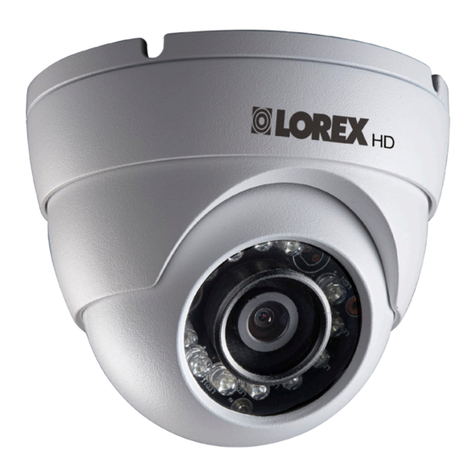
  9. Lorex LDC6080 Series User manual

Lorex LDC6080 Series User manual

Other Lorex Security Camera manuals

Lorex SG7520 User manual

Lorex

Lorex SG7520 User manual

Lorex SG7561B User manual

Lorex

Lorex SG7561B User manual

Lorex LEV1522 SERIES Operating and maintenance instructions

Lorex

Lorex LEV1522 SERIES Operating and maintenance instructions

Lorex LNE1001 User manual

Lorex

Lorex LNE1001 User manual

Lorex LW2711AC1 User manual

Lorex

Lorex LW2711AC1 User manual

Lorex SG6160 User manual

Lorex

Lorex SG6160 User manual

Lorex SG7610B User manual

Lorex

Lorex SG7610B User manual

Lorex LNWCM23X User manual

Lorex

Lorex LNWCM23X User manual

Lorex CVC6945PK4 User manual

Lorex

Lorex CVC6945PK4 User manual

Lorex C861XC Series User manual

Lorex

Lorex C861XC Series User manual

Lorex LH060 Series Operator's manual

Lorex

Lorex LH060 Series Operator's manual

Lorex LNWCM22Y Series User manual

Lorex

Lorex LNWCM22Y Series User manual

Lorex LW4211 SERIES User manual

Lorex

Lorex LW4211 SERIES User manual

Lorex SG6110X User manual

Lorex

Lorex SG6110X User manual

Lorex CVC2225P User manual

Lorex

Lorex CVC2225P User manual

Lorex mCAM DVM5031 User manual

Lorex

Lorex mCAM DVM5031 User manual

Lorex LKE383A SERIES User manual

Lorex

Lorex LKE383A SERIES User manual

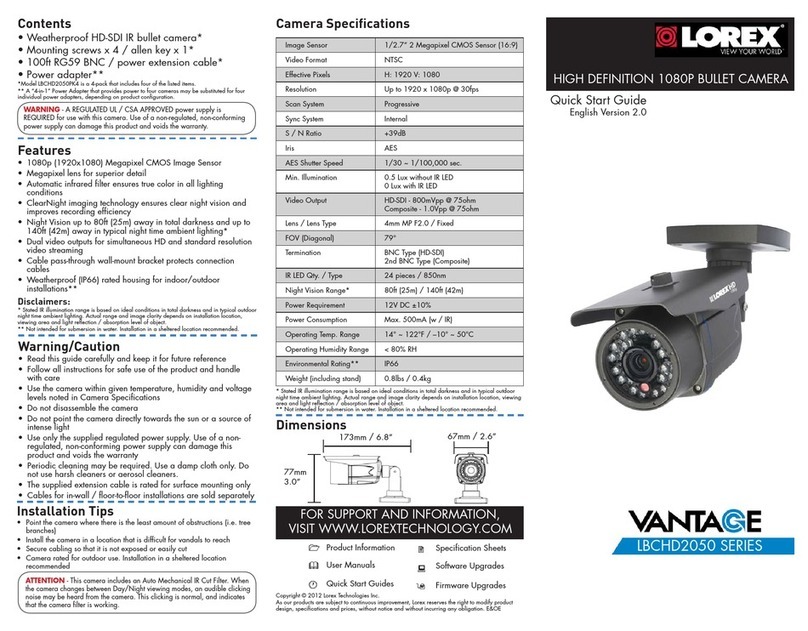
Lorex Vantage LBCHD2051 Series User manual

Lorex

Lorex Vantage LBCHD2051 Series User manual

Lorex VQ1636HR User manual

Lorex

Lorex VQ1636HR User manual

Lorex E881AP Series User manual

Lorex

Lorex E881AP Series User manual

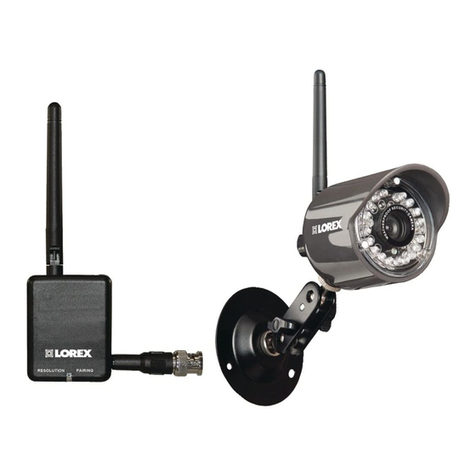
Lorex Halo Series User manual

Lorex

Lorex Halo Series User manual

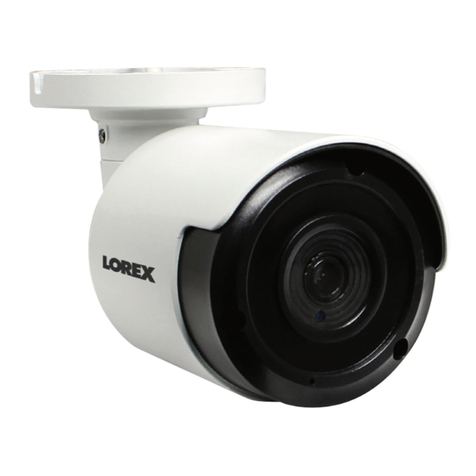
Lorex LNB8211X SERIES User manual

Lorex

Lorex LNB8211X SERIES User manual

Lorex FS21FBK User manual

Lorex

Lorex FS21FBK User manual

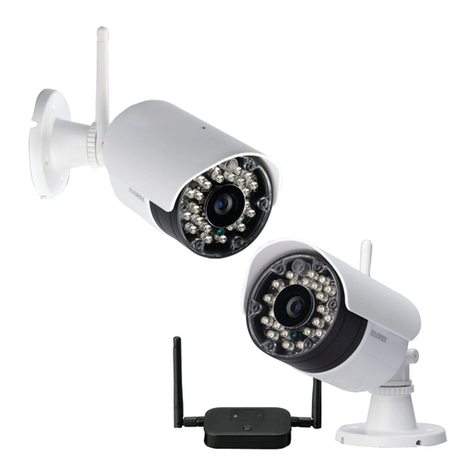
Lorex LEV2522 User manual

Lorex

Lorex LEV2522 User manual

Popular Security Camera manuals by other brands

ADEMCO RapidDome Owners Operating & Installation Guide

ADEMCO

ADEMCO RapidDome Owners Operating & Installation Guide

EverFocus EBA2880 user manual

EverFocus

EverFocus EBA2880 user manual

Honeywell OptiCAM-IR Installation and setup guide

Honeywell

Honeywell OptiCAM-IR Installation and setup guide

Uniq UC-600 user manual

Uniq

Uniq UC-600 user manual

OPTICOM NVD-120-S datasheet

OPTICOM

OPTICOM NVD-120-S datasheet

Steren CCTV-221 instruction manual

Steren

Steren CCTV-221 instruction manual

Arm Electronics C420BCDNVFIR Features

Arm Electronics

Arm Electronics C420BCDNVFIR Features

Eneo PLD-2036PTZ installation guide

Eneo

Eneo PLD-2036PTZ installation guide

Axis AXIS M20 Series installation guide

Axis

Axis AXIS M20 Series installation guide

Panasonic KX-HCM230 operating instructions

Panasonic

Panasonic KX-HCM230 operating instructions

COP-USA CC15NV-SL Specifications

COP-USA

COP-USA CC15NV-SL Specifications

Active Silicon HARRIER H.264 quick start guide

Active Silicon

Active Silicon HARRIER H.264 quick start guide

Motorola Avigilon 1.3C-H5SL-BO1-IR installation guide

Motorola

Motorola Avigilon 1.3C-H5SL-BO1-IR installation guide

INSTEON 2864-232 user manual

INSTEON

INSTEON 2864-232 user manual

Wisenet XNB-6002 quick start guide

Wisenet

Wisenet XNB-6002 quick start guide

Axis M5525-E user manual

Axis

Axis M5525-E user manual

Vitek VTC-IR62NZ922 user guide

Vitek

Vitek VTC-IR62NZ922 user guide

Panasonic WV-SF342 Specifications

Panasonic

Panasonic WV-SF342 Specifications

manuals.online logo
manuals.online logoBrands
  • About & Mission
  • Contact us
  • Privacy Policy
  • Terms and Conditions

Copyright 2025 Manuals.Online. All Rights Reserved.

QUICK START GUIDE
www.lorextechnology.com
Lorex Technologies Inc.
Copyright © 2010 Lorex Technologies Inc.
As our products are subject to continuous improvement, Lorex reserves the right to modify product
design, specifications and prices, without notice and without incurring any obligation. E&OE
Cable Extension Options SUPER RESOLUTION IR
VANDAL DOME
CAMERA
Problem Solution
No Picture/Signal • Ensure your TV is on the correct input
channel. Common terms of an input channel:
INPUT, AV CHANNEL, LINE1, LINE2, AUX.
• If your camera is connected to a VCR/DVR,
ensure it is properly connected to your TV/
Monitor.
• Ensure connections are properly connected.
• Ensure all the camera power supply is
plugged in.
Picture is too bright • Ensure your camera isn’t pointed directly at a
source of light (e.g sun or spot light).
• Slide the sunshade (bullet cameras only)
forward to block excess light.
• Move your camera to a different location.
Picture is too dark • If using during the day, the camera may not
be getting enough light. Slide the sunshade
backwards to let in more light. Check the
brightness and contrast settings of the device
your camera connects to (TV/Monitor/DVR).
Night Vision is not
working
• The night vision activates when light levels
drop. The area may have too much light.
Picture is not clear • Check the camera lens for dirt, dust,
spiderwebs. Clean the lens with a soft, clean
cloth.
• Make sure that the cable run is within the
limitations specified in the section ' Cable
Extension Options'
Bright spot in video
when viewing camera
at night
• Night vision reflects when pointing a camera
to a window. Move the camera to a different
location.
BNC connection does
not connect to my TV
• Use a BNC to RCA adapter at the end of the
extension cable.
Troubleshooting
Option Cable Type
1Regular BNC
(supplied with
camera)
180ft / 55m 3
2'RG59' or 'Coax'
or ' Coaxial'
BNC (sold sepa-
rately)
300ft / 92m 5
3Lorex Universal
Cable
(sold separately)
300ft / 92m 3
Max. Cable
Run Distance
Max. # of
Extensions
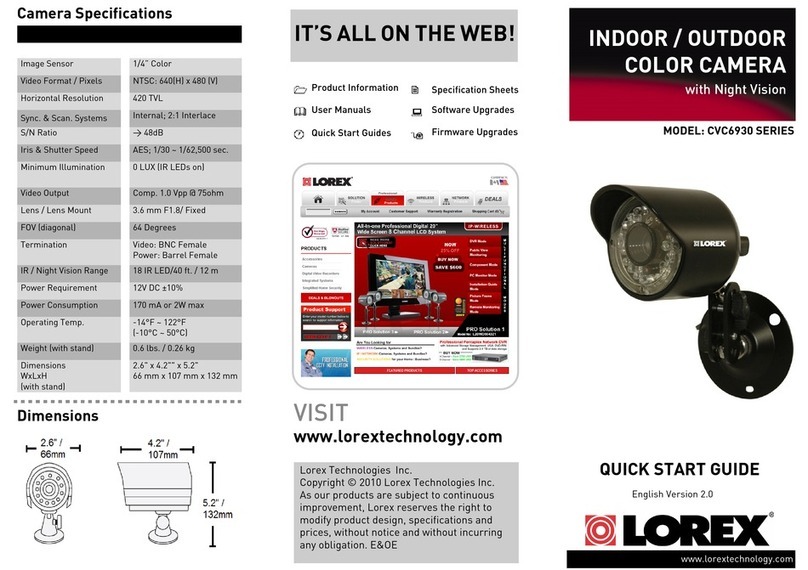
MODEL: LDC6080 SERIES
English Version 1.0
Image Sensor 1/3" Sony Super HAD™ II
Video Format / Pixels
Horizontal Resolution
Video Output
IR / Night Vision Range
Field of View (diagonal)
Minimum Illumination
Termination
NTSC: 768(H)×494(V)
600 TVL
Comp. 1.0 Vpp @ 75ohm
39 - 93 Degrees
0 LUX (IR LEDs on)
Video: BNC Female
Power: Barrel Female
Lens / Lens Mount 4~9mm F1.6~2.4 / Varifocal
Camera Specifications
Notes:
1. For optimal performance, consider using option 2 or 3. Preference for using
the same cable type for the entire distance.
2. Cable run recommendation based on typical camera power consumption (up
to 500mA). For specialty cameras with higher current consumption,
maximum cable run may be reduced. Consider providing power to the camera
at the camera side rather then at the end of the extension cable.
3. Indicators that your cable run may be too long:
• Video is permanently Black & White (even during day time)
• Video is distorted
Product Information
User Manuals
Quick Start Guides
Specification Sheets
Software Upgrades
Firmware Upgrades
www.lorextechnology.com
IT’S ALL ON THE WEB!
Extend the cable run for your camera up to 300ft or more
depending on the cable type used. See table below:
Operating Temperature 14°F ~ 122°F
(-10°C ~ 50°C)
Power Requirement 12V DC ±10%
Power Consumption 500 mA or 6W max
Weight (with stand) 1.6 lbs. / 0.8 kg
35 IR LED/100 ft. (30m)
Environmental Rating IP 66
5.3in/135mm
4 in /
101.6mm
Setup Diagram
Before Installing The Camera
• Decide whether to run the cables through the wall/ceiling (drilling required), or along
the wall/ceiling.
• If you run the cables along the wall/ceiling,
you must run the cables through the
opening in the camera base, then tuck the
cable into the cable notch on the base.
This will keep the camera base flush to the
wall/ceiling when mounted.
To install the camera:
1. Remove the three screws located on the outer ring of the
Dome Cover using the Allen key (included).
2. Mount the Camera Base to the ceiling or wall using the
provided screws.
3. Position the Ball Camera at the desired position and
angle.
4. Position the Dome Cover over the Ball Camera. Holding
the cover firmly in place, use the Allen key to tighten the
screws on the outer ring of the Dome Cover.
Cable notch
ATTENTION - Test all connections and ensure the camera is working
correctly prior to permanent installation by temporarily connecting the
camera(s) and cable(s) to the viewing/recording solution.
Tighten the dome
cover using the
Allen key.
Contents
Features
1x Super Resolution Color Camera
3 x Mounting screws / 1 x Allen key
1x 60ft. BNC/Power Extension Cable
1x BNC to RCA Adaptor
1x Power Adapter
Installation Tips
• Point the camera where there is the least amount of
obstructions (ie tree branches).
• Install the camera in a location that is difficult for
vandals to reach.
• Secure cabling so that it is not exposed or easily cut.
• Connect your system and cameras to a back-up power
supply. This ensures the system continues to record
during power outtages.
Installing The Camera
Warning / Caution Statements
1. Read this guide carefully and keep it for future reference.
2. Follow all instructions for safe use of the product.
3. Use the camera within given temperature, humidity and voltage levels noted
in Camera Specifications.
4. Do not disassemble the camera.
5. Do not point the camera directly towards the sun or a source of intense light.
6. Use only the supplied regulated power supply. Use of a non-regulated, non-
conforming power supply can damage this product and voids the warranty.
7. The supplied extension cable is rated for surface mounting only.
Cables for in-wall / floor-to-floor installations are sold separately.
BNC to RCA Adapter
WARNING - A REGULATED UL/CSA APPROVED power supply is
REQUIRED for use with this camera. Use of a non-regulated, non-
conforming power supply can damage this product and voids the warranty.
3 pcs
Video (BNC)
Power
• 600TV line resolution for unmatched video quality
• Latest Sony Super HAD™ 2nd generation Image
Sensor
• Advanced Noise Reduction for crystal clear Night
Vision
• Improved recording storage efficiency by up to 30%
• Dual glass design prevents IR light reflection
• Varifocal lens for flexible area coverage
• Weatherproof, vandal resistant aluminum housing
• Flexible camera design for wall and ceiling mounting
Use a screwdriver to adjust the Focus and Zoom control
screws on the camera if necessary.
Zoom
Focus
Note: Have a second person verify the camera image when you
adjust the Focus and Zoom settings.
Lens Adjustment
Connecting The Camera
DVR/CCTV MONITOR
Video IN
TV/VCR
Video IN
Attach the included BNC to RCA adapter to connect the
extension cable to RCA inputs (i.e. for a TV connection).
BNC to RCA Adapter
Connect the BNC and power
connectors to the camera.
Connect the BNC connector to
the video input of the monitor/
DVR, and connect the included
power connector to a power
adapter.
Male power connector
BNC Connector

To Camera: To Monitor/ DVR:
Female power connector