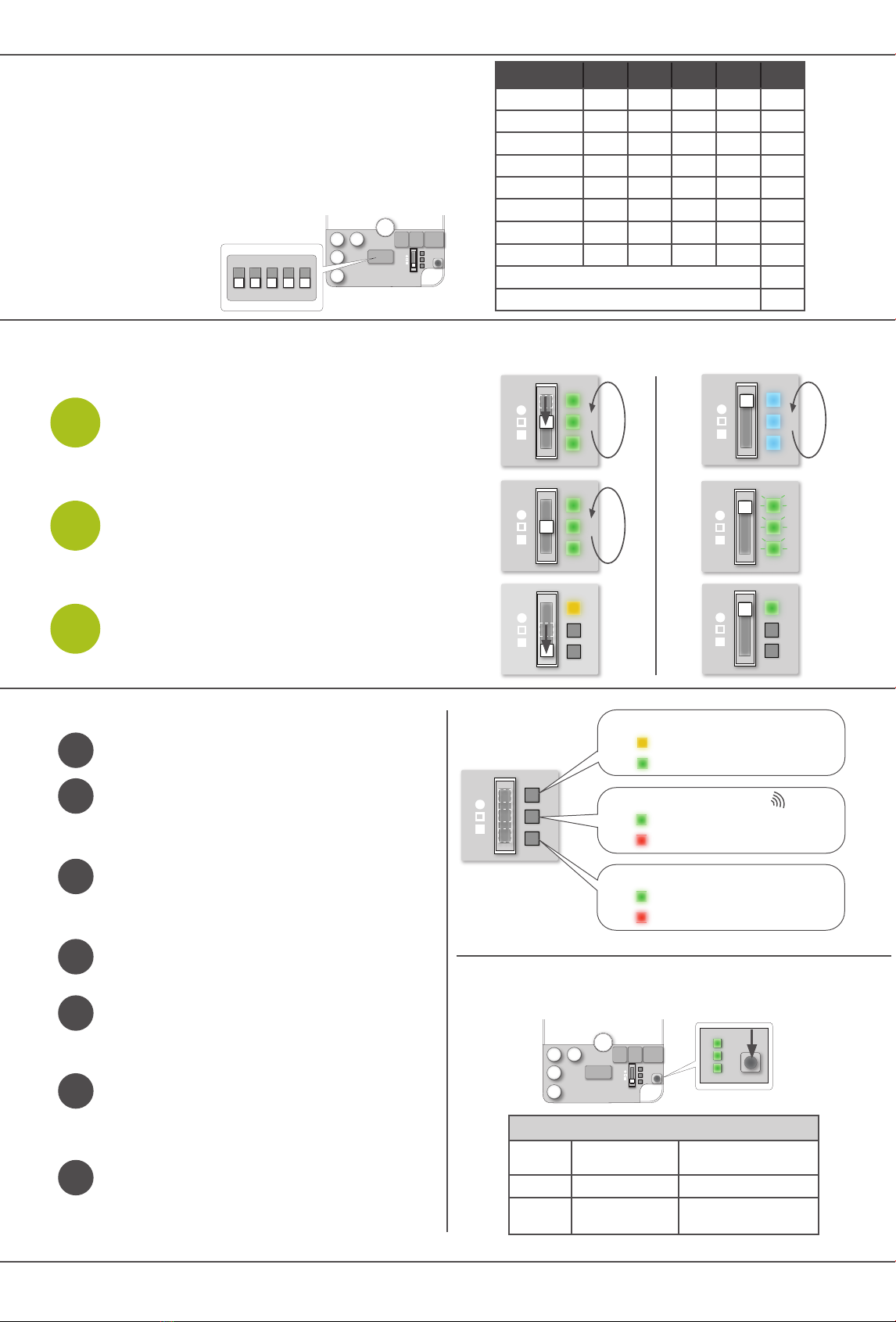
All uncommissioned W-Modbus Nodes will, at power up, start scan-
ning for a W-Modbus Gateway. The LEDs will turn blue color and
ow from top to bottom during this process.
To initiate the W-Modbus Gateway node scan, position the 3 pole
switch in the middle position on the Gateway. During the Gateway
scan process the 3 LEDs will ow from top to bottom in green color.
Wait for all W-Modbus Nodes to nd and connect to the Gateway,
the LEDs on the Nodes will start to ash in green color. This process
can take up to 5 minutes.
When connected, set the switch on the W-Modbus Gateway to the
bottom position. This will restart the W-Modbus network in secure
mode. This is indicated by the top LED, yellow for W-Modbus Ga-
teways and green for W-Modbus Nodes. In this mode the status of
wireless signal strength and Modbus RTU cable connection status
will be indicated by the LEDs as shown under System status.
1
2
3
COMMISSIONING W-MODBUS GATEWAY W-MODBUS NODE
MANUAL W-Modbus LUMENRADIO
Flow
Flow
ON
1 2 3 4 5
Set the baud rate, parity and stop bit settings on the W-Modbus Gateway to
match the settings of the Modbus Client.
All W-Modbus Nodes are by default congured to receive their baud rate,
parity, and stop bit from the W-Modbus Gateway in the system. It is possible
to override the individual W-Modbus Node setup, effectively mixing settings
within the network.
After setting Baud Rate, Parity and Stop Bit, each
W-Modbus Node will scan for the connected
Servers Modbus address
(1-255) in sequence, it may
take up to 2 minutes before
the address is found.
1 2 3 4 5
9600 baud OFF OFF - - -
19200 baud OFF ON - - -
38400 baud ON OFF - - -
76800 baud ON ON - - -
No parity - - OFF - -
Even parity - - ON - -
1 stop bit - - - OFF -
2 stop bit - - - ON -
Use local serial conguration set on Node ON
Use Gateway serial conguration on Node OFF
PUSH BUTTON
Push Turn ON LEDs All LEDS turn on
(turns OFF after 30 min)
Hold 10 s Uncommissioning Mid LED indicates blue
Hold 20 s Firmware update
mode*
Mid LED indicated red
PUSH BUTTON
The push button enables the LEDs, uncommissioning and rmware updates.
*Find FW update instructions on www.lumenradio.com
SYSTEM STATUS
Does the unit have power? Press the push button, if the LEDs are
not switched on, check the power connection.
Can the Modbus Client handle the timeout requirements?
Is the unit connected to the network?
Check the Wireless Network status LED. A Node with a owing blue
light is not connected to the network. Reference the commission
section to ensure the unit ashes green before switching the Ga-
teway into secure mode. If the owing blue light persits the range
of the unit might be too far away from the network. Try installing an
extra W-Modbus unit in between.
Is the network within the limits of the maximum (100) units allowed?
If the Wireless Network Status indicates bad wireless network (red
LED) make sure the distance between W-Modbus units are within
the requirements or add an extra W-Modbus unit as a repeater to
get better wireless coverage.
If the Modbus RTU Cable Communication indicates no communi-
cation (red LED) check if the Modbus RTU cable is correctly instal-
led and make sure the Baud rate, Stop bit and Parity settings are
correct.
Have all the Nodes joined during commissioning (all LEDs ashes
green) but not all nodes entered the secure network when the Ga-
teway is set to secure network (yellow LED). Make sure only one unit
is set to Gateway mode during commissioning. It is only possible to
install one network at a time.
?
TROUBLESHOOTING
?
?
?
?
?
*W-Modbus Node ashes green when commissioned and joining the network
?
BAUD RATE, PARITY AND STOP BIT
For more information, FAQ and the latest version of the
W-Modbus Manual visitwww.lumenradio.com.
Gateway/Node Indicator
Gateway
Node*
Wireless Network Status
Good Link
Bad Link
Modbus RTU Cable Communication
Good Connection
No Connection
Copyright © LumenRadio AB 2021 v2.0
All Rights Reserved www.lumenradio.com