8
Reconnecting to a paired device
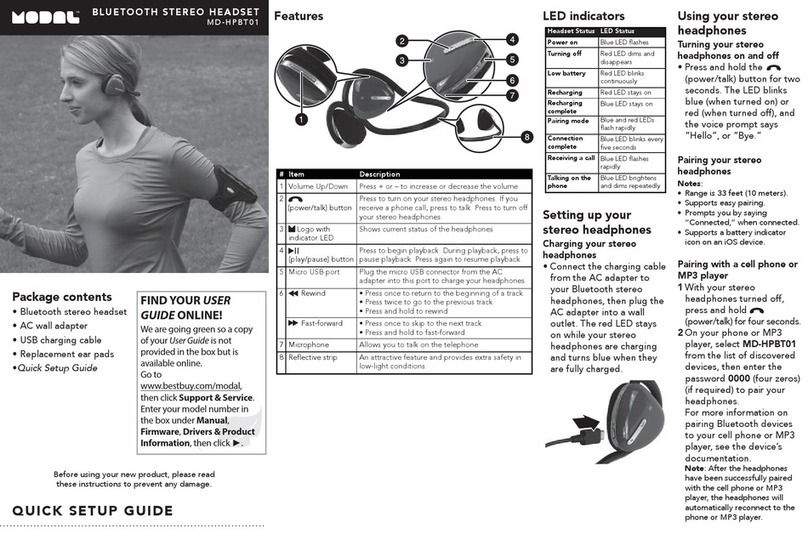
When your stereo headphones are not paired to a device, the Blue
and red LEDs flash rapidly.
• After the headphones have been successfully paired with the cell phone
or MP3 player, the headphones will automatically reconnect to the
phone or MP3 player. If a device does not automatically reconnect, you
may need to reselect MD-HPBT01 on your Bluetooth device.
Pairing with a computer running Windows
Note: Before you pair the headphones with the computer, make sure that the
computer is equipped with Bluetooth. Refer to the computer's documentation or
contact the computer manufacturer for more information. If your computer is not
Bluetooth compatible, install a Bluetooth USB adapter (dongle).
1
Turn on Bluetooth on the computer. For instructions, see the computer's
documentation or contact the computer manufacturer.
2
Double-click the Bluetooth icon in the system tray, then click Add a
device (Add Wireless Device using Windows Vista).
-OR-
If you’re using Windows XP, click Add a New Bluetooth Device. When
the Add Bluetooth Device Wizard opens, click Next.
3
With the headphones turned off, press and hold
(power/talk) for four
seconds. The LED blinks blue and red rapidly, then pairing mode is
activated.
Your stereo headphones will lose the
Bluetooth connection if you:
To reconnect:
Turn them off. Turn on your stereo headphones. Your stereo
headphones search for the last connected
Bluetooth device and reconnect automatically.
Move the Bluetooth device out of range. Make sure that your Bluetooth device is within 33
feet of your stereo headphones.
Turn off the Bluetooth device. Turn on the Bluetooth device, then make sure that
Bluetooth is turned on.
Turn off Bluetooth on your Bluetooth
device.
Turn on Bluetooth on your Bluetooth device.
Connect your Bluetooth device to
another Bluetooth device.
Disconnect your Bluetooth device from the other
device, then set your device to pairing mode. Select
MD-HPBT01 on the Bluetooth device.
MD-HPBT01_14-0244_MAN_V1_ENG.fm Page 8 Tuesday, July 8, 2014 10:25 AM