— 1 — — 2 — — 3 —
CP-204J Intelligent Serial Board
Quick Installation Guide
First Edition, December 2004
1. Overview
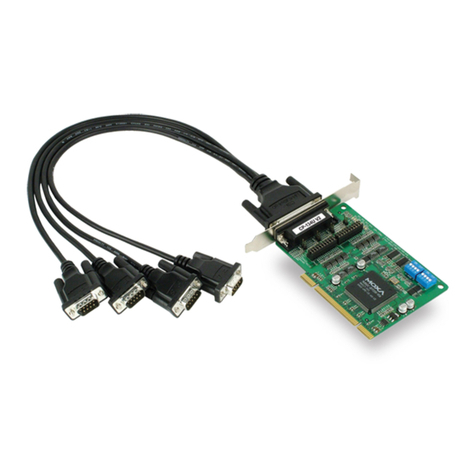
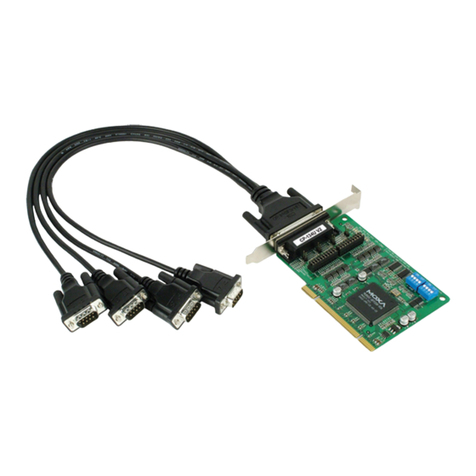
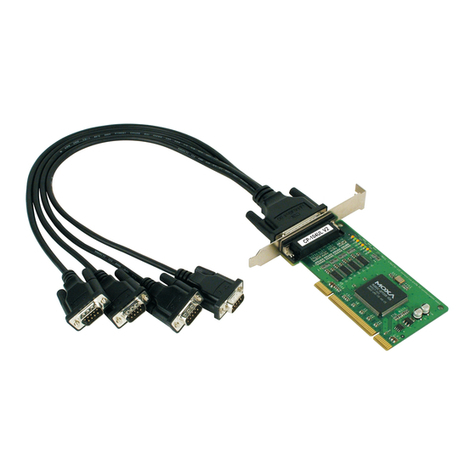
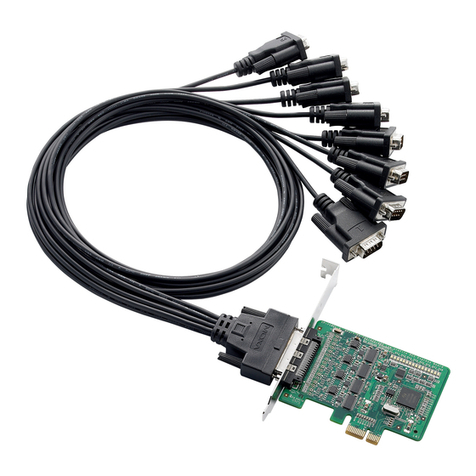
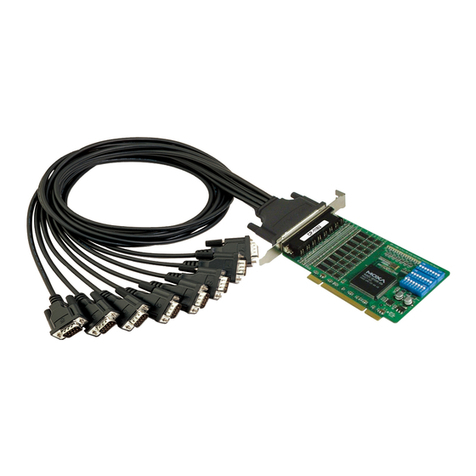
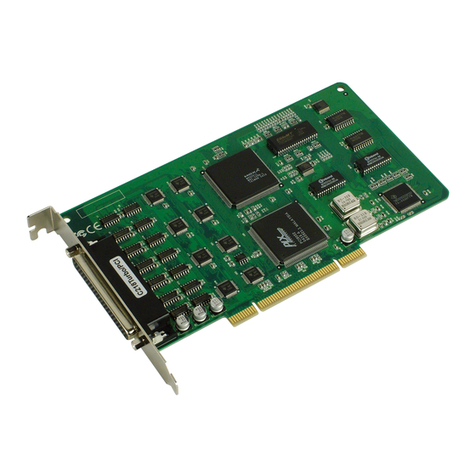
CP-204J is a 4-port RS-232 PCI serial board that is ideal for connecting
a wide range of serial devices—including terminals, modems, printers,
scanners, cash registers, bar code readers, keypads, numeric displays,
electronic scales, and data acquisition equipment—to a PC. The
state-of-the-art ASIC design, on-board RISC processor (TI TMS320),
and large I/O buffer (512 KB), make it possible for CP-204J to use
minimal system resources, and allow data transmission at speeds of up
to 921.6 Kbps. This makes CP-204J suitable for applications that
involve fast response transactions, as well as applications that must
provide reliable 24-hour service.
2. Package Checklist
Before installing the CP-204J board, verify that the package contains
the following items:
!1 CP-204J 4-port serial board
!Documentation and Software CD
!Quick Installation Guide
Notify your sales representative if any of the above items is missing or
damaged.
3. Hardware Installation Procedure
The CP-204J board MUST be installed in the PC before installing the
driver. The following directions explain how to install the board in the
PC.
STEP 1: Power off the PC.
STEP 2:Insert the CP-204J control board firmly into a free PCI slot.
STEP 3:Fasten the holding screw to fix the control board in place.
STEP 4:Connect one of the connection boxes or connection cables to
CP-204J, and connect an adapter of required.
STEP 5: Power on the PC; the BIOS will automatically set the IRQ
and memory bank.
4. Software Installation Information
The board MUST be plugged in before installing the driver software. See
the previous section for instructions on how to install the board in your
PC. Refer to the CP-204J User’s Manual for detailed instructions on
installing the drivers for this board.
Windows 2003/XP Driver Installation
1. After powering on your PC, Windows 2003/XP will automatically
detect the CP-204J board.
2. Insert the CP-204J software CD in your CD-ROM drive.
3. Select Install from a list or specific location (Advanced).
4. After selecting Search for the best driver in these locations, check
the Include this location in the search checkbox, and then use the
browse button to navigate to the CD’s
CP-204J\Software\Win2K-XP-2003 folder.
5. Click Continue Anyway in response to any admonitions that the
software hasn’t passed Windows Logo testing.
6. After the board has been installed, the installation wizard will guide
you through the port installation procedure, starting with port 0.
NOTE: Use the instructions given in step 3 above to locate the driver
file.
7. Use the Device Manager to check if the installation of the board and
ports was successful. Click on the + sign next to Hardware, and then
check under Multi-port serial adapters and Ports (COM & LPT). If
there are any special marks, such as a question mark or exclamation
point in front of the board or port icons, examine the Event Log as a
first step to determine where the problem is.
Windows 2000 Driver Installation
1. After powering on your PC, Windows 2000 will automatically detect
the CP-204J board.
2. Insert the CP-204J software CD in your CD-ROM drive.
3. Select Search for a suitable driver for my device (recommend).
4. In Optional search location, checkmark specify a location. Navigate
to the \CP-204J\Software\Win2K-XP-2003 folder on the software
CD, and then click on OK to continue.
5. Click Continue Anyway in response to any admonitions that the
software hasn’t passed Windows Logo testing.
6. After the board has been installed, the installation wizard will guide
you through the port installation procedure, starting with port 0.
NOTE: Be sure to install the software from the CD’s
CP-204J\Software\Win2K-XP-2003 folder.
7. Use the Device Manager to check if the installation of the board and
ports was successful. Click on the + sign next to Hardware, and then
check under Multi-port serial adapters and Ports (COM & LPT). If
there are any special marks, such as a question mark or exclamation
point in front of the board or port icons, examine the Event Log as a
first step to determine where the problem is.
Windows 95/98 Driver Installation
1. After powering on your PC, Windows 95/98 will automatically detect
the CP-204J board.
2. Insert the CP-204J software CD in your CD-ROM drive.
3. There some differences between the installation procedures for
Windows 95 and Windows 98. However, in both cases, be sure to
install the driver from the CD’s
CP-204J\Software\Win9x\Windows.95 folder.
4. After the board has been installed, the installation wizard will open
the port configuration window.
Windows NT Driver Installation
1. After powering on your PC, log into NT as Administrator.
2. Copy the folder CP-204J\Software\WinNT\Windows.nt to your
hard drive.
3. Open the Control Panel, click on the Network icon, and select the
Adaptors tab.
4. Click the Add button, and then Have Disk… in the Select Network
Adapter window.
5. Specify the exact path to the folder created in step 2. above.
6. Select MOXA C218Turbo/CP-204J Series multiport board in the
Select OEM Option window, and then click on OK to start installing
the driver.
7. When the Moxa Configuration Panel dialog box appears, click on
Add to open the Property window to modify port settings.
Linux Driver Installation
1. Execute the following commands from the Linux prompt:
#mount /dev/cdrom /mnt/cdrom
#cd /
#mkdir moxa
#cd moxa
#cp /mnt/cdrom/<driver directory>/mxdrv.tgz .
#tar xvfz mxdrv.tgz
2. #cd mxdrv
#make clean; make install
3. #cd /moxa/mxdrv/driver
#./mxmknod
4. Load the Moxa Driver:
#insmod moxa
5. Download the firmware:
#cd /moxa/mxdrv/driver
#./moxaload –y
6. You can use the Moxa diagnostic utility to verify the driver status:
#cd /moxa/mxdrv/utility/diag
#./mxdiag
7. You can use the Moxa terminal utility to test the tty ports:
#cd /moxa/mxdrv/utility/term
#./mxterm
P/N: 18020020421