manuals.online logo
Brands
  1. Home
  2. •
  3. Brands
  4. •
  5. Muller
  6. •
  7. Cutter
  8. •
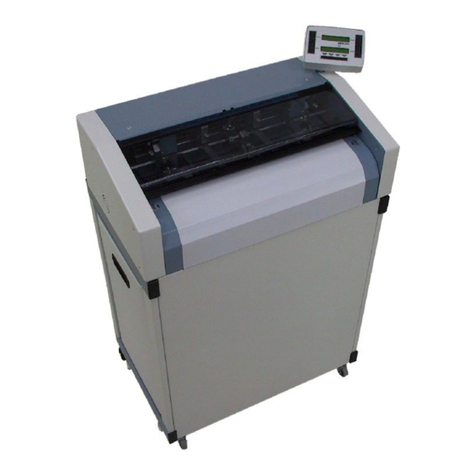
  9. Muller Braillo Cut 6609d User manual

Muller Braillo Cut 6609d User manual

Other Muller Cutter manuals

Muller 6609d Operating instructions

Muller

Muller 6609d Operating instructions

Muller 6609d User manual

Muller

Muller 6609d User manual

Popular Cutter manuals by other brands

Eraser WC600 operating instructions

Eraser

Eraser WC600 operating instructions

Husqvarna K 760 OilGuard Operator's manual

Husqvarna

Husqvarna K 760 OilGuard Operator's manual

Binding Products GuilloMax user manual

Binding Products

Binding Products GuilloMax user manual

Bms Bulut Makina BULUCUT-6 Operational manual

Bms Bulut Makina

Bms Bulut Makina BULUCUT-6 Operational manual

Westfalia 80 02 22 instruction manual

Westfalia

Westfalia 80 02 22 instruction manual

Perfecta 76 UC Service instructions

Perfecta

Perfecta 76 UC Service instructions

Bosch POF 1400 ACE Original instructions

Bosch

Bosch POF 1400 ACE Original instructions

SignWarehouse.com Bobcat BA-60 user manual

SignWarehouse.com

SignWarehouse.com Bobcat BA-60 user manual

Makita 4112HS instruction manual

Makita

Makita 4112HS instruction manual

GEISMAR STUMEC MTZ 350S manual

GEISMAR STUMEC

GEISMAR STUMEC MTZ 350S manual

Hitachi CM 4SB2 Safety instructions and instruction manual

Hitachi

Hitachi CM 4SB2 Safety instructions and instruction manual

Dexter Laundry 800ETC1-20030.1 instruction manual

Dexter Laundry

Dexter Laundry 800ETC1-20030.1 instruction manual

GCC Technologies AFJ-24S user manual

GCC Technologies

GCC Technologies AFJ-24S user manual

ARCBRO Stinger-PRO 5100 Series Install manual

ARCBRO

ARCBRO Stinger-PRO 5100 Series Install manual

DeWalt XR LI-ION DCS350N manual

DeWalt

DeWalt XR LI-ION DCS350N manual

Baudat ES1 instruction manual

Baudat

Baudat ES1 instruction manual

Makita 4100NH instruction manual

Makita

Makita 4100NH instruction manual

CAB PCU400 instructions

CAB

CAB PCU400 instructions

manuals.online logo
manuals.online logoBrands
  • About & Mission
  • Contact us
  • Privacy Policy
  • Terms and Conditions

Copyright 2025 Manuals.Online. All Rights Reserved.

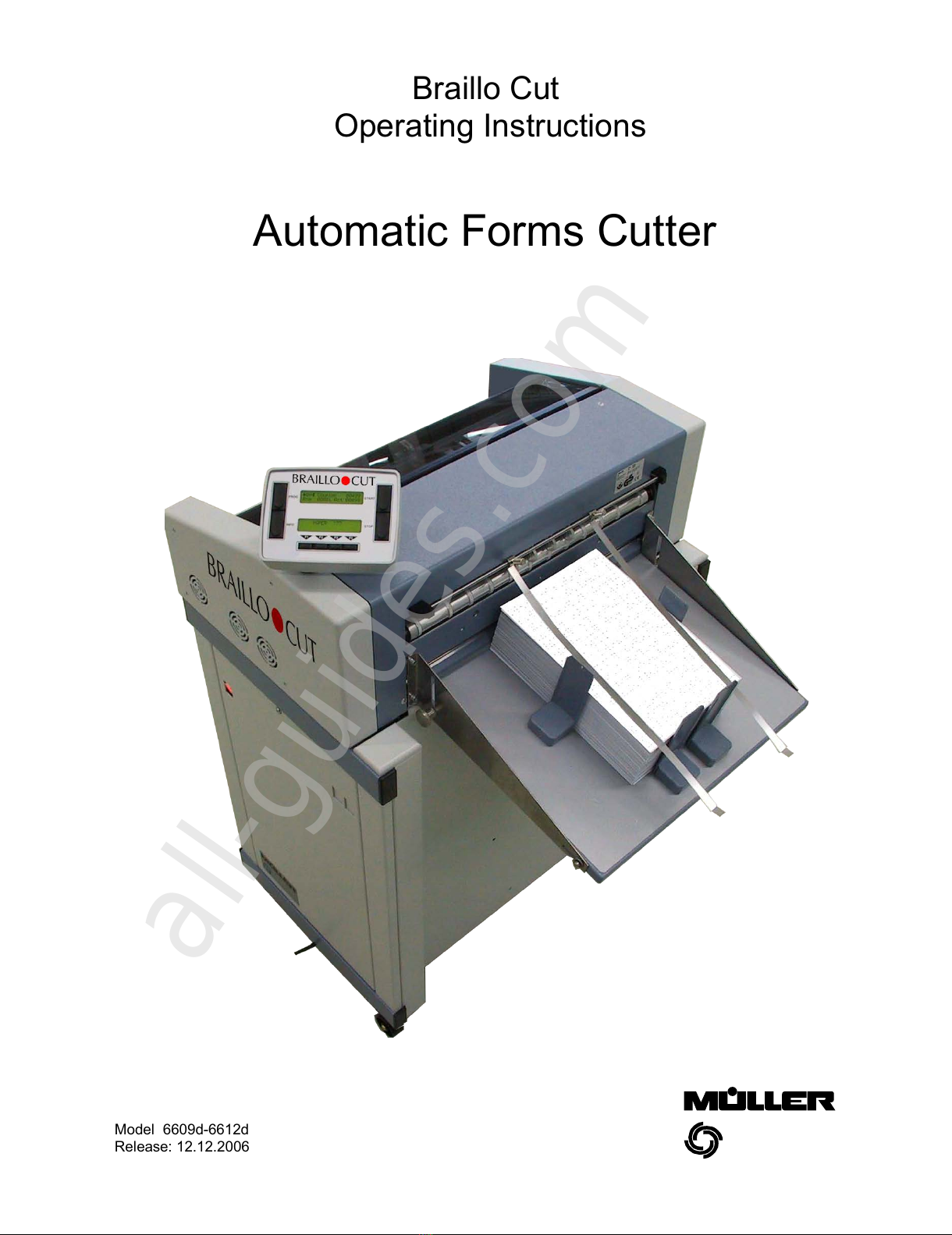
Braillo Cut
Operating Instructions
Automatic Forms Cutter
Model 6609d-6612d
Release: 12.12.2006
All manuals and user guides at all-guides.com
all-guides.com
Mod. 6609d-6612d: Automatic Forms Cutter 13.12.2006
-2-
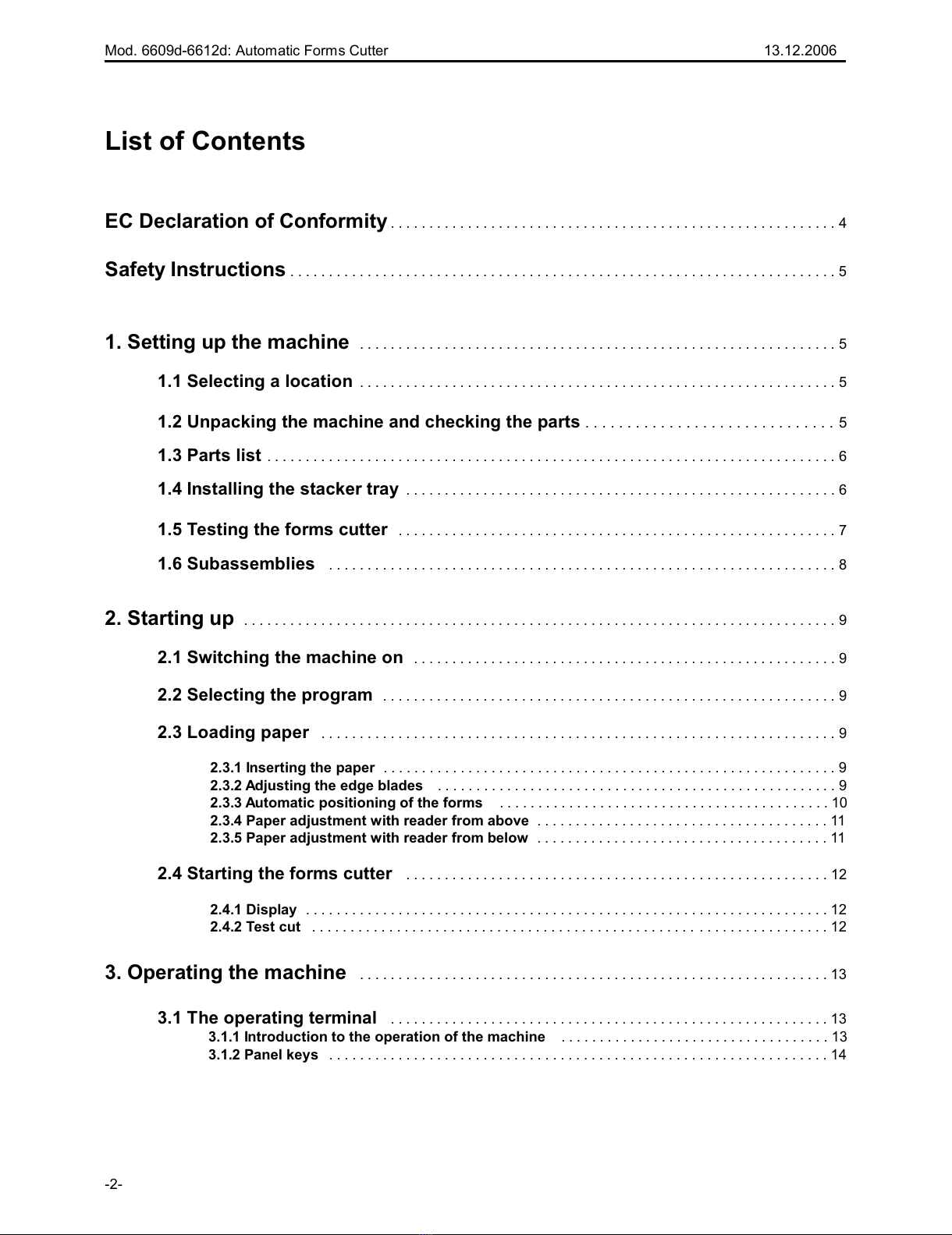
List of Contents
EC Declaration of Conformity . . . . . . . . . . . . . . . . . . . . . . . . . . . . . . . . . . . . . . . . . . . . . . . . . . . . . . . . . . 4
Safety Instructions . . . . . . . . . . . . . . . . . . . . . . . . . . . . . . . . . . . . . . . . . . . . . . . . . . . . . . . . . . . . . . . . . . . . . . . 5
1. Setting up the machine . . . . . . . . . . . . . . . . . . . . . . . . . . . . . . . . . . . . . . . . . . . . . . . . . . . . . . . . . . . . . . 5
1.1 Selecting a location . . . . . . . . . . . . . . . . . . . . . . . . . . . . . . . . . . . . . . . . . . . . . . . . . . . . . . . . . . . . . . 5
1.2 Unpacking the machine and checking the parts . . . . . . . . . . . . . . . . . . . . . . . . . . . . . . 5
1.3 Parts list . . . . . . . . . . . . . . . . . . . . . . . . . . . . . . . . . . . . . . . . . . . . . . . . . . . . . . . . . . . . . . . . . . . . . . . . . . 6
1.4 Installing the stacker tray . . . . . . . . . . . . . . . . . . . . . . . . . . . . . . . . . . . . . . . . . . . . . . . . . . . . . . . . 6
1.5 Testing the forms cutter . . . . . . . . . . . . . . . . . . . . . . . . . . . . . . . . . . . . . . . . . . . . . . . . . . . . . . . . . 7
1.6 Subassemblies . . . . . . . . . . . . . . . . . . . . . . . . . . . . . . . . . . . . . . . . . . . . . . . . . . . . . . . . . . . . . . . . . . 8
2. Starting up . . . . . . . . . . . . . . . . . . . . . . . . . . . . . . . . . . . . . . . . . . . . . . . . . . . . . . . . . . . . . . . . . . . . . . . . . . . . . 9
2.1 Switching the machine on . . . . . . . . . . . . . . . . . . . . . . . . . . . . . . . . . . . . . . . . . . . . . . . . . . . . . . . 9
2.2 Selecting the program . . . . . . . . . . . . . . . . . . . . . . . . . . . . . . . . . . . . . . . . . . . . . . . . . . . . . . . . . . . 9
2.3 Loading paper . . . . . . . . . . . . . . . . . . . . . . . . . . . . . . . . . . . . . . . . . . . . . . . . . . . . . . . . . . . . . . . . . . . 9
2.3.1 Inserting the paper . . . . . . . . . . . . . . . . . . . . . . . . . . . . . . . . . . . . . . . . . . . . . . . . . . . . . . . . . . . 9
2.3.2 Adjusting the edge blades . . . . . . . . . . . . . . . . . . . . . . . . . . . . . . . . . . . . . . . . . . . . . . . . . . . . 9
2.3.3 Automatic positioning of the forms . . . . . . . . . . . . . . . . . . . . . . . . . . . . . . . . . . . . . . . . . . . 10
2.3.4 Paper adjustment with reader from above . . . . . . . . . . . . . . . . . . . . . . . . . . . . . . . . . . . . . . 11
2.3.5 Paper adjustment with reader from below . . . . . . . . . . . . . . . . . . . . . . . . . . . . . . . . . . . . . . 11
2.4 Starting the forms cutter . . . . . . . . . . . . . . . . . . . . . . . . . . . . . . . . . . . . . . . . . . . . . . . . . . . . . . . 12
2.4.1 Display . . . . . . . . . . . . . . . . . . . . . . . . . . . . . . . . . . . . . . . . . . . . . . . . . . . . . . . . . . . . . . . . . . . . 12
2.4.2 Test cut . . . . . . . . . . . . . . . . . . . . . . . . . . . . . . . . . . . . . . . . . . . . . . . . . . . . . . . . . . . . . . . . . . . 12
3. Operating the machine . . . . . . . . . . . . . . . . . . . . . . . . . . . . . . . . . . . . . . . . . . . . . . . . . . . . . . . . . . . . . 13
3.1 The operating terminal . . . . . . . . . . . . . . . . . . . . . . . . . . . . . . . . . . . . . . . . . . . . . . . . . . . . . . . . . 13
3.1.1 Introduction to the operation of the machine . . . . . . . . . . . . . . . . . . . . . . . . . . . . . . . . . . . 13
3.1.2 Panel keys . . . . . . . . . . . . . . . . . . . . . . . . . . . . . . . . . . . . . . . . . . . . . . . . . . . . . . . . . . . . . . . . . 14
All manuals and user guides at all-guides.com
Mod. 6609d-6612d: Automatic Forms Cutter 13.12.2006
-3-
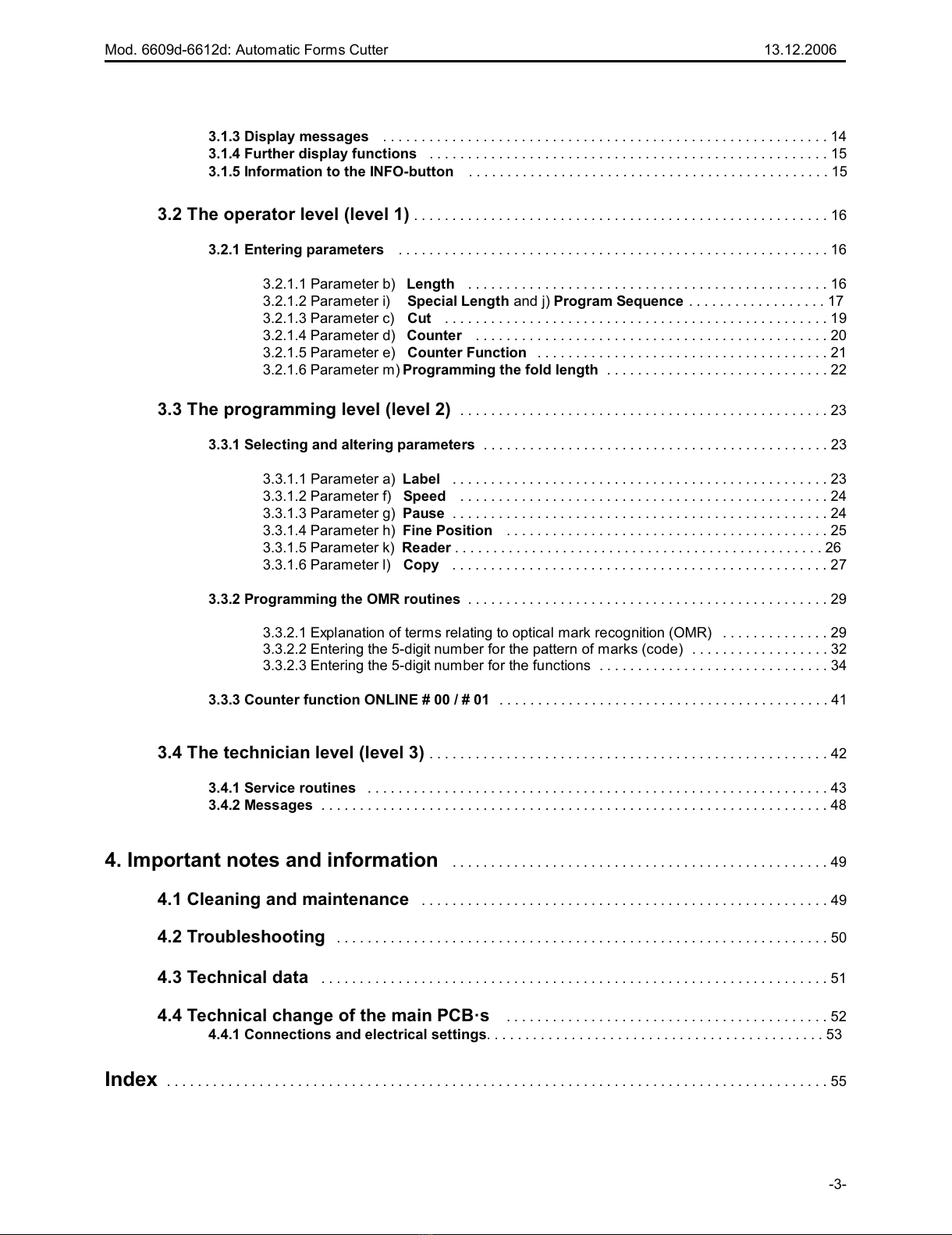
3.1.3 Display messages . . . . . . . . . . . . . . . . . . . . . . . . . . . . . . . . . . . . . . . . . . . . . . . . . . . . . . . . . . 14
3.1.4 Further display functions . . . . . . . . . . . . . . . . . . . . . . . . . . . . . . . . . . . . . . . . . . . . . . . . . . . . 15
3.1.5 Information to the INFO-button . . . . . . . . . . . . . . . . . . . . . . . . . . . . . . . . . . . . . . . . . . . . . . . 15
3.2 The operator level (level 1) . . . . . . . . . . . . . . . . . . . . . . . . . . . . . . . . . . . . . . . . . . . . . . . . . . . . . . 16
3.2.1 Entering parameters . . . . . . . . . . . . . . . . . . . . . . . . . . . . . . . . . . . . . . . . . . . . . . . . . . . . . . . . 16
3.2.1.1 Parameter b) Length . . . . . . . . . . . . . . . . . . . . . . . . . . . . . . . . . . . . . . . . . . . . . . . 16
3.2.1.2 Parameter i) Special Length and j) Program Sequence . . . . . . . . . . . . . . . . . . 17
3.2.1.3 Parameter c) Cut . . . . . . . . . . . . . . . . . . . . . . . . . . . . . . . . . . . . . . . . . . . . . . . . . . 19
3.2.1.4 Parameter d) Counter . . . . . . . . . . . . . . . . . . . . . . . . . . . . . . . . . . . . . . . . . . . . . . 20
3.2.1.5 Parameter e) Counter Function . . . . . . . . . . . . . . . . . . . . . . . . . . . . . . . . . . . . . . 21
3.2.1.6 Parameter m) Programming the fold length . . . . . . . . . . . . . . . . . . . . . . . . . . . . . 22
3.3 The programming level (level 2) . . . . . . . . . . . . . . . . . . . . . . . . . . . . . . . . . . . . . . . . . . . . . . . . 23
3.3.1 Selecting and altering parameters . . . . . . . . . . . . . . . . . . . . . . . . . . . . . . . . . . . . . . . . . . . . . 23
3.3.1.1 Parameter a) Label . . . . . . . . . . . . . . . . . . . . . . . . . . . . . . . . . . . . . . . . . . . . . . . . . 23
3.3.1.2 Parameter f) Speed . . . . . . . . . . . . . . . . . . . . . . . . . . . . . . . . . . . . . . . . . . . . . . . . 24
3.3.1.3 Parameter g) Pause . . . . . . . . . . . . . . . . . . . . . . . . . . . . . . . . . . . . . . . . . . . . . . . . . 24
3.3.1.4 Parameter h) Fine Position . . . . . . . . . . . . . . . . . . . . . . . . . . . . . . . . . . . . . . . . . . 25
3.3.1.5 Parameter k) Reader . . . . . . . . . . . . . . . . . . . . . . . . . . . . . . . . . . . . . . . . . . . . . . . . 26
3.3.1.6 Parameter l) Copy . . . . . . . . . . . . . . . . . . . . . . . . . . . . . . . . . . . . . . . . . . . . . . . . . 27
3.3.2 Programming the OMR routines . . . . . . . . . . . . . . . . . . . . . . . . . . . . . . . . . . . . . . . . . . . . . . . 29
3.3.2.1 Explanation of terms relating to optical mark recognition (OMR) . . . . . . . . . . . . . . 29
3.3.2.2 Entering the 5-digit number for the pattern of marks (code) . . . . . . . . . . . . . . . . . . 32
3.3.2.3 Entering the 5-digit number for the functions . . . . . . . . . . . . . . . . . . . . . . . . . . . . . . 34
3.3.3 Counter function ONLINE # 00 / # 01 . . . . . . . . . . . . . . . . . . . . . . . . . . . . . . . . . . . . . . . . . . . 41
3.4 The technician level (level 3) . . . . . . . . . . . . . . . . . . . . . . . . . . . . . . . . . . . . . . . . . . . . . . . . . . . . 42
3.4.1 Service routines . . . . . . . . . . . . . . . . . . . . . . . . . . . . . . . . . . . . . . . . . . . . . . . . . . . . . . . . . . . . 43
3.4.2 Messages . . . . . . . . . . . . . . . . . . . . . . . . . . . . . . . . . . . . . . . . . . . . . . . . . . . . . . . . . . . . . . . . . . 48
4. Important notes and information . . . . . . . . . . . . . . . . . . . . . . . . . . . . . . . . . . . . . . . . . . . . . . . . . 49
4.1 Cleaning and maintenance . . . . . . . . . . . . . . . . . . . . . . . . . . . . . . . . . . . . . . . . . . . . . . . . . . . . . 49
4.2 Troubleshooting . . . . . . . . . . . . . . . . . . . . . . . . . . . . . . . . . . . . . . . . . . . . . . . . . . . . . . . . . . . . . . . . 50
4.3 Technical data . . . . . . . . . . . . . . . . . . . . . . . . . . . . . . . . . . . . . . . . . . . . . . . . . . . . . . . . . . . . . . . . . . 51
4.4 Technical change of the main PCB·s . . . . . . . . . . . . . . . . . . . . . . . . . . . . . . . . . . . . . . . . . . 52
4.4.1 Connections and electrical settings. . . . . . . . . . . . . . . . . . . . . . . . . . . . . . . . . . . . . . . . . . . . 53
Index . . . . . . . . . . . . . . . . . . . . . . . . . . . . . . . . . . . . . . . . . . . . . . . . . . . . . . . . . . . . . . . . . . . . . . . . . . . . . . . . . . . . . . 55

All manuals and user guides at all-guides.com
Mod. 6609d-6612d: Automatic Forms Cutter 13.12.2006
-4-
All manuals and user guides at all-guides.com
Mod. 6609d-6612d: Automatic Forms Cutter 13.12.2006
-5-
Safety Instructions
Before operating this machine please read carefully the following instructions for your own
safety and for safe operation of the machine.
This machine may only be operated by trained staff .The manufacturer disclaims liability for
injuries occurring during unauthorized operation.
This equipment must not be installed or altered, and the housing must not be opened, by
anyone other than a trained service technician.
Make sure that the electricity supply conforms with the voltages given on the machine.
This machine may only be operated using the cable supplied.
Do not connect and disconnect the interface connector while the power is switched on. Wait
at least 10 seconds after switching the machine off and on.
Except for the service routines given in the operat ing instructions you should never attempt to
repair the machine yourself. If problems arise call the service technician at your customer
service centre.
Keep long hair, fingers and jewellery well away from rotating machine parts.
1. Setting up the machine
1.1 Selecting a location
The following factors are important in selecting a location for the machine:
- Avoid direct sunlight, heat and damp.
- Always use an earthed socket with no adapter plug.
1.2 Unpacking the machine and checking the parts
Unpack the machine and check that no damage has occurred during transport.
Two persons are required to set up the machine. Hold the automatic forms cutter on the
bars of the base rack and stand it on its feet. Never hold the machine e.g. at the display or
the cover.
Risk of breakage! Remove all PU parts (transport protection).
For your information: You will find the stacker plate (optional) in the waste container.
Fix the machine in position by unscrewing the adjustable feet!
All manuals and user guides at all-guides.com
Mod. 6609d-6612d: Automatic Forms Cutter 13.12.2006
-6-
1.3 Parts list
1 Automatic Forms Cutter
1 Abfallbehälter
1 Stacker tray (optional):
1 Tray
1 Left side piece
1 Right side piece
2 Knurled screw
2 Washer
2 Screw
8 Disc spring
2 Washer
4 Paper stop
2 Paper holder
Items , , are fixed to the side pieces , with a nut. The nut is for transport protection only and is not required
for installation.
1.4. Installing the stacker tray
1. Unpack all parts. Unscrew the fasteners , , on the side pieces , . These parts are fixed to the side
pieces with a nut. The nut is only for protection during transport. Make sure that the disc springs are fitted
in the correct position.
2. Screw the side pieces to the stacker tray and hang in position on the back of the machine.
3. Fit the paper holder . To do this, unscrew the clamps on the rod at th e back of the machine and
fasten the paper holder with the screws .
4. Position the 4 paper stops .
All manuals and user guides at all-guides.com
all-guides.com
Mod. 6609d-6612d: Automatic Forms Cutter 13.12.2006
-7-
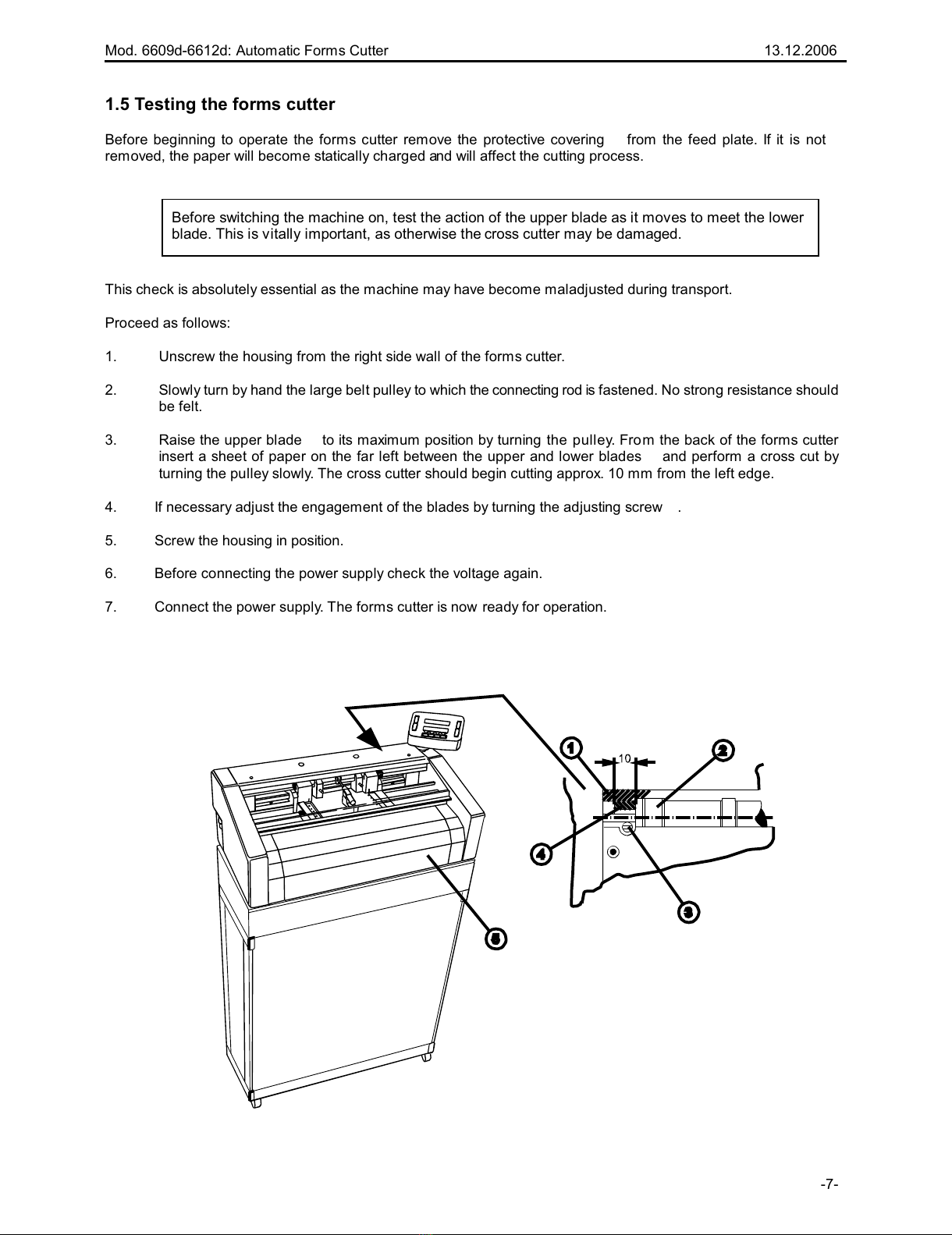
Before switching the machine on, test the action of the upper blade as it moves to meet the lower
blade. This is vitally important, as otherwise the cross cutter may be damaged.
1.5 Testing the forms cutter
Before beginning to operate the forms cutter remove the protective covering from the feed plate. If it is not
removed, the paper will become statically charged and will affect the cutting process.
This check is absolutely essential as the machine may have become maladjusted during transport.
Proceed as follows:
1. Unscrew the housing from the right side wall of the forms cutter.
2. Slowly turn by hand the large belt pulley to which the connecting rod is fastened. No strong resistance should
be felt.
3. Raise the upper blade to its maximum position by turning the pulley. From the back of the forms cutter
insert a sheet of paper on the far left between the upper and lower blades and perform a cross cut by
turning the pulley slowly. The cross cutter should begin cutting approx. 10 mm from the left edge.
4. If necessary adjust the engagement of the blades by turning the adjusting screw .
5. Screw the housing in position.
6. Before connecting the power supply check the voltage again.
7. Connect the power supply. The forms cutter is now ready for operation.
All manuals and user guides at all-guides.com
Mod. 6609d-6612d: Automatic Forms Cutter 13.12.2006
-8-
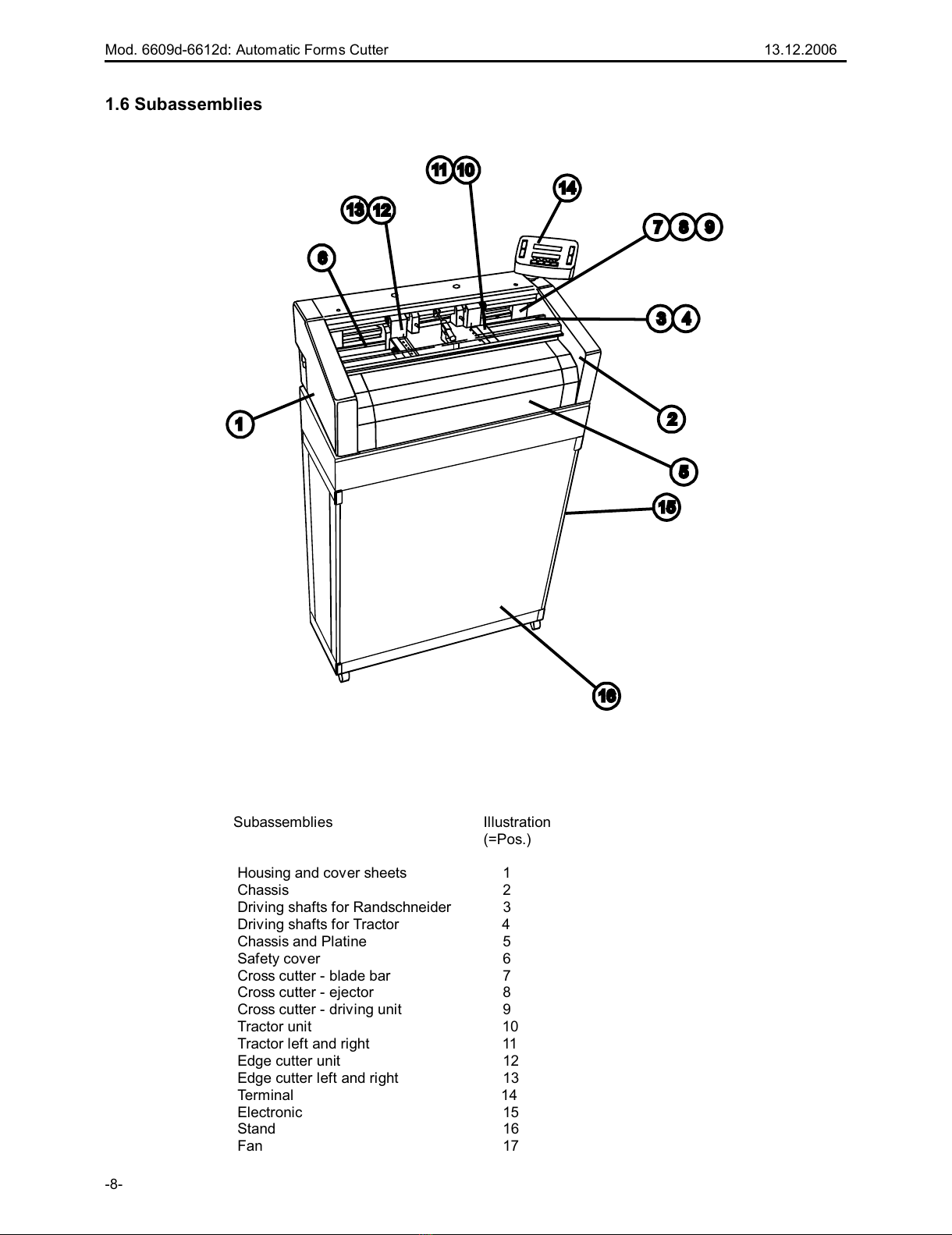
1.6 Subassemblies
Subassemblies Illustration
(=Pos.)
Housing and cover sheets 1
Chassis 2
Driving shafts for Randschneider 3
Driving shafts for Tractor 4
Chassis and Platine 5
Safety cover 6
Cross cutter - blade bar 7
Cross cutter - ejector 8
Cross cutter - driving unit 9
Tractor unit 10
Tractor left and right 11
Edge cutter unit 12
Edge cutter left and right 13
Terminal 14
Electronic 15
Stand 16
Fan 17
All manuals and user guides at all-guides.com
Mod. 6609d-6612d: Automatic Forms Cutter 13.12.2006
-9-
2. Starting up
2.1 Switching the machine on
The machine is switched on by the power switch. The
display then shows a message for about 3 seconds
(display version, serial no., model no.), which can be held
in the display by pressing the stop button.
When the button is pressed again the current counter
position appears. When the button is released, the
program last used is shown. If any other equipment is
connected, it will return to its starting position (e.g.
lowering stacker).
2.2 Selecting the program
The display shows the program last used. If you wan t to use a different program, you can select it with buttons F1-F4.
New programs can be entered in program slot 00 only, and stored in slots 01-83 (see also Section 3.3 "The
programming level”). Every time the machine is switched on, fixed programs from the EPROM memory overwrite
program slots 84-99.
2.3 Loading paper
2.3.1 Inserting the paper
Open both tractor covers and release the tractor
screws . Set the tractors at approximately the width of
the paper but do not lock them. Insert the paper. Make
sure that the leading edge is cleanly torn off, as
otherwise the paper will not be cut on the cross-
perforation. Now close the tractor covers and position
the paper in the centre of the machine. Use the centre
paper guide as an aid. Fix the screws on one of the
tractors and adjust the tension of the paper by moving
the second tractor. The paper should be neither very
tight nor very loose. Then fix the screws on the
secound tractor.
Fine adjustment: This device can be used to fine adjust
the tractor to a certain position using the adjusti ng wheel
(position the tractor first).
2.3.2 Adjusting the edge blades
Release the screws of the edge blades and fix then after setting to the desired width. T he maximum width is 28
mm (option available: extra wide edge cutter max. 60 mm). The red arrow indicates the cutting position of the edge
blade. After setting the required width, lock both edge blade blocks again.
Fine adjustment: This device can be used to fine adjust the edge cu tter to a certain cutting position using the
adjusting wheel (position the edge cutter first).
All manuals and user guides at all-guides.com
Mod. 6609d-6612d: Automatic Forms Cutter 13.12.2006
-10-
2.3.3 Automatic positioning of the forms
After the paper has ben inserted, series 6600 forms cutters position the forms automatically at the bl ade edge on
starting or on changing programs. The central paper guide contains a light-guide fibre optics system, which has two
functions:
1. Recognising end-of-paper
2. Automatic positioning of paper on the cutting edge
If the paper is inserted in the tractors in such a way that it does not reach the optical scanner, the tractors will
transport the paper automatically forwards to the scanner after the Start button has been pressed, and then under
the cross blade for the first cut.
If the paper is inserted in such a way that it already covers the optical scanner, the tractors will m ove in reverse
direction to the scanner after the Start button has been pressed and then forwards under the cross blade.
Due to this automatic positioning the paper can be inserted without any need to position it accurately. Before paper
is inserted in the machine, it is important to chec k that the leading edge of the paper has been clean ly torn off at the
cross-perforation. This is necessary because, due to the automatic positioning of the paper on the cutting edge, the
forms will otherwise not be cut exactly on the cross-perforation.
The machine automatically recognizes the leading edge of the paper and transports it immediately to the cutting
edge. If the leading edge is damaged or if a piece has already been cut off, the machine will not position the paper
correctly with the cross-perforation on the blade e dge. Any correction made using the fine adjustment control will be
automatically applied each time paper is inserted.
We recommend that you tear off one sheet of paper before every new start. This also helps to prevent j amming due
to the cuts made by the edge blades.
Caution!
The end-of-paper light barrier must not be covered by the paper-holder as this means the
paper cannot be detected.
On starting, the machine would run in reverse direction and would eject the paper in reverse
direction into the tractor.
If the paper-holder becomes twisted during continuous operation so that it covers the light
barrier, the forms cutter will not stop at the end of the paper.
All manuals and user guides at all-guides.com