manuals.online logo
Brands
  1. Home
  2. •
  3. Brands
  4. •
  5. Multitech
  6. •
  7. Network Hardware
  8. •
  9. Multitech FaxFinder FF-120 User manual

Multitech FaxFinder FF-120 User manual

Other manuals for FaxFinder FF-120

4

This manual suits for next models

3

Other Multitech Network Hardware manuals
Multitech MultiDSU MTT1DSU Operator's manual

Multitech

Multitech MultiDSU MTT1DSU Operator's manual

Multitech SocketModem Cell MTSMC-L4G1 Application guide

Multitech

Multitech SocketModem Cell MTSMC-L4G1 Application guide

Multitech RouteFinder RF850 User manual

Multitech

Multitech RouteFinder RF850 User manual

Multitech MultiConnect MTC-L4G2D User manual

Multitech

Multitech MultiConnect MTC-L4G2D User manual

Multitech MT64DSU User manual

Multitech

Multitech MT64DSU User manual

Multitech FaxFinder FF-120 User manual

Multitech

Multitech FaxFinder FF-120 User manual

Multitech Multi-Tech RouteFinder SOHO RF820 User manual
Multitech

Multitech Multi-Tech RouteFinder SOHO RF820 User manual

Multitech Conduit MTCDT Series Installation instructions

Multitech

Multitech Conduit MTCDT Series Installation instructions

Multitech Multi-Tech RouteFinder SOHO RF820 User manual

Multitech

Multitech Multi-Tech RouteFinder SOHO RF820 User manual

Multitech REVEAL RBS304-1 User manual

Multitech

Multitech REVEAL RBS304-1 User manual

Multitech MultiConnect WF MTS2WFA-R User manual

Multitech

Multitech MultiConnect WF MTS2WFA-R User manual

Multitech MultiFrad FR111A User manual

Multitech

Multitech MultiFrad FR111A User manual

Multitech MultiVOIP 200 MVP200 User manual

Multitech

Multitech MultiVOIP 200 MVP200 User manual

Multitech MT56DSU2 User manual

Multitech

Multitech MT56DSU2 User manual

Multitech MultiFRAD FR111 User manual

Multitech

Multitech MultiFRAD FR111 User manual

Multitech DataTalker DT101 User manual

Multitech

Multitech DataTalker DT101 User manual

Multitech SocketModem MTSMC-L4E1 User manual

Multitech

Multitech SocketModem MTSMC-L4E1 User manual

Multitech MultiVOIP 200 MVP200 User manual

Multitech

Multitech MultiVOIP 200 MVP200 User manual

Multitech MT56DSU-R User manual

Multitech

Multitech MT56DSU-R User manual

Multitech MultiConnect eCell User manual

Multitech

Multitech MultiConnect eCell User manual

Multitech MTE-LEU6-B07 User manual

Multitech

Multitech MTE-LEU6-B07 User manual

Multitech MultiDSU MTT1DSU User manual

Multitech

Multitech MultiDSU MTT1DSU User manual

Multitech FaxFinder FF240 User manual

Multitech

Multitech FaxFinder FF240 User manual

Multitech MTSMC-LAT3 Application guide
Multitech

Multitech MTSMC-LAT3 Application guide

Popular Network Hardware manuals by other brands

socomec SNMP Card II quick start guide

socomec

socomec SNMP Card II quick start guide

NVR SYSTEMS 4-CH user manual

NVR SYSTEMS

NVR SYSTEMS 4-CH user manual

Draytek VigorSwitch G1240 quick start guide

Draytek

Draytek VigorSwitch G1240 quick start guide

Westermo TD-34 LV installation manual

Westermo

Westermo TD-34 LV installation manual

LaCie Network Space MAX Quick install guide

LaCie

LaCie Network Space MAX Quick install guide

ZoneVu ZSI-450-IP Installation guide & user manual

ZoneVu

ZoneVu ZSI-450-IP Installation guide & user manual

QNAP Turbo NAS Application notes

QNAP

QNAP Turbo NAS Application notes

OpenEye MV Series quick start guide

OpenEye

OpenEye MV Series quick start guide

Huawei SmartAX MT880a quick start guide

Huawei

Huawei SmartAX MT880a quick start guide

Proxim Tsunami QuickBridge 2454-R installation guide

Proxim

Proxim Tsunami QuickBridge 2454-R installation guide

Bay Networks CLAM quick start guide

Bay Networks

Bay Networks CLAM quick start guide

Innodisk SATADOM-SH 3SE Series manual

Innodisk

Innodisk SATADOM-SH 3SE Series manual

Cisco CGR 1000 Series Getting connected guide

Cisco

Cisco CGR 1000 Series Getting connected guide

Matrix Switch Corporation MSC-HD161DEL product manual

Matrix Switch Corporation

Matrix Switch Corporation MSC-HD161DEL product manual

National Instruments NI 653x user manual

National Instruments

National Instruments NI 653x user manual

B&B Electronics ZXT9-IO-222R2 product manual

B&B Electronics

B&B Electronics ZXT9-IO-222R2 product manual

Yudor YDS-16 user manual

Yudor

Yudor YDS-16 user manual

D-Link ShareCenter DNS-320L datasheet

D-Link

D-Link ShareCenter DNS-320L datasheet
manuals.online logo
manuals.online logoBrands
  • About & Mission
  • Contact us
  • Privacy Policy
  • Terms and Conditions

Copyright 2025 Manuals.Online. All Rights Reserved.

FaxFinder®
V.34 Fax Servers
Models: FF120
FF220
FF420
FF820
Administrator User Guide
FaxFinder®Administrator User Guide
S000405E, Version E
Models: FF120, FF220, FF420, and FF820
Copyright © 2009, by Multi-Tech Systems, Inc.
This publication may not be reproduced, in whole or in part, without prior expressed written permission
from Multi-Tech Systems, Inc. All rights reserved.
Multi-Tech Systems, Inc. makes no representations or warranties with respect to the contents hereof and
specifically disclaims any implied warranties of merchantability or fitness for any particular purpose.
Furthermore, Multi-Tech Systems, Inc. reserves the right to revise this publication and to make changes
from time to time in the content hereof without obligation of Multi-Tech Systems, Inc. to notify any person
or organization of such revisions or changes. Check Multi-Tech’s web site for current versions of our
product documentation.
Revisions
Level Date Description
A05/05/06 Initial release of FF-420/820.
B03/02/07 Initial release. Update of FF420/820 and addition of FF120/220.
C 04/04/07 Revise warranty statement and update tech support contact list.
D11/20/07 Removed status LED references, updated tech support contact list, and
added slotted hole mounting drawing.
E 09/15/08 Update Server changes for software & firmware. Added status LED
references back in.
05/13/09 Added link to website for warranty information.
Patents
This device covered by the following patents:
6,031,867; 6,012,113; 6,009,082; 5,905,794; 5,864,560; 5,815,567; 5,815,503; 5,812,534; 5,809,068;
5,790,532; 5,764,628; 5,764,627; 5,754,589; D394,250; 5,724,356; 5,673,268; 5,673,257; 5,644,594;
5,628,030; 5,619,508; 5,617,423; 5,600,649; 5,592,586; 5,577,041; 5,574,725; D374,222; 5,559,793;
5,546,448; 5,546,395; 5,535,204; 5,500,859; 5,471,470; 5,463,616; 5,453,986; 5,452,289; 5,450,425;
D361,764; D355,658; D355,653; D353,598; D353,144; 5,355,365; 5,309,562; 5,301,274, 6,219,708 Other
patents pending.
Trademarks
Multi-Tech Registered Trademarks: FaxFinder, Multi-Tech, and the Multi-Tech logo.
All other products and technologies are the trademarks or registered trademarks of their respective
holders.
World Headquarters
Multi-Tech Systems, Inc.
2205 Woodale Drive
Mounds View, Minnesota 55112
Phone: 763-785-3500 or 800-328-9717
Fax: 763-785-9874
Technical Support
Country By Email By Phone
Europe, Middle East, Africa: [email protected] (44) 118 959 7774
U.S., Canada, all others: [email protected]m (800) 972-2439 or (763) 717-5863
Warranty
To read the warranty statement for your product, please visit: http://www.multitech.com.
Multi-Tech Systems, Inc. FaxFinder Admin User Guide 3
CONTENTS
CHAPTER 1 – PRODUCT DESCRIPTION & SPECIFICATIONS ...............................................................4
Product Description ................................................................................................................................... 4
Safety Warnings ........................................................................................................................................ 6
Technical Specifications ............................................................................................................................ 7
CHAPTER 2 – INSTALLATION ................................................................................................................... 9
Mechanical Mounting...............................................................................................................................10
Quick Hookup .......................................................................................................................................... 11
Installation Overview ............................................................................................................................... 14
CHAPTER 3 – FAXFINDER SERVER SOFTWARE SCREENS ............................................................... 42
Home Screen........................................................................................................................................... 42
Login Screen ........................................................................................................................................... 43
Fax Log Screen ....................................................................................................................................... 44
Current Status Screen ............................................................................................................................. 47
Administration Screen ............................................................................................................................. 50
Phone Book Screen................................................................................................................................. 54
Modem Configuration Screen.................................................................................................................. 56
Password Administration Screen ............................................................................................................ 60
Shared Resources Screen ...................................................................................................................... 61
CHAPTER 4 – FAXFINDER CLIENT SOFTWARE CONFIGURATION.................................................... 62
Establishing Client User’s ID in System .................................................................................................. 62
Associating Client with Specific FaxFinder Unit(s).................................................................................. 63
Disassociating the Client from a Specific FaxFinder Unit ....................................................................... 65
Disabling and Re-Enabling a Client’s FaxFinder Service........................................................................ 66
FaxFinder Fax Client Software Menu Command Definitions ..................................................................67
CHAPTER 5 – FAXFINDER CLIENT SOFTWARE OPERATION............................................................. 79
Sending a Fax ......................................................................................................................................... 80
Scheduling Fax Transmissions ............................................................................................................... 86
Putting Pending Faxes on Hold and Removing the Hold ........................................................................ 88
Canceling a Fax....................................................................................................................................... 91
Setting Fax Retry Number and Interval ................................................................................................... 92
Sending One Fax Containing Multiple Documents .................................................................................93
Forwarding a Fax..................................................................................................................................... 95
Receiving a Fax....................................................................................................................................... 96
Using the Multi-Tech Tiff Viewer ............................................................................................................. 99
Setting up Your Address Book Manually............................................................................................... 105
Setting up Your Address Book by Synchronizing with Outlook.............................................................108
Setting Up Address Books with CSV Files ............................................................................................ 111
Cover Pages..........................................................................................................................................125
CHAPTER 6 – SERVER OPERATION .................................................................................................... 147
Fax Log Email Messages ...................................................................................................................... 147
Dealing with Failed Fax Reports ........................................................................................................... 149
CHAPTER 7 – DEVICE MANAGER OPERATION ..................................................................................150
Access to Commands............................................................................................................................152
Firmware Updating Process .................................................................................................................. 175
APPENDIX A – TROUBLESHOOTING ................................................................................................... 183
APPENDIX B – REGULATORY INFORMATION ....................................................................................188
APPENDIX C – EXAMPLE SYSTEMS .................................................................................................... 193
Multi-Tech Systems, Inc. FaxFinder Admin User Guide 4
Chapter 1 – Product Description &
Specifications
Product Description
This manual describes four Multi-Tech V.34 fax servers: the FF120 1-Port FaxFinder unit, the FF220 2-
Port FaxFinder unit, the FF420 4-Port FaxFinder unit, and the FF820 8-Port FaxFinder unit. All four of
these units are complete, economical, easy-to-use network fax servers. With any of these units, you can
receive faxes as emails and send faxes from any application that can print. The FF120/220/420/820
FaxFinder operates in two modes: Automated Routing Mode and Manual Routing Mode.1 The mode is
set in the Routing field of the Modem Configuration screen of the FaxFinder Server software.
Automated Routing Mode. When connected to a station port on a PBX, the FaxFinder functions as a
network fax server with two-way fax service. Multiple PBX extension numbers are dedicated to incoming
fax traffic which is routed to the FaxFinder. (Only one station port is needed. Faxes transmitted to any of
the PBX’s fax-dedicated extension numbers all go to the station port serving the FF120/220/420/820.)
The FaxFinder converts the incoming faxes into graphic files that are sent as email attachments to fax
recipients on or beyond the Ethernet network. (Because faxes are delivered in the form of email, the fax
recipient could be at any reach-able email address. So, for example, a sales person could receive faxes
while traveling by using a regular company fax number and picking up the email messages remotely.)
Each fax-dedicated PBX extension number is associated with a particular email address.
Receiving. Fax clients receive faxes in the form of email attachments. From the remote fax sender’s
perspective, PBX extension phone numbers are functionally identical to ordinary fax phone lines.
Sending. Fax clients on the network can send faxes directly from their PCs using any application
program that can print. The application program must be set so that the FaxFinder itself is its printing
destination. In response to the ‘Print’ command, the FaxFinder turns the ‘print file’ image into a fax. The
FaxFinder transmits the fax to the public phone system (PSTN) or to another PBX extension.
Manual Routing Mode. When connected directly to a regular POTS line (or to a PBX without
‘convergent’ routing capability), the FF120/220/420/820 functions as an outgoing fax server with incoming
fax service going through one or more attendants. Each of the FaxFinder’s modems has a separate fax
number and each modem can have a separate attendant that receives the fax messages as emails and
then has the duty to direct them to their intended recipients. (Note that one attendant could serve more
than one of the FaxFinder’s modems – some or all of the modems.) For example, an FF820 FaxFinder
might be used in a company with several departments that regularly receive faxes but in differing
volumes. Suppose the sales department and the purchasing department receive many faxes and the
shipping and service departments receive much less fax traffic. In that case, three of the FF820’s
modems might direct faxes to a single attendant in the sales department, and an additional three modems
might direct faxes to the purchasing department; one modem might be directed to an attendant for the
shipping department and another to an attendant for the service department.
Outgoing faxes work the same in Manual Routing Mode as in Automated Routing Mode. That is, to send
a fax, the user prints to the FaxFinder from an application program. However, all incoming faxes go to a
single email recipient, the attendant, who then sends them on, as needed, to the intended recipient.
Being devices of multiple ports, the FF220/420/820 units can send and receive faxes simultaneously.
Mixed Mode. It is also possible to operate a FaxFinder unit in a mixed mode such that some of its
modems are connected to PBX extensions while other of its modems are connected to POTS lines.
1For FF120/220/420/820 compatibility in Automated Routing Mode, the PBX must support ‘convergent routing,’
that is, the routing of multiple extension numbers to a single station port. PBXs lacking this functionality can still
be used with the FaxFinder in Manual Routing Mode.
Chapter 1: Product Description and Specifications
Multi-Tech Systems, Inc. FaxFinder Admin User Guide 5
The FF420 and FF820 are both housed in chassis of the same size and shape. Similarly, the FF120 and
FF220 are both housed in a chassis of the same size and shape, a chassis smaller and differently shaped
than that for the FF420/820.
The FaxFinder product consists of the hardware unit, server software pre-installed on the hardware unit,
server management software (the Device Manager program), and a suite of client software programs (the
main fax-sending client program, a viewer for TIFF files, and a program for creating and modifying fax
cover pages).
Prerequisite: Determining PBX Compatibility &
Configuration
To operate the FF120/220/420/820 FaxFinder system in conjunction with a PBX (“Automated Routing
Mode”), that PBX must be able to route incoming calls to many PBX extension numbers to a single PBX
station port. This multiple-extension-to-single-port capacity allows multiple PBX users to have their own
unique directory numbers for receiving faxes.
If you are using the FF120/220/420/820 in conjunction with a PBX, be sure that the PBX has this multiple-
extension-to-single-port functionality and that it is activated. PBXs lacking this functionality can still be
used with the FaxFinder in Manual Routing Mode.
Chapter 1: Product Description and Specifications
Multi-Tech Systems, Inc. FaxFinder Admin User Guide 6
Safety Warnings
Telecom
1. Never install telephone wiring during a lightning storm.
2. This product must be disconnected from power source and telephone network interface when
servicing.
3. This product is to be used with UL and cUL listed computers.
4. Never touch uninsulated telephone wires or terminals unless the telephone line has been
disconnected at the network interface.
5. Use caution when installing or modifying telephone lines.
6. Avoid using a telephone (other than a cordless type) during an electrical storm. There may be a
remote risk of electrical shock from lightning.
7. Do not use a telephone in the vicinity of a gas leak – not even to report a gas leak.
8. To reduce the risk of fire, use only 26 AWG or larger telecommunication line cord.
9. Never install a telephone jack in wet locations unless the jack is specifically designed for wet
locations.
Lithium Battery Caution
• A lithium battery located within product provides backup power for the timekeeping capability.
The battery has an estimated life expectancy of ten years.
• When the battery starts to weaken, the date and time may be incorrect. If the battery fails, the
board must be sent back to Multi-Tech Systems for battery replacement.
Warning! There is danger of explosion if the battery is incorrectly replaced!
Ethernet Ports Caution
Caution: The Ethernet ports and command ports are not designed to be connected to a Public
Telecommunication Network.
Chapter 1: Product Description and Specifications
Multi-Tech Systems, Inc. FaxFinder Admin User Guide 7
Technical Specifications
The FaxFinder models meet the following specifications:
FF120/220 FF420/820
Connectors RJ11 Line Jacks (1 or 2), Console
Serial Port for RJ45-to-RS232
configuration/debug connection,
Ethernet RJ48 connector, and
Locking Screw on the Power Jack.
RJ11-Line Jacks (4 or 8), RJ45 -
Ethernet Jack
Size 6.4” W x 6.0” L x 1.2” H
16.3 cm x 15.2 cm x 3.0 cm
17.3” W x 1.7” H x 8.4” L
43.9 cm x 4.3 cm x 21.3 cm
Weight 20.5 oz. (750 g) 7.4 lbs. (3.4 kg)
Power Consumption Typical: 4.05 W (0.450A@ 9V)
Maximum: 5.31W (0.590A @9V)
100 -240 VAC, 1.2 – 0.6A,
50/60Hz
Typical 3.75W (0.750A @5v DC)
Maximum 7.7W (1.4A @5.5v DC)
Operating
Environment
32°-120° F (0°-50° C)
relative humidity 20 to 90%
noncondensing
32°-120° F (0°-50° C)
relative humidity 20 to 90%
noncondensing
Storage Temp. -10° to +85° C -10° to +85° C
EMC Approvals FCC Part 15 Class A, Canada
Class A, EN 55022:1998 Class A,
EN55024: 1998
FCC Part 15 Class A, Canada
Class A, EN 55022:1998 Class A,
EN55024: 1998
Safety Approvals cUL/UL60950-1, EN60950-1,
AS/NZS60950:2000
cUL/UL60950-1, EN60950-1,
AS/NZS60950:2000
Telecom Approvals FCC Part 68, CS03 FCC Part 68, CS03
Data Modem Specs ITU-T V.92/V.90/56K (-92 build
option), V.34/
33.6K V.32bis/14.4K V.22bis/2400
baud
V.22, V.23, & V.21; Bell 212A & Bell
103
V.44 Error Correction
V.42 LAPM, MNP 2-4 Error Correction
V.42bis & MNP Class 5 data
compression
ITU-T V.92/V.90/56K (-92 build
option), V.34/
33.6K V.32bis/14.4K V.22bis/2400
baud
V.22, V.23, & V.21; Bell 212A & Bell
103
V.44 Error Correction
V.42 LAPM, MNP 2-4 Error Correction
V.42bis & MNP Class 5 data
compression
Fax Modem Specs ITU-T V.34 (MT5634SMI)
ITU-T V.17, V.29, V.27 & V.21 Ch. 2
Telephony/TAM
V.253 commands
2-bit & 4-bit ADPCM, 8-bit linear PCM
& 4-bit IMA coding
8kHz sample rate
Concurrent DTMF, ring, & U.S. Caller
ID detection
ITU-T V.34 (MT5634SMI)
ITU-T V.17, V.29, V.27 & V.21 Ch. 2
Telephony/TAM
V.253 commands
2-bit & 4-bit ADPCM, 8-bit linear PCM
& 4-bit IMA coding
8kHz sample rate
Concurrent DTMF, ring, & U.S. Caller
ID detection
Chapter 1: Product Description and Specifications
Multi-Tech Systems, Inc. FaxFinder Admin User Guide 8
Related Manuals
Each FF-120/220/420/820 FaxFinder unit comes with 4 manuals that serve different purposes (see table
below). In addition, several FaxFinder Reference Guides are available on the Multi-Tech web site and
they describe use of a FaxFinder in conjunction with PBXs of various brands and models.
Title Format Purpose
Administrator User Guide
(this manual)
on CD Presents comprehensive info about FaxFinder
unit, server software, & client software.
Includes Quick Start Instructions chapter.
FaxFinder Administrator should use this
chapter to configure the FaxFinder unit, the
server software, and software for each client.
Client User Guide on CD Comprehensive user info for FaxFinder clients.
Client Operation Primer on CD Brief instructions for sending and receiving
faxes via the FaxFinder system. Multi-Tech
recommends that you give a copy of this
document to each client user.
Cabling Guide in print FaxFinder Administrator should use this
manual to make cabling connections for the
FaxFinder unit.
FaxFinder Reference Guides on MTS
web site
FaxFinder Administrator should use these
manuals to configure the FaxFinder unit in
conjunction with the PBX specified in each
guide.
Multi-Tech manuals and other resources are available on the Multi-Tech Web site at
http://www.multitech.com.
Distributing Documents to Client Users
The person acting as FaxFinder Administrator should see to it that client users get copies of the Client
Operation Primer (the file name is S000407E.PDF) and the Client User Guide (the file name is
S000406E.PDF). You could distribute this information either by printing out and/or photocopying hard
copies of these manuals for client users or else by supplying them with the electronic PDF files for these
documents either as email attachments or via some memory storage medium (CD, diskette, etc.). Client
users will need this information to take advantage of the capabilities of the FaxFinder system.
Chapter 2: Installation
Multi-Tech Systems, Inc. FaxFinder Admin User Guide 9
Chapter 2 – Installation
Introduction
This chapter shows you how to set up your Multi-Tech Model FF120/220/420/820 FaxFinder.
The setup process includes both cabling of the FaxFinder unit and configuration of the FaxFinder server
software. The FaxFinder server software resides on the FaxFinder unit and does not need to be installed.
PBX Compatibility
Before proceeding with cabling or software installation, you should confirm that the telephony equipment
with which you intend to use the FaxFinder is compatible with it. Although the FaxFinder can simply be
connected to an ordinary phone subscriber line (a POTS line), it is often connected to a PBX. One of the
convenient features of the FaxFinder is its ability to deliver incoming faxes as email messages directly to
users on an Ethernet network. This direct service depends on the PBX’s ability to route multiple phone
extension numbers to a single station port. If the PBX lacks that ability, incoming faxes must be sent to
users through an attendant. If you will be connecting the FaxFinder to a PBX, it is important to
understand the PBX’s capabilities in this regard beforehand. The following section explains why the
capabilities of your PBX will determine how you set up the FaxFinder unit to work with it.
We Supply
FF120/220 FF420/820
• A FaxFinder (FF120 or FF220) with factory-
installed software
• One universal power supply with power
cord
• Common telephone cables (one for each
port; RJ-11 at both ends)
• A product CD that contains: (a) a software
package for client PCs, (b) a system
management software package for the
administrator’s PC, and (c) additional
documentation for both administrators and
client/users
• A printed Cabling Guide
• A FaxFinder (FF420 or FF820) with factory-
installed software
• One universal power supply with power
cord
• Common telephone cables (one for each
port;
RJ-11 at both ends)
• A product CD that contains: (a) a software
package for client PCs, (b) a system
management software package for the
administrator’s PC, and (c) additional
documentation for both administrators and
client/users
• A set of four self-adhesive plastic feet
• Rack-mounting fasteners
• A printed Cabling Guide
You Supply
•A nearby AC power outlet and a connection to your Ethernet LAN
•A telephony connection:
either - a PBX station port
or - a common subscriber (POTS) phone line jack
•An admin PC (with web browser) to configure the FaxFinder
•Client PCs (Windows 2000/XP/2003/Vista) with email and printing applications. Network clients
receive faxes in their email inboxes. They will send faxes by printing to the FaxFinder server from
application programs.
Chapter 2: Installation
Multi-Tech Systems, Inc. FaxFinder Admin User Guide 10
Mechanical Mounting
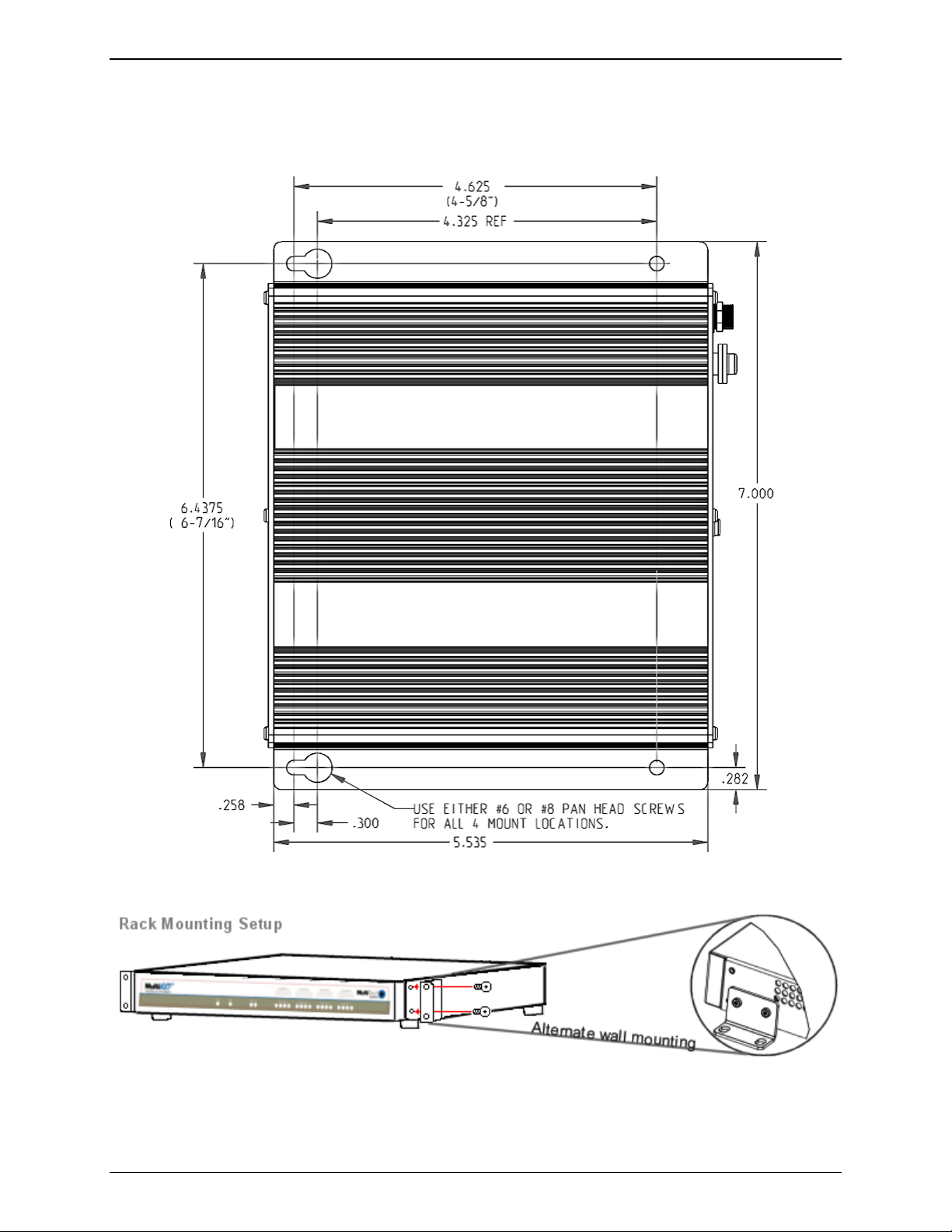
The FF120/220 FaxFinder comes with chassis screw holes to facilitate attaching it to a flat surface.
The FF420/820 are table-top units that can also be rack-mounted. Rack-mounting hardware is included.