manuals.online logo
Brands
  1. Home
  2. •
  3. Brands
  4. •
  5. Mutable Instruments
  6. •
  7. Synthesizer
  8. •
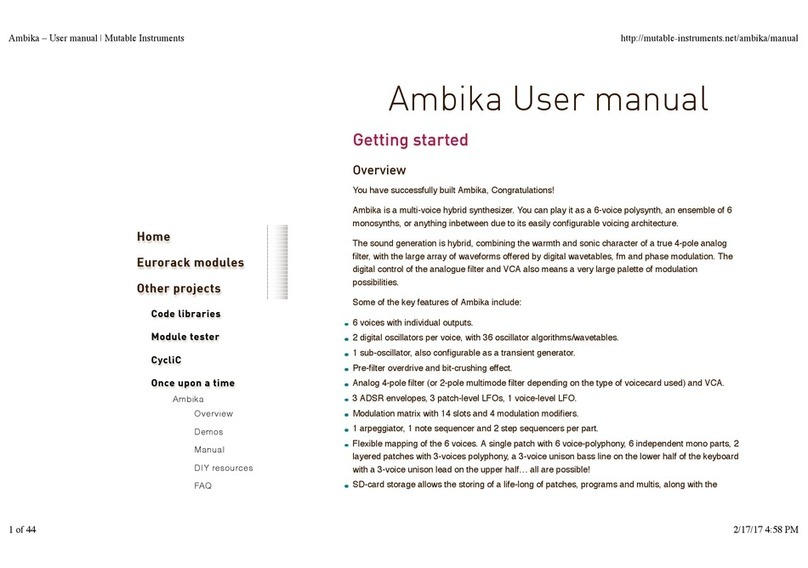
  9. Mutable Instruments ambika User manual

Mutable Instruments ambika User manual

Other manuals for ambika

2

Other Mutable Instruments Synthesizer manuals

Mutable Instruments Beads User manual

Mutable Instruments

Mutable Instruments Beads User manual

Mutable Instruments Clouds User manual

Mutable Instruments

Mutable Instruments Clouds User manual

Mutable Instruments Veils User manual

Mutable Instruments

Mutable Instruments Veils User manual

Mutable Instruments Anushri User manual

Mutable Instruments

Mutable Instruments Anushri User manual

Mutable Instruments Clouds User manual

Mutable Instruments

Mutable Instruments Clouds User manual

Mutable Instruments Clouds User manual

Mutable Instruments

Mutable Instruments Clouds User manual

Mutable Instruments ambika User manual

Mutable Instruments

Mutable Instruments ambika User manual

Mutable Instruments Anushri User manual

Mutable Instruments

Mutable Instruments Anushri User manual

Mutable Instruments ambika User manual

Mutable Instruments

Mutable Instruments ambika User manual

Mutable Instruments Elements User manual

Mutable Instruments

Mutable Instruments Elements User manual

Mutable Instruments Blinds User manual

Mutable Instruments

Mutable Instruments Blinds User manual

Mutable Instruments Blades User manual

Mutable Instruments

Mutable Instruments Blades User manual

Popular Synthesizer manuals by other brands

NEON CAPTAIN Radioator user manual

NEON CAPTAIN

NEON CAPTAIN Radioator user manual

Roland JD-800 owner's manual

Roland

Roland JD-800 owner's manual

Joranalogue Contour 1 user manual

Joranalogue

Joranalogue Contour 1 user manual

Full Bucket Music Mono/Fury manual

Full Bucket Music

Full Bucket Music Mono/Fury manual

IK Multimedia UNO Synth PRO X user manual

IK Multimedia

IK Multimedia UNO Synth PRO X user manual

Kawai MP7 Software update

Kawai

Kawai MP7 Software update

Roland Gaia SH-01 Quick guidebook

Roland

Roland Gaia SH-01 Quick guidebook

Behringer DEEPMIND 12 quick start guide

Behringer

Behringer DEEPMIND 12 quick start guide

Yamaha S90 ES owner's manual

Yamaha

Yamaha S90 ES owner's manual

Roland GR-30 manual

Roland

Roland GR-30 manual

Moog Minitmoog 300A Owner's service manual

Moog

Moog Minitmoog 300A Owner's service manual

Gotharman Gotharman's anAmoNo-box user manual

Gotharman

Gotharman Gotharman's anAmoNo-box user manual

QuStream HDFS-550 Technical manual

QuStream

QuStream HDFS-550 Technical manual

Yamaha V50 Authorized product manual

Yamaha

Yamaha V50 Authorized product manual

Akai AX80 Operator's manual

Akai

Akai AX80 Operator's manual

Roland GS-500 instructions

Roland

Roland GS-500 instructions

Octave Cat SRM Service manual

Octave

Octave Cat SRM Service manual

Dreadbox Murmux Initiate manual

Dreadbox

Dreadbox Murmux Initiate manual

manuals.online logo
manuals.online logoBrands
  • About & Mission
  • Contact us
  • Privacy Policy
  • Terms and Conditions

Copyright 2025 Manuals.Online. All Rights Reserved.

You have successfully built Ambika, Congratulations!
Ambika is a multi-voice hybrid synthesizer. You can play it as a 6-voice polysynth, an ensemble of 6
monosynths, or anything inbetween due to its easily configurable voicing architecture.
The sound generation is hybrid, combining the warmth and sonic character of a true 4-pole analog filter,
with the large array of waveforms offered by digital wavetables, fm and phase modulation. The digital
control of the analogue filter and VCA also means a very large palette of modulation possibilities.
Some of the key features of Ambika include:
6 voices with individual outputs.
2 digital oscillators per voice, with 36 oscillator algorithms/wavetables.
1 sub-oscillator, also configurable as a transient generator.
Pre-filter overdrive and bit-crushing effect.
Analog 4-pole filter (or 2-pole multimode filter depending on the type of voicecard used) and VCA.
3 ADSR envelopes, 3 patch-level LFOs, 1 voice-level LFO.
Modulation matrix with 14 slots and 4 modulation modifiers.
1 arpeggiator, 1 note sequencer and 2 step sequencers per part.
Flexible mapping of the 6 voices. A single patch with 6 voice-polyphony, 6 independent mono parts, 2 layered
patches with 3-voices polyphony, a 3-voice unison bass line on the lower half of the keyboard with a 3-voice
unison lead on the upper half… all are possible!
SD-card storage allows the storing of a life-long of patches, programs and multis, along with the history of
editing operations for undo/redo.
The following connectors are available on the rear panel:
1: SD-card slot. Insert here a SD-card (SDHC supported), FAT16 or FAT32 formatted. At the exception of
Mutable Instruments | Ambika - User manual
1 of 28
system settings, everything Ambika needs to store goes on the SD-card. A capacity of at least 256 MB is
recommended.
2: MIDI in connector. This input should be connected to the MIDI output of a computer MIDI interface, master
keyboard, sequencer…
3: MIDI out connector. This output is by default used as a MIDI-thru, but you can also use it to transmit the
notes generated by the Ambika sequencer, arpeggiator ; or to do SysEx dumps of patches.
4: Mix line output. This audio output contains a mix of all voices.
5, 6, 7, 8, 9, 10: Individual outputs.
11: AC power jack. Use a 9V AC, 1A power source. Higher voltage will cause more heating of the voltage
regulators and shorten the lifespan of the module.
A voice is a physical monophonic sound production device, consisting of digital oscillators, CV sources,
an analog VCF and a VCA. A voice is only capable of producing a single-note sound. Ambika contains 6
voices, each of them being a physically different circuit board.
A part is one or many voices sharing the same synthesis settings. Ambika can manage up to 6 parts.
Each part stores its own synthesis, arpeggiator and sequencer settings. Each part listens to a MIDI
channel, and is assigned a range of keys on the keyboard.
Each of the 6 voices in Ambika needs to be linked to (assigned to) a part. This is a bit like showing each
musician (voice) in an orchestra which staff they must play on a musical score! If you assign the 6 voices
to the same part, Ambika will behave like a classic monotimbral polysynth. If you assign each voice to a
different part, Ambika will behave like 6 independent monophonic synths. If you want to play a bassline on
the lower part of the keyboard, and a brass riff on the upper part of the keyboard, you need to use two
parts: one part with 1 voice for the bass, and a second part with 5 voices for the brass sound.
A patch is a specific combination of synthesis settings stored into a part.
A program consists of a patch, and additional sequencer/arpeggiator settings.
A multi stores 6 programs (one for each part of Ambika) along with the mappings between voices, parts,
midi channels and keyboard range. This is a complete snapshot of the Ambika configuration!
Mutable Instruments | Ambika - User manual
2 of 28
The 2x40 characters LCD display D displays, most of the time, the name and values of the 8 synthesis
parameters accessible by the 8 potentiometers P. The parameters are organized as two rows of 4
parameters.
The clickable encoder E is used to scroll between parameters/pages, or to fine-tune the value of a parameter.
The 8 LEDs L1…L8 indicate which page is active.
The 8 switches S1…S8 are used to display synthesis pages. For example, S1 shows the oscillators and mixer
page ; S2 shows the filter page, etc.
The part and voice LEDs LP1…LP6 indicate which part is active (green lights), and which voicecards are
currently playing notes (yellow lights).
The status LED LS is used to visualize the rate of a LFO or the beats in a sequence – depending on which
module you are editing.
The Ambika parameters are organized in pages. To jump to a page, press one of the 7 switches S1…S7.
Some pages share the same switch ; and you will need to repeatedly press a switch to cycle between
those pages. The active page is indicated by the LEDs L1…L7 next to the navigation switches.
The following table lists which page is associated with each switch:
Switch Pages
S1 Oscillators, Mixer
S2 Filter
S3 Envelopes and LFOs, voice LFO
S4 Modulation matrix
S5 Keyboard & tuning, sequencer & arpeggiator, sequence editor
S6 Voice and parts mappings, Tempo/clock
S7 Performance, knob assignments
Each page displays up to eight related synthesis parameters. Each parameter can be edited by turning the
knob sitting at its top (for the first row of the display) or at its bottom (for the second row of the display).
Here is an example:
After having powered up the unit, press S1 to bring the oscillators page. L1 lights up in green, and the
LCD display shows the following parameters:
You can use the first row of knobs to edit the shape, parameter, range and detune of the first oscillator ;
and the second row of knobs to edit the shape, parameter, range and detune of the second oscillator.
Observe that when you are turning a knob, the explicit name of the parameter is temporarily shown on the
screen:
Mutable Instruments | Ambika - User manual
3 of 28
After a short delay, the four names and values are shown again.
Press S1 again to bring the mixer page. L2 lights up in yellow, and the LCD display shows the following
parameters:
Press S1 again to get back to the oscillators page.
When Ambika displays a parameters page, the rotary encoder can be used to scroll through the
parameters. The name of the active parameter is capitalized. For example, oscillator 1 range is here the
active parameter:
Rotate the encoder clockwise to make tune the active parameter, rotate the encoder counter-clockwise to
make para the active parameter. If you continue rotating the encoder clockwise, the next page will become
active.
Once a parameter is selected (capitalized), click the encoder to edit it. The full name of the parameter is
displayed on the screen. The encoder can now be used to increment/decrement the parameter value.
Once the value has been set, click the encoder again.
Knob and encoder editing can be combined. Use a knob to rapidly adjust the value of a parameter, and
then, while the parameter name is still displayed on the screen, use the encoder to fine-tune the value.
Shortcut. Hold the S8 switch while turning the encoder to increment/decrement values by 8 instead of 1.
This section describes in details each page and parameter of Ambika.
This page, accessible by the S6 switch, serves two purposes:
Selecting the current part.
Assigning voices to a part.
The first knob on the upper row is used to select a part. Notice how the LP1…LP6 LEDs indicate by a
green light which part is active. All settings on all the other pages apply to the part indicated by this green
light.
chan (channel) sets the MIDI channel the active part responds to. Use omni if you want a part to respond
to notes from all MIDI channels. Several parts can share the same MIDI channel. This is useful for
controlling two patches from the same MIDI controller, in split or dual mode.
Mutable Instruments | Ambika - User manual
4 of 28
low and high set the range of MIDI notes the active part responds to. This can be used to create
keyboard splits: set the range of part 1 to C- .. B3 and the range of part 2 to C4 .. G9 ; and set both part 1
and part 2 to listen to the same MIDI channel. The result is that part 1 is played on the lower half of the
keyboard and part 2 on the upper half.
The lower part of the screen displays which voices are assigned to the active part. For example, in the
display capture shown above, voices 1, 2 and 3 are assigned to part 1. Use the second knob on the lower
row to assign/deassign voice 1 and 2 to the active part. Use the third and fourth knobs to assign/deassign
voices 3⁄4 and voices 5⁄6.
Note that you can assign to a part only voices which are not currently in use by another part. For example,
when Ambika boots, voices 1, 3 and 5 are assigned to part 1 ; and voices 2, 4, 6 are assigned to part 2.
You will notice that it is not possible to assign voices 2, 4, 6 to part 1 before having de-assigned them from
part 2. It might not be convenient, but a voice can only be used by one part, so this constraint has to be
enforced!
Assigning/de-assigning a voice causes quite a bit of data shuffling between the processors running each
voicecard, and this causes interruptions/reset notes. Don’t do that during a live performance!
Shortcut Hold the S1 switch while turning the encoder to change the active part. This works on any page!
Finally, let’s get to the real thing! Each voice of Ambika is built according to the diagram drawn below.
Obviously, it would be tedious to edit the settings of each individual voice… Instead, you edit parts and all
the voices assigned to a part automatically inherit its settings!
Here is a day (or rather a millisecond) in the life of a voice’s signal:
Mutable Instruments | Ambika - User manual
5 of 28
The oscillators 1 and 2 generate digital waveforms, which are digitally combined together using one of the
following operations: mix, sync and mix, multiply (ring-modulation), xor, mix and fold, mix and bit-reduce.
The sub-oscillator (whose pitch is linked to oscillator 1’s) is added.
The click generator generates a short transient/click at the beginning of the note. Note that the sub-oscillator
and the click generator cannot be used at the same time. It’s bassy-beefy or clicky, not both.
The output of the modulator, the sub-oscillator/click-generator and a controllable amount of white noise are
summed together. You can adjust the balance of each ingredient.
A controllable amount of fuzzy overdrive is applied to the signal.
The resulting signal is sample-reduced by a controllable amount.
The resulting signal is converted to the analog domain by a 12-bit DAC and fed into an analog VCF and VCA.
Each of these sound generation and modification modules have parameters which can be controlled by
any of the modulation sources listed below. However, some connections are already “hardwired” (or rather
“softwired” in the firmware):
The oscillators’ pitch always tracks the note played on the keyboard. However, this can be disabled by
applying a negative modulation (amount: -63) from note to oscillator pitch.
The filter cutoff frequency always tracks the note. Again, this can be disabled or attenuated by applying a
negative modulation from note pitch to cutoff frequency. The rationale behind this choice is that most of the
time, you want 1:1 tracking, so this frees up a slot in the modulation matrix for something more interesting!
Lfo 2 and Envelope 2 are always connected to the filter, their modulation amount being controlled by
dedicated parameters on the filter page.
Besides this, it is up to you to route modulations to parameters. By default, the following routings are
wired:
Source Destination Amount
Env 1 Oscillator 1 parameter 0
Env 1 Oscillator 2 parameter 0
Lfo 1 Oscillator 1 pitch 0
Lfo 1 Oscillator 2 pitch 0
Lfo 2 Oscillator 1 parameter 0
Lfo 2 Oscillator 2 parameter 0
Lfo 3 Mixer balance 0
Lfo 4 Filter cutoff 0
Seq 1 Filter cutoff 0
Seq 2 Mixer balance 0
Envelope 3 VCA gain 100%
Velocity VCA gain 25%
Pitch-bend Oscillator 1+2 pitch 2 semitones
Lfo 4 Oscillator 1+2 fine pitch 2 semitones
Let us now review the different synthesis parameters.
Each row displays the settings of an oscillator. The parameters are the following:
wave (waveform): Oscillator waveform family. Contrary to most synthesizers in which waveforms are static,
Mutable Instruments | Ambika - User manual
6 of 28

the Ambika waveforms are dynamic and can be continously morphed – this is why it is more correct to refer to
“waveform families” instead of “waveforms”.
para (parameter): Morphing parameter. This morphs the selected waveform into many variations.
rang (range): Oscillator pitch, from -36 semitones to 36 semitones (relative the pitch of the MIDI note played
on the keyboard).
tune (tune): Oscillator fine tune, from -0.5 semitone (-64) to 0.5 semitone (+64).
The following is a list of all the available waveform families, with some applications and a description of
what adjusting the parameter setting actually does.
This simply switches off the oscillator. Switching the oscillators off is useful if you want to use the sine-
wave produced by the filter’s self-oscillation as the sole sound source.
This waveform is perfect for basses and brass sounds. The parameter controls the waveshapping - when
its value is increased, an increasingly large section of the waveform is shifted up. This waveform is band-
limited. Thus, only a limited amount of aliasing artifacts will be heard when playing high-pitched notes.
The parameter controls the pulse-width. This waveform is perfect for simulating a clarinet, for basses,
“hollow” sounds or Depeche Mode-like leads. This waveform is band-limited and only a limited amount of
aliasing will be heard when playing high-pitched notes.
You will observe that there is a slight difference in sound when moving the parameter from 0 to 1. To offer
the best sound quality, the pulse width = 50% flavor is read straight from a wavetable at full sample rate,
while the pulse width > 50% flavor is obtained from two dephased sawtooth waves, evaluated at half the
sample rate. For bass sounds, for which aliasing is not going to be a problem, it is recommended to use
pwm instead of square to get a beefier sound.
A pure waveform, which serves as a good basis for flute or soundchip-like leads. The parameter controls a
kind of waveshapping, clipping the bottom of the waveform. This waveform is band-limited and will still
sound fine above C5.
Mutable Instruments | Ambika - User manual
7 of 28
A pure and chaste sine wave lost her virginity. At some point she started listening to Nine Inch Nails.
This waveform uses phase distortion to recreate a low-pass filtered sawtooth by progressively “pinching”
the phase of a sine wave. The parameter controls the brightness of the sound: from a sine wave to a
sawtooth, then from a sawtooth to a sawtooth gone through an ugly transistor amp. Good for dirty bass
guitar sounds or clavinets.
This waveform family directly simulates the sound of a sawtooth wave processed by a low-pass, peaking,
band-pass, or high-pass resonant filter. The parameter controls the cutoff frequency of the filter.
Mutable Instruments | Ambika - User manual
8 of 28
This waveform family simulates the sound of a trapezoidal pulse wave processed by a low-pass, peaking,
band-pass, or high-pass resonant filter. The parameter controls the cutoff frequency of the filter. pkzpulse
is particularly good at recreating the dirty, saturated sound, of a sawtooth filtered by the least academic of
the 2-pole analog filters.
This waveform vaguely evokes two hardsync’ed oscillators – the parameter controlling their frequency
ratio. It may or may not have been used in the Casio CZ-101.
As the name implies, this waveform made of four stacked sawtooth waves is useful for pads (when a
copious amount of filtering is applied) or for buzzing trance leads. The parameter controls the amount of
detuning between the four waves. Note that no bandlimiting is happening here, so this thing doesn’t sound
quite good above C5… but it’s doing a perfect job in the bass range!
The parameter controls the modulation strength. This oscillator provides the base material for metallic
sounds, bells, metallophones, or the next 386 DX hit.
When the fm oscillator is selected, the range parameter plays a slightly different role than usual: instead
of controlling the main pitch of the note, it controls the modulator frequency, and has a drastic impact on
the timbre.
A palette of 8-bits sounding waveforms obtained by applying bitwise operations to a basic sawtooth wave
(something now known as “biscuiting”).
This waveform is a shamelessly naive square wave. The parameter controls the pulse-width. Contrary to
Mutable Instruments | Ambika - User manual
9 of 28
square, this waveform stinks aliasing - but for notes below C2 it is not a real problem: it becomes much
more aggressive and “in your face” than square.
The parameter controls the frequency of a simple 1-pole low-pass/high-pass filter in which is sent white
noise. From 0 to 63, high-frequency content is progressively added. From 63 to 127, low-frequency
content is progressively removed. Perfect as a raw material for percussions or sound effects.
Changing the parameter will sweep between different vocal-like sounds (14 vowels and 2 consonants).
The remaining waveform families are wavetables – collection of single cycle waveforms, synthetic or
sampled from real instruments. The parameter is used to smoothly “scan” the wavetable. For example, if a
wavetable has 2 waveforms, parameter = 0 plays the first waveform ; parameter = 127 plays the second ;
and parameter = 64 plays a mix of both. Wavetables can contain up to 16 waves.
Mutable Instruments | Ambika - User manual
10 of 28