manuals.online logo
Brands
  1. Home
  2. •
  3. Brands
  4. •
  5. Olevia
  6. •
  7. LCD TV
  8. •
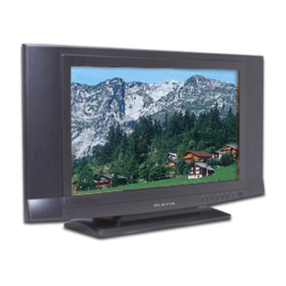
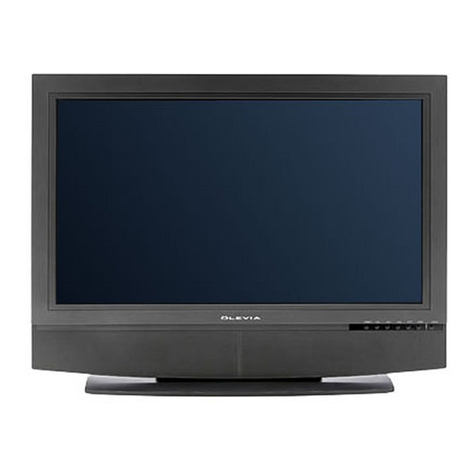
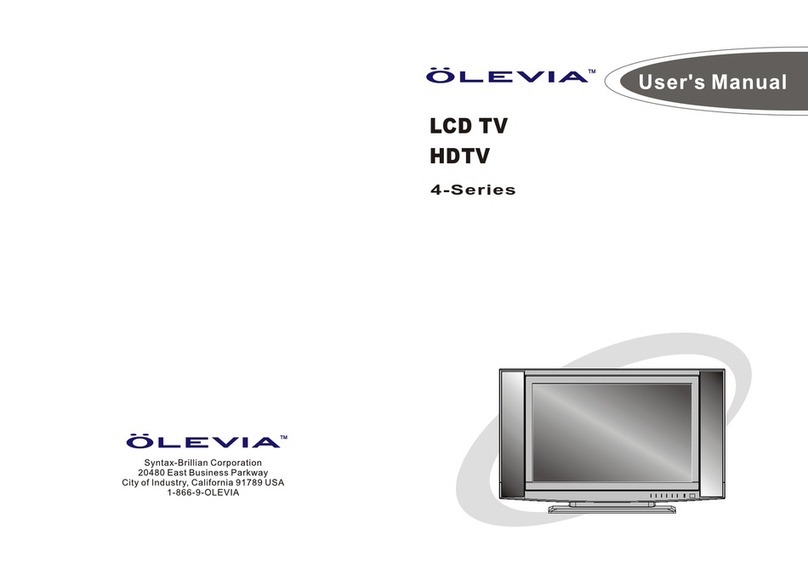
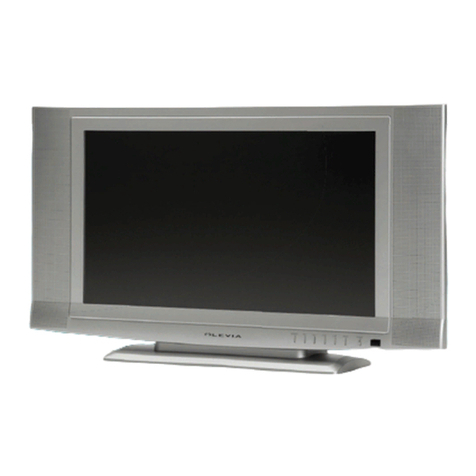
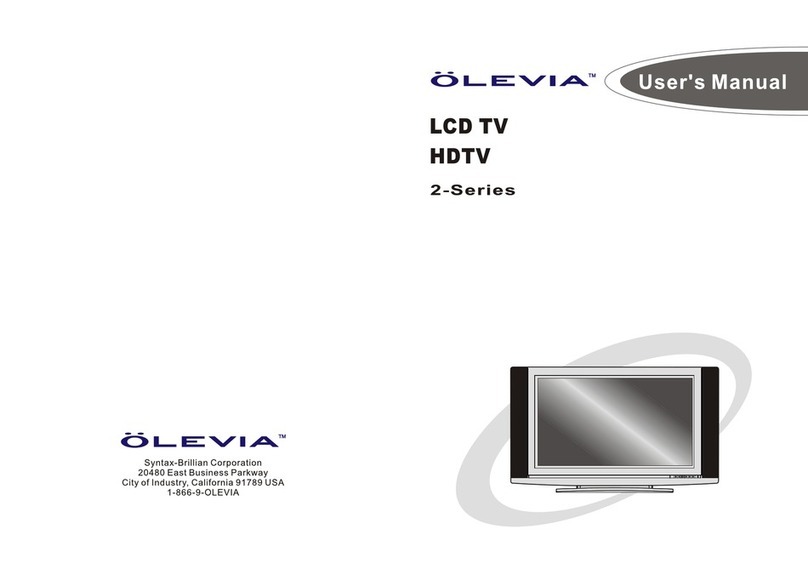
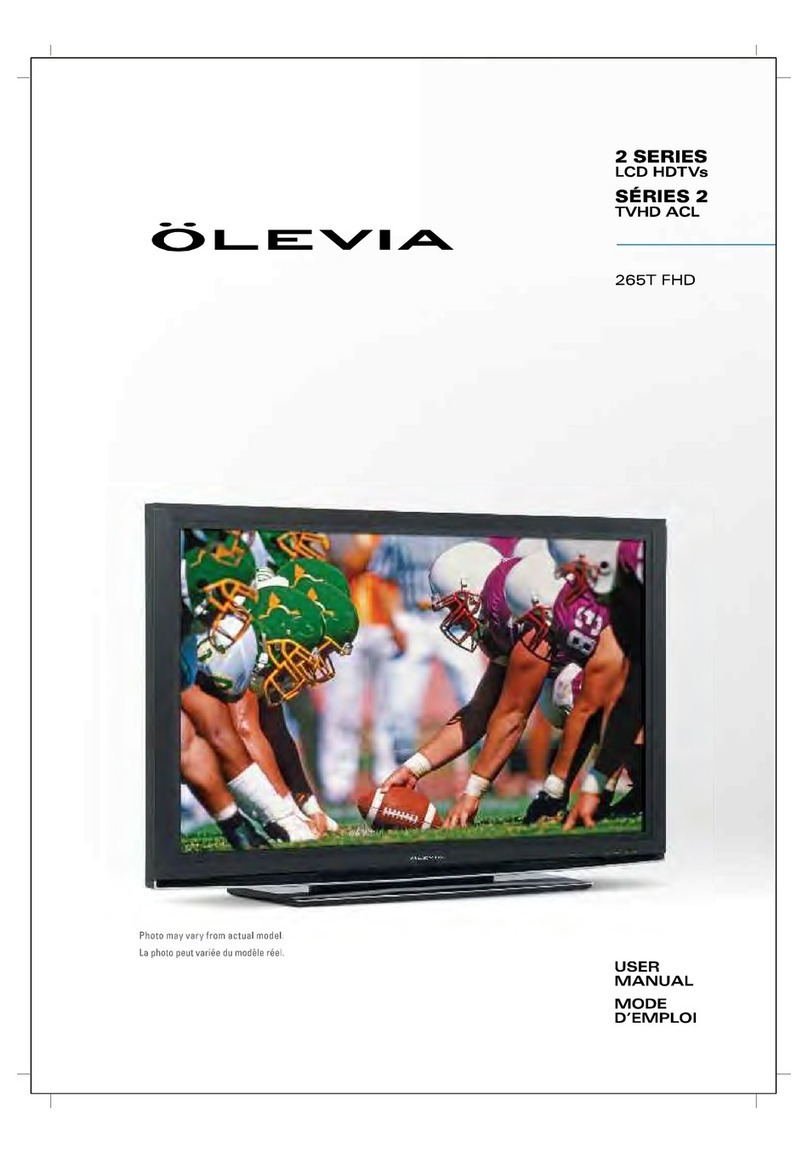
  9. Olevia 2 Series User manual

Olevia 2 Series User manual

Other manuals for 2 Series

1

Other Olevia LCD TV manuals

Olevia 432V User manual

Olevia

Olevia 432V User manual

Olevia 237T User manual

Olevia

Olevia 237T User manual

Olevia 237T User manual

Olevia

Olevia 237T User manual

Olevia 540 User manual

Olevia

Olevia 540 User manual

Olevia 227V User manual

Olevia

Olevia 227V User manual

Olevia 242T FHD User manual

Olevia

Olevia 242T FHD User manual

Olevia 537H User manual

Olevia

Olevia 537H User manual

Olevia 742i User manual

Olevia

Olevia 742i User manual

Olevia 537H User manual

Olevia

Olevia 537H User manual

Olevia LT20S User manual

Olevia

Olevia LT20S User manual

Olevia 427V User manual

Olevia

Olevia 427V User manual

Olevia 527V User manual

Olevia

Olevia 527V User manual

Olevia 320 User manual

Olevia

Olevia 320 User manual

Olevia 323V User manual

Olevia

Olevia 323V User manual

Olevia SMT-320TD User manual

Olevia

Olevia SMT-320TD User manual

Olevia LT37HVS User manual

Olevia

Olevia LT37HVS User manual

Olevia 4-Series User manual

Olevia

Olevia 4-Series User manual

Olevia 3 series User manual

Olevia

Olevia 3 series User manual

Olevia 2 Series User manual

Olevia

Olevia 2 Series User manual

Olevia 532H User manual

Olevia

Olevia 532H User manual

Olevia 226T User manual

Olevia

Olevia 226T User manual

Olevia 542i User manual

Olevia

Olevia 542i User manual

Olevia 527V User manual

Olevia

Olevia 527V User manual

Olevia 265T FHD User manual

Olevia

Olevia 265T FHD User manual

Popular LCD TV manuals by other brands

Samsung LA32E420 E-manual

Samsung

Samsung LA32E420 E-manual

ViewSonic VS12119-1M user guide

ViewSonic

ViewSonic VS12119-1M user guide

iLO CIWL3706 owner's manual

iLO

iLO CIWL3706 owner's manual

LG 32LT560C Quick reference guide

LG

LG 32LT560C Quick reference guide

Sony WEGA KLV-27HR3 operating instructions

Sony

Sony WEGA KLV-27HR3 operating instructions

Zenith Z32LC2D Specifications

Zenith

Zenith Z32LC2D Specifications

Sony KDL-32S3000R - 32" Class Bravia S-series Digital Lcd... Specifications

Sony

Sony KDL-32S3000R - 32" Class Bravia S-series Digital Lcd... Specifications

Medion MEDION LIFE X14330 quick start guide

Medion

Medion MEDION LIFE X14330 quick start guide

Vizio HDTV30A VW32L Service manual

Vizio

Vizio HDTV30A VW32L Service manual

Sharp LC-24DV250K Operation manual

Sharp

Sharp LC-24DV250K Operation manual

SOYO Dymond DYLT032A user manual

SOYO

SOYO Dymond DYLT032A user manual

Kalley K-LED40FHDST2 Service manual

Kalley

Kalley K-LED40FHDST2 Service manual

Dynex DX-L40-10A Guide de l'utilisateur

Dynex

Dynex DX-L40-10A Guide de l'utilisateur

Hisense M3300 user manual

Hisense

Hisense M3300 user manual

Toshiba 42XV600A owner's manual

Toshiba

Toshiba 42XV600A owner's manual

Panasonic TX-26LX1A operating instructions

Panasonic

Panasonic TX-26LX1A operating instructions

HP LT3200 Illustrated parts & service map

HP

HP LT3200 Illustrated parts & service map

Sharp LC-32GA8 Service manual

Sharp

Sharp LC-32GA8 Service manual

manuals.online logo
manuals.online logoBrands
  • About & Mission
  • Contact us
  • Privacy Policy
  • Terms and Conditions

Copyright 2025 Manuals.Online. All Rights Reserved.

LC TV
2-Series
_LIE_V|A TM
Syntax-Brillian Corporation
20480 East Business Parkway
City of Industry, California 91789 USA
1-866-9-OLEVtA
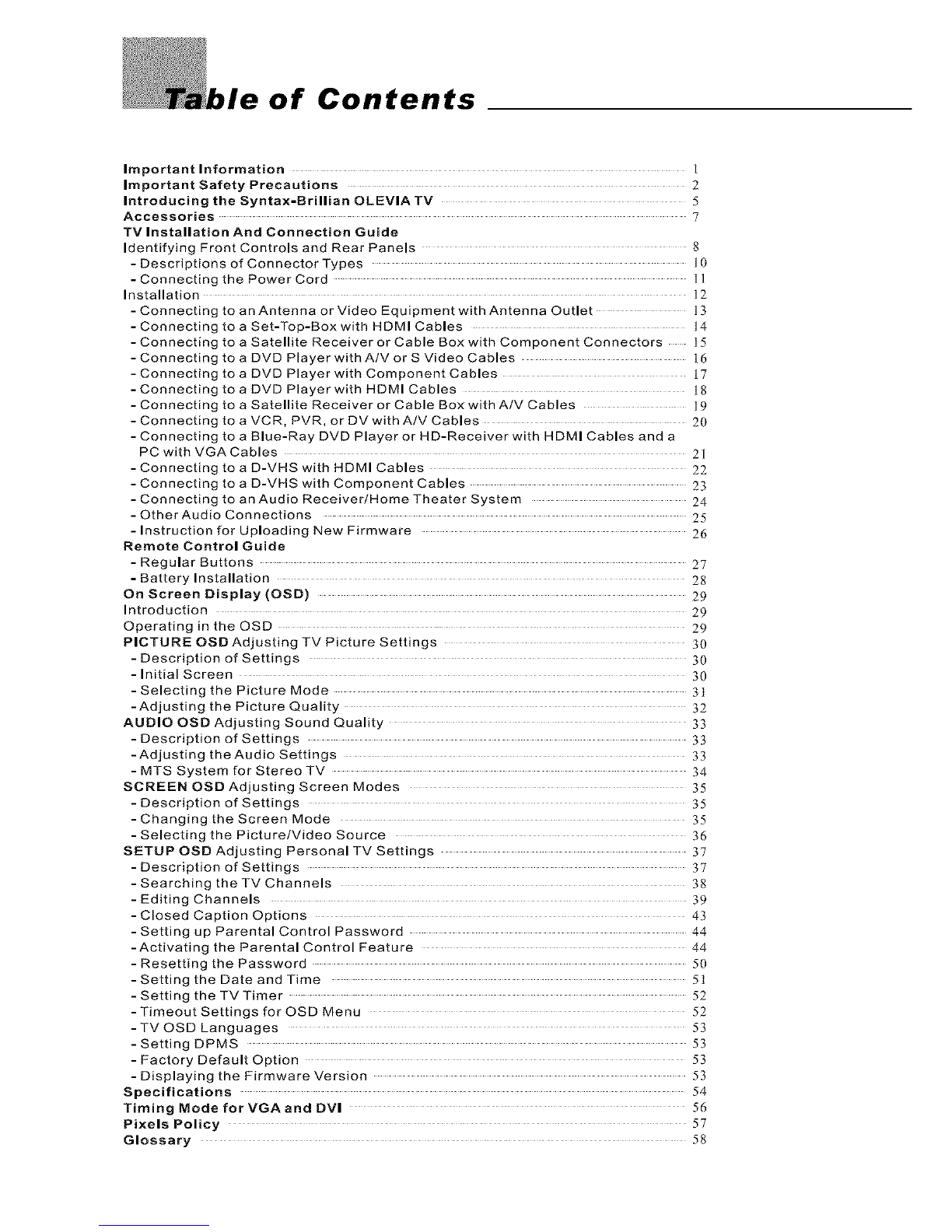
of Contents
Important Information I
Important Safety Precautions 2
Introducing the Syntax-Brillian OLEVIA TV 5
Accessories 7
TV Installation And Connection Guide
Identifying Front Controls and Rear Panels 8
- Descriptions of Connector Types ]0
- Connecting the Power Cord |1
Installation 52
-Connecting to an Antenna or Video Equipment with Antenna Outlet ]3
-Connecting to a Set-Top-Box with HDMI Cables 14
-Connecting to a Satellite Receiver or Cable Box with Component Connectors 15
-Connecting to a DVD Player withA/V or S Video Cables 16
-Connecting to a DVD Player with Component Cables t7
- Connecting to a DVD Player with HDMI Cables 18
-Connecting to a Satellite Receiver or Cable Box with A/V Cables 19
- Connecting to a VCR, PVR, or DVwithA/V Cables 20
- Connecting to a Blue-Ray DVD Player or HD-Receiver with HDMI Cables and a
PC with VGA Cables 2t
- Connecting to a D-VHS with HDMI Cables 22
- Connecting to a D-VHS with Component Cables 23
- Connecting to an Audio Receiver/Home Theater System 24
- Other Audio Connections 25
- Instruction for Uploading New Firmware 26
Remote Control Guide
- Regular Buttons 27
-Battery Installation 28
On Screen Display (OSD) 29
Introduction 29
Operating in the OSD 29
PICTURE OSDAdjusting TV Picture Settings 30
- Description of Settings 30
- Initial Screen 30
-Selecting the Picture Mode 31
-Adjusting the Picture Quality 32
AUDIO OSD Adjusting Sound Quality 33
- Description of Settings 33
- Adjusting the Audio Settings 33
- MTS System for Stereo TV 34
SCREEN OSD Adjusting Screen Modes 35
- Description of Settings 35
- Changing the Screen Mode 35
-Selecting the Picture/Video Source 36
SETUP OSD Adjusting Personal TV Settings 37
-Description of Settings 37
- Searching the TV Channels 38
- Editing Channels 39
- Closed Caption Options 43
- Setting up Parental Control Password 44
-Activating the Parental Control Feature 44
-Resetting the Password 50
-Setting the Date and Time 51
- Setting the TVTimer 52
-Timeout Settings for OSD Menu 52
-TV OSD Languages 53
-Setting DPMS 53
-Factory Default Option 53
- Displaying the Firmware Version 53
Specifications 54
Timing Mode for VGAand DVI 56
Pixels Policy 57
Glossary 58

portant Information
///_ Risk of electronic shock
[et_trBff111
Do not open
To reduce the risk of electronic shock, do not remove cover (or back).
No user-serviceable parts inside.
Refer service to qualified Repair Technician or Repair Center.
Read the following context indicated by the following
symbol to the left. it indicates important literature in
operating the product.
Read the following context indicated by the following
symbol to the left. [t indicates a potential high voltage
hazard that may compromise your safety.
®Caution
Take caution when moving the product on a cart.
Quick stops, excessive force, and uneven surfaces may
cause the display unit and cart combination to overturn.
Caution ]
To prevent electric shock, match wide blade of plug to wide slot,
fully insert.
Caution
This product satisfies FCC regulations when shielded cables and
connectors arc used to connect the unit to other equipment.
Prevent electromagnetic interference from electrical appliances
such as radios and televisions. Please use shielded cables and
connectors for connections.
Warning
FCC Regulations state that any unauthorized changes or
modifications to this equipment not expressly approved by the
manufacturer could void the user's authority to operate this
equipment.
01
Safety Precautions
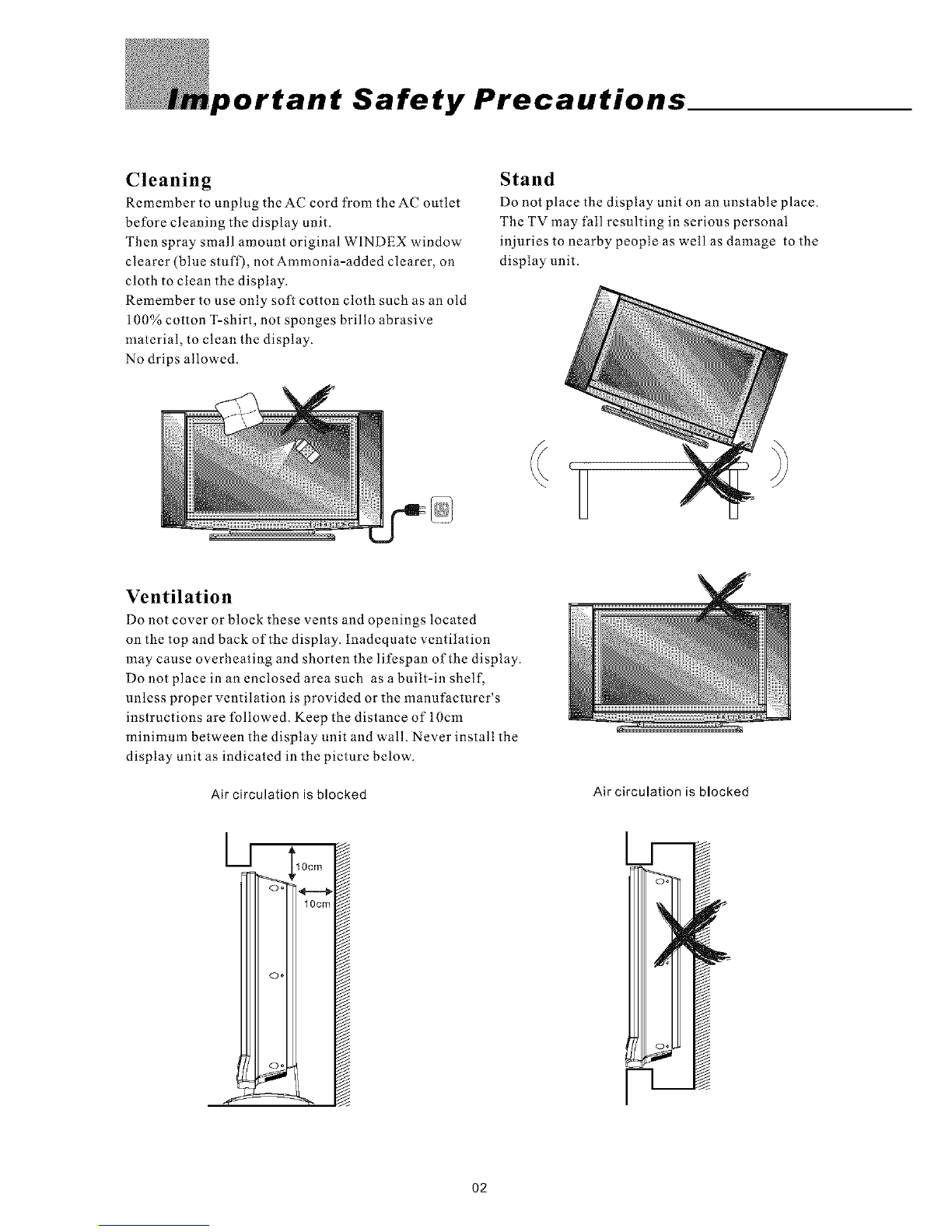
Cleaning
Remember to unplug theAC cord from theAC outlet
before cleaning the display unit.
Then spray small amount original WINDEX window
clearer (blue stuff), not Ammonia-added clearer, on
cloth to clean the display_
Remember to use only soft cotton cloth such as an old
100% cotton T-shirt, not sponges brillo abrasive
material, to clean the display.
No drips allowed.
Stand
Do not place the display unit on an unstable place.
The TV may fall resulting in serious personal
injuries to nearby people as well as damage to the
display unit.
Ventilation
Do not cover or block these vents and openings located
on the top and back of the display. Inadequate ventilation
may cause overheating and shorten the lifespan of the display.
Do not place in an enclosed area such as a built-in shelf,
unless proper ventilation is provided or the manufacturer's
instructions are followed. Keep the distance of 10cm
minimum between the display unit and wall. Never install the
display unit as indicated in the picture below.
Air circulation is blocked
½
Air circulation is blocked
½--
O2
Never insert objects or spill liquid
into the display unit
Never insert any object into the display unit through
openings or spill liquid on the display unit. High
voltage flows in the display unit, and inserting an
object can cause electric shock and/or short internal
parts.
Precautions when transporting the
display
Carrying the display requires two or more people.
Keep away from water and moisture
Do not place the display in areas where moisture is
present or where the unit may get wet such as bath-
rooms, kitchen, pool area or in a wet basement.
Keep away from heat sources
Keep the display unit away from heat sources such
as radiators, heaters, stoves and other
heat-generating products.
The liquid crystal panel used in this
product is made of glass
Do not hit the panel. Be careful to prevent from
getting hurt by broken glass pieces in case the panel
breaks.
Follow operating instructions
All operating instructions must be followed.
Servicing
Do not attempt to service the display unit yourself.
Removing covers expose you to high voltage and
other dangerous conditions. Request a qualified
service technician to perform the service.
Attachments
Do not use attachments not recommended by the
manufacturer. Use of inadequate attachments may
result in accidents to nearby poeple or to the unit.
Power source
This product must operate on a power source
specified on the specification label, lfyou are not
sure of the type of power supply used in your home,
consult your dealer or local power company. For
units designed to operate on batteries or another
power source, refer to the operating instructions.
AC cord protection
The AC cords must be routed properly to prevent
people fl'om stepping on them or objects from resting
on them. Check the cords at the plugs and product.
Wall mounting
Be sure to install the display unit according to the
method recommended by the manufacturer. Use
only the mounting hardware recommended by the
manufacturer.
Overloading
Do not overloadAC outlets or extension cords. It
may result in electric shock or start a fire.
O3
Important Safety Precautions
Replacement parts
In case the display unit needs replacement parts,
make sure that the service technician uses replacement
parts specified by the manufacturer, or those with
the same characteristics and performance as the
original parts. Use of unauthorized parts can result
in fire, electric shock and/or other danger.
Safety checks
Upon completion of service or maintenance, request
the service technician to perform safety checks to
ensure that the display unit is in proper operating
condition.
Repair
When the display unit displays an abnormal
condition, any noticeable abnormality in the display
unit indicates that the display unit needs servicing.
If any of the following conditions occurs, unplug
the AC cord from the AC outlet, and request a
qualified service person to perform repairs.
1.A liquid was spilled on the display unit or objects
have fallen into the display unit.
2.The display unit has been exposed to rain or water.
3.The display unit has been dropped or damaged.
Environment
The display unit only operates within the
temperature 0"C to 40 C.Operation outside of the
recommended may cause damage to your product.
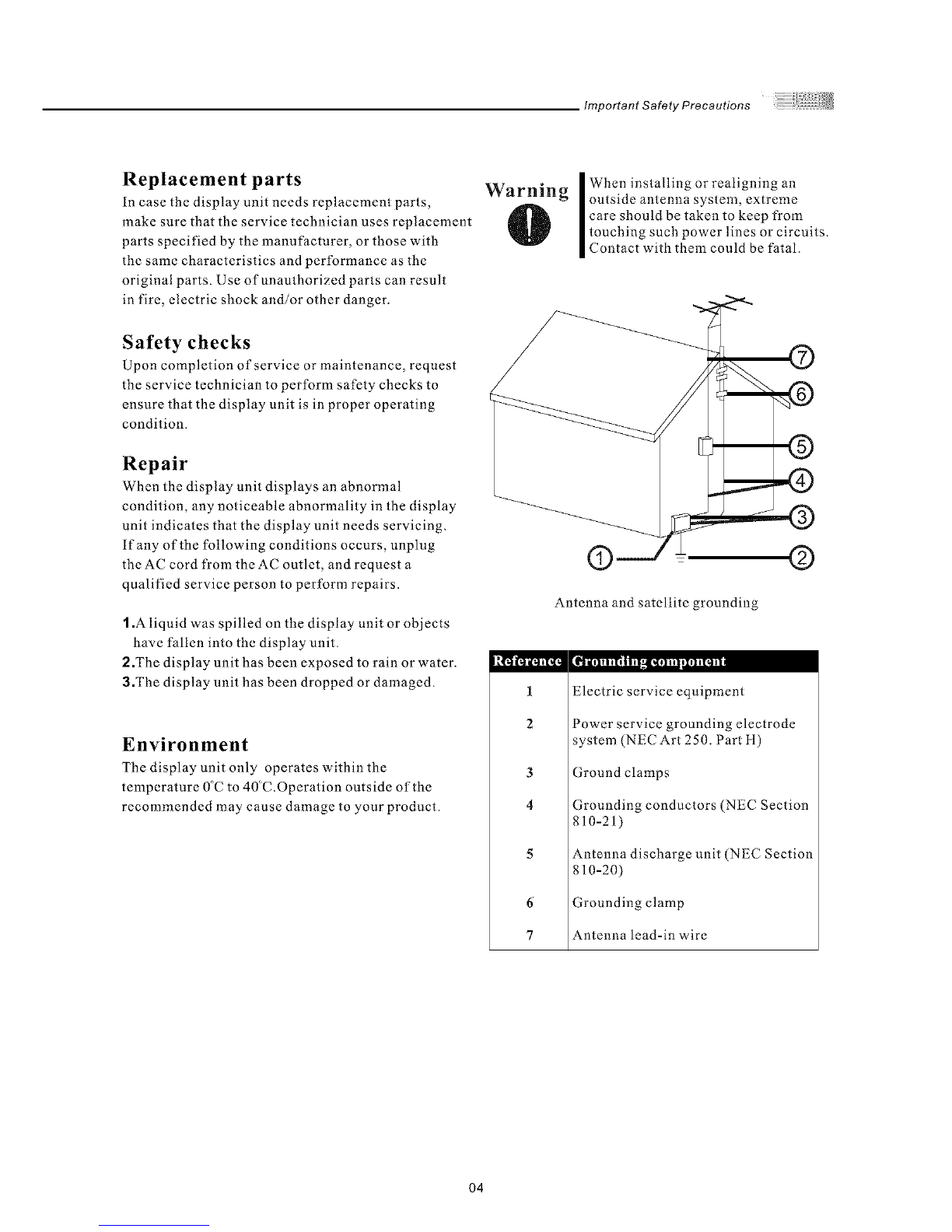
Warning
IWhen installing or realigning an
outside antenna system, extreme
care should be taken to keep from
touching such power lines or circuits.
Contact with them could be fatal.
® ©
Antenna and satellite grounding
1
2
3
4
5
6
7
Electric service equipment
Power service grounding electrode
system (NEC Art 250. Part H)
Ground clamps
Grounding conductors (NEC Section
810-21)
Antenna discharge unit (NEC Section
810-20)
Grounding clamp
Antenna lead-in wire
O4
oducing the Syntax-Briliian OLEVIA TV
Welcome!
"ihank you for purchasing a Syntax-Brflhan OLEVIA LCD HDTV. This manual is
to be used with the following model:
OLEVIA 2 Series
This manual is designed to help you through setting up and operating your
LCD ftDTV as quickly as possible. The model and serial numbers are on the
back cover of your TV. Write these numbers in the space provided in this
manual for your records. Please read al! the safety and operating instructions
carefully, and keep this manual for future reference.
Owner's Record
The model and serial numbers are located at the rear of the display
unit, or on the side of the media receiver unit on the cartons
(white label). Record these numbers in the spaces provided below.
Refer to them whenever you call Syntax-Brillian Groups Corporation
or local dealer regarding this product.
Model No.
Serial No.
Package Contents
-Syntax-Brilliar_ MOLEVIA display unit
-Remote Control
-1 AC power cord
-Quick Start Guide
-Warranty Card
These items are all you need to set up and operate the TV in its basic
con/_guration.
Note: Most components (VCRs, DVD players, etc.) come with the
necessary cables to connect them. If you want to set up a complex system,
you may need to buy extra cables, connectors, etc. Be sure to have these
on hand before you start to connect your system.
O5
Introducing the Syntax-Brillian Olevia TV
Syntax-Brillial{ _'OLEVIA LCD HDTV includes many features, you will
enjoy throughout the usage of your TV. These highlighted features include:
Fully Integrated HDTV (High Definition TV):
HDTV delivers a stunning picture far beyond the quality of standard
televisions. These programs offer crystal clear video with amazing
detail played with enhanced audio quality of digital television programs.
You can enjoy better sound and picture in movies, prime time TV shows,
and other HD broadcasts in dynamic television settings through cable,
satellite or even free broadcasts over the air.
ItIGIt*I3EFENITION TELEV_StON
HDMI (High Definition Multimedia Interface):
The next generation ofDVI, HDMI provides the best interface between
a DVD player and compatible products such as digital set top box for
uncompressed digital audio/video connections. When matched with a
Syntax-Brillian OLEVIA TV, multi-channel digital audio signals,
uncompressed I_'VI digital video and intercommunication between high
multimedia interfaces are combined through a single interconnecting cable.
HDrlrll ''
H_GHo_J_mo_4 MULT_EO_A _4_ER_ACE
ATI :
For a true high definition cinematic experience, your Syntax-Brilliaff" TV
uses the Xilleon ''_image processing chip fromATI. The Xilleoff" chip offers
many advanced features.
The Xilleoi_ Mchip allows your new Syntax-Brill'an MTV to display a spectrum
of over 16 million colors, so you can enjoy a true color viewing experience
with vivid tones and natural hues.
Xilleoff "_ uses advanced digital image processing technologies to convert
standard definition signals (such as those usually found in analog TV broadcasts,
DVDs, and cable set-top boxes) to the brilliant 1366 x 768 format used by your

Syntax-Brillian TM TV.
With analog video still being broadcast, Xilleoff _' integrates a 3D comb to
virtually eliminate problems like dot crawl and keep your Syntax-Brillian '_
display looking its finest.
Xilleon TM uses advanced deinterlacing technology to reduce artifacts such as
jagged lines in moving pictures. Contrast, sharpness, saturation and many other
parameters are also automatically optimized 60 times per second.
Enjoy your new Syntax-Brilliaff _' TV powered by ATI Xilleon') _
O6
cessories
Supplied Accessories
Remote control & batteries (AAAx 2)
Optional Accessories
Wall Mount Set
Model #WM30D : available for 26" above
Models
_ _:_o_o <:_ @
o o
1. Before using the wall mount, please read
its Quick Start Guide and follow assembly
guide.
2. For safety purpose, please purchase wall
mount that will support the LCD HDTV
weight.
3. Following installation instruction is only
for your reference.
4. Please consult authorized service personnel
for the installation of wail mount.
Power cord x 1
User manual
(CD-ROM) x 1
QSG x 1
°,:2.Tai,,>!%....
7:>,,?aa;'_:i=
Warranty Card x 1
[]
07
Installation and Connection Guide
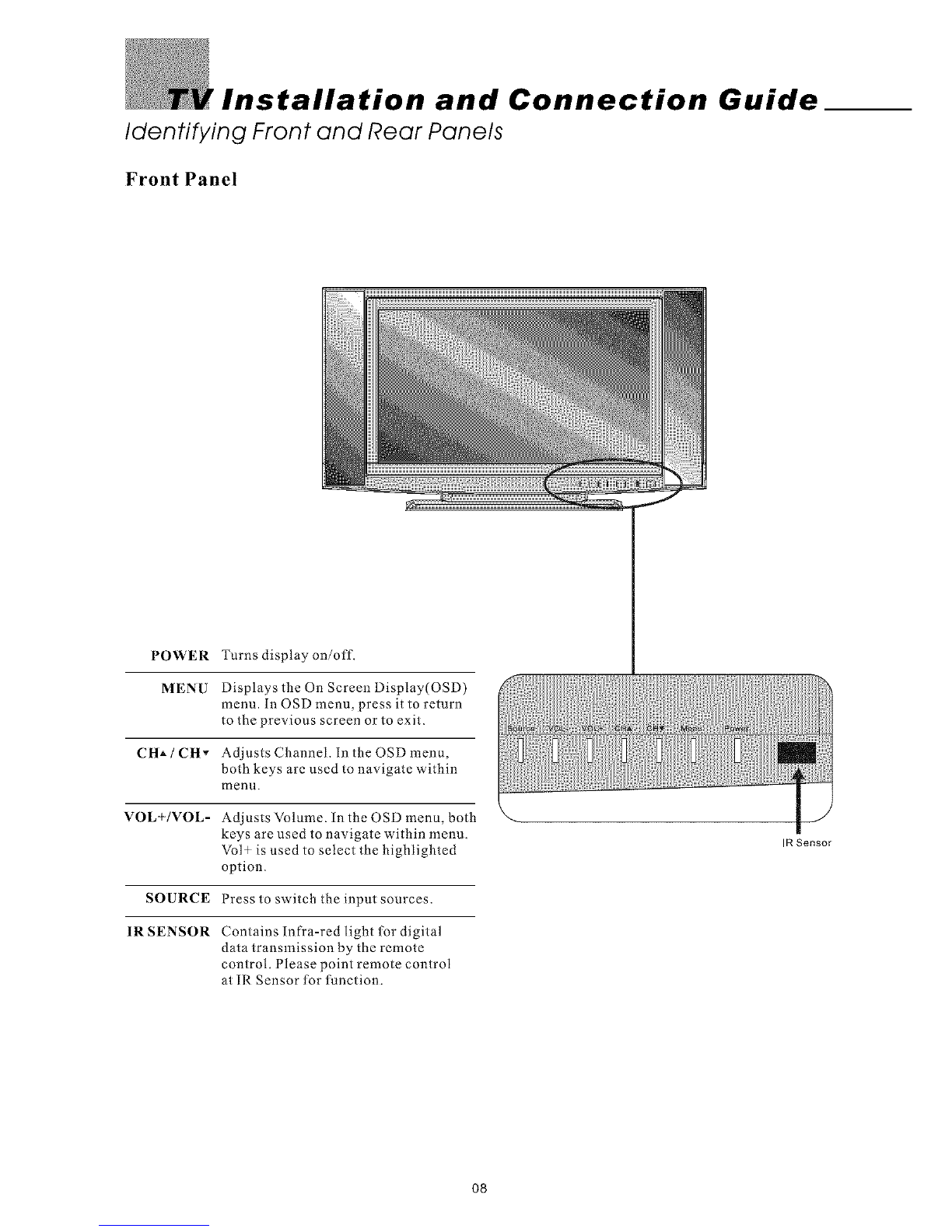
Identifying Front and Rear Panels
Front Panel
POWER Turns display on/off.
MENU Displays the On Screen Display(OSD)
menu. In OSD menu, press it to return
to the previous screen or to exit.
CH_ /CH- Adjusts Channel. In the OSD menu,
both keys are used to navigate within
IIlenu.
VOL+/VOL- Adjusts Volume. in the OSD menu, both
keys are used to navigate within menu.
Vol_ is used to select the highlighted
option.
SOURCE Press to switch the input sources.
IR SENSOR Contains Infra-red light for digital
data transmission by the remote
control. Please point remote control
at IR Sensor tbr thnction.
IR Sensor
08