To make calls using last number redial (if supported by your
mobile phone)
From standby mode, press and hold the Answer button for about 3
seconds. The call is automatically connected to your phone.
Some phones support a specific ‘Redial’ voice command so it is
possible to redial using voice dialling as well.
Receiving calls
You must configure your mobile phone to answer calls directly on
Hands-Free/Bluetooth headset. Refer to the mobile phone user guide
for instructions on initiating this feature.
Answering a call
When you hear an incoming call ring in the headset, click the
Answer button on Music Angel. The call is connected to your
headset.
Reject calls
When you hear an incoming call ring in the headset, click the
Hang-up/ON/OFF button. The call will be rejected.
Ending calls
When you have finished your call, press the
Hang-up/ON/OFF button. The call will be disconnected.
Transfer calls
You can transfer the calls connected to your headset back to your
mobile phone, or from your mobile phone to your headset.
To transfer calls from your headset to phone (phone
dependent)
Click the Music Angel Answer button. You hear a short beep in
your headphones. Audio is now connected through your mobile
phone’s speaker and microphone.
To transfer calls from your phone to headset
With the call connected to your mobile phone, click the Answer
button on Music Angel. The call is now connected to your headset
and to the microphone on Music Angel
Adjust the call volume
To increase the volume
During a call, click the Volume Up button + to increase volume by 1
step. Repeat this procedure until you have reached the desired
level.
To decrease the volume
During a call click the Volume Down button - to decrease volume
by 1 step. Repeat this procedure until you have reached the
desired level.
Muting the headset
You can mute and un-mute the Music Angel microphone temporarily
so that you cannot be heard by the other caller.
To mute and un-mute the headset
During a call click the Mute button.
To un-mute the headset, click the Mute button again.
Call waiting (not all phones may support this feature)
When a second call comes in, click the Call Waiting button. The
first call is put on hold and the second call is connected through to the
headset. Just click the Call Waiting button to switch between calls.
Conference call (not all phones may support this feature)
With two active calls, press and hold the Call Waiting button for
approx 3 seconds. Both calls will be switched through to the headset.
Visual and audible indications
Visual indications
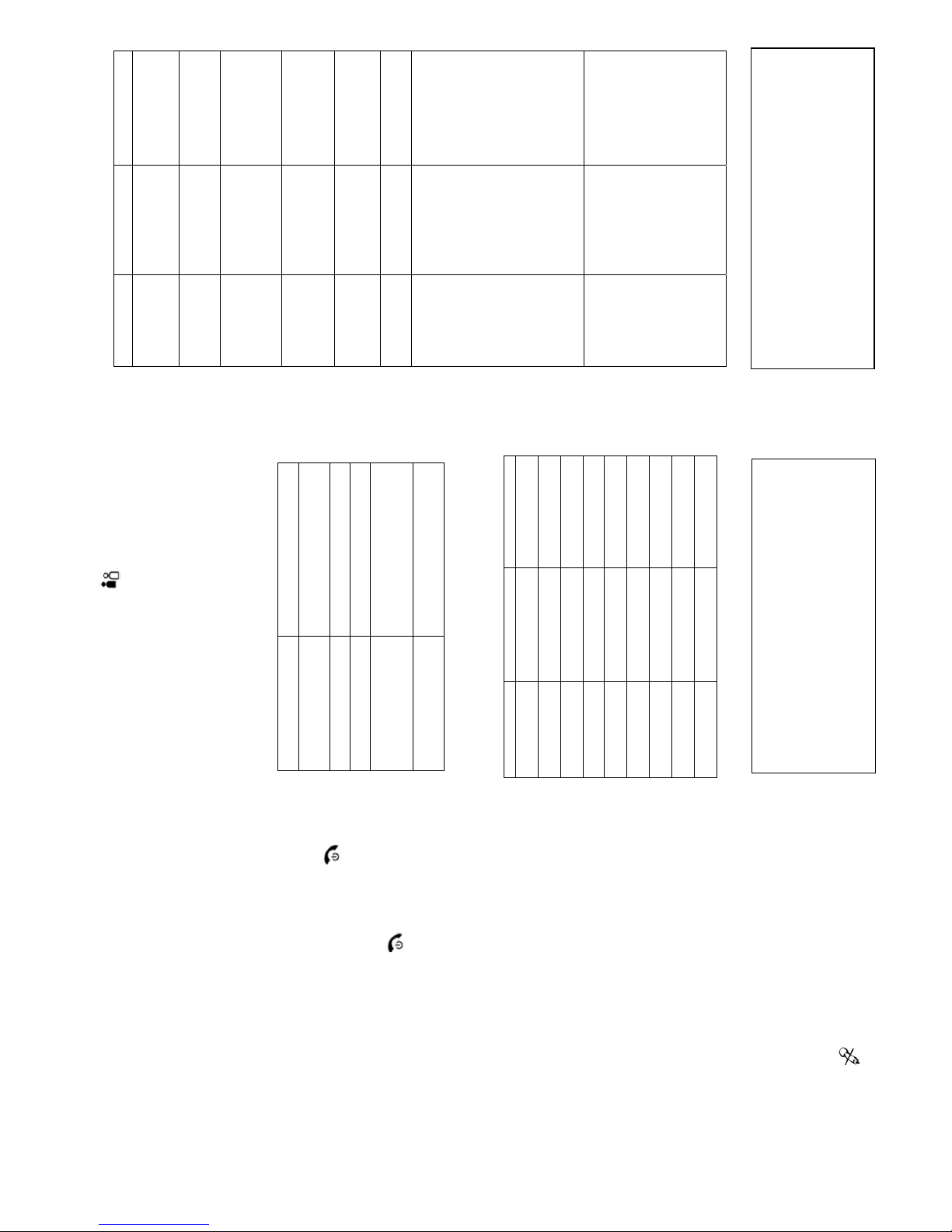
Two LEDs (blue and amber) indicate the status of the headset:
Status Indication
Battery is full While charge cable is connected
amber LED is OFF
Battery is low Amber LED flashes
Headset is off Both LEDs are OFF
Headset is in standby
mode, ready to make and
receive calls
Blue LED flashes at three -second
intervals
Headset is in pairing mode Blue and amber LEDs flash
alternately.
Audible Indicators
Tones heard through the headset provide an audible indication of a
requested action:
Tone name Sound Indicates
ON Ascending (3 notes)
Headset has been
turned on
OFF Descending (3 notes) Headset is about to
turn off
PAIRING Low/High (2 notes) Headset is in pairing
mode.
RINGING Double 4 note cadence Incoming call
REJECT CALL Low/High (2 notes,
repeated) Call has been rejected
CALL WAITING Beep (1 note,
repeated) 2nd call incoming
LOW BATT Beep (1 note, repeated
32 secs) Battery needs charged
MUTED Beep (1 note, repeated
4 secs) Microphone is muted
TRANSFER Beep Transfer from headset
to phone
DISCLAIMER
Whilst every effort has been made to ensure that the information in this
manual is accurate and complete, no liability will be accepted for any
errors and/or omissions made. The manufacturer reserves the right to
make changes and improvements to the specifications and features of
the hardware and firmware of the products described in this document
without prior notice. Reproduction, transfer, distribution or storage of
part or all of the contents in this document in any form is prohibited
without prior permission of the manufacturer. All trademarks
acknowledged.
TROUBLESHOOTING
PROBLEM CAUSE ANALYSIS SOLUTION
Headset will not go
into pairing mode
Headset must be
switched off completely
before it will go into
pairing mode
Switch off headset and
then try to put it in paring
mode again.
Phone cannot find
headset
Headset is not in pairing
mode or is too far away
from phone
Ensure headset is within
one or two metres of the
phone and that it is in
pairing mode.
Pairing fails PIN error or PIN entry
error
1. Make sure you enter
the correct PIN code /
Passkey. For the
headset it is 0000.
2. Don’t take too long to
enter the PIN code
Bluetooth link is not
established
automatically on
incoming or
outgoing calls
Pairing information in
phone or headset has
been cleared.
Try pairing again
No voice is heard
from the headset
when a call is
established
Manual switching of
voice is needed for
some phones.
Use phone menu to
transfer voice to the
headset.
No voice from
phone and headset
Bluetooth function of
phone is not working
Use phone menu to
transfer voice to the
speakerphone
Noise / crackling
can be heard
during a call
Your phone signal is
poor.
The headset is too far
away from the phone or
there is a metal
obstruction.
1. Make sure your
phone connection is
OK
2. Don’t take too long to
enter the PIN code
Make sure the
headset and phone
are not too far away
from each other and
that neither is
shielded by any metal
objects or even your
body.
3. A nearby device is
interfering with the
call. Move away from
it.
1. Voice dialling
does not work
2. You cannot
transfer calls
from headset
to your phone
3. Last number
redial does not
work
4. Call waiting
does not work
5. Call reject
does not work
Your mobile phone may
not support this feature
1.Make sure your phone
supports the feature
in general and over
Bluetooth
2.If in doubt delete your
headset from the list
of Bluetooth devices
in your phone and try
pairing them again.
Customer Support: In addition to the troubleshooting table on the
this page you can get support on the PMR support forum at this web
address http://www.esktech.com/forums/
For other PMR Bluetooth products or support, please contact PMR
Technology Ltd
Web:www.pmrtechnology.co.uk
Email: support@pmrtechnology.co.uk
Version: QSGMAUNIV-Ve