Raz Memory User manual
RAZ Memory
Cell Phone
USER GUIDE
Please retain the User Guide for future reference.
The User Guide is available on our website at:
www.razmobility.com/support/memorycellphone

2 3
GENERAL DESCRIPTON
The RAZ Memory Cell Phone is an easy-to-use
picture phone for people with memory loss
or intellectual disabilities. The Phone ensures
that individuals with dementia or intellectual
disabilities stay connected with their loved ones
whether they are at home or away from home.
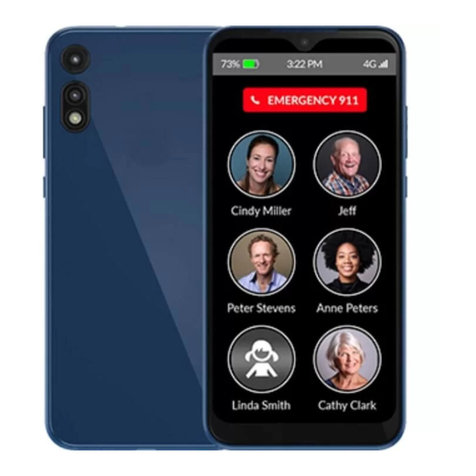
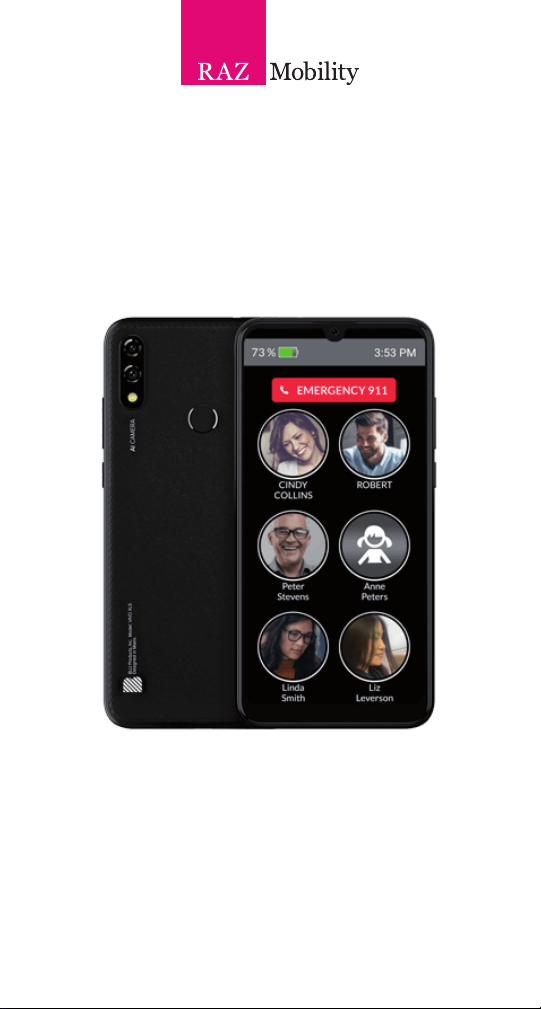
It consists of one primary screen, and one
screen only.
The screen includes 3 elements:
1. The pictures and names of up to
six contacts.
2. A button to call 911.
3. The time and battery power.
Up to six contacts are displayed as photos
or icons with names underneath. A single press
of a photo will initiate a call. The phone oers a
911 Emergency dial button as well.
The large display (6.3”) does not time out; it
is always on and ready to use. If desired, incom-
ing calls can be limited to those that originate
from Contacts, preventing unwanted calls,
such as predatory robocalls.
Loved ones can easily manage Contacts and as-
sociated phone numbers and photos via a simple
online portal. The portal also offers GPS tracking
and location information.
The phone is always “locked” to the home screen
that shows the Contacts. Users cannot exit the
home screen and get “lost” in the normal smart-
phone environment.
ITEMS SUPPLIED WITH THE
RAZ MEMORY CELL PHONE
• RAZ Memory Cell Phone
• Wall Charger
• Micro USB cable
• Earbuds
• User Guide
WIRELESS SERVICE
AND THE SIM CARD
In order for your RAZ Memory Cell Phone to
place and receive calls, you must have wireless
service. The phone works on the AT&T, T-Mobile
and other compatible networks in the United
States, such as Cricket Wireless, Mint Mobile,

4 5
Consumer Cellular, Red Pocket Mobile, Straight
Talk and Metro by T-Mobile. It does not work on
the Verizon or Sprint networks.
After you register for wireless service, you must
insert the SIM card into the Phone.
fully charged. It takes approximately two hours
to fully charge a battery.
To turn on your phone, long press the power
key. If you wish to turn it o , long press the pow-
er key and select Power O in the menu.
THE RAZ MEMORY CELL
PHONE ENVIRONMENT
In order to make the experience as simple as
possible, the user cannot exit the RAZ Memory
Cell Phone environment. In other words, the user
cannot access android applications, settings,
notifi cations … etc. The navigation buttons used
to navigate the Android environment have been
disabled.
CHARGING AND TURNING
YOUR PHONE ONOR OFF
Before you start using your RAZ Memory Cell
Phone, make sure that the phone is fully charged.
To do this, insert the Micro USB cable into the
charging port at the bottom of the phone and
insert the charger into an outlet.
Note that continuous overcharging may harm
long-term battery life. Accordingly, for best re-
sults, remove the USB cable after the device is

6 7
Do not try to use your phone without an active
SIM card installed. If you do, you may receive
an error message and your phone may exit the
RAZ Memory Cell Phone environment.
The RAZ Memory Cell Phone has one prima-
ry screen, which displays up to six contacts.
The only instances in which the user leaves
the primary screen is when he or she places a
call or receives a call. When the calls are over,
the phone will automatically go back to the
primary screen.
Furthermore, in keeping with the philosophy
of making the experience as simple as possi-
ble, the screen does not time out. As long as
the phone is not powered o, the screen will
always be visible.
In case you accidentally exit the RAZ Memo-
ry Cell Phone environment, you can re-enter
by tapping on the RAZ Phone App. A pop-up
will appear asking you which app to use as
“Home.” Select the RAZ Phone App and tap
“Always”.
VOLUME
The volume rocker is disabled; volume is always
set to maximum.
SPEAKERPHONE
There is no option to listen to a phone call on
speaker. The volume will always come from the
earpiece speaker.
MAKING AND
ANSWERING CALLS
Do not try to make phone calls before an ac-
tive SIM is inserted into the phone. If you do,
you may generate an error and exit the RAZ
Memory Cell Phone environment.
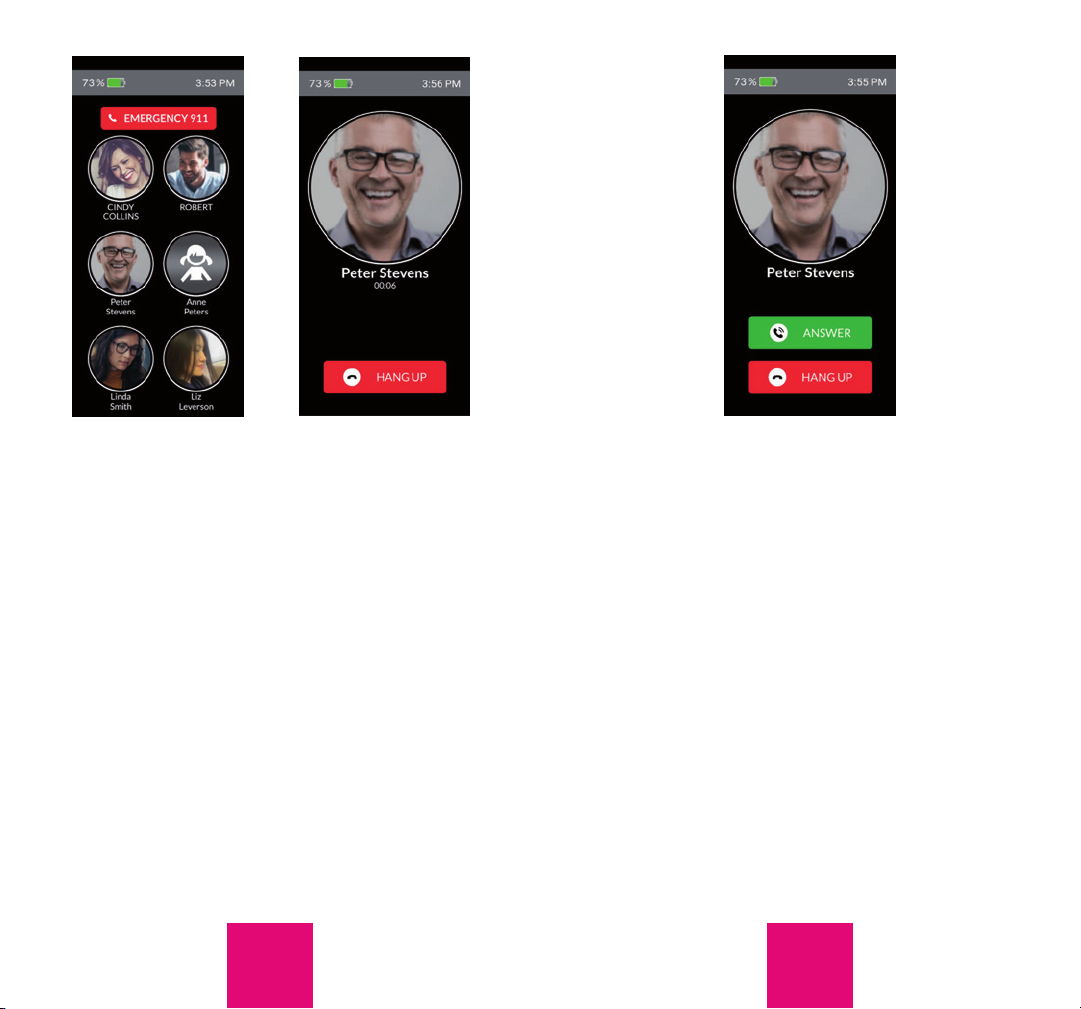
To place a call simply press and hold the picture
of the person you want to call. Once the call is
initiated, you will see a screen with a hang-up
button. Press and hold the hang-up button if
you wish to hang up.
8 9
VOICEMAIL
Consistent with its philosophy of keeping the
phone as simple as possible, the RAZ Memory
Cell Phone does not allow the user to access
voicemail.
When you receive a call, you will see a screen
that provides you the option to either Answer
or Hang Up. Select whichever option applies to
you. Again, you must press and hold.
CALLING 911
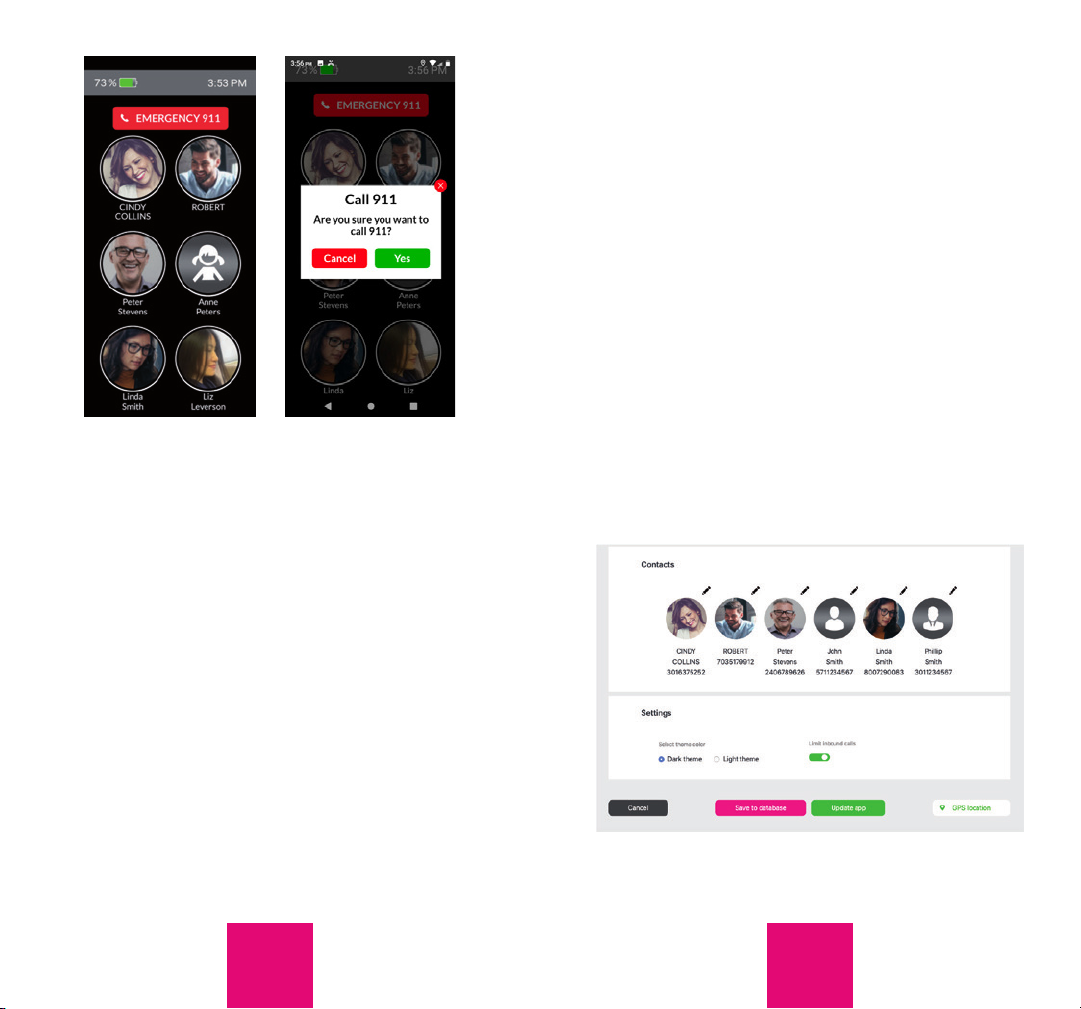
To dial 911 simply press and hold the dedicated
button labeled Emergency 911.
You will then see a screen that asks you to con-
rm that you want to dial 911. Press “Yes”, and
the 911 call will be initiated.
After a 911 call is initiated, the RAZ Memory Cell
Phone will exit the unique phone environment
and enter into the regular Android environment.
This is the only instance in which this will occur.
To re-enter the RAZ Memory Cell Phone envi-
ronment, tap on the RAZ Phone App. A pop
10 11
up will appear that asks what you want to use
as Home. Select the RAZ Phone App and tap
“Always”.
ACCESSING YOUR ACCOUNT
IN THE ONLINE PORTAL
The caregiver will be able to manage the phone
through a simple online portal. After the phone is
ordered you will receive an email with the user-
name and password to access your account. This
password can be changed in the online portal.
The link to the online portal is memorycellphone.
razmobility.com. The online portal will allow you
to do the following:
• Manage contacts, including
assigning contact icons and
uploading contact photos
• Check the location of the phone
• Limit incoming calls to contacts
• Select whether you want the
background of the phone to be
white or black.If possible, we
suggest black since it will
improve battery life.
• Change password
12 13
LIMITING INCOMING
CALLS TO CONTACTS
To limit incoming calls to individuals in the user’s
contacts, simply press the toggle labeled “Limit
incoming calls”. The toggle should appear green
like this: To be clear, this option will pre-
vent the user from receiving calls from anyone
other than his or her contacts in the portal.
BACKGROUND COLOR
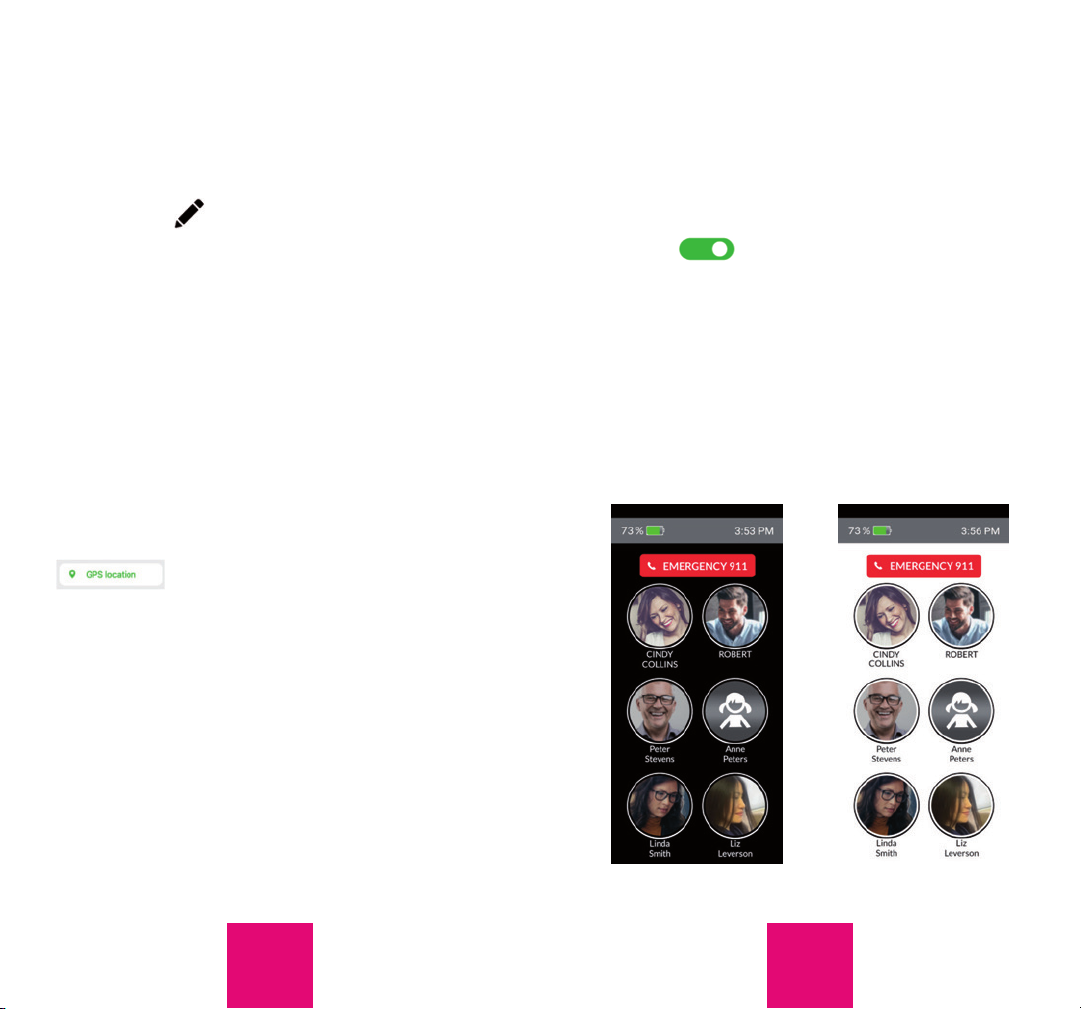
The background of the primary screen of the
phone can be set to either white or back:
MANAGING CONTACTS
You can add up to six contacts in the portal.
You will see six circles, each representing a
contact. To add, delete or edit a contact, tap
the symbol. You can edit rst name, last
name, phone number and the picture. To add
a picture, tap the Upload button.
If desired, you can save a contact with a picture
only, without adding a name.
PHONE LOCATION
To obtain the phone’s location, log into your
account in the portal, scroll down to the bot-
om of the screen, and tap on GPS location
. You will see a map with up to three
pins identifying the phone’s location. The location
is updated every 15 minutes. If the phone has
not moved in approximately the last 45 minutes,
you will see one pin. If the phone is moving, you
will see two or three pins, with each pin repre-
senting a location of the phone. If you click on a
pin, you will see the address and a time stamp
indicating the date and time that the phone
was at that location.

14 15
NOTES
.....................................
.....................................
.....................................
.....................................
.....................................
.....................................
.....................................
.....................................
.....................................
Additional Information
Additional information regarding your RAZ
Memory Cell Phone, including videos and FAQs,
can be obtained here: www.razmobility.com/
support/memorycellphone
CUSTOMER SUPPORT
Phone: 1-800-729-0083
Web chat: www.razmobility.com
Email: support@razmobility.com

RAZ Memory Cell Phone User Guide
2020_01
Other manuals for Memory
2
Table of contents
Other Raz Cell Phone manuals